How do I activate an Xbox key?
You redeem an Xbox code on your Microsoft account: on the website, on Xbox Series X|S or Xbox One, in the Microsoft Store or Xbox app on Windows, or in your phone's browser. It takes about two minutes. The game lands on your account at once, ready to install. Your account's country or region must match the code's region.
Shop Xbox keysBefore you start
You need a free Microsoft account. It's the one account for Xbox, Windows and the website. No account yet? Follow Set up Xbox below first.
Your Microsoft account's country or region must match the region on your Andalu order. Microsoft only lets you change it when you actually move, so check before you redeem.
Sign in with the account you want the game on. A redeemed code can't be moved to another account.
For DLC or an add-on, you need the base game on the same account.
Have your code ready: 25 characters in five groups of five (XXXXX-XXXXX-XXXXX-XXXXX-XXXXX).
The first time you redeem, Microsoft may ask you to add a payment method and billing address. Microsoft says you won't be charged; it only checks that your account can use the Store.
Bought Windows, Office or other Microsoft software? It's activated somewhere else: see Windows, Office and Minecraft keys below.
Get your key from Andalu
Your key arrives by email, never on the order page.
- 1
Open the email for your order. Its subject names what you bought and includes your order number, like "Elden Ring, Steam: your key is ready (#42101)".
Can't find it? Your order confirmation page opens your inbox already searched for it: select the button named for your email service, such as Open Gmail. Check spam and promotions too.
- 2
Select Get your order. Your key is on the page it opens. If the email shows the key itself, under Your key, it's right there.
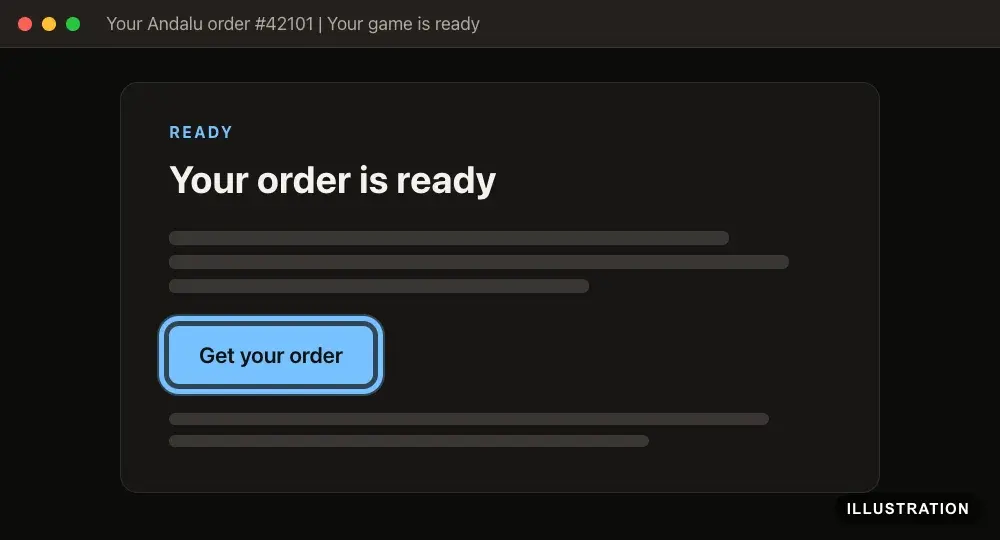
Illustration of your Andalu order page - 3
Copy the key exactly as shown, so no character is mistyped.
Set up Xbox (first time only)
Skip this if you already play on Xbox or sign in to Windows with a Microsoft account: that's the account to use. Microsoft's own guide: How to create a new Microsoft account.
- 1
Go to signup.live.com.
- 2
Enter your email address.
- 3
Select Next.
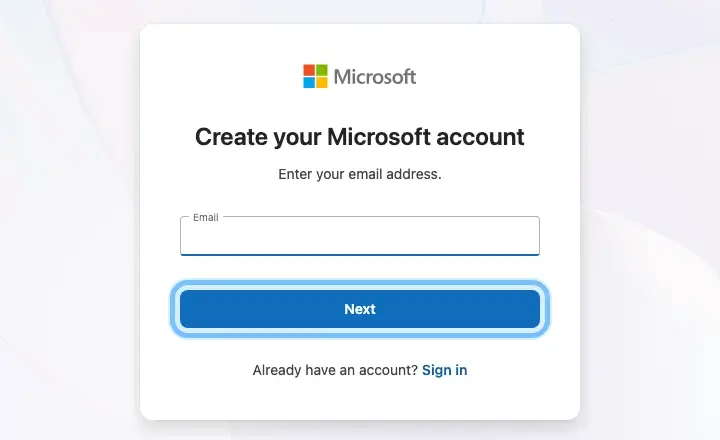
- 4
Follow the screens to finish creating your account.
When Microsoft asks for your country or region, choose the one you live in. It decides which codes work on your account.
- 5
On your Xbox, sign in with the same Microsoft account.
- 6
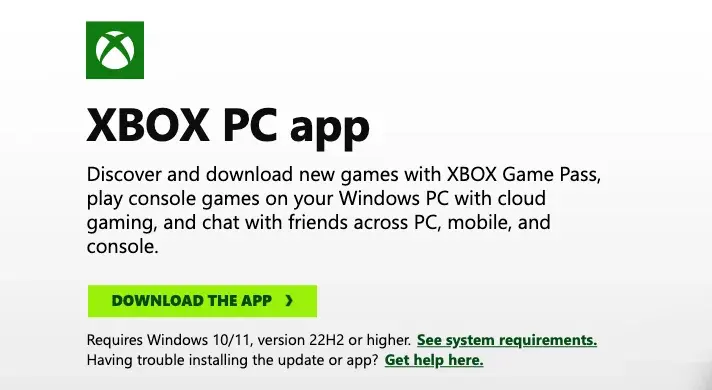
Playing on a Windows PC? Go to the Xbox PC app page.
- 7
Select DOWNLOAD THE APP.
It needs Windows 10 or 11, version 22H2 or higher. The Microsoft Store app is already part of Windows 10 and 11, so it needs no download.
On a Mac or a phone there's nothing to install: redeem on the website.
- 8
Run the installer you downloaded.
- 9
Sign in to the Xbox app with your Microsoft account.
- 10
Recommended: turn on two-step verification in your Microsoft account's security settings, so nobody else can use your account.
Redeem on the website
Works in any browser, on a computer or a phone. Microsoft's own guide: Redeem a gift card or code to your Microsoft account.
- 1
Go to redeem.microsoft.com.
- 2
Sign in with the Microsoft account you want the game on.
- 3
Paste your 25-character code into the box.
- 4
Select Next.
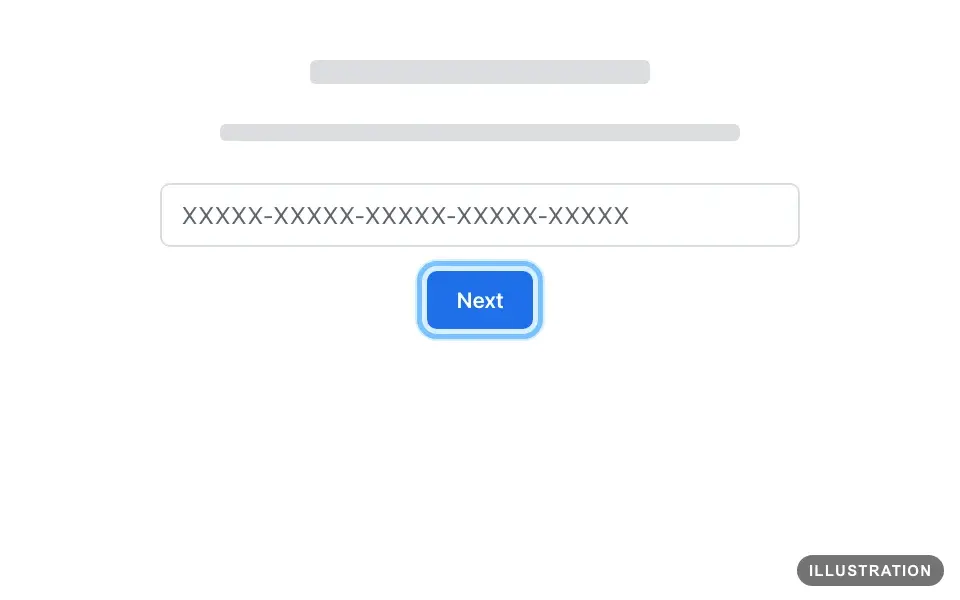
Illustration drawn from the platform's own guide · see the original - 5
Follow the prompts on screen to finish.
- 6
The game is now on your account. Follow Download it to your console or Download and install it on a PC below.
Redeem on Xbox Series X|S or Xbox One
Xbox's own guide: How to redeem gift cards, codes, and offers.
- 1
Press the Xbox button on your controller to open the guide.
- 2
Select Store.
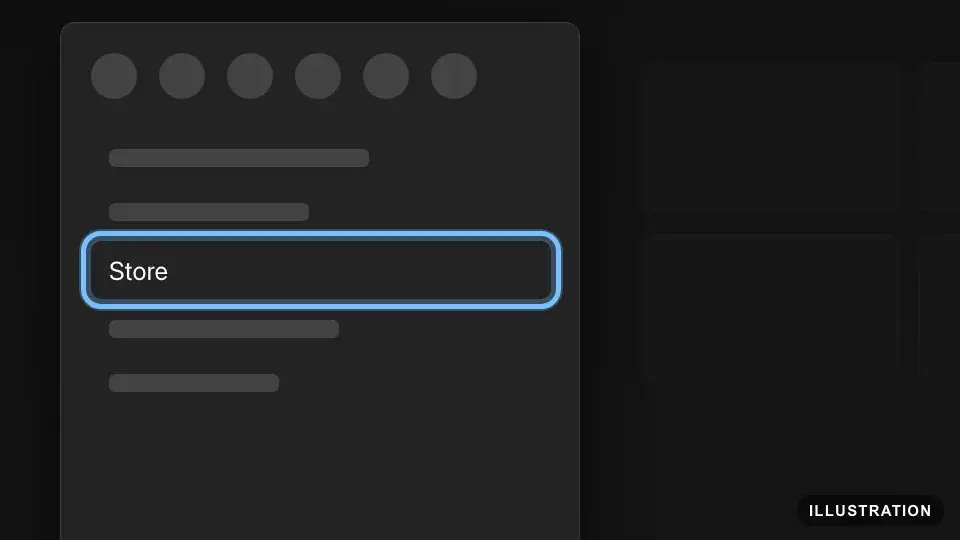
Illustration drawn from the platform's own guide · see the original - 3
Press the View button on your controller to open the side menu.
- 4
Select Redeem.
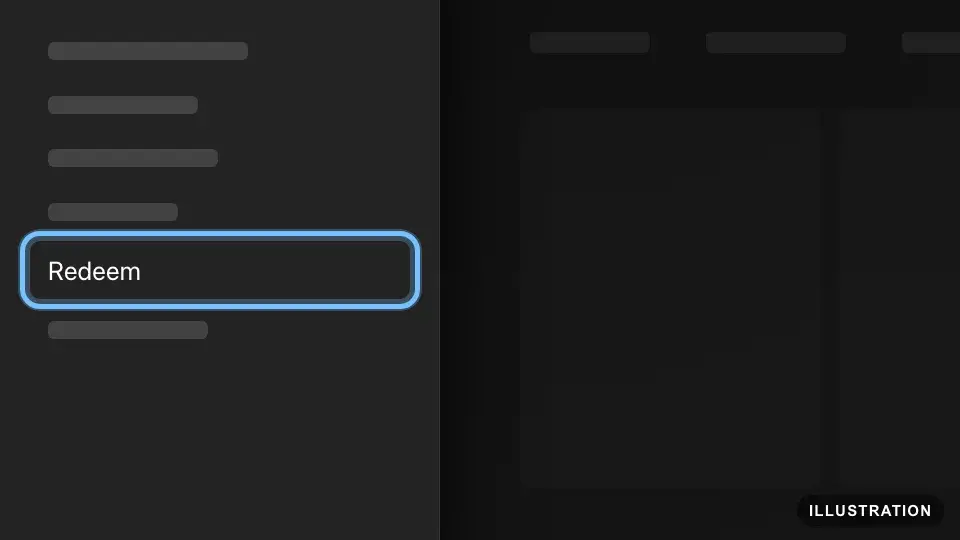
Illustration drawn from the platform's own guide · see the original - 5
Enter your 25-character code with the on-screen keyboard.
- 6
Select Next.
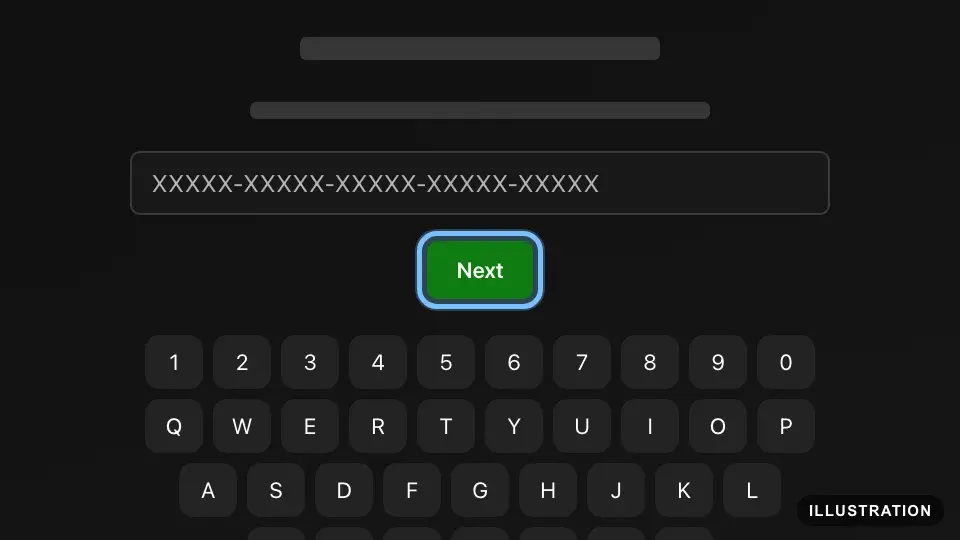
Illustration drawn from the platform's own guide · see the original - 7
Follow the prompts on screen to finish.
To watch the download, open My games & apps, then Manage, then Queue.
- 8
If the game doesn't start downloading, follow Download it to your console below.
Redeem in the Microsoft Store app
For a Windows 10 or 11 PC. Microsoft's own steps: Redeem your Xbox digital code.
- 1
Open the Microsoft Store app. To find it, press Start and type store.
- 2
Select your account picture in the top-right corner of the window.
- 3
Select Redeem code or gift cards.
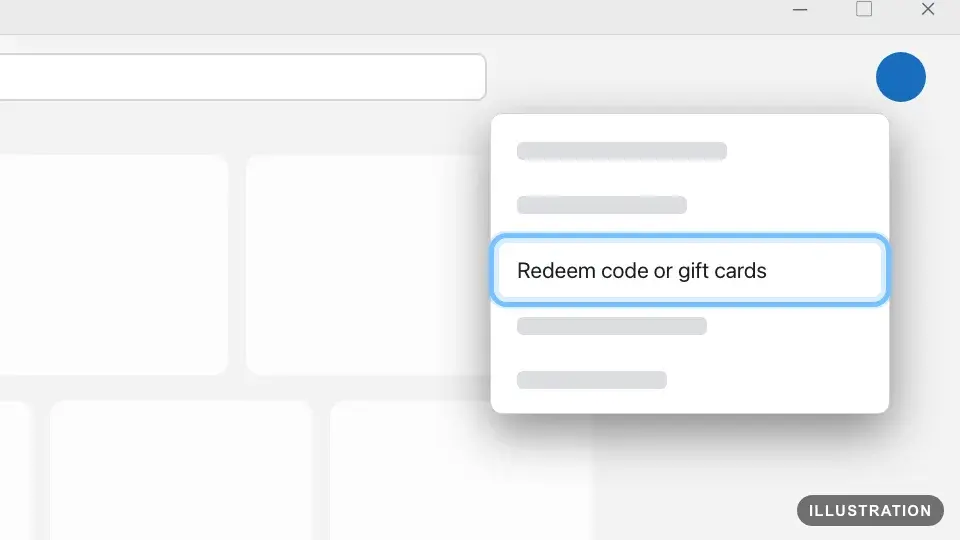
Illustration drawn from the platform's own guide · see the original - 4
Enter your 25-character code.
- 5
Select Next.
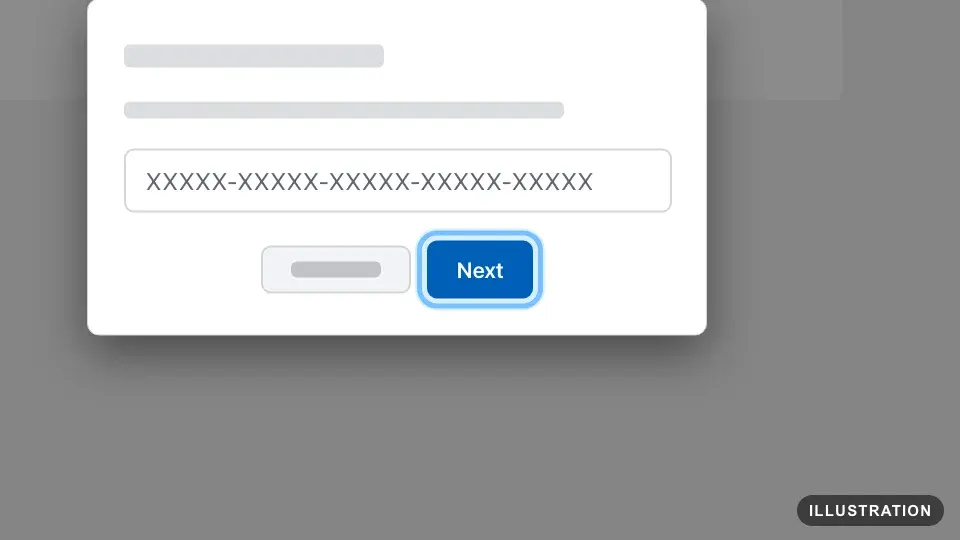
Illustration drawn from the platform's own guide · see the original - 6
Follow the prompts on screen to finish.
- 7
The game is now on your account. Follow Download and install it on a PC or Download it to your console below.
Redeem in the Xbox app for PC
For a Windows 10 or 11 PC with the Xbox app installed. Xbox's own guide: How to redeem gift cards, codes, and offers.
- 1
Open the Xbox app. To find it, press Start and type Xbox.
- 2
Select your gamerpic (your profile picture) in the top-left corner.
- 3
Select Settings.
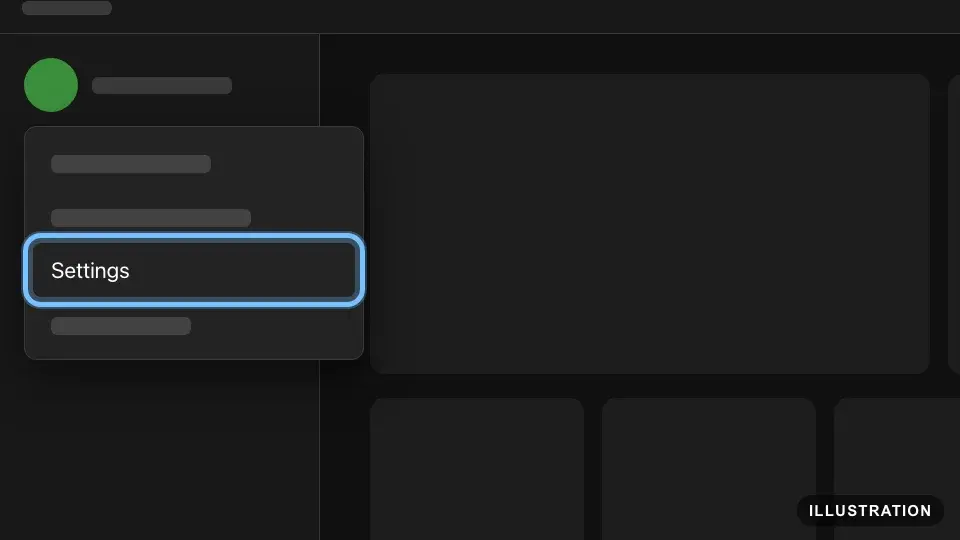
Illustration drawn from the platform's own guide · see the original - 4
Under Redeem a code, select Redeem.
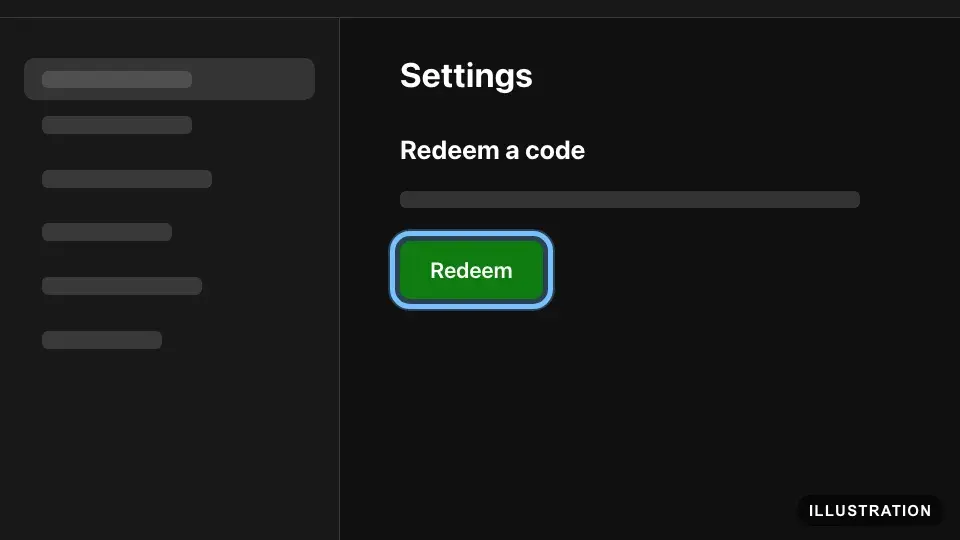
Illustration drawn from the platform's own guide · see the original - 5
Enter your 25-character code.
- 6
Select Next.
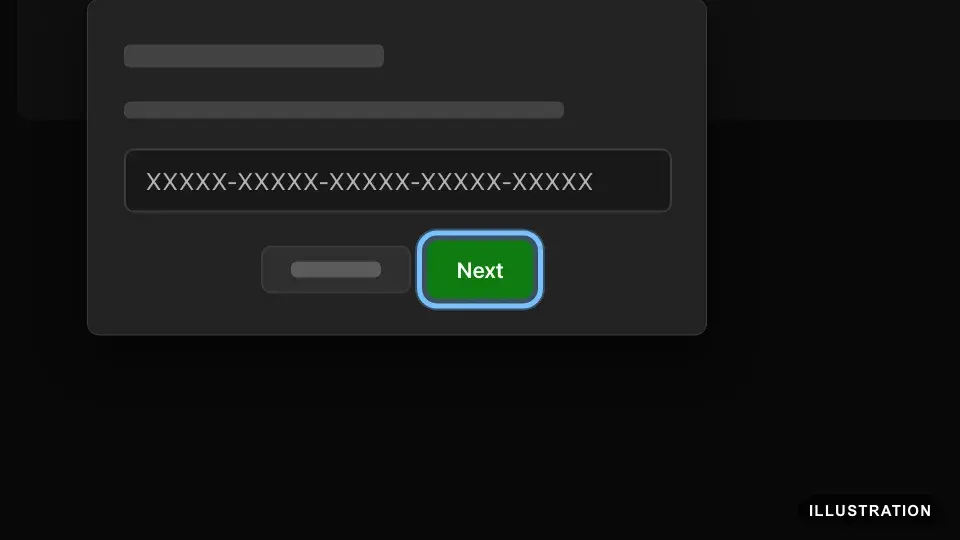
Illustration drawn from the platform's own guide · see the original - 7
Follow the prompts on screen to finish.
- 8
The game is now on your account. Follow Download and install it on a PC or Download it to your console below.
Redeem on your phone
Use your phone's web browser, not the Xbox app: Microsoft's redeem page says codes can't be redeemed in the Xbox mobile app at this time. Microsoft's own page: xbox.com/redeem.
- 1
Open your phone's browser and go to xbox.com/redeem.
- 2
Tap SIGN IN TO REDEEM.
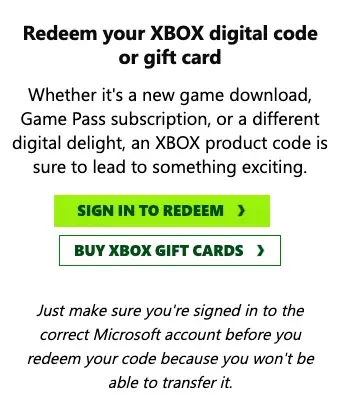
- 3
Sign in with the Microsoft account you want the game on.
- 4
Paste your 25-character code into the box.
- 5
Tap Next.
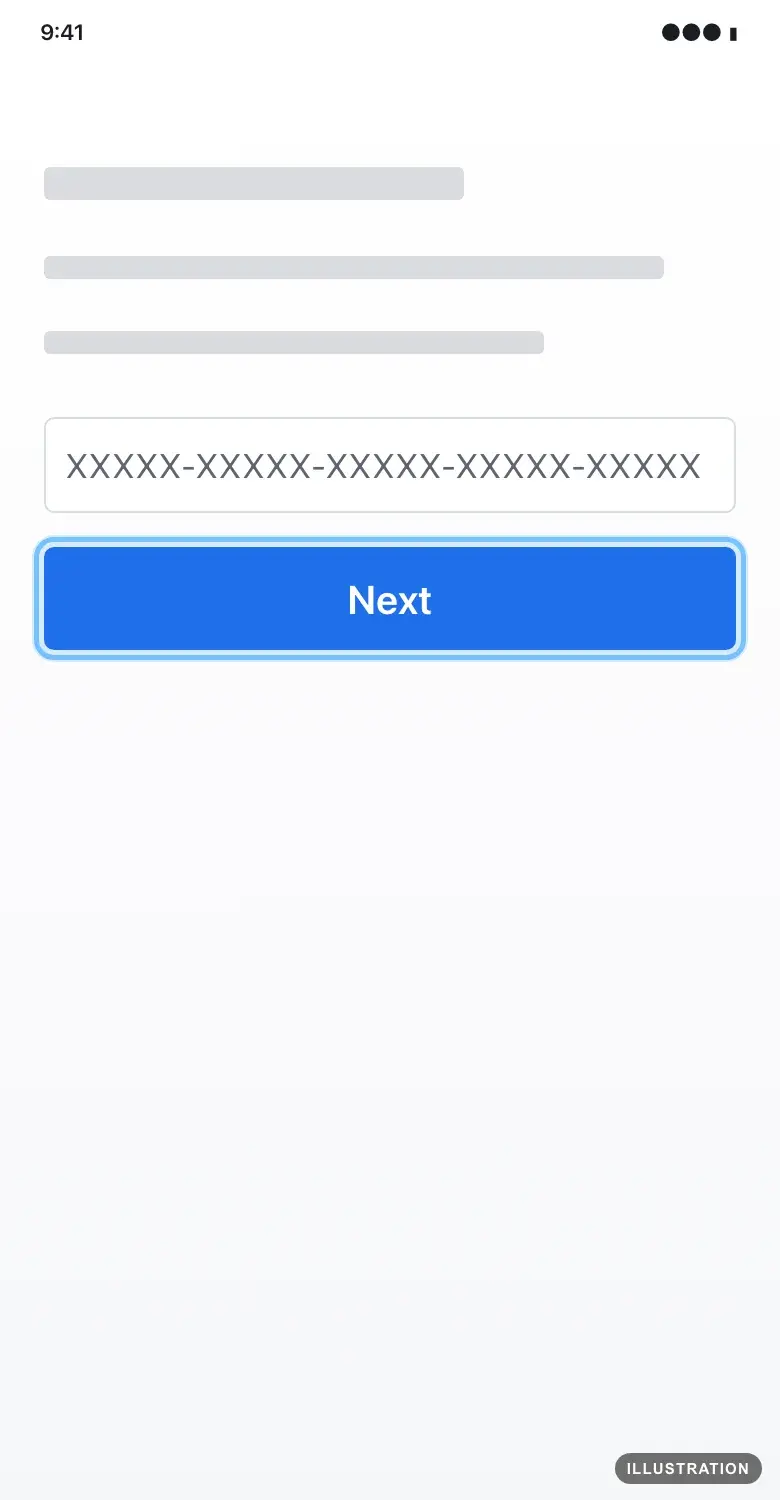
Illustration drawn from the platform's own guide · see the original - 6
Follow the prompts on screen to finish.
- 7
The game is now on your account. To send it to your Xbox from your phone, see Download it to your console below.
Download it to your console
For a code you redeemed on the website, your phone or a PC. Your Xbox installs it by itself if its power mode is Sleep and Keep my games & apps up to date is turned on. Otherwise, install it yourself. Xbox's own guide: Find your games and add-ons.
- 1
On your Xbox, press the Xbox button to open the guide.
- 2
Select My games & apps.
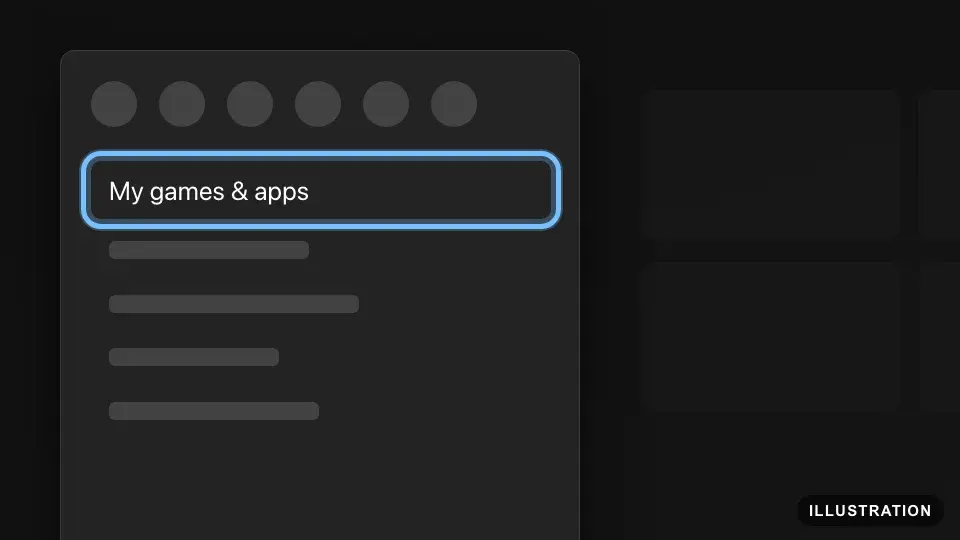
Illustration drawn from the platform's own guide · see the original - 3
Select See all.
- 4
Under Full library, select Owned games.
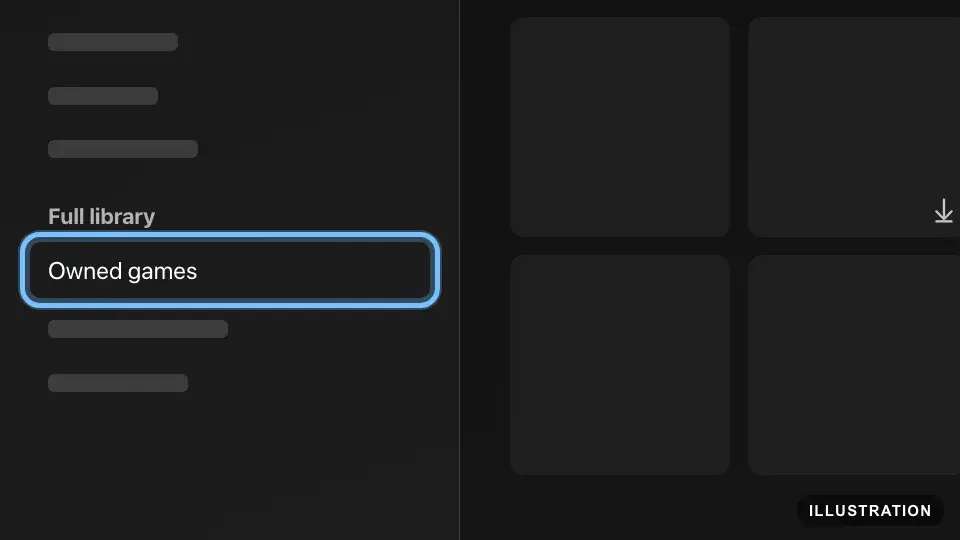
Illustration drawn from the platform's own guide · see the original - 5
Select the game. A game that isn't installed yet shows a download icon.
- 6
Select Install all, or Choose what to install. When it's installed, select the game to play.
- 7
Away from your Xbox? Open the Xbox app on your phone, signed in with the account that owns the game.
- 8
Go to the My Library tab.
- 9
Select Games.
- 10
Find the game and select Download to console. The download starts on your Xbox, ready to play when you're back.
This needs remote features turned on at your Xbox: Profile & system, Settings, Devices & connections, Remote features, then Enable remote features, with the power mode set to Sleep.
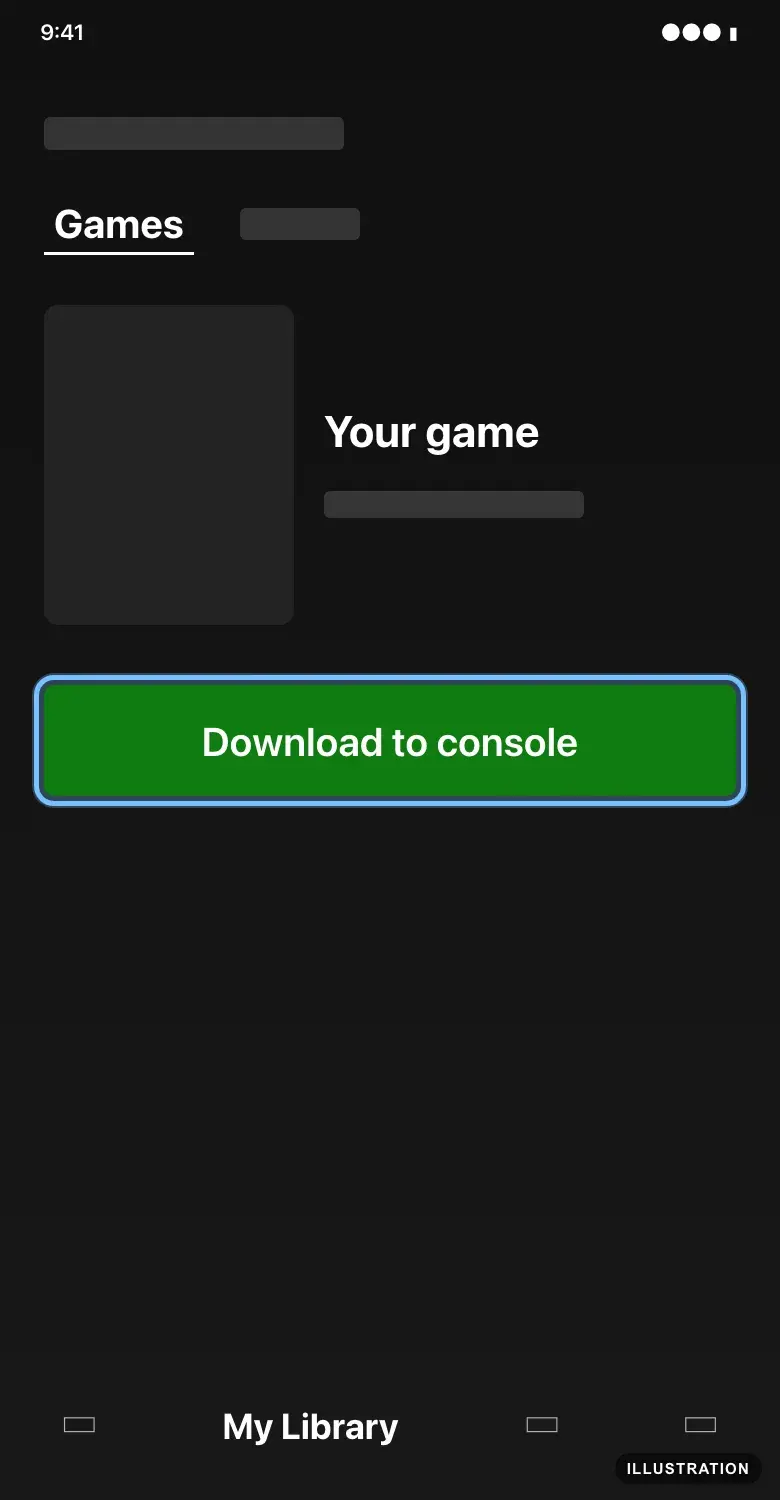
Illustration drawn from the platform's own guide · see the original
Download and install it on a PC
For a PC game you redeemed on any route. Microsoft's own guide: Find and install your Microsoft downloads.
- 1
On your Windows PC, open the Microsoft Store app.
- 2
Select Library.
- 3
Select Games.
- 4
Select the Download icon next to the game.
Using the Xbox app instead? Select My Library, tick Owned, then select the game and install it.
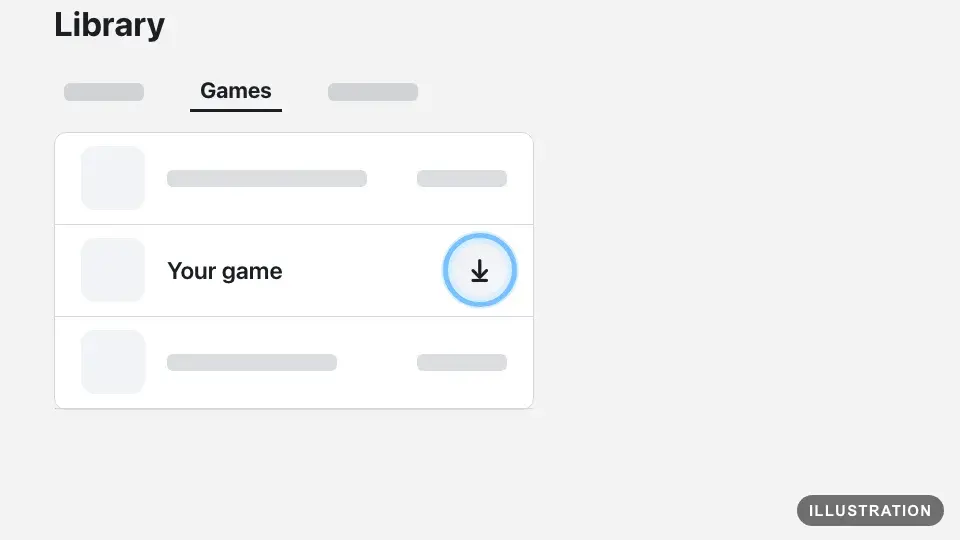
Illustration drawn from the platform's own guide · see the original - 5
When it's installed, open the game from your Library to play.
Confirm it works
Every code you redeem is listed in your Microsoft account at account.microsoft.com, under Payment & billing, then Order history.
On Xbox, the game is in My games & apps, See all, Full library, Owned games straight away, even before it installs.
On Windows, it's in the Microsoft Store app's Library, or in My Library in the Xbox app. The Xbox app only lists games that run on your PC.
Add-ons are listed under their game: highlight the game in My games & apps (don't open it), press the Menu button, then select Manage game and add-ons.
In-game currency and items appear inside the game, in its store or your character's inventory. Some only unlock after you reach a certain point in the game.
Can't find it? Check you're signed in to the account you redeemed on, then sign out and back in.
By key type
Base game
The code adds the full game to your Microsoft account. Install it from Owned games on Xbox, or from the Microsoft Store or Xbox app on Windows, and play. Games with the Xbox Play Anywhere badge in the Microsoft Store play on Xbox and on a Windows 10 or 11 PC from one purchase at no extra cost, with your saves and add-ons shared.
Edition upgrades
An upgrade code adds the extra content of a bigger edition to a game you own. Xbox doesn't document upgrade codes on their own, so treat one like DLC: redeem it on the account that owns the game, then find the content with that game's add-ons. Highlight the game in My games & apps, press the Menu button and select Manage game and add-ons.
DLC and season passes
DLC, expansions and season passes only work with their base game, so you need the base game on the same account. After redeeming, install them from Manage game and add-ons for that game. A season pass unlocks content as the publisher releases it, so some items arrive later. Items like outfits or currency often appear only inside the game, sometimes in a "My content" or messages area.
Multi-packs
A pack is one code. Redeem it once and everything in the pack is added to your account. When you install, you can install it all or choose which items to install. If something listed on the product page is missing, contact us.
Pre-orders
You can play from release day in your region, usually shortly after midnight local time. If the game doesn't show in My games & apps, search for it in the Store and select Install: you won't pay again. If you see a price instead of Install, don't buy it; contact us.
Region-specific keys
Most Xbox keys on Andalu are sold for one country or region, such as the United States, Europe or Argentina. Microsoft's rule: a code for a specific country or region only redeems on a Microsoft account set to match, and your account should be set to where you live. The region is on your Andalu order and the product page. To see your account's region, sign in at account.microsoft.com and select Your info. If they don't match, don't keep trying: contact us.
Changing your account's region isn't a way around this. Microsoft only allows it when you move to another country, blocks it within three months of the last change, and doesn't move the money in your Microsoft account with you. Microsoft also doesn't allow a VPN to be used to redeem a code from another region, and may block the transaction or limit your account.
Wallet, currency and subscription codes
Gift card and currency codes add money to your Microsoft account balance, in your account's currency. A code in one currency can't be redeemed on an account in another; Microsoft's example is a Canadian dollar card on a U.S. account. See your balance at account.microsoft.com under Payment & billing, then Payment options.
Game Pass and other subscription codes add time to your subscription, up to a limit of 13 to 36 months depending on your country. Some are for new members only, and a code can't pay off a balance you owe. Some items named a membership, such as one game's VIP pass, are add-ons for that game: treat them like DLC. On a child account in a family group, Microsoft says approval isn't needed to use currency or Xbox gift cards.
Windows, Office and Minecraft keys
These are not redeemed with the Xbox steps above:
Microsoft Office: go to setup.office.com, sign in with your Microsoft account, and enter the 25-character key. If it isn't accepted, don't keep trying: contact us.
Windows: on your PC, open Settings, then System, then Activation, and select Change product key. On Windows 10, Activation is under Update & Security.
Minecraft: redeem on Minecraft's own page, minecraft.net/redeem, signed in with your Microsoft account.
Other Microsoft software, such as Project, Windows Server, SQL Server or Visual Studio: contact us if you're not sure where the key goes.
Troubleshooting
| What you see | What it means | What to do |
|---|---|---|
XBOS3004: "This code doesn't match your location." | The code is for a different country or region than your Microsoft account | Don't retry. Compare the region on your order with your account's Your info page, then contact us with your order number |
XBOS3004: "Redeem a different code. The code you are attempting to redeem is for a currency that does not match your account location." | A gift card or currency code in a different currency from your account | Don't retry. Contact us with your order number |
"Incorrect region" | Your Xbox's location setting doesn't match where you live, or the code is for another region | On your Xbox, check Profile & system, Settings, System, Language & location is set to where you live. If the code is for another region, don't retry: contact us |
A message that the code is invalid or incorrect | Usually a typing mistake | Copy the code from your order and paste it. Xbox codes never use A, E, I, O, U, L, S, 0, 1 or 5, so if you typed one of those, a character was misread. Still failing? Contact us |
A message that the code has already been redeemed | It was used before, maybe on another of your Microsoft accounts or by someone in your household | Check Order history on each account you use. If it isn't there, contact us with your order number |
You're asked for a payment method or billing address | Normal the first time you redeem | Add them. Microsoft says nothing is charged; it only checks your account can use the Store |
XBOS3008 | A failed attempt was retried, or your Xbox subscription is suspended or has a balance due | Check the Xbox status page. Pay any balance on your account's Subscriptions page (a code can't pay it), then try once more |
A Game Pass or other subscription code won't redeem | It would take your subscription past the 13 to 36 month limit, or it's for new members only | Wait until your subscription is under the limit, or contact us |
"Something happened on our end. Waiting a bit might help" | A temporary problem at Microsoft | On the website, refresh or use a private window. In the Store app, close and reopen it. Still failing? Wait 24 hours |
"VPN detected" | Microsoft needs the redeem to come from your account's home region | Turn off the VPN, then try again |
"Your account is blocked from buying in Microsoft stores" | A privacy or family setting blocks purchases, or the account is restricted | Review the privacy settings on your Microsoft account, or ask your family organizer to check them |
The game redeemed but isn't on your Xbox | The console is signed in to a different account | Sign in to the account you redeemed on and look in Full library, Owned games |
An add-on redeemed but you can't find it | Add-ons are listed under their base game, and some unlock inside the game | Highlight the game in My games & apps, press the Menu button, select Manage game and add-ons |
Frequently asked questions
Still stuck?
Contact us with your order number and the exact message you see, word for word, including any error code. We reply by email, usually within a day. If the code can't be used, buyer protection covers you for 24 hours after delivery.