How do I activate a Battle.net key?
You redeem a Battle.net code on your Blizzard account. Use the Battle.net website, the Battle.net desktop app for Windows or Mac, or the Battle.net mobile app. The game is added to your account, and you install it from the desktop app. Some codes, such as World of Warcraft codes, only work on an account from the same region.
Before you start
You need a Battle.net account. No account yet? Follow Set up Battle.net below first. It's free.
Most games install through the Battle.net desktop app, which runs on Windows and Mac. You can redeem without it, on the website or your phone.
Check the region on your Andalu order. A key for one region, such as Europe, only works on a Battle.net account from that region.
Log in with the account you want the game on. Blizzard's rule: a code can be redeemed only once, and once redeemed it can't be sold, traded or gifted.
For an expansion, such as Diablo III: Reaper of Souls, the base game must be on the same account.
Have your code ready. Copy it from your order and paste it: some characters, such as B and 8, are easy to mix up when you type.
Get your key from Andalu
Your key arrives by email, never on the order page.
- 1
Open the email for your order. Its subject names what you bought and includes your order number, like "Elden Ring, Steam: your key is ready (#42101)".
Can't find it? Your order confirmation page opens your inbox already searched for it: select the button named for your email service, such as Open Gmail. Check spam and promotions too.
- 2
Select Get your order. Your key is on the page it opens. If the email shows the key itself, under Your key, it's right there.
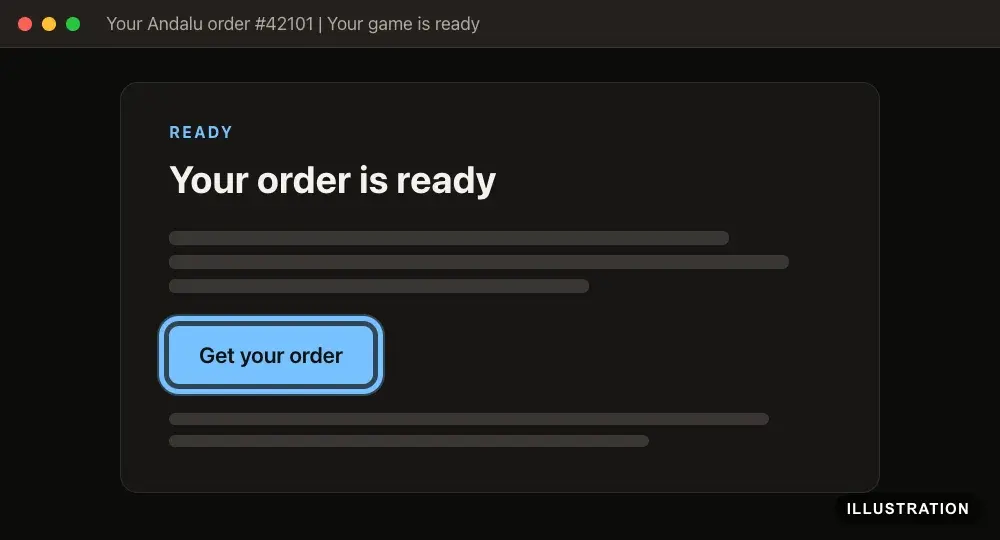
Illustration of your Andalu order page - 3
Copy the key exactly as shown, so no character is mistyped.
Set up Battle.net (first time only)
Skip this if you already play games on Battle.net. Blizzard's own guide: How to Create a Battle.net Account.
- 1
Go to the Battle.net sign-up page.
- 2
Enter your email address or phone number in Email or Phone, then select Continue.
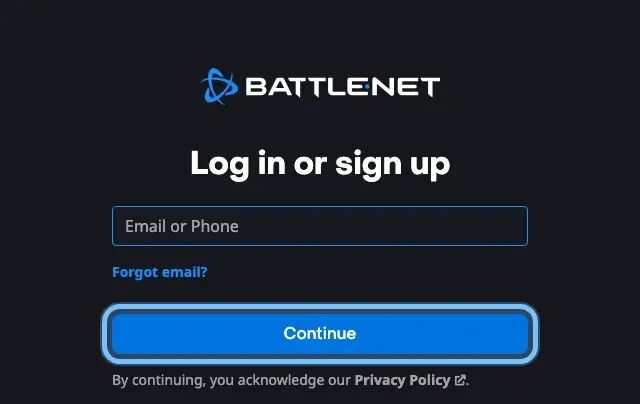
- 3
Follow the steps on screen to create your account.
When asked for your country, choose the one you live in. Blizzard sets your account's region from it, and the region decides which codes your account accepts.
Setting up an account for a child? In some countries, children under a certain age can't own an account. Use the For my child option in Blizzard's guide instead.
- 4
Verify your email address. If your account page says it's unverified, select Resend Verification Email and follow the email Blizzard sends.
- 5
On your computer, go to the Battle.net download page and select Download for Windows or Download for Mac. The page shows the button for the computer you're on.
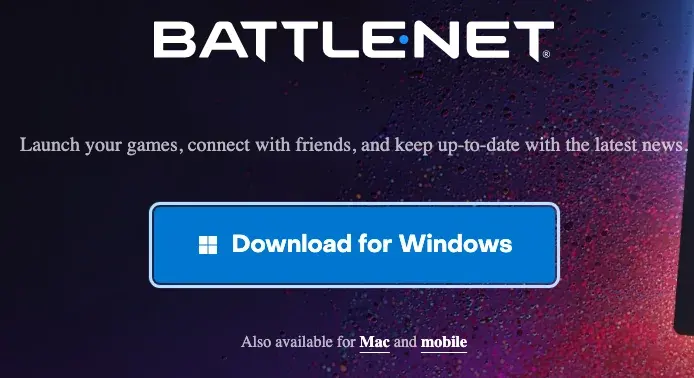
- 6
Open the file you downloaded and follow the prompts to install the Battle.net app.
- 7
Open the Battle.net app and log in with your Battle.net account.
- 8
Optional: to redeem from your phone, get the Battle.net mobile app from the mobile download page. It needs Android 5.0 or iOS 16.0 or later.
- 9
Recommended: turn on the Battle.net Authenticator, which adds two-factor authentication to keep your account secure. In the Battle.net mobile app, tap the menu icon at the top left, then tap Authenticator and wait for the setup to finish.
Turning it on logs you out of the desktop app, your games and the mobile app once. Log back in.
Blizzard's own guide: Attaching a Battle.net Authenticator.
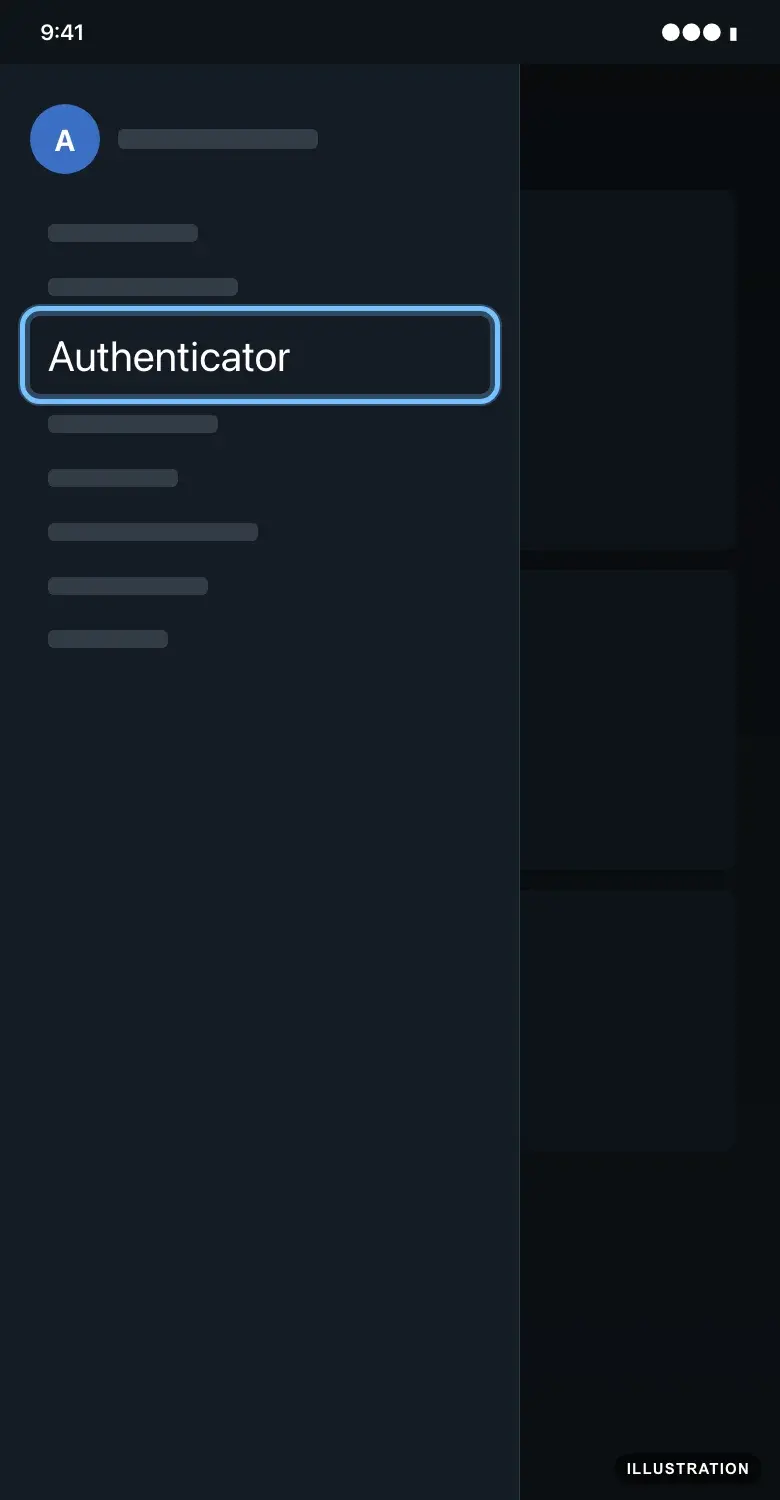
Illustration drawn from the platform's own guide · see the original
Redeem on the website
Works in any browser, on a computer or a phone. Blizzard's own guide: How to Redeem a Code.
- 1
Go to your Battle.net Account Overview and log in.
- 2
Paste your code into the Redeem a Code box.
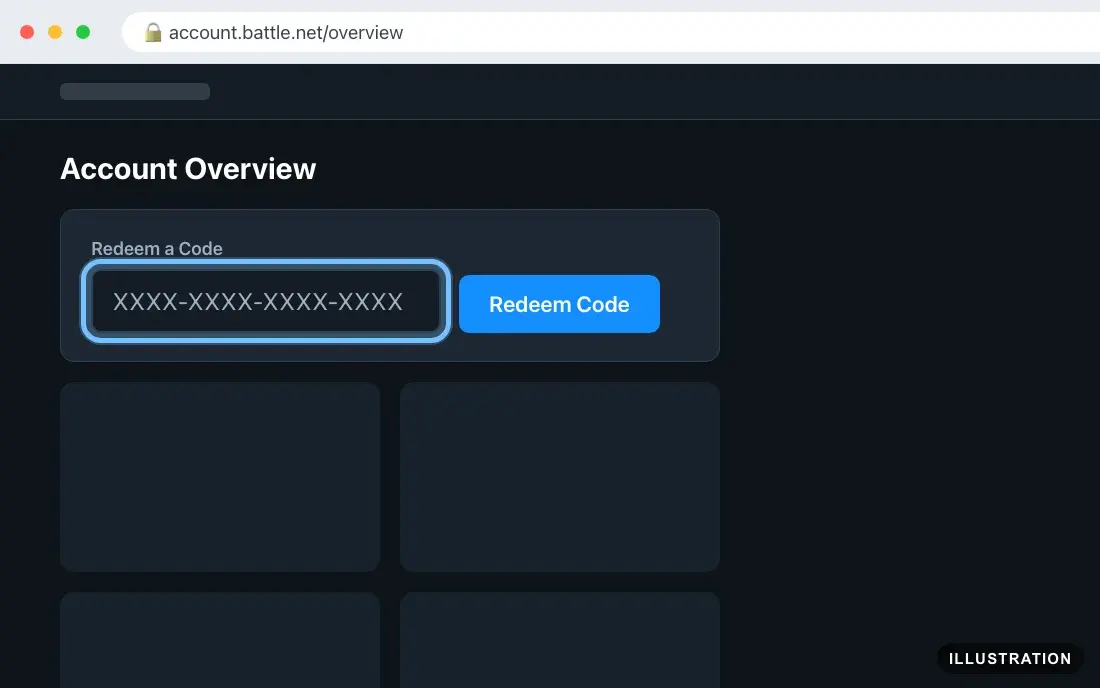
Illustration drawn from the platform's own guide · see the original - 3
Select Redeem Code, then follow any prompts on screen to finish.
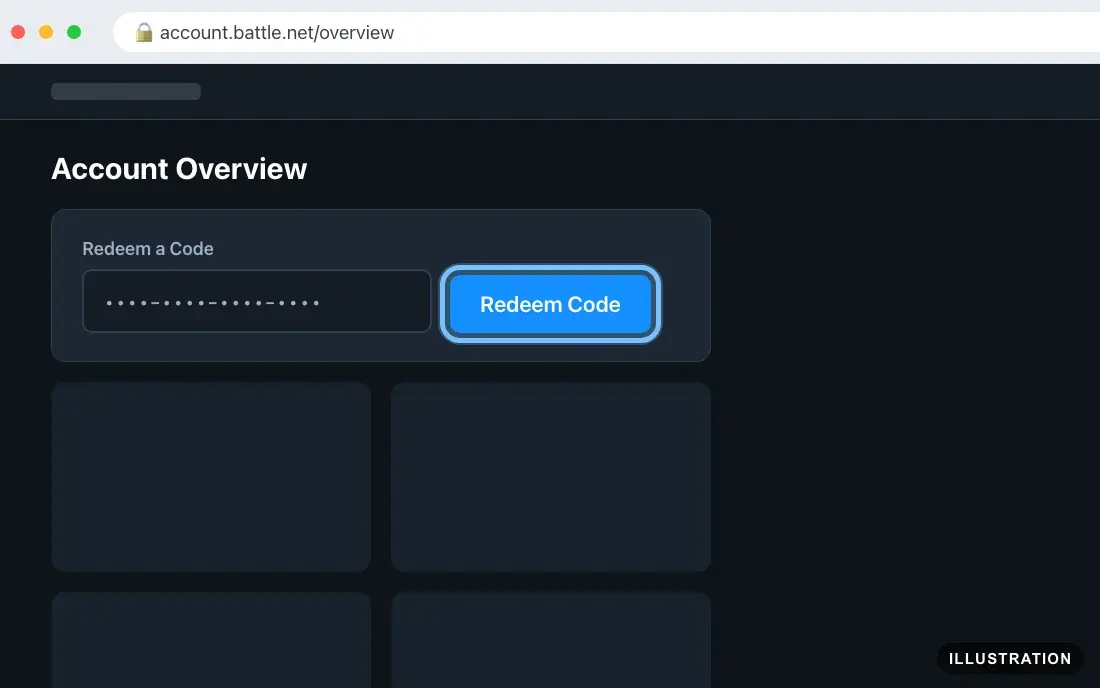
Illustration drawn from the platform's own guide · see the original - 4
The game is now on your account. Follow Download and install it below.
Redeem in the Battle.net desktop app
On a Windows PC or a Mac. Blizzard's own guide: How to Redeem a Code.
- 1
Open the Battle.net app and log in.
- 2
Select your profile icon at the top right of the app, then select Redeem Code.
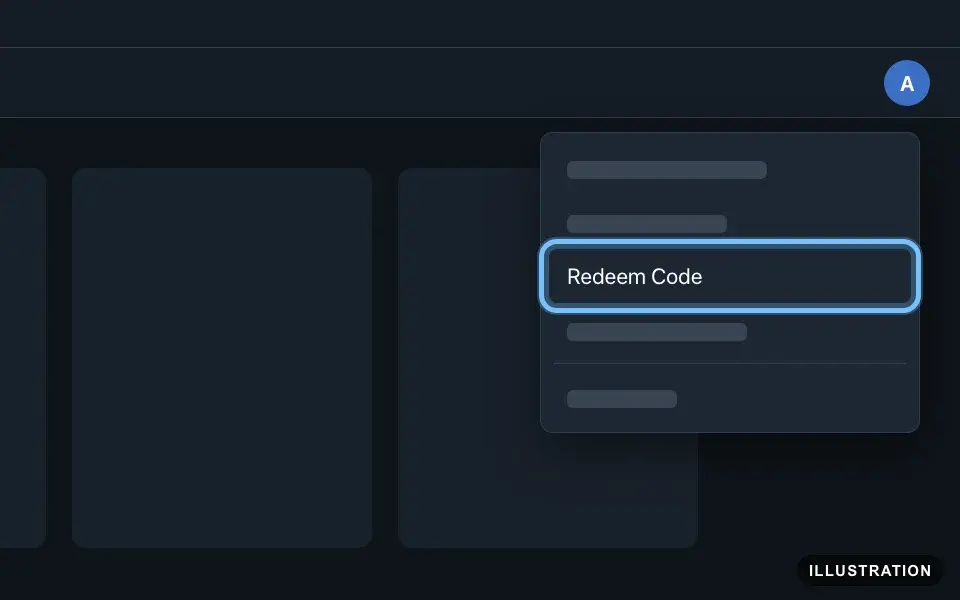
Illustration drawn from the platform's own guide · see the original - 3
Paste your code, then follow the prompts on screen to redeem it.
- 4
The game is now on your account. Follow Download and install it below.
Redeem on your phone
In the Battle.net mobile app, on Android or iOS. Log in with the same account you use on your computer. Blizzard's own guide: How to Redeem a Code.
- 1
Open the Battle.net mobile app and log in.
- 2
Tap your BattleTag (your player name) to open your profile, then tap Redeem Code.
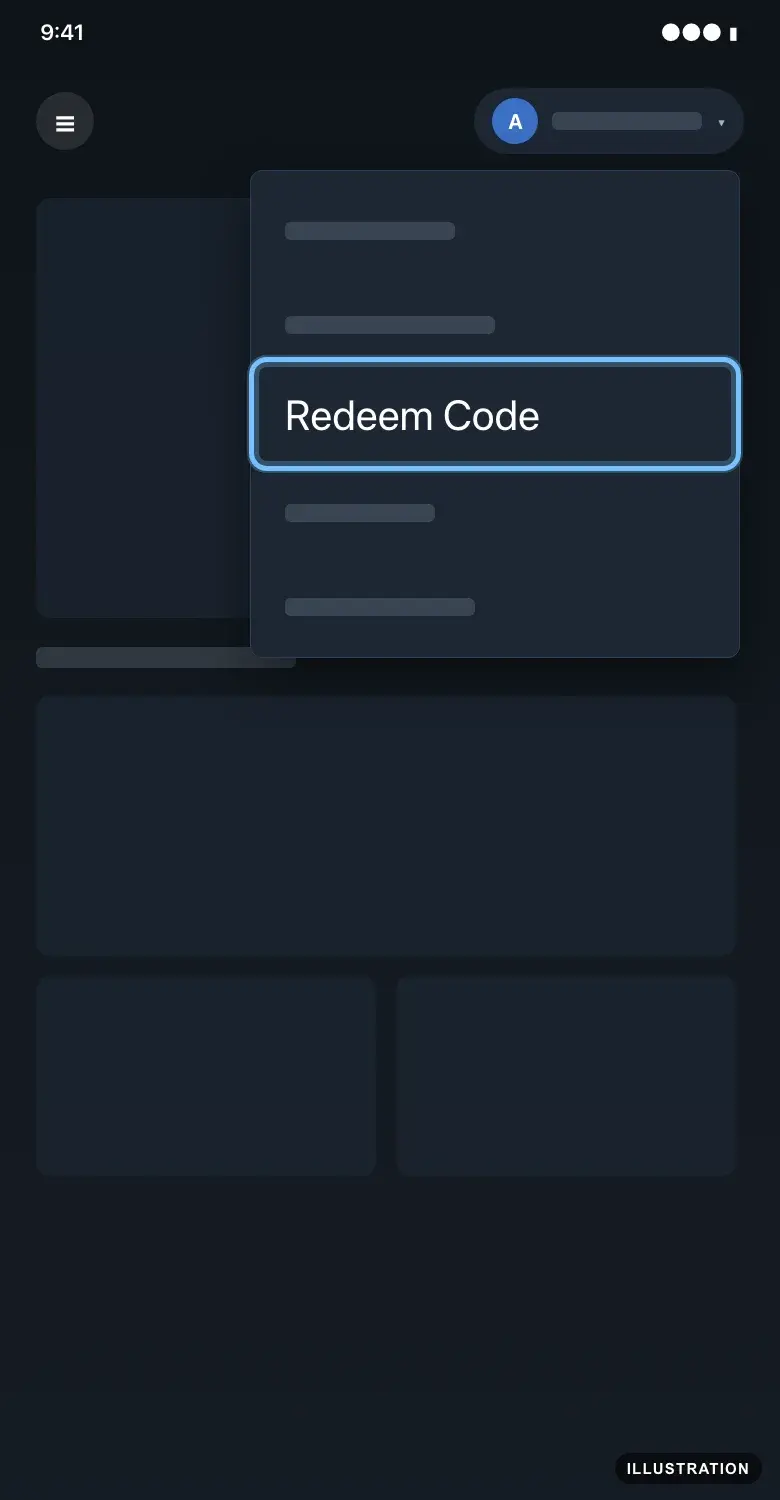
Illustration drawn from the platform's own guide · see the original - 3
Paste your code, then follow the prompts on screen to redeem it.
- 4
The game is now on your account. To play it, follow Download and install it below on your computer.
Download and install it
On the computer you play on. Blizzard's own guide: How to Download a Blizzard Game.
- 1
Open the Battle.net app and select your game.
- 2
Select Install. The app downloads and installs the latest version of the game.
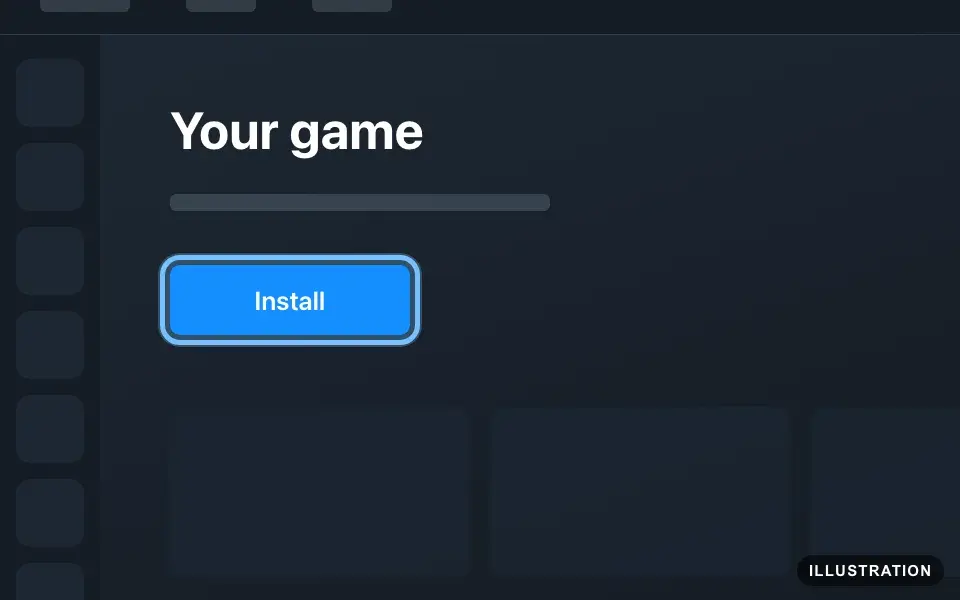
Illustration drawn from the platform's own guide · see the original - 3
When it's finished, select Play to start the game.
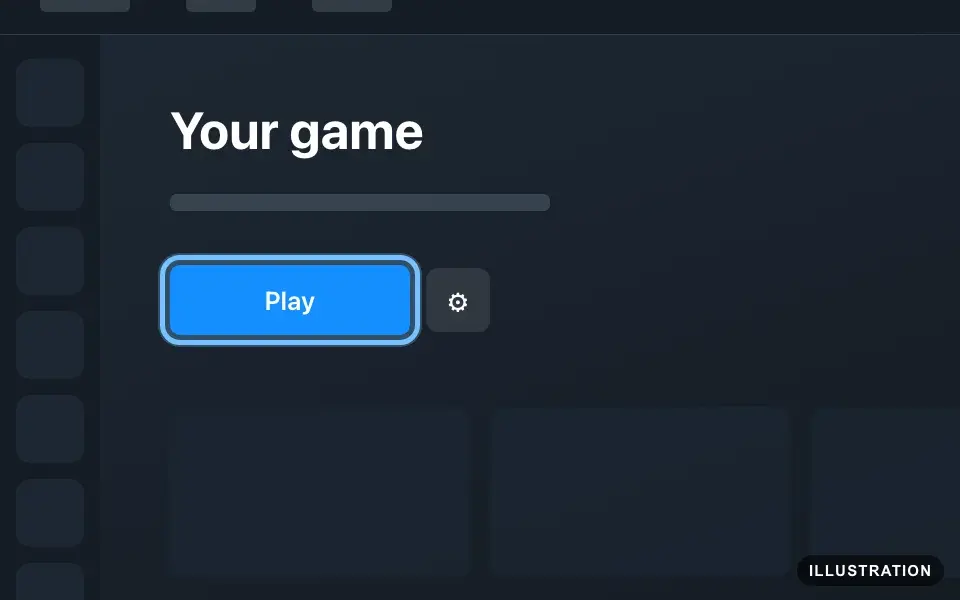
Illustration drawn from the platform's own guide · see the original - 4
Bought classic Diablo II or Diablo II: Lord of Destruction? It doesn't install from the app. Download it with the installers in Blizzard's guide: How to Install Diablo II and Diablo II: Lord of Destruction.
The installers are for Windows. Once the game is installed, start it and log in to Battle.net, and it offers to update itself to the latest version.
Confirm it works
Your game is listed under Games & Subscriptions on your Battle.net account once the code is redeemed.
In the Battle.net app, the game shows Install until you download it, then Play.
Reaper of Souls unlocks the Crusader class in Diablo III, and Rise of the Necromancer unlocks the Necromancer. Start Diablo III to play them.
In-game items, such as a Diablo IV item or a Heroes of the Storm hero, appear the next time you log into that game.
Can't find it? Check that the app and the website are both logged in to the account you redeemed on.
By key type
Base game
The code adds the full game to your Battle.net account. Install it from the Battle.net app, then play. Blizzard's Diablo III Battle Chest includes Diablo III and its expansion, Reaper of Souls.
Classic Diablo II and Diablo II: Lord of Destruction install with Blizzard's own installers instead of the app: see Download and install it above. Lord of Destruction is an expansion, and Blizzard says it requires Diablo II.
Some codes unlock an in-game item rather than a whole game, such as a Diablo IV item or a Heroes of the Storm hero. Redeem them the same way. The item appears the next time you log into that game. Blizzard says some codes, such as promotional codes, must be redeemed before an expiry date, so redeem yours soon.
DLC and season passes
Expansions and add-ons only work with the game they add to, so keep both on the same Battle.net account. Blizzard's rules for Diablo III: Reaper of Souls requires Diablo III, and Rise of the Necromancer requires Reaper of Souls. If you're redeeming both, redeem the base game first. Then start the base game to play the new content.
Region-specific keys
Some Battle.net codes belong to one region. Blizzard's rule: you can't use a code that doesn't belong to your region. World of Warcraft codes are locked to a region that can't be changed, and your World of Warcraft account's region must match the code.
Blizzard groups countries into three regions: Americas, Europe and Asia. Your account's region comes from the country of residence in your Battle.net account settings. The key's region is on your Andalu order and the product page. If they don't match, don't keep trying: contact us.
Wallet, currency and subscription codes
Redeem World of Warcraft game time on the website, from your Account Overview, and make sure your World of Warcraft account's region matches the code's region. A Battle.net Balance code only works when its currency matches your Battle.net Shop currency, which comes from your country of residence.
Troubleshooting
| What you see | What it means | What to do |
|---|---|---|
"Oops! The code you entered cannot be claimed. Please check the code and try again." | A typing mistake. These characters look alike: B and 8; G, 6 and C; 2, Z and 7; 4 and H; E and F; 5 and S | Copy the code from your order and paste it. Blizzard's message also says the site may be under maintenance, so try once more later, then contact us |
"This code has already been claimed!" or "An error has occurred. This code has already been claimed" | The code was used before, possibly on another Battle.net account of yours | Check Games & Subscriptions on each account you use. If it isn't there, contact us with your order number |
"You’ve already claimed this code.", "Good news! You already own this product" or "Key already redeemed on this account" | The code already worked on this account | Look under Games & Subscriptions. For an in-game item, log into the game |
"We can’t process this code at this time. Please try again later." | A code for a different region than your account, or a code that has been disabled | Don't keep retrying. Contact us with your order number |
"The code you entered has expired" | An older World of Warcraft expansion code that Blizzard no longer accepts | Contact us with your order number |
"This key is no longer in use!" | The expansion is now included free with its base game | Contact us with your order number |
"Oops! Something went wrong." when redeeming World of Warcraft game time | The wrong page, a region mismatch, or a browser problem | Redeem it from your Account Overview on the website. Clear your browser's cache and cookies, or try another browser. If the regions differ, contact us |
"Unable to Process" while creating an account | You're under the minimum age for an account in your country | A parent or guardian creates the account in their own name, with their date of birth |
An expansion doesn't work | Its base game isn't on this account | Redeem the base game on the same account: Diablo III for Reaper of Souls, Reaper of Souls for Rise of the Necromancer, Diablo II for Lord of Destruction |
The game isn't in the Battle.net app | The app is logged in to a different account | Log out and log in with the account you redeemed on. Check Games & Subscriptions on the website |
Diablo II or Lord of Destruction isn't in the app | Classic Diablo II doesn't install from the app | Use Blizzard's installers, as shown in Download and install it |
An in-game item isn't showing up | Items appear inside the game, not in the app | Log into the game with the account you redeemed on. Still missing? Contact us with your order number |
The game won't install, update or start | Damaged or out-of-date game files | Select the gear icon next to Play, then Scan and Repair or Check for Updates |
You were logged out everywhere after turning on the Authenticator | Normal: Blizzard logs you out once when it's first attached | Log back in |
Frequently asked questions
Still stuck?
Contact us with your order number and the exact message you see, word for word, including any error code. We reply by email, usually within a day. If the code can't be used, buyer protection covers you for 24 hours after delivery.