How do I activate an Epic Games key?
You redeem an Epic Games code on the Epic Games Store website, in any browser, or in the Epic Games Launcher on Windows or macOS. It takes about two minutes. The game is added to your Library at once, and you install it from the launcher. A region-specific code only works on an account whose country matches it.
Shop Epic Games keysBefore you start
You need an Epic Games account. No account yet? Follow Set up Epic Games below first. It's free.
If your order is for one region (Europe, for example), your Epic account's country must be in it. Epic only lets you change the country after a permanent move, and only once every 6 months, so check before you redeem.
Sign in with the account you want the game on. A redeemed code can't be moved: Epic's redeem page warns that funds and purchases can't be transferred between accounts.
For DLC or an add-on, you need the base game on the same Epic account first, or Epic refuses the code.
Have your code ready: copy it from your order exactly as shown. Epic's code field is laid out as four groups of five characters (XXXXX-XXXXX-XXXXX-XXXXX).
To install and play, you need the Epic Games Launcher on a Windows PC or a Mac.
Get your key from Andalu
Your key arrives by email, never on the order page.
- 1
Open the email for your order. Its subject names what you bought and includes your order number, like "Elden Ring, Steam: your key is ready (#42101)".
Can't find it? Your order confirmation page opens your inbox already searched for it: select the button named for your email service, such as Open Gmail. Check spam and promotions too.
- 2
Select Get your order. Your key is on the page it opens. If the email shows the key itself, under Your key, it's right there.
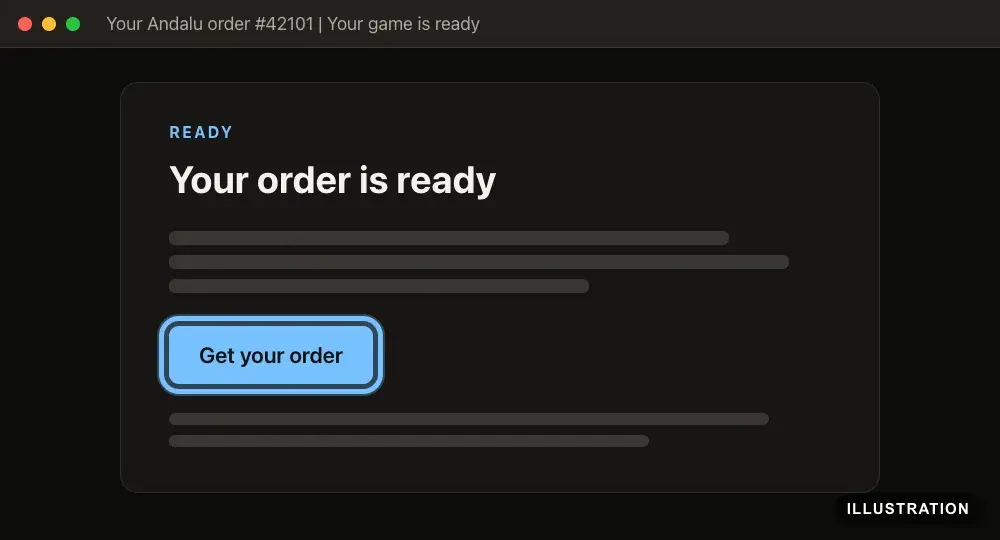
Illustration of your Andalu order page - 3
Copy the key exactly as shown, so no character is mistyped.
Set up Epic Games (first time only)
Skip this if you already have an Epic Games account. Played Fortnite, Fall Guys or Rocket League on a console? You may already have one, so sign in with that instead of making a new account. Epic's own guide: How to create an Epic Games account.
- 1
Go to the Epic Games sign-up page.
- 2
Enter your date of birth.
- 3
Select Continue.
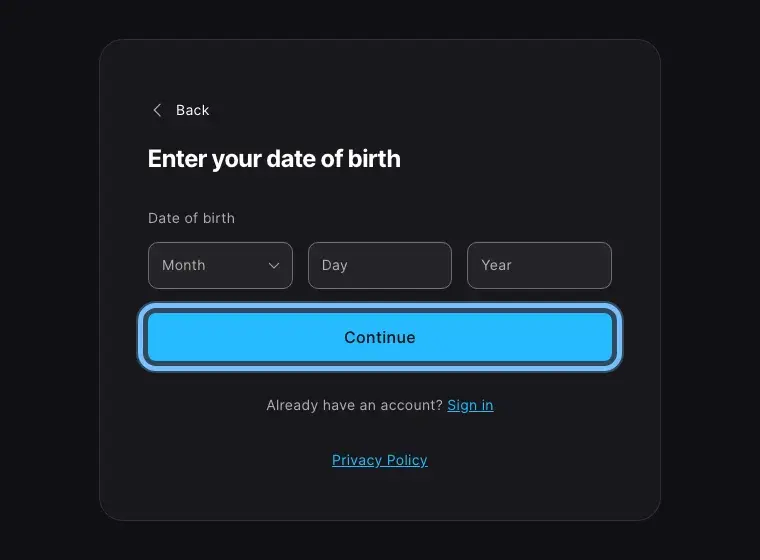
- 4
Follow the next screens, and select Continue after each: your email address, the details Epic asks for, then the 6-digit security code Epic emails you.
You can sign up with Google or Apple instead of an email address.
No code in your inbox? Select Resend code.
- 5
Epic offers to link a PlayStation, Xbox or Nintendo account. Link one if you want to, or select Done linking.
- 6
Go to the Epic Games Store download page.
- 7
Select Install on Windows or Install on MacOS. The page shows the one for your computer.
Epic's download page lists Windows 10 (64-bit), Windows 11 and macOS 10.13 or later. Linux isn't listed.
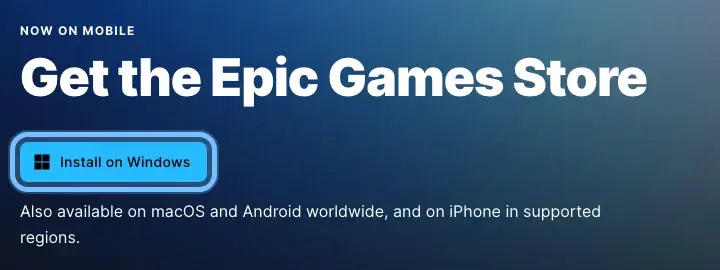
- 8
Open the file you downloaded and follow its steps to install the Epic Games Launcher.
- 9
Open the launcher and sign in with your Epic Games account.
- 10
Recommended: turn on two-factor authentication in the Password and security section of your Epic account. Then nobody can sign in with your password alone, and Epic requires it to claim some free games.
Redeem on the website
Works in any browser on a computer. Epic's own guide: How do I redeem a code to my Epic Games account?
- 1
Go to the Epic Games Store redeem page.
- 2
Select Sign in at the top right.

- 3
Sign in to the Epic Games account you want the game on. Already signed in? Check it's the right account.
- 4
Back on the redeem page, paste your code into the Redeem your product field.
- 5
Select Redeem.
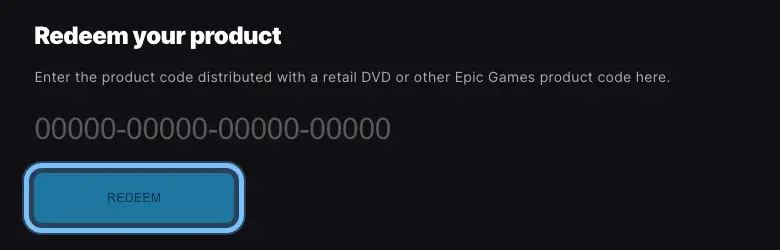
- 6
Epic shows a message that the code was redeemed. The game is now in your Library. Follow Download and install it below.
Redeem in the Epic Games Launcher
On your Windows PC or Mac, once the launcher is installed. Epic's own guide: How do I redeem a code to my Epic Games account?
- 1
Open the Epic Games Launcher and sign in.
- 2
Select your profile icon at the top right.
- 3
Select Redeem Code.
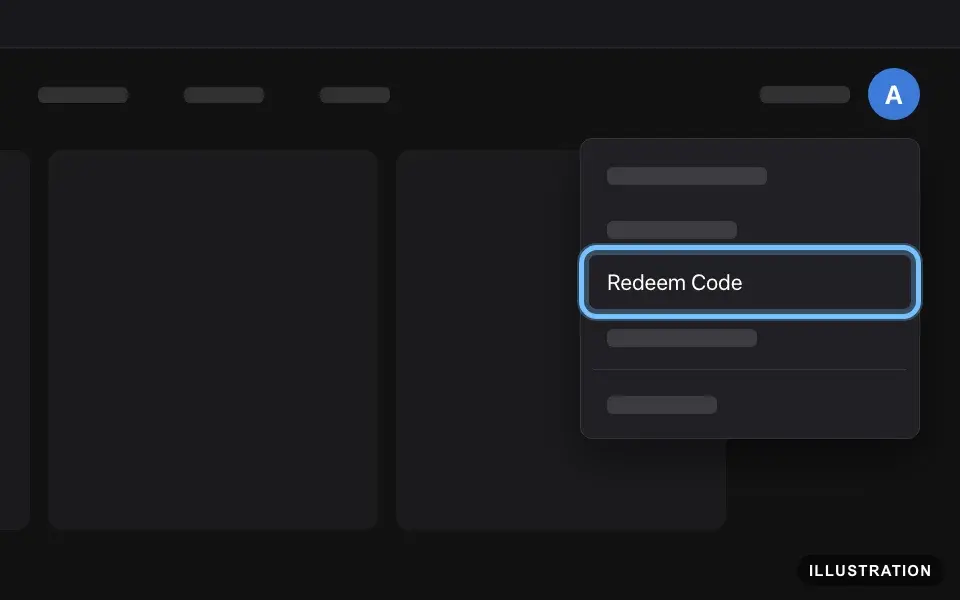
Illustration drawn from the platform's own guide · see the original - 4
Paste your code into the box.
- 5
Select Redeem.
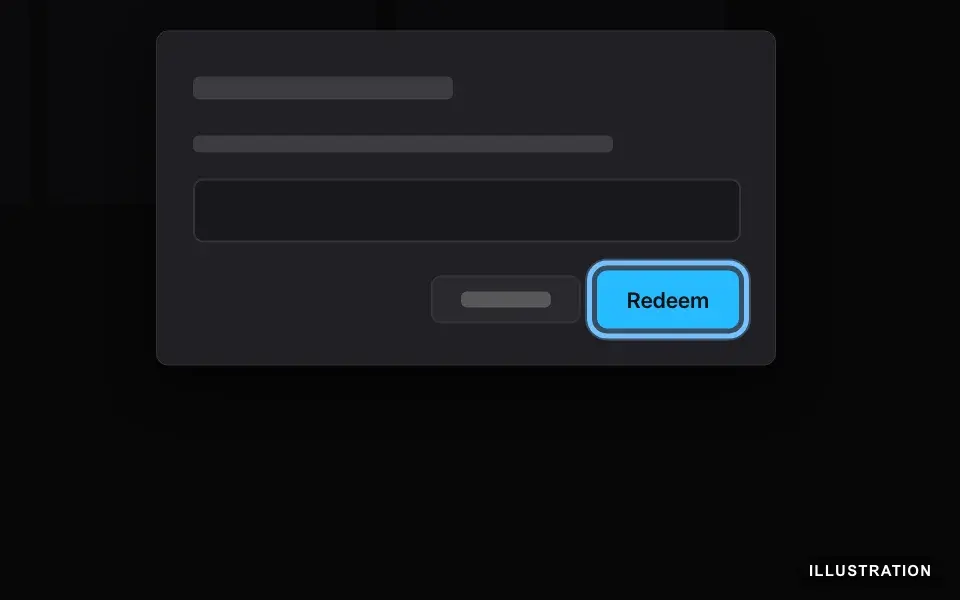
Illustration drawn from the platform's own guide · see the original - 6
A message confirms the code was redeemed. Follow Download and install it below.
Redeem on your phone
Epic doesn't document a redeem option in its phone app, so use the redeem page in your phone's browser. You then install and play on your computer.
- 1
Open the Epic Games Store redeem page in your phone's browser.
- 2
Tap the menu icon at the top right.
- 3
Tap Sign in.
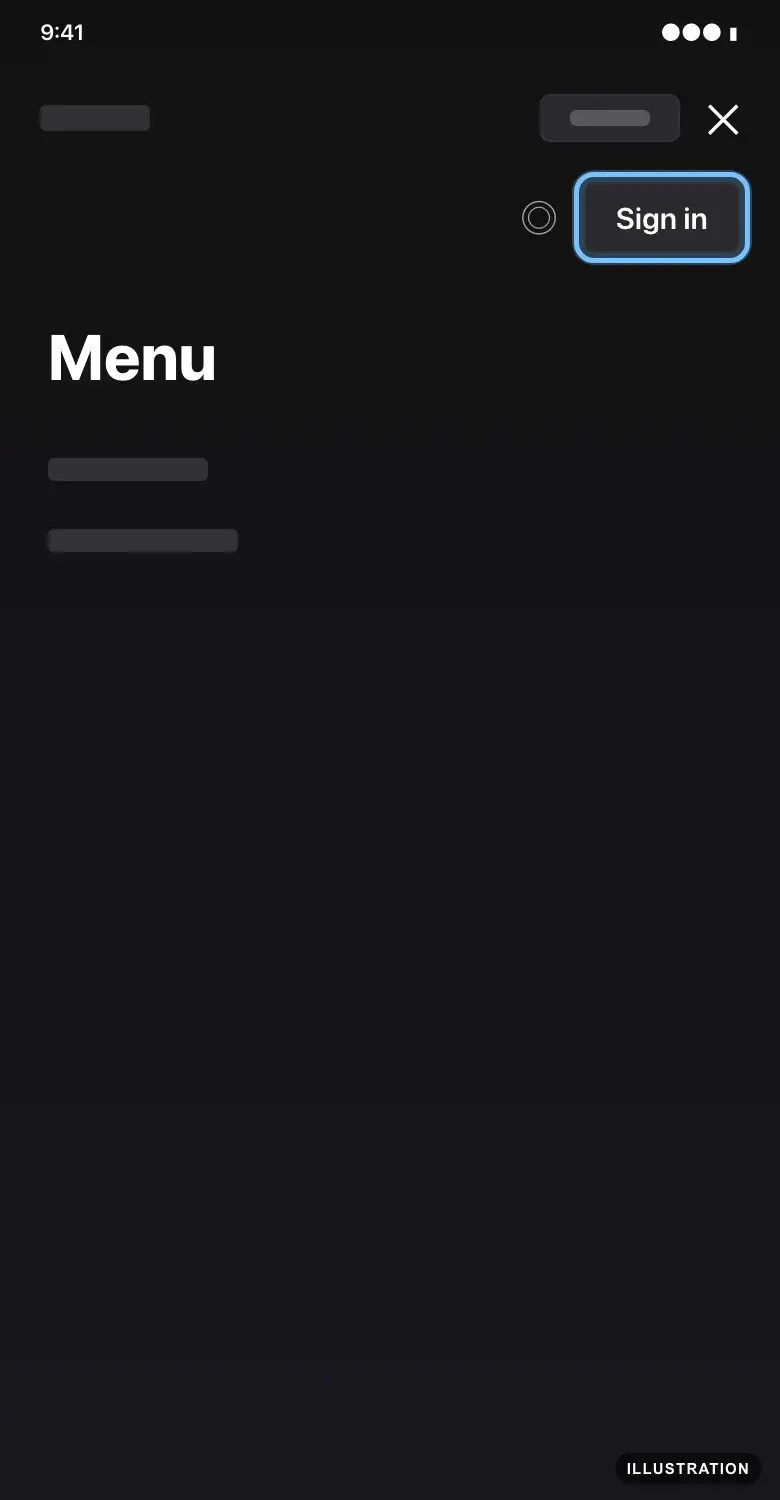
Illustration drawn from the platform's own guide · see the original - 4
Sign in to the Epic Games account you want the game on.
- 5
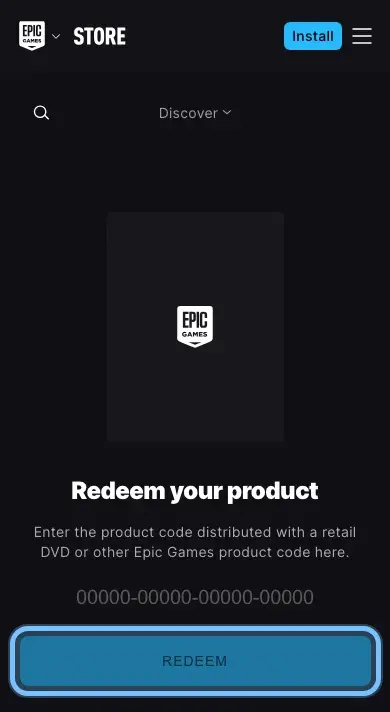
Back on the redeem page, paste your code into the Redeem your product field.
- 6
Tap Redeem.
- 7
The game is now in your Library. When you're at your computer, follow Download and install it below.
Download and install it
In the Epic Games Launcher on your computer. Epic's own guide: How do I install a game using the Epic Games Launcher?
- 1
Open the Epic Games Launcher.
- 2
Select Library on the left.
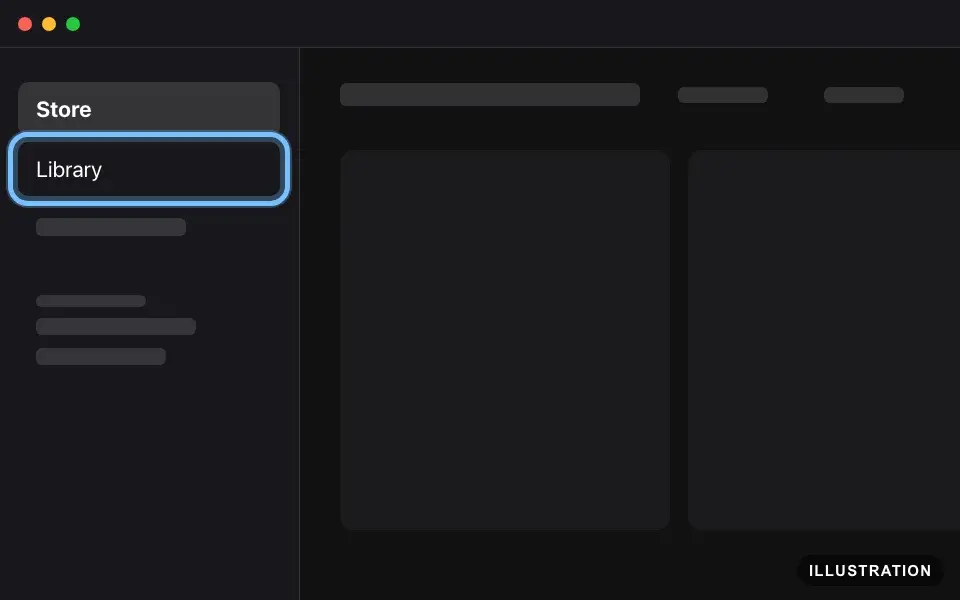
Illustration drawn from the platform's own guide · see the original - 3
Select the game you redeemed.
- 4
Choose the folder to install it in.
- 5
Select Install.
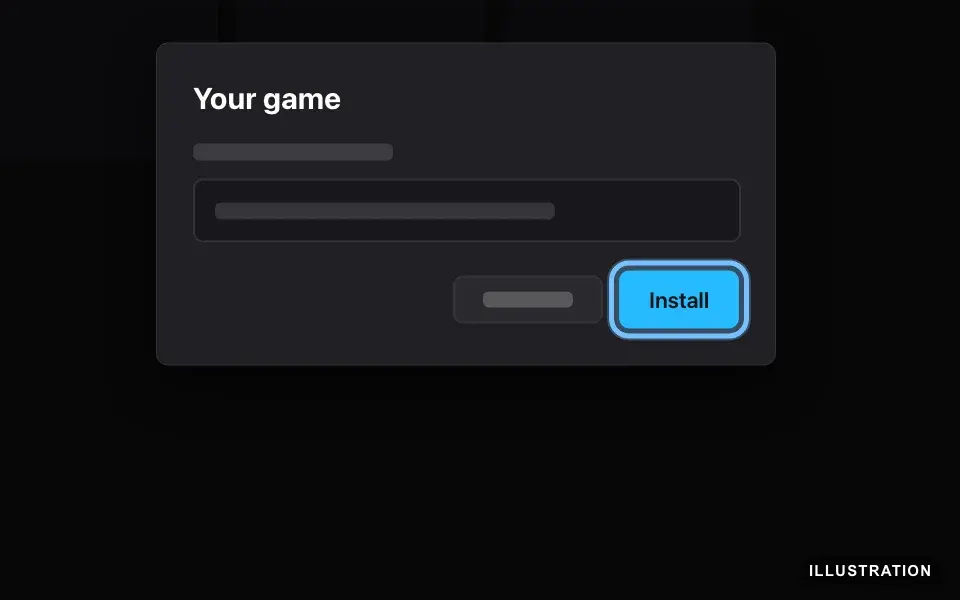
Illustration drawn from the platform's own guide · see the original - 6
When the download finishes, select the game in Library to play. DLC usually downloads with the game.
- 7
Missing an add-on? Select the three dots next to the game in Library.
- 8
Select Manage Add-Ons.
Manage Add-Ons may only appear once the game is installed. Some games have no such option, because their DLC comes with the main download.
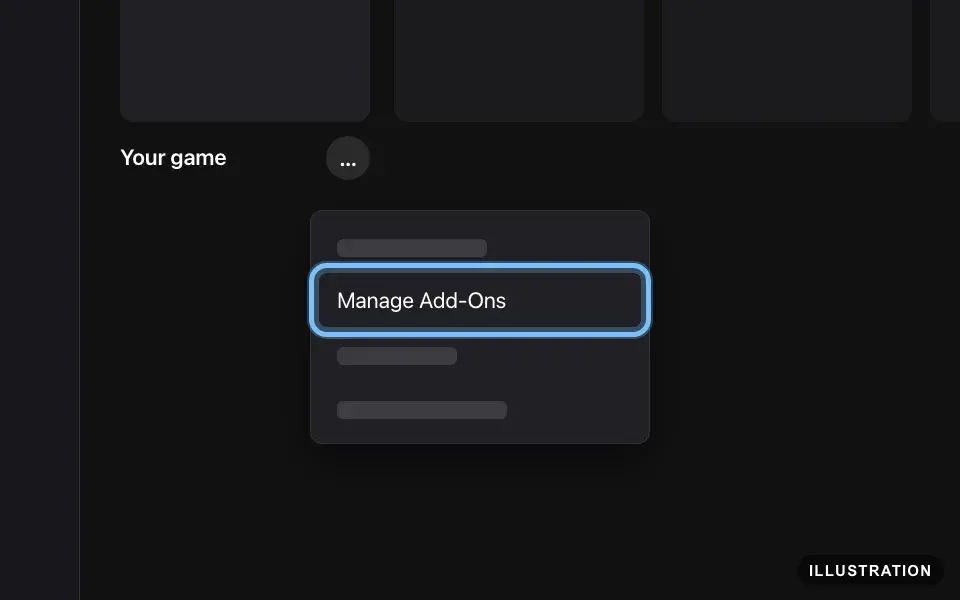
Illustration drawn from the platform's own guide · see the original - 9
Turn on the slider next to each add-on you want. It installs, and you can play with it next time you start the game.
Confirm it works
The game is in your Library as soon as Epic confirms the code, even before you install it.
Select it in Library to install. When it finishes, select it again to play.
Some games also open their publisher's own launcher when you start them. That's normal.
DLC usually installs with the base game. If not, turn it on in Manage Add-Ons. Some DLC only appears once you reach a certain point in the game, or inside the publisher's own launcher.
Fortnite items appear in your Locker the next time you start Fortnite.
Can't find it? Sign in to the account you redeemed on, select the reset button next to the filters in Library, then restart the launcher.
By key type
Base game
The code adds the full game to your account. Install it from Library and play.
DLC and season passes
DLC, expansions and season passes need the base game on the same Epic Games account before you redeem them. A copy on another store doesn't count. Without the base game, Epic refuses the code with error 4036 and says to get the main game first. After redeeming, most DLC downloads with the game; if not, turn it on in Manage Add-Ons. A season pass unlocks each piece of content once the publisher releases it.
Pre-orders
A code for a game that isn't out yet may not redeem until release: Epic shows error 19006 or E150-0. Try again on the release date shown on the product page. If the publisher allows preloading, a Preload button appears on the game in your Library, and the game unlocks on its release date.
Region-specific keys
Some Epic codes only work on accounts in one country or region, such as Europe or North America. The region is on your Andalu order and the product page. Epic checks it against the country on your Epic account: open your Epic Games account and look at Country/Region under Personal details. If they don't match, don't keep trying: contact us.
Epic lets you change your account's country only if you have moved there permanently, and only once every 6 months. Temporary travel doesn't qualify.
Troubleshooting
| What you see | What it means | What to do |
|---|---|---|
An error with code 19007 | Epic doesn't recognize the code, usually because of a typing mistake | Copy the code from your order and paste it. If you type it, check 0 against O and 1 against I. Still failing? Contact us |
An error with code 19010 | The code was already redeemed on an Epic account | Check the Library of every Epic account you use. If the game isn't on any of them, contact us with your order number |
An error with code 19009, 19019 or 19025 | The code is already redeemed on the account you're signed in to | Nothing more to do. Find the game in your Library |
An error with code 19042 | The code is for a different region than your account's country | Don't retry. Contact us with your order number |
An error with code 4046, or a message that the code only works for accounts in a specific country | The code can't be redeemed in your account's country | Don't retry. Contact us with your order number |
An error with code 4036 | It's DLC for a game that isn't on this account | Get the base game on the same account first, then redeem the DLC code again |
An error with code 19005 | Epic says the code has expired | Check the code, including 0 against O and 1 against I. If it's right, contact us with your order number |
An error with code 19006 or E150-0 | The game isn't released yet, so the code isn't active | Try again on the release date shown on the product page. If the game is already out, contact us |
The code won't redeem and your order is for another platform | Codes for PlayStation, Xbox or Nintendo can't be redeemed on Epic | Check the platform on your order. If it says Epic Games, contact us |
The code keeps failing after a few tries | Usually a typing mistake or a region mismatch | Stop retrying. Copy the code from your order again and check its region against your account. If it still fails, contact us |
You can't redeem on a child's account | Epic limits accounts for players under 13, or their country's age of digital consent, until a parent or guardian gives consent | Ask a parent or guardian to give Epic their consent for the account, then try again |
Epic asks for a security code when you sign in | Two-factor authentication is on for your account | Enter the code from your email, text message or authenticator app, whichever you set up |
The code redeemed but the game isn't in your Library | You're signed in to a different account, or a Library filter is hiding it | Sign in to the account you redeemed on. Select the reset button next to the filters in Library, then restart the launcher |
The DLC redeemed but doesn't show in the game | It needs installing, in-game progress, or the publisher's own launcher | Turn it on in Manage Add-Ons, play to the point where it unlocks, or check the publisher's launcher that opens with the game |
The download won't start or stops | Not enough disk space | Free up space, then select Install again |
Frequently asked questions
Still stuck?
Contact us with your order number and the exact message you see, word for word, including any error code. We reply by email, usually within a day. If the code can't be used, buyer protection covers you for 24 hours after delivery.