How do I activate a Nintendo eShop key?
You redeem a Nintendo code in Nintendo eShop on your Nintendo Switch 2 or Nintendo Switch, or on Nintendo's redeem website from a computer or phone. It takes about two minutes. The game is added to your Nintendo Account at once, and you download it to your console. Your account's country must be in the same region as the code.
Shop Nintendo keysBefore you start
You need a Nintendo Account linked to your console. No account yet? Follow Set up Nintendo below first. It's free.
Your Nintendo Account's country must be in the region on your Andalu order: for a Europe code, a European country. Check before you redeem (see Region-specific keys below).
Use the Nintendo Account you want the game on. Nintendo can't move a redeemed game to another account.
For DLC, an expansion pass or an upgrade pack, you need the game itself too: on the same account, or as a cartridge.
Have your code ready: the 16-character code from your order. It has no hyphens, and it never uses the letters O, I or Z. A character that looks like one of them is most likely the number 0, 1 or 2.
Your console needs an internet connection.
Get your key from Andalu
Your key arrives by email, never on the order page.
- 1
Open the email for your order. Its subject names what you bought and includes your order number, like "Elden Ring, Steam: your key is ready (#42101)".
Can't find it? Your order confirmation page opens your inbox already searched for it: select the button named for your email service, such as Open Gmail. Check spam and promotions too.
- 2
Select Get your order. Your key is on the page it opens. If the email shows the key itself, under Your key, it's right there.
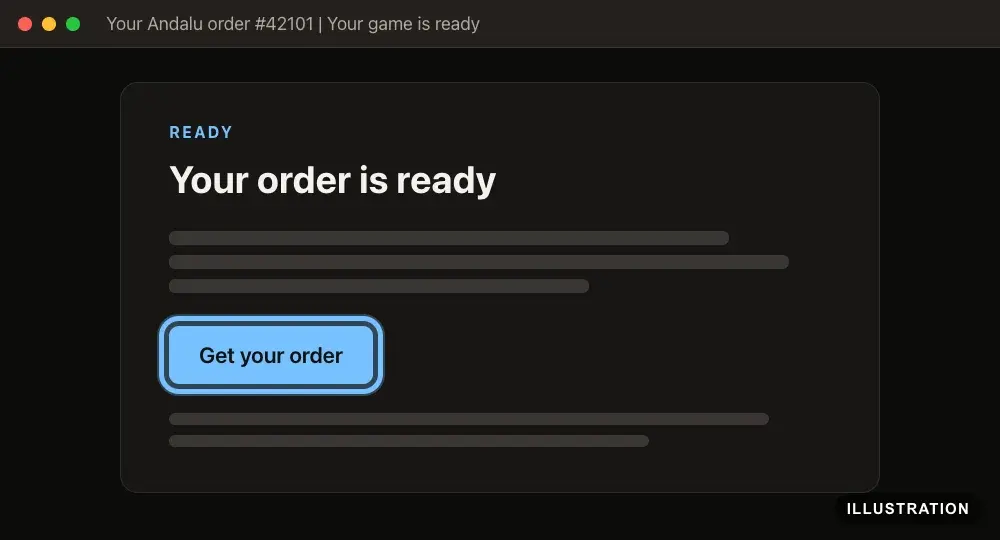
Illustration of your Andalu order page - 3
Copy the key exactly as shown, so no character is mistyped.
Set up Nintendo (first time only)
Skip this if you already play on your console with a Nintendo Account. There's nothing to download or install: Nintendo eShop is built into every Nintendo Switch 2 and Nintendo Switch. Nintendo's own guide: How to link a Nintendo Account.
- 1
On a computer or phone, go to the Nintendo Account website.
- 2
Select Create a Nintendo Account.
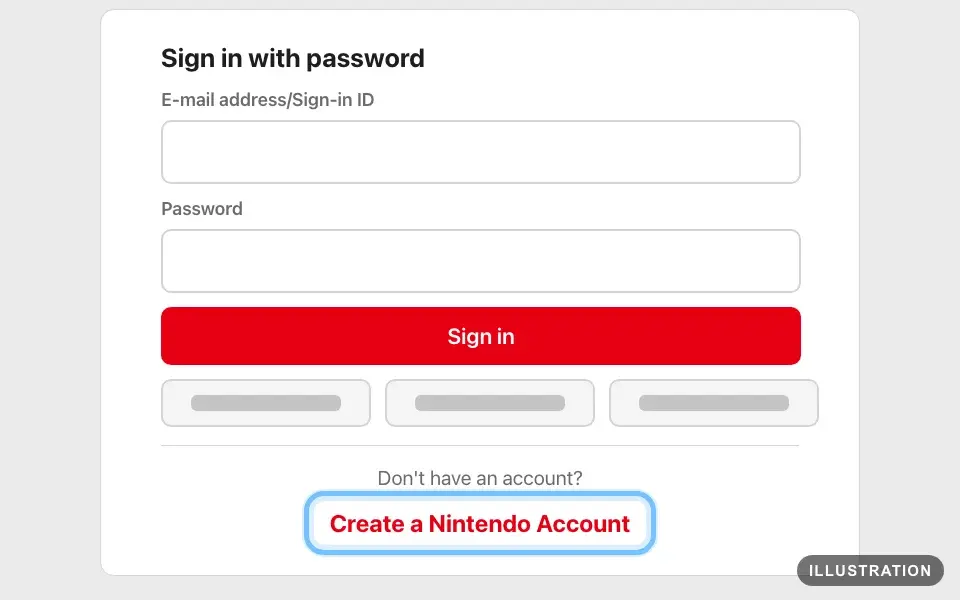
Illustration drawn from the platform's own guide · see the original - 3
Enter your date of birth. You can't change it later.
Setting up an account for a child? A parent or guardian adds it from their own Nintendo Account.
- 4
Select Submit.
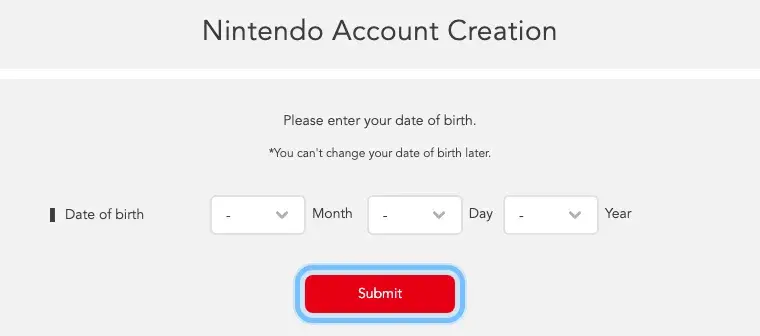
- 5
Fill in the rest of your details, including your country or region.
Choose the country you live in. It decides which codes work on the account.
- 6
Verify your email address with the code Nintendo sends you.
- 7
On your console, select System Settings on the HOME Menu (the console's main screen).
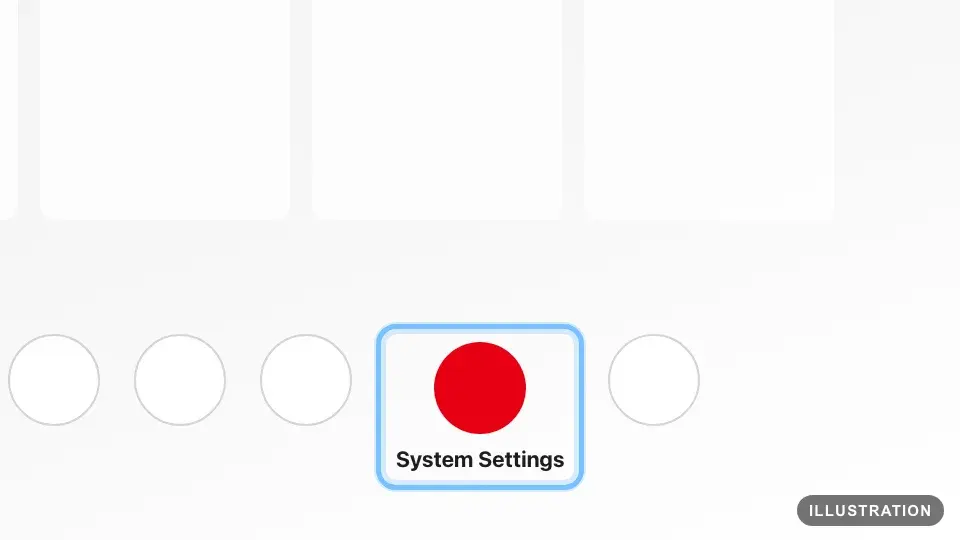
Illustration drawn from the platform's own guide · see the original - 8
Scroll down and select Users.
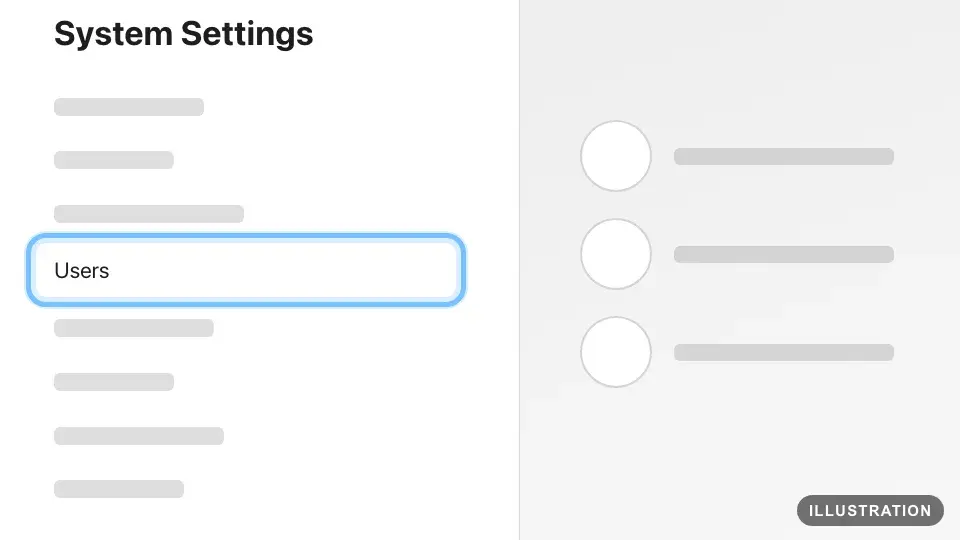
Illustration drawn from the platform's own guide · see the original - 9
Select the user you play on. A user is your profile on the console.
- 10
Select Link Nintendo Account. On some consoles it says Sign in to a Nintendo Account.
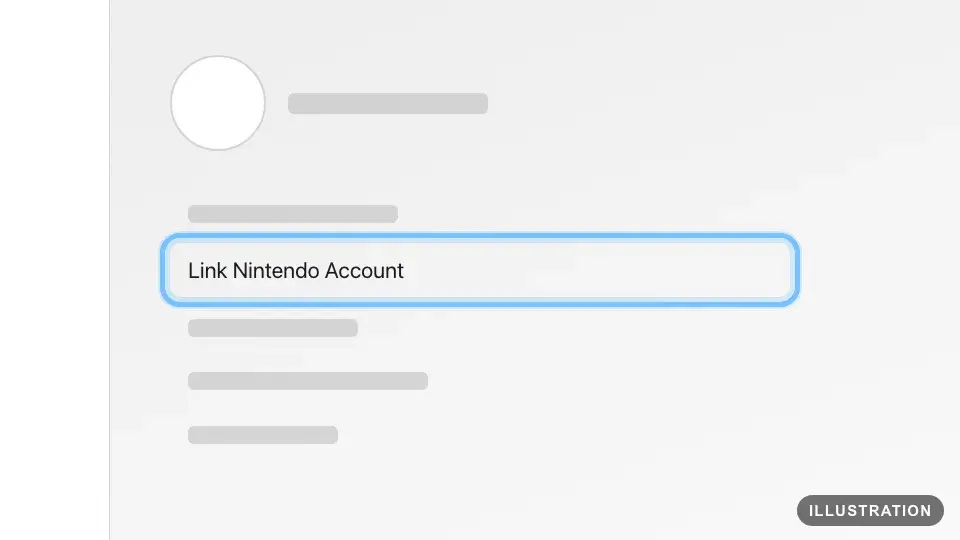
Illustration drawn from the platform's own guide · see the original - 11
Sign in to your Nintendo Account. To sign in on your phone instead, scan the QR code on the screen and follow the steps.
- 12
Check the account shown is yours, then select Link.
A user can't be unlinked from a Nintendo Account afterwards, so pick the right user.
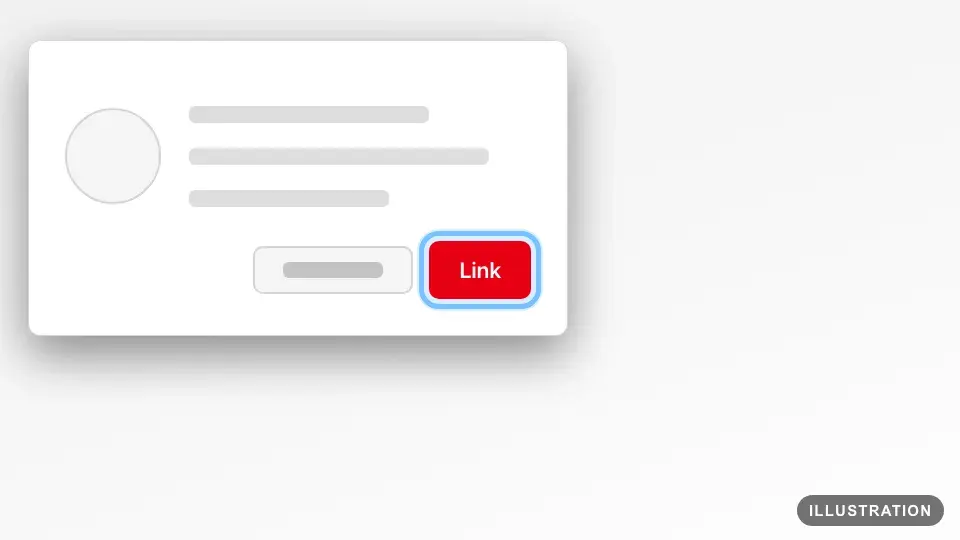
Illustration drawn from the platform's own guide · see the original - 13
Select OK to finish.
- 14
Recommended: turn on 2-step verification on the Nintendo Account website. It uses the Google Authenticator app, so nobody else can sign in with just your password.
Redeem on Nintendo Switch 2 or Nintendo Switch
The same steps work on Nintendo Switch 2, Nintendo Switch, Nintendo Switch Lite and Nintendo Switch OLED Model. Nintendo's own guide: How to redeem a download code on Nintendo eShop.
- 1
On the HOME Menu, select Nintendo eShop.
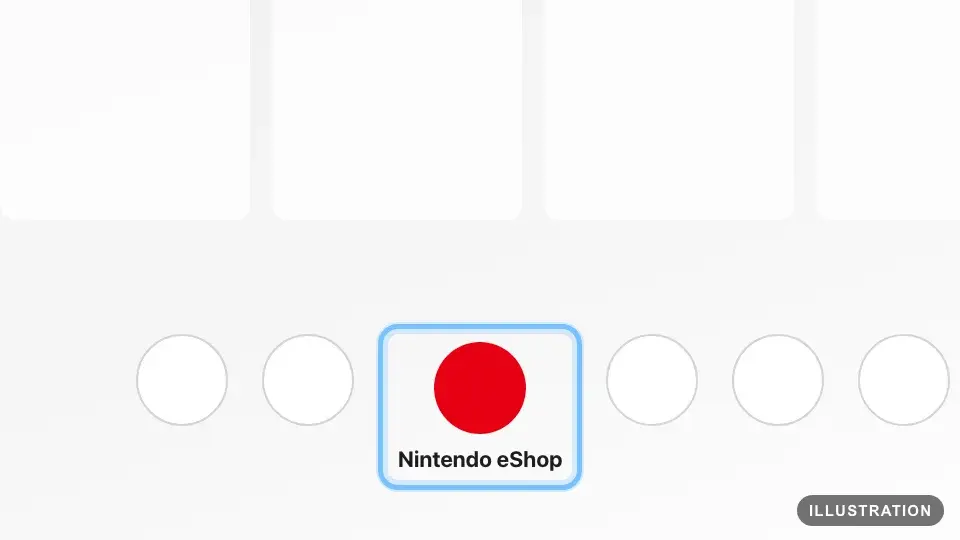
Illustration drawn from the platform's own guide · see the original - 2
Select the user linked to your Nintendo Account.
If you turned on user verification, enter your password or PIN.
- 3
Select Redeem Code on the left of the screen. In some regions it's called Enter Code.
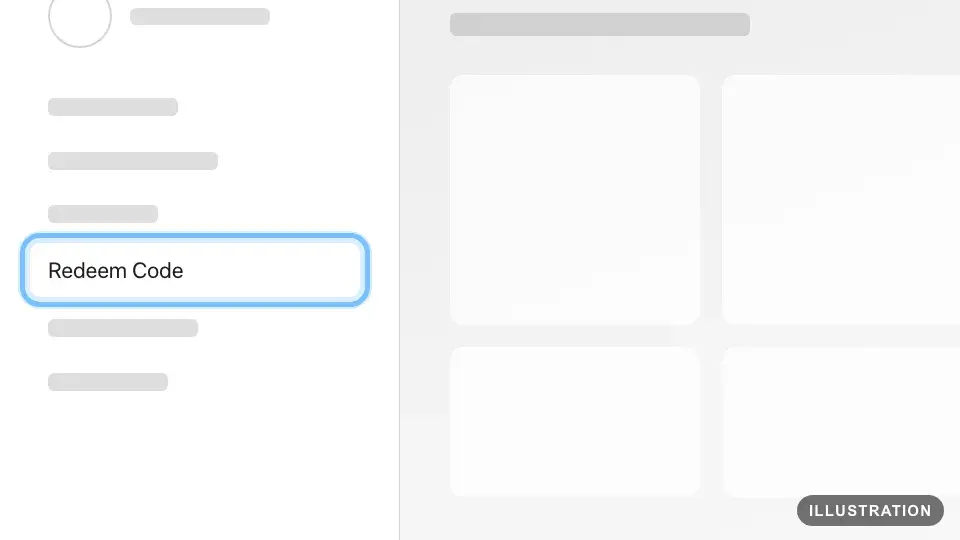
Illustration drawn from the platform's own guide · see the original - 4
Enter your 16-character code. The keyboard disables O, I and Z because codes never use them.
- 5
Select Confirm (or OK).
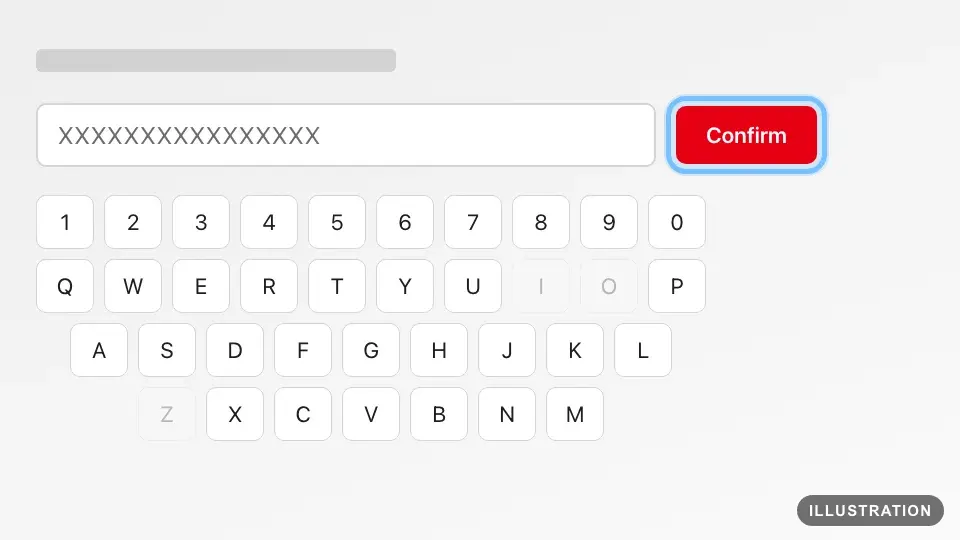
Illustration drawn from the platform's own guide · see the original - 6
The game starts downloading straight away. Its icon appears on the HOME Menu with a download bar. When the bar disappears, select the icon to play.
A code for a Nintendo Switch 2 game, a Switch 2 Edition or an upgrade pack only redeems on a Nintendo Switch 2 or on the website.
Redeem on the website
Works in any computer browser, then you download on your console. Your Nintendo Account must have opened Nintendo eShop on a Nintendo Switch 2 or Nintendo Switch at least once. Nintendo's own guide: How to redeem a download code online.
- 1
Go to ec.nintendo.com/redeem.
- 2
Select Sign in.
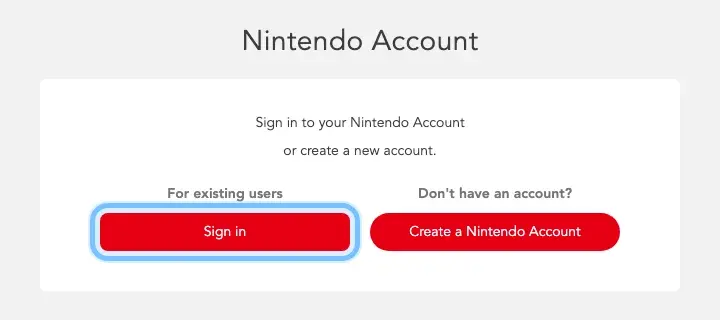
- 3
Enter your Nintendo Account email address and password, then select Sign in.
Already signed in? Check the user name at the top right is the account you want.
- 4
Paste your 16-character code into the box.
- 5
Select Next.
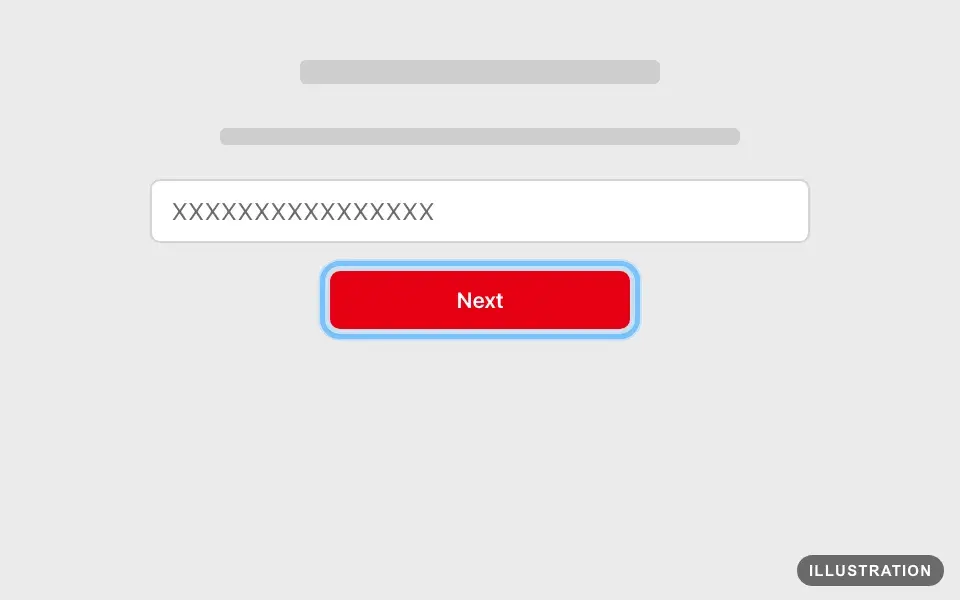
Illustration drawn from the platform's own guide · see the original - 6
Enter your Nintendo Account password again if asked.
- 7
Select Redeem.
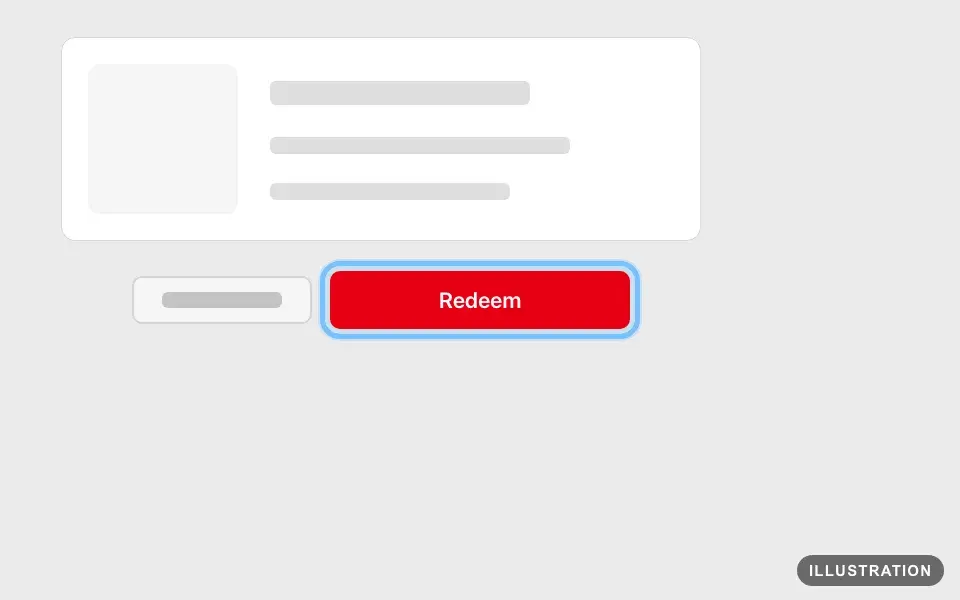
Illustration drawn from the platform's own guide · see the original - 8
Nintendo emails you a confirmation. The game is now on your account. Follow Download it to your console below.
Redeem on your phone
Use Nintendo's redeem website in your phone's browser. It works like the computer version, and your Nintendo Account must have opened Nintendo eShop on a console at least once.
- 1
Copy your code from your Andalu order.
- 2
Open ec.nintendo.com/redeem in your phone's browser.
- 3
Tap Sign in.
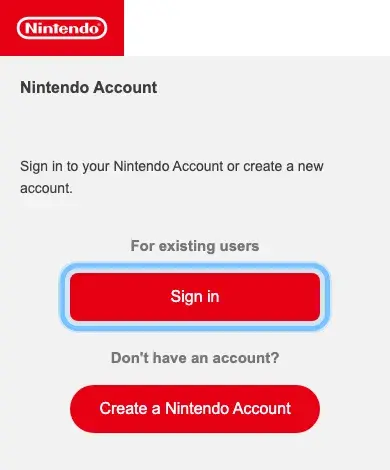
- 4
Sign in with your Nintendo Account email address and password.
- 5
Paste your code into the box.
- 6
Tap Next.
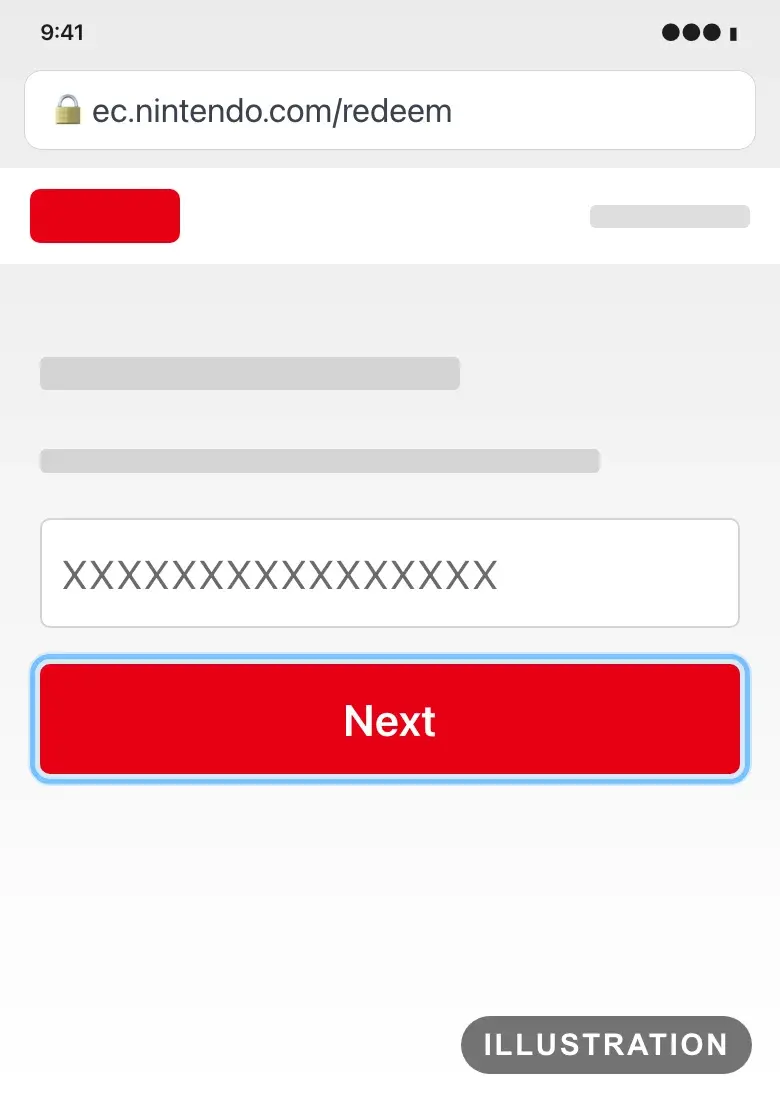
Illustration drawn from the platform's own guide · see the original - 7
Enter your password again if asked.
- 8
Tap Redeem.
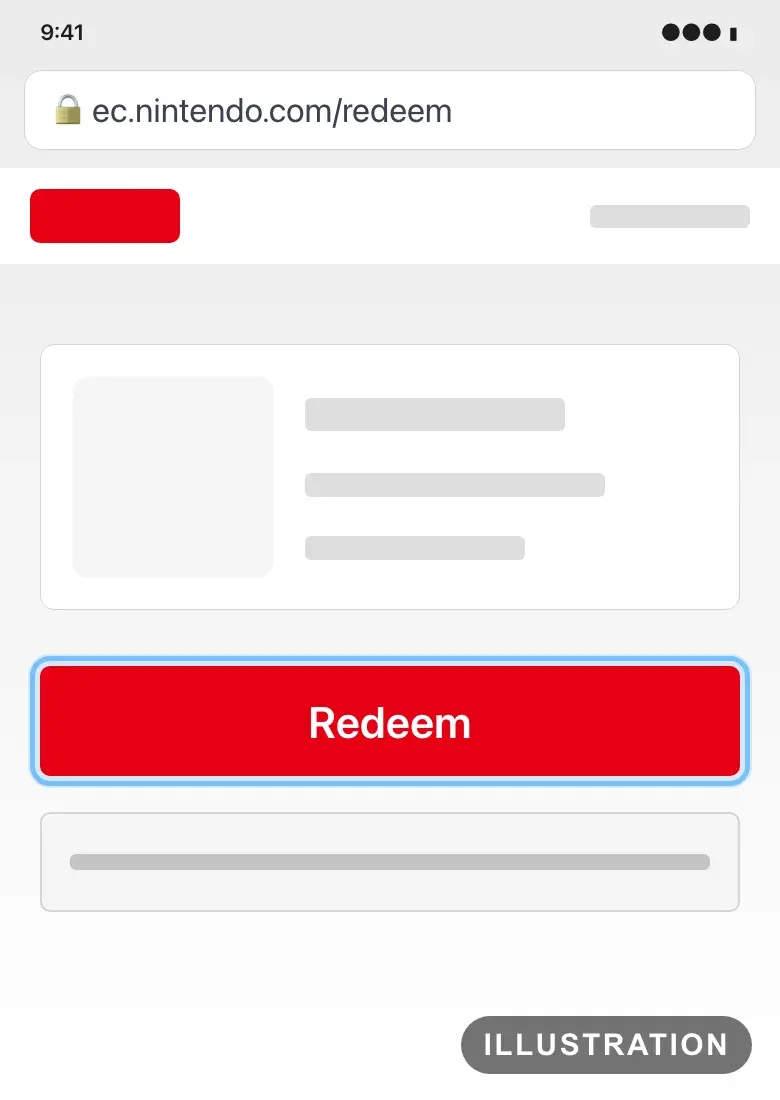
Illustration drawn from the platform's own guide · see the original - 9
The game is now on your account. Follow Download it to your console below.
Download it to your console
For a code you redeemed on the website or your phone, or to download a game again. Virtual Game Cards lists the games and DLC your Nintendo Account owns. Nintendo's own guide: How to redownload digital content.
- 1
On the HOME Menu, select Virtual Game Cards.
Don't see it on a Nintendo Switch? Update the console's system software, and it appears.
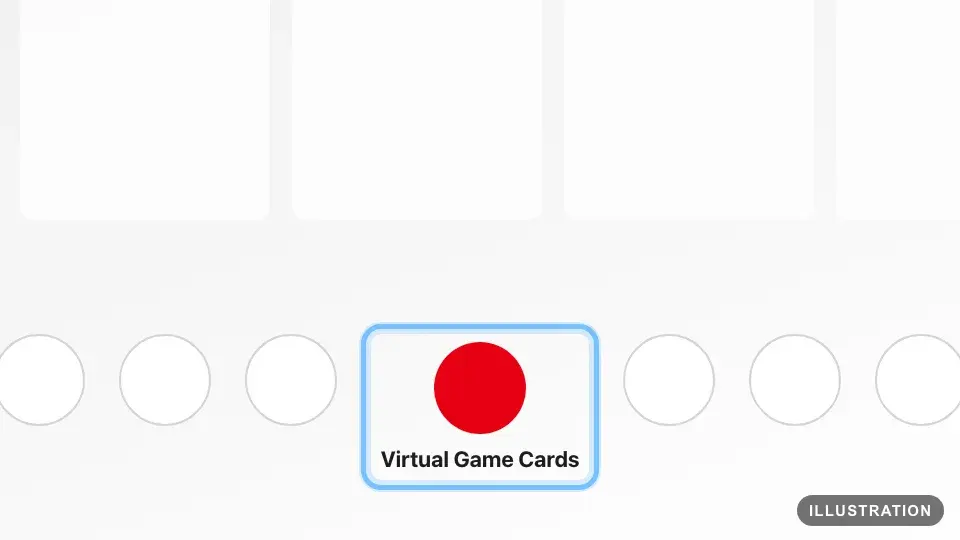
Illustration drawn from the platform's own guide · see the original - 2
Select the user linked to your Nintendo Account. Enter your password or PIN if asked.
- 3
Select the game.
- 4
Select Load on This System.
Got DLC or an expansion pass too? Select it in the list and load it the same way.
Some content, like demos, isn't listed here. Download it again from Nintendo eShop instead.
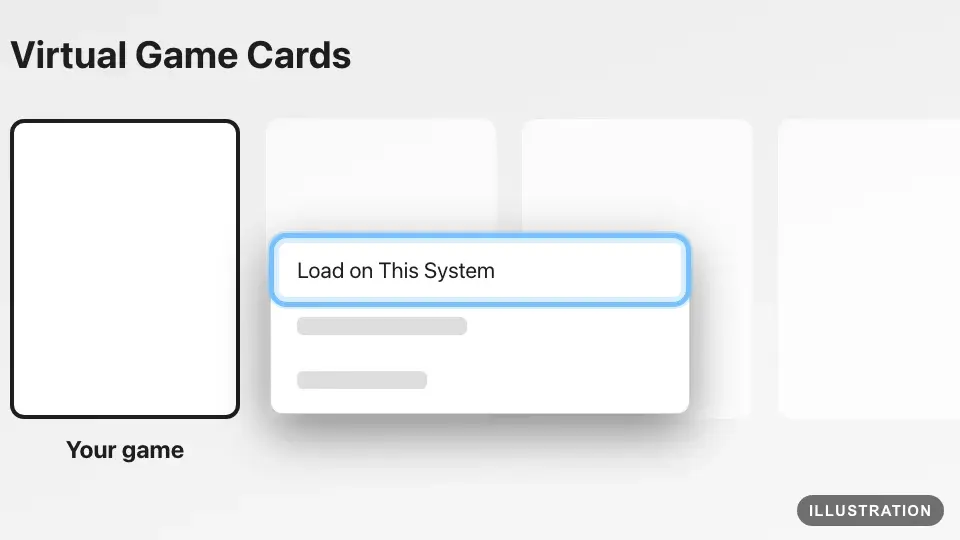
Illustration drawn from the platform's own guide · see the original - 5
The game downloads. When the download bar on its HOME Menu icon disappears, select the icon to play.
Confirm it works
The game's icon appears on the HOME Menu with a download bar. When the bar disappears, select the icon to play.
The game is listed in Virtual Game Cards for the user that redeemed it.
If you redeemed on the website, Nintendo emails a confirmation to your Nintendo Account's email address.
DLC and expansion passes are listed in Virtual Game Cards too. Load them there, then start the game to use them.
A Nintendo Switch Online membership applies to the Nintendo Account that redeemed it. A family membership covers everyone in that account's family group.
Download stopped? Free up space on your console, then load the game again from Virtual Game Cards.
Can't find it? Sign in on the Nintendo Account website and select Funds and Payment Methods, then Transaction History. Games you redeemed in the last two years are listed there.
By key type
Base game
The code adds the full game to your Nintendo Account, and it starts downloading if you redeemed on the console. If you redeemed online, load it from Virtual Game Cards.
Edition upgrades
An upgrade pack turns a Nintendo Switch game you already own into its Nintendo Switch 2 Edition. You need the original game first, on a cartridge or digitally. Redeem the pack on a Nintendo Switch 2 or on the website, because a Nintendo Switch refuses it. The upgraded version plays only on a Nintendo Switch 2, and the original game still plays on a Nintendo Switch.
DLC and season passes
Nintendo sells many of these as expansion passes. They redeem exactly like a game. To play them you need the game itself, on a cartridge or on the same Nintendo Account. The message "You must have the software in order to play." means the game isn't on the console: install it or insert its cartridge.
Region-specific keys
Every Nintendo code belongs to one region. Nintendo's rule: a download code only redeems on a Nintendo eShop set to the same region as the game, and your eShop always follows your Nintendo Account's country. An Americas code won't work on a European account, for example. The region is on your Andalu order and the product page. To see your account's country, sign in on the Nintendo Account website, select User Information and look under Country/region of residence. If they don't match, don't keep trying: contact us.
Wallet, currency and subscription codes
A Nintendo Switch Online membership code redeems with Redeem Code (or Enter Code), just like a game. Membership codes are region-specific too.
A family membership covers up to 8 Nintendo Accounts in your family group. The person who redeems it must be 18 or older.
You can't redeem a membership code while a family membership already covers your account.
Nintendo eShop funds codes also go in Redeem Code. Never type a game or membership code into the screen for adding funds.
Troubleshooting
| What you see | What it means | What to do |
|---|---|---|
"This download code has already been used." or error 2813-0040 | The code was redeemed before, possibly on another of your Nintendo Accounts | Check Virtual Game Cards and Transaction History on each account you use. If it isn't there, contact us with your order number |
Error 2813-0039 | The code was typed wrong | Paste the code rather than typing it. Nintendo says 8 and 3, or K and X, are easy to mix up. Still failing? Contact us |
Error 2813-6561 | The code is most likely for a different region than your account | Don't retry. Check your account's country against the region on your order, then contact us with your order number |
2813-0055: "The item corresponding to the code you entered is not currently available." | A region mismatch, or the content isn't released in your region yet | Check the regions match. For a new game, try again after its release. Otherwise, don't retry: contact us |
Error 2813-0071 | The game isn't released yet | Wait until the release date and time, restart the console, then try again |
2811-6058: "You cannot redeem codes right now due to multiple input errors within a short period of time. Please wait and try again later." | Too many wrong tries in a row | Wait a while (Nintendo gives no exact time), then paste the code once, carefully |
"This download code is for software that includes content that is only accessible on Nintendo Switch 2." | A Nintendo Switch 2 code entered on a Nintendo Switch | Redeem it on a Nintendo Switch 2 or on the website |
2811-6060: "This product has already been purchased." | Your account already owns this content | Download it from Virtual Game Cards. If you didn't own it before, contact us |
2811-6052: "The code you have entered is not a Nintendo eShop prepaid code. Please enter a Nintendo eShop prepaid code." | A game or membership code typed into the screen for adding funds | Go back and use Redeem Code (or Enter Code) instead |
2811-6055: "You must be at least 18 years of age to redeem a family membership." | The account redeeming it belongs to someone under 18 | An adult in the family group redeems it, and it covers everyone in the group |
2811-6056: "This cannot be redeemed while you have a family membership." | A family membership already covers your account | Redeem it after the family membership ends (turn off its auto-renewal), or leave the family group first |
"You must have the software in order to play." | The DLC's game isn't on the console | Install the game from Virtual Game Cards, or insert its cartridge |
Nintendo eShop is blocked on a child's account | A parent has restricted Nintendo eShop | The parent changes the restriction in their own Nintendo Account |
The game redeemed but isn't on your console | A different user is selected, or you redeemed online | Select the user linked to that Nintendo Account, then load the game from Virtual Game Cards |
The console asks for a password or PIN before Nintendo eShop opens | User verification is on for your user | Enter your Nintendo Account password or your PIN. Forgot the PIN? Press the + button, select Sign In and sign in to your Nintendo Account |
Frequently asked questions
Still stuck?
Contact us with your order number and the exact message you see, word for word, including any error code. We reply by email, usually within a day. If the code can't be used, buyer protection covers you for 24 hours after delivery.