How do I activate a PlayStation key?
You redeem a PlayStation code in PlayStation Store: on your PS5, your PS4, the PlayStation Store website or the PlayStation App. It takes about two minutes. The game is added to your account at once, and you download it from your console's Game Library. Your account's region must match the code's region.
Before you start
You need a PlayStation account. No account yet? Follow Set up PlayStation below first. It's free.
Your account's country or region must match the region on your Andalu order. PlayStation says an account's region can't be changed after it's created, so check before you redeem.
Sign in with the account you want the game on. A redeemed code can't be moved to another account.
For DLC or an add-on, you need the base game too: on the same account, or on a disc from the same region.
Have your code ready: the 12-digit code from your order.
Get your key from Andalu
Your key arrives by email, never on the order page.
- 1
Open the email for your order. Its subject names what you bought and includes your order number, like "Elden Ring, Steam: your key is ready (#42101)".
Can't find it? Your order confirmation page opens your inbox already searched for it: select the button named for your email service, such as Open Gmail. Check spam and promotions too.
- 2
Select Get your order. Your key is on the page it opens. If the email shows the key itself, under Your key, it's right there.
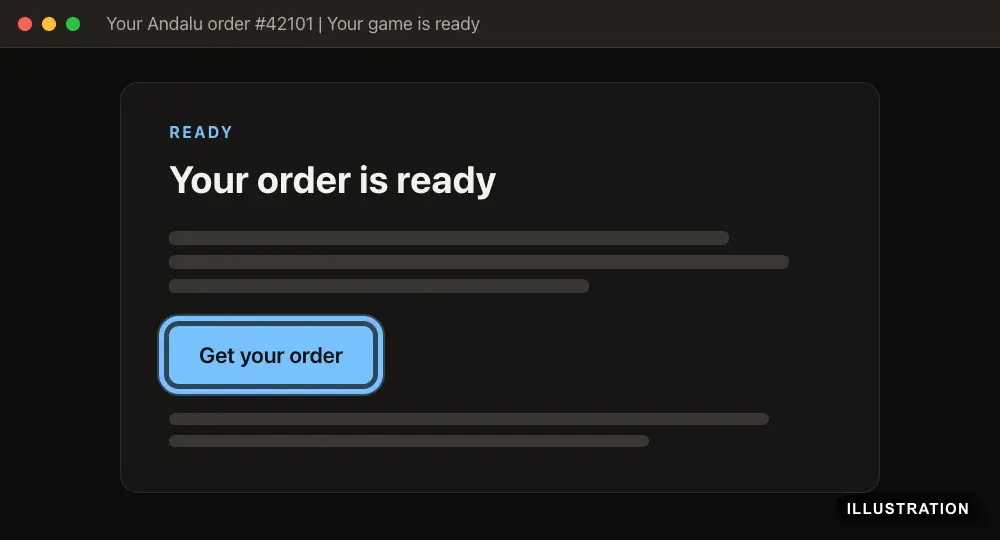
Illustration of your Andalu order page - 3
Copy the key exactly as shown, so no character is mistyped.
Set up PlayStation (first time only)
Skip this if you already play on PlayStation. There's nothing to install on a PS5 or PS4: PlayStation Store is built in. PlayStation's own guide: Create an account.
- 1
Go to the PlayStation Store website.
- 2
Select Sign In at the top right.

- 3
Select Create New Account.
- 4
Enter your details, and select Next after each screen. You'll give your email address, a password, your date of birth, your country or region, and an online ID (your public name on PlayStation).
Choose the country you live and shop in. It decides which codes work on the account, and it can't be changed later. Your date of birth can't be changed either.
- 5
Open the email from PlayStation and follow it to verify your address.
- 6
Sign in on your console with the same account.
On a PS5: select your profile picture on the home screen, then Switch User, Add User and Get Started.
You can also create the account on a PS5: after Get Started, select Create an Account.
- 7
Recommended: turn on 2-step verification in your account's Security settings, so nobody else can use your account.
Redeem on the website
Works in any browser, on a computer or a phone. You then download the game on your console. PlayStation's own guide: How to redeem a PlayStation Store voucher code.
- 1
Go to the PlayStation Store website.
- 2
Select Sign In at the top right.
- 3
Sign in with the account you want the game on.
- 4
Select your profile picture at the top of the page.
- 5
Select Redeem Code.
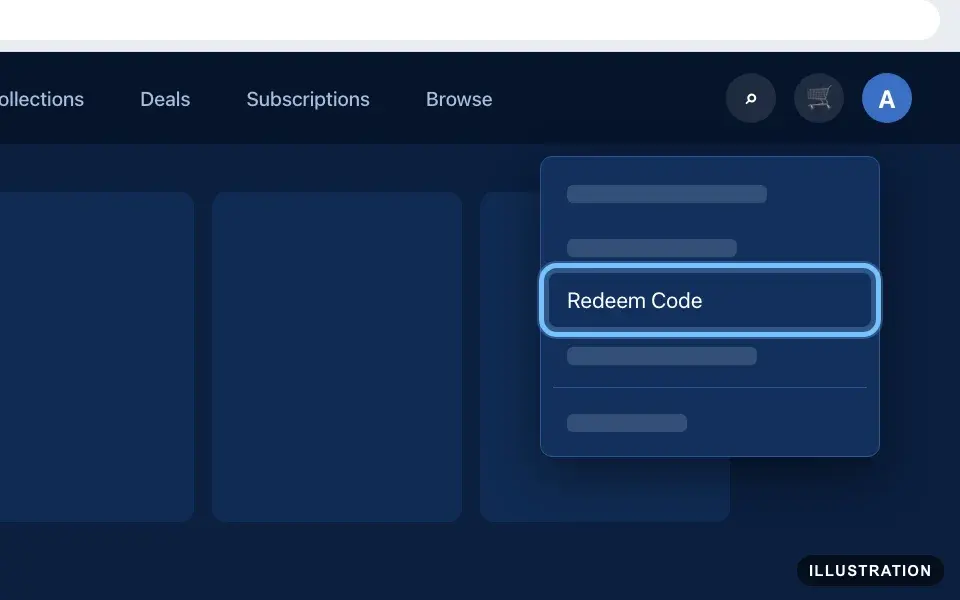
Illustration drawn from the platform's own guide · see the original - 6
Paste your 12-digit code into the box.
- 7
Select Continue.
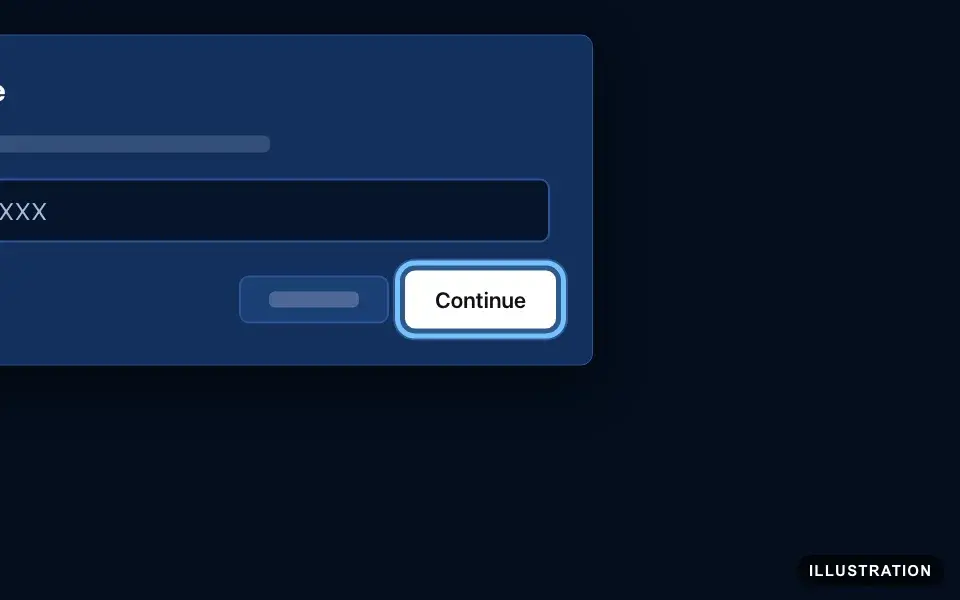
Illustration drawn from the platform's own guide · see the original - 8
The game is now on your account. Follow Download it to your console below.
Redeem on PS5
- 1
On the home screen, select PlayStation Store in the games row.
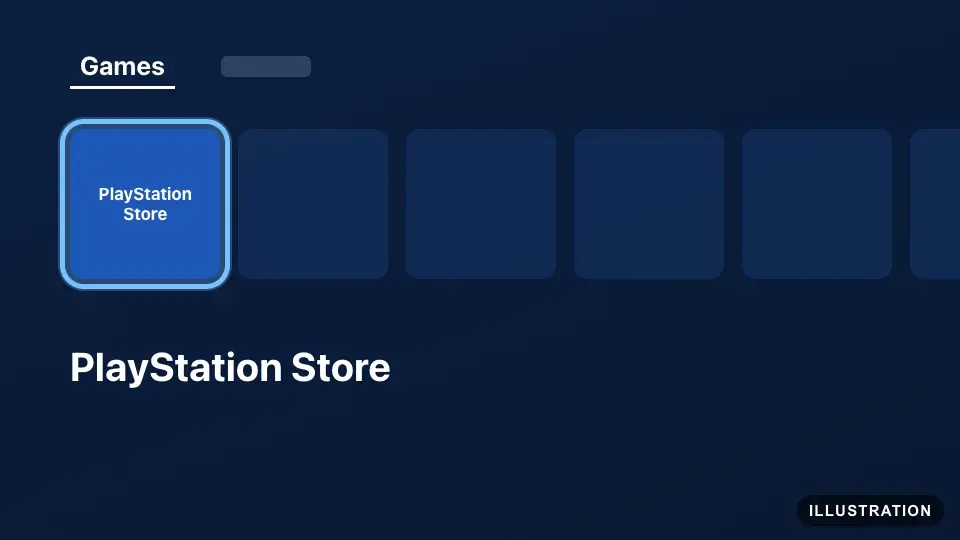
Illustration drawn from the platform's own guide · see the original - 2
Press the triangle button on your controller to open the menu.
- 3
Select … (More).
- 4
Select Redeem Code.
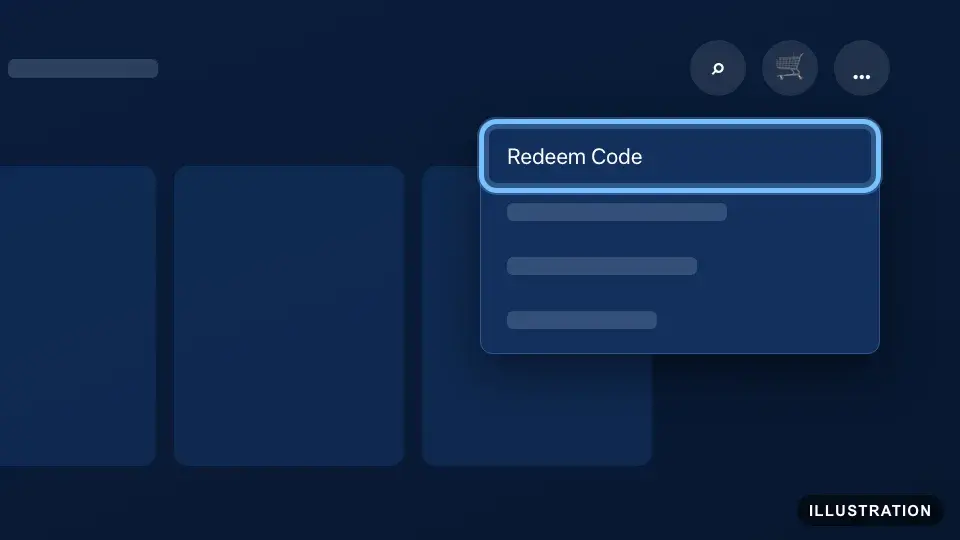
Illustration drawn from the platform's own guide · see the original - 5
Enter your 12-digit code with the on-screen keyboard.
- 6
Select Redeem.
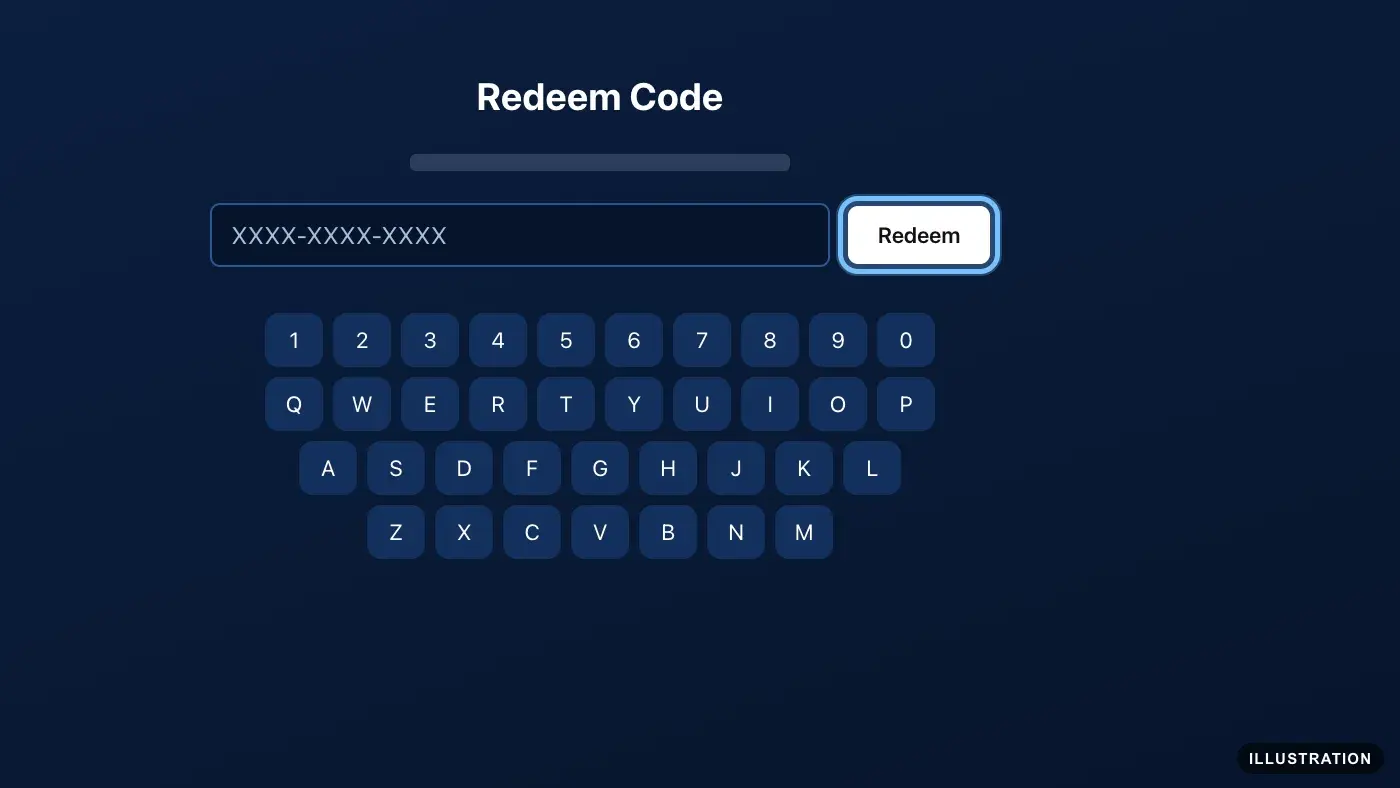
Illustration drawn from the platform's own guide · see the original - 7
Select Download to install it now. The game installs by itself when the download finishes, and then you can play.
No Download button? The content doesn't need one, such as in-game currency. It appears the next time you start the game.
Want to download later? It waits in your Game Library: see Download it to your console below.
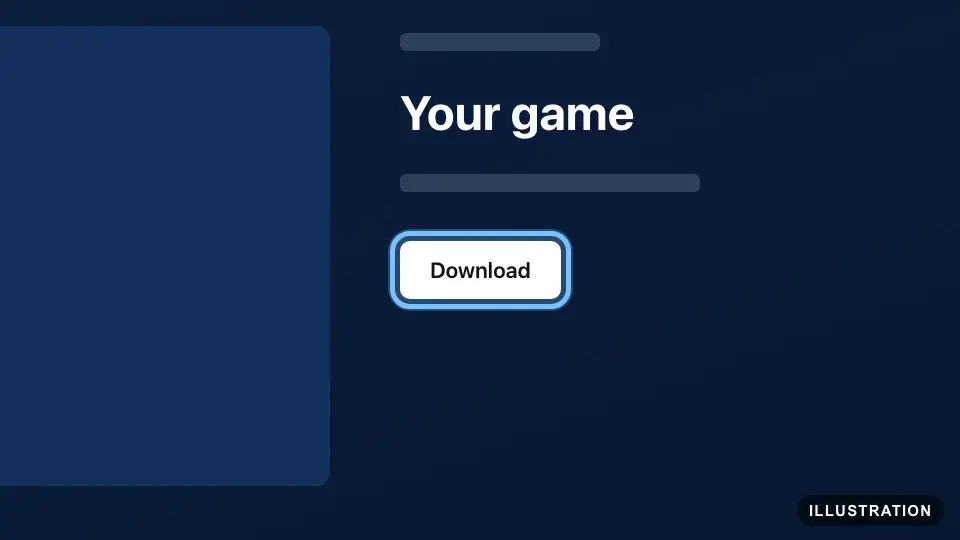
Illustration drawn from the platform's own guide · see the original
Redeem on PS4
- 1
Open PlayStation Store from the home screen.
- 2
Scroll to the bottom of the sidebar on the left.
- 3
Select Redeem Codes.
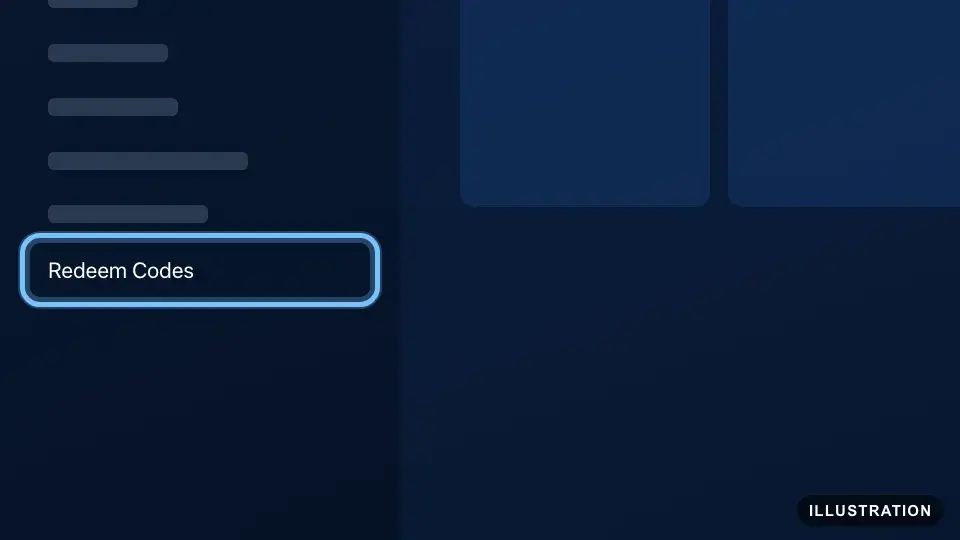
Illustration drawn from the platform's own guide · see the original - 4
Enter your 12-digit code.
- 5
Select Continue.
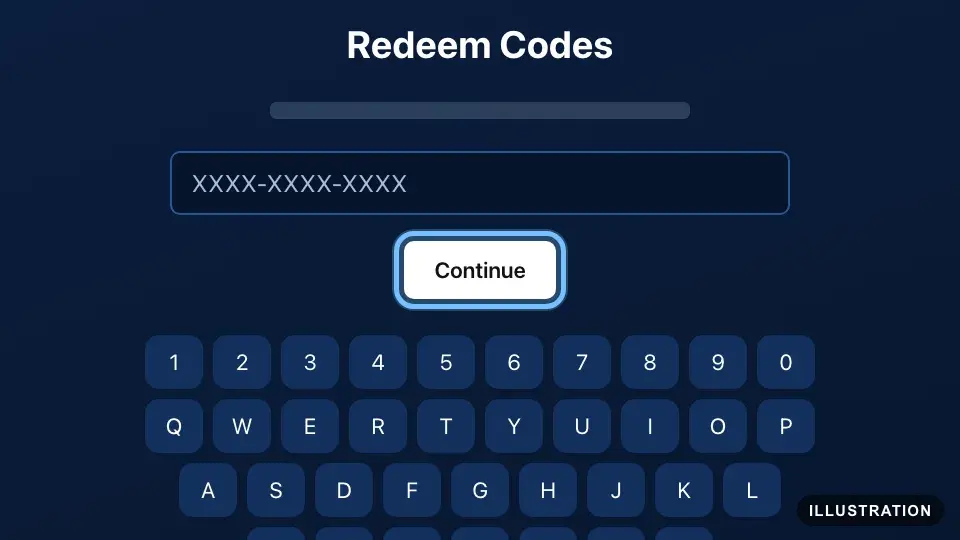
Illustration drawn from the platform's own guide · see the original - 6
Check the game shown, then select Confirm (on some screens it says Yes).
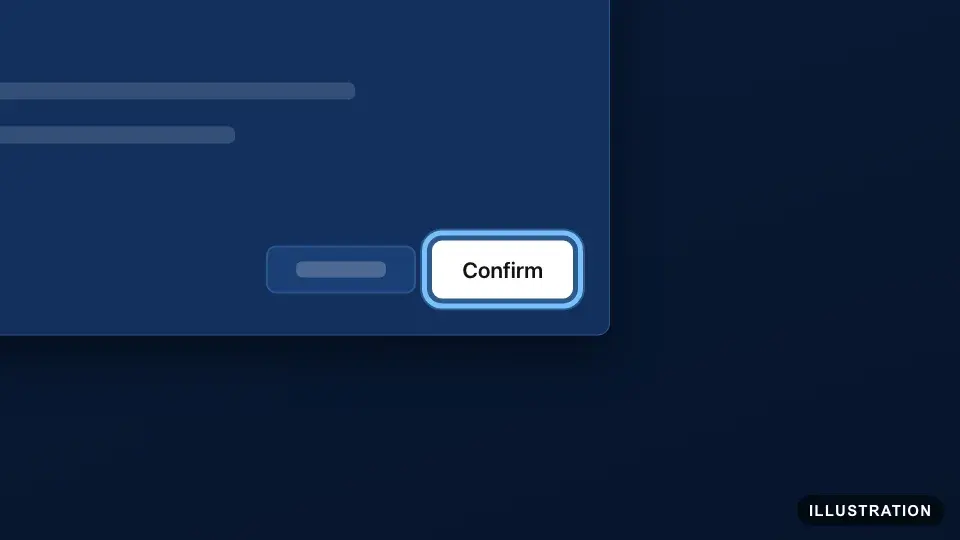
Illustration drawn from the platform's own guide · see the original - 7
Select Continue.
- 8
Select Download to install it now. The game installs by itself when the download finishes, and then you can play.
No Continue or Download? The content doesn't need a download. It appears the next time you start the game.
Want to download later? See Download it to your console below.
Redeem in the PlayStation App
For your phone. The PlayStation App is free on the App Store (iOS 12.2 or later) and Google Play (Android 6.0 or later). Sign in to it with the same account as your console.
- 1
Open the PlayStation App.
- 2
Select the PS Store icon.
- 3
Select the menu icon on the right of the screen.
- 4
Select Redeem Code.
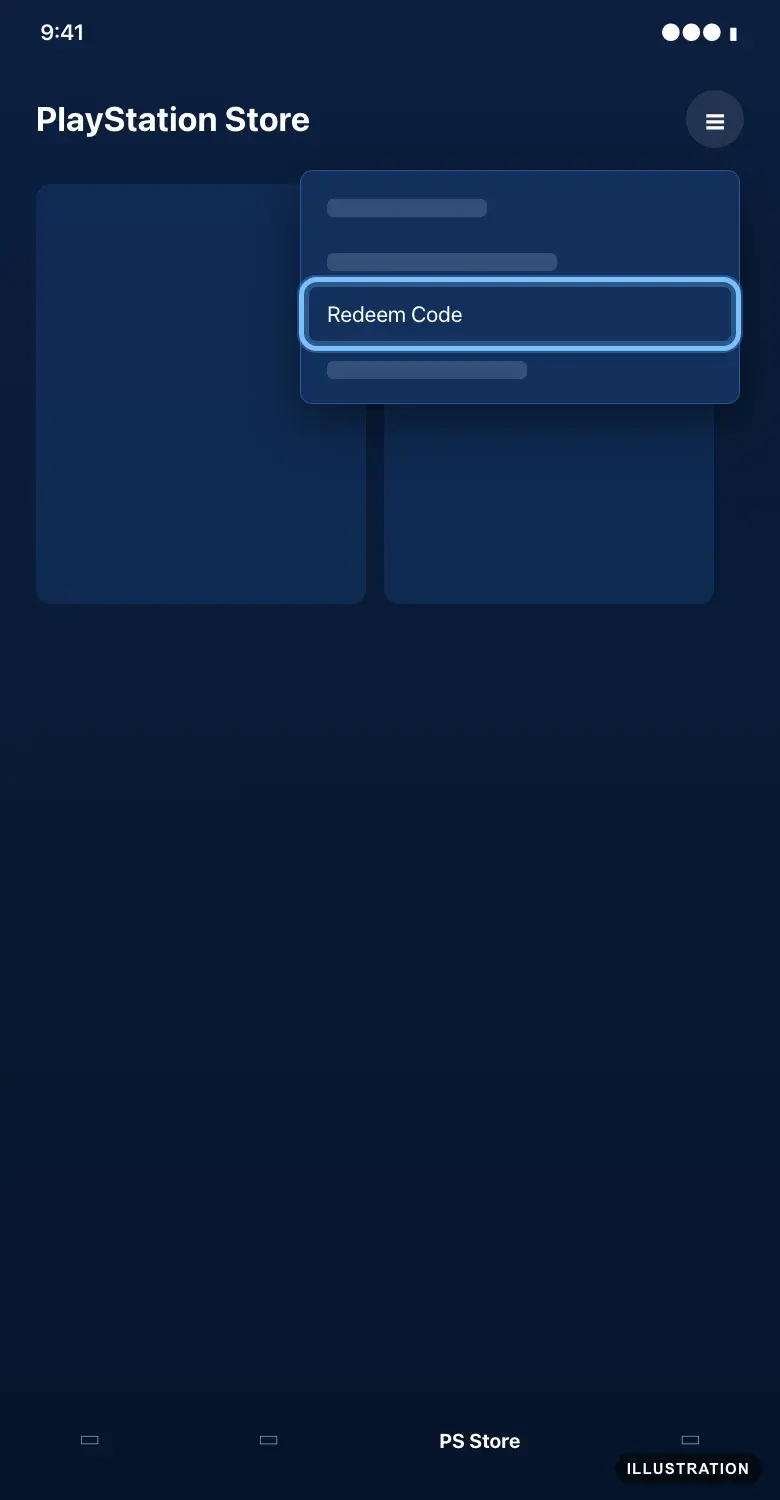
Illustration drawn from the platform's own guide · see the original - 5
Paste your 12-digit code into the box.
- 6
Select Continue.
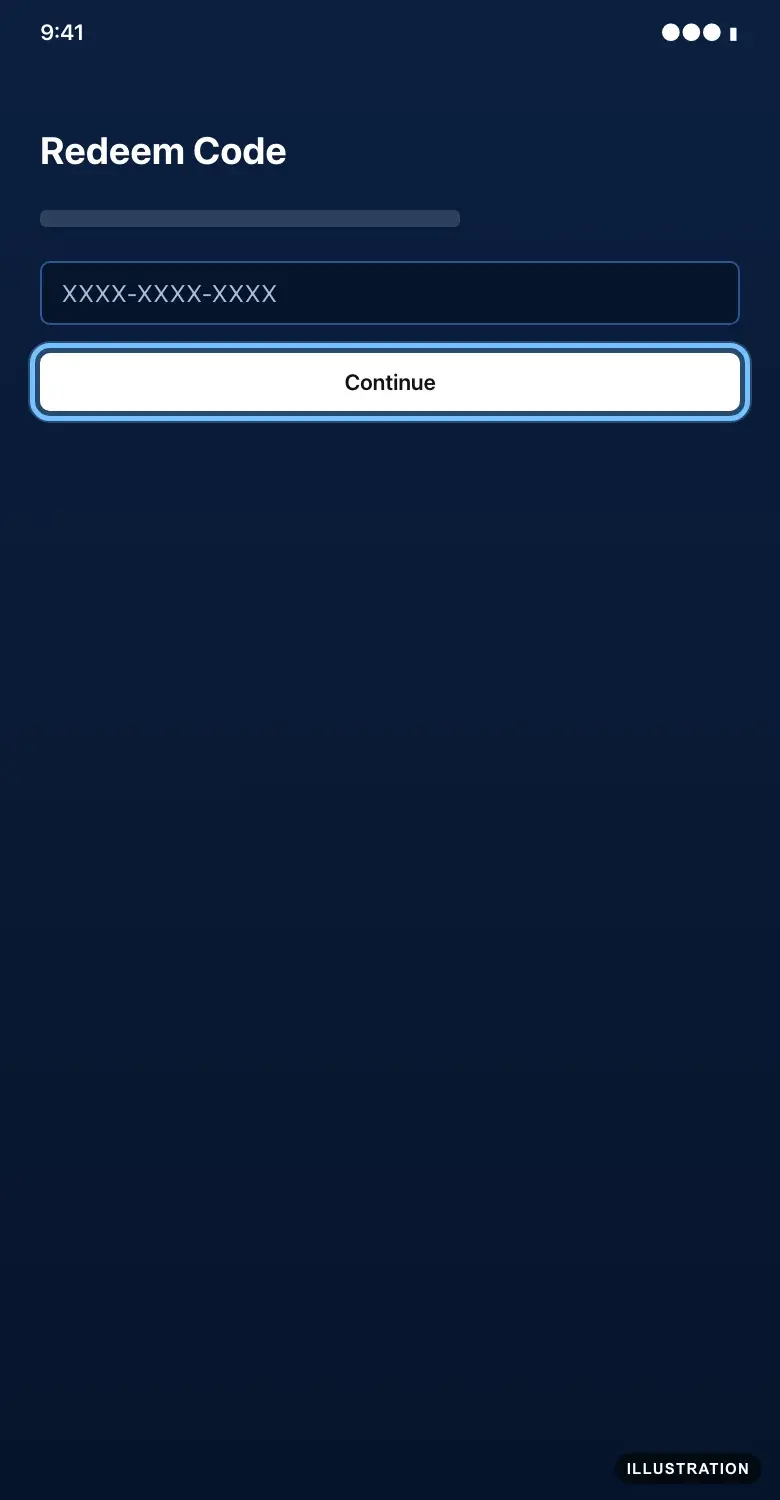
Illustration drawn from the platform's own guide · see the original - 7
The game is now on your account. Follow Download it to your console below.
Download it to your console
For a code you redeemed on the website or in the app, or a download you skipped. PlayStation's own guide: Find and download games.
- 1
On your PS5, select Game Library on the games home screen. On a PS4, select Library on the home screen.
- 2
Select Your Collection. On a PS4, select Purchased.
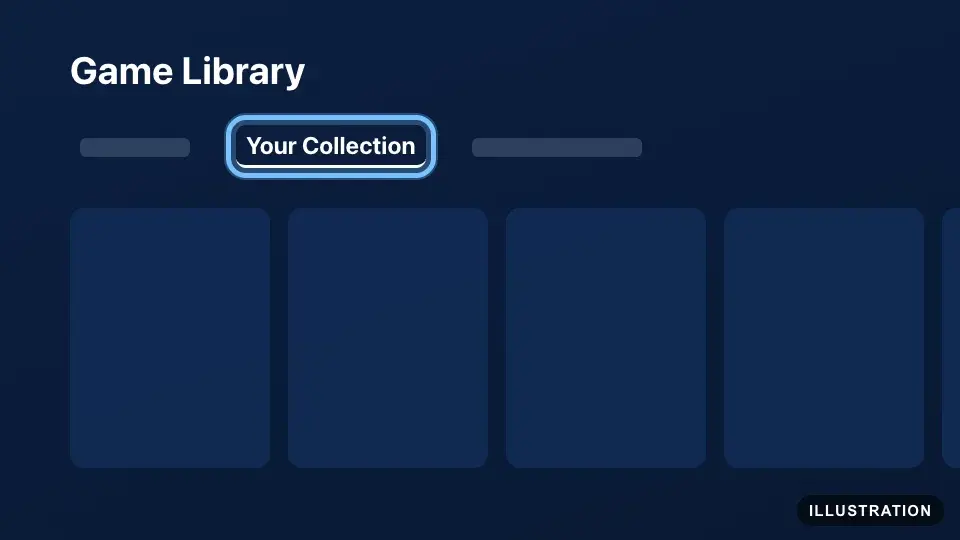
Illustration drawn from the platform's own guide · see the original 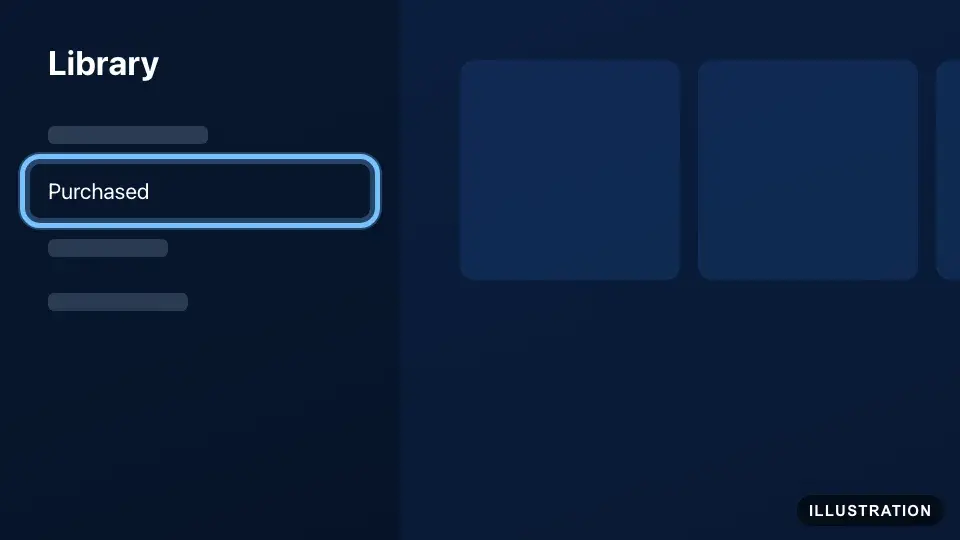
Illustration drawn from the platform's own guide · see the original - 3
Select the game.
- 4
Select Download. The game installs by itself when the download finishes, and then you can play.
Some games let you start playing before the download finishes.
- 5
Away from your console? Open the PlayStation App and select the Game Library icon at the bottom.
- 6
Select Purchased.
- 7
Select the game.
- 8
Select Download to Console. The download starts on your console, ready to play when you're back.
This needs the app paired with your console (in the app's Settings, select Pair Console to App), and the console in rest mode with Stay Connected to the Internet turned on.
On the website, the same is under your profile picture: Game Library, then Purchased.
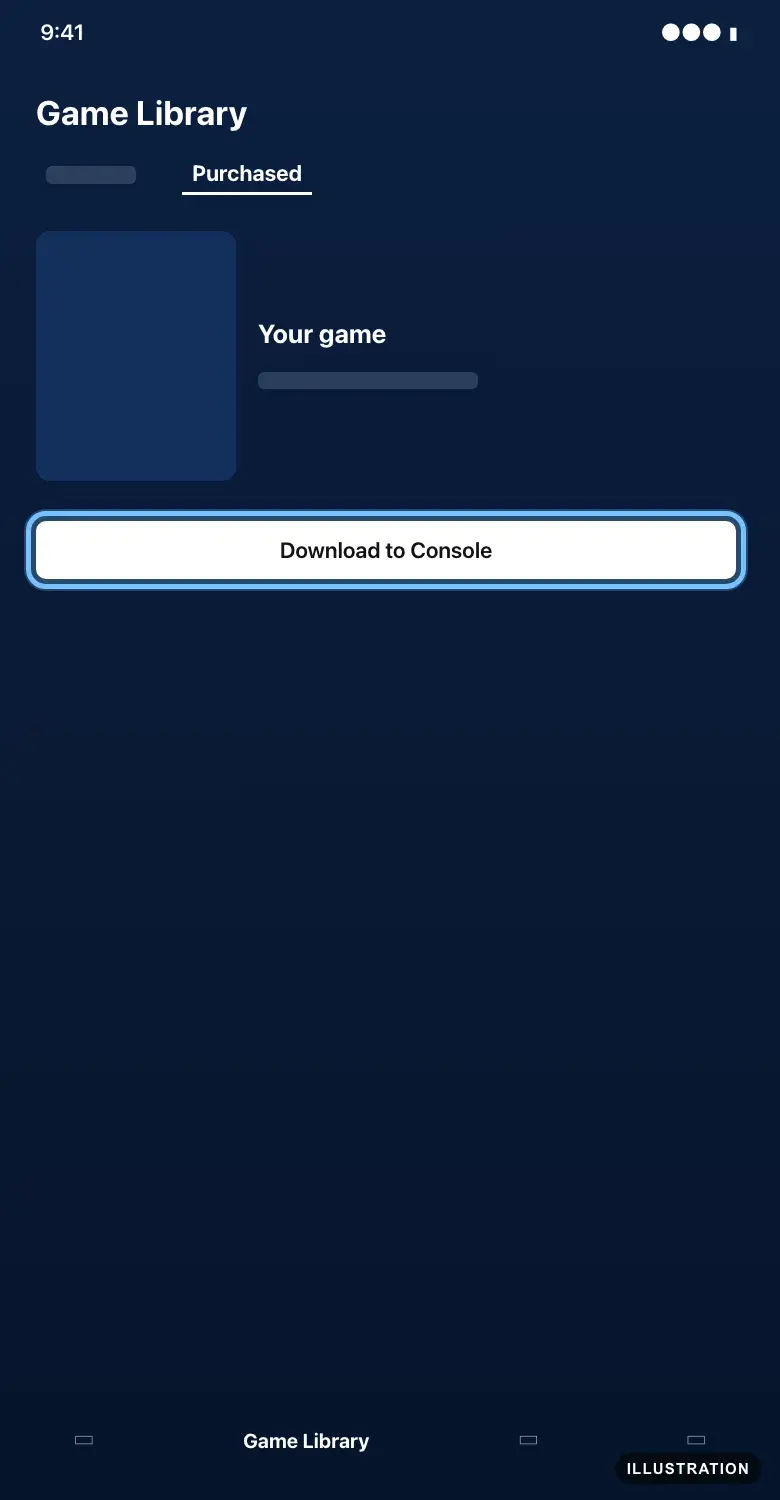
Illustration drawn from the platform's own guide · see the original
Confirm it works
The game is in Your Collection on PS5 or Purchased on PS4 straight away, even before it downloads.
Downloads install automatically. Some games let you start playing before the download finishes.
DLC and add-ons show in the base game's Add-Ons section in your Game Library. Start the base game and they load with it.
In-game currency and items that need no download appear the next time you start the game.
Can't find it? Sign in to the account you redeemed on, restart the console, and check Transaction History in your account settings.
By key type
Base game
The code adds the full game to your account. Download it from Your Collection on PS5 or Purchased on PS4, and play.
Edition upgrades
An upgrade code adds the extra content of a bigger edition to a game you own. PlayStation doesn't document upgrade codes on their own, so treat one like DLC: redeem it on the account that owns the base game, then look for the content in that game's Add-Ons section.
DLC and season passes
DLC, expansions and season passes only work with the base game, so you need the game too: on the same account, or on a disc from the same region. After redeeming, find the content in the base game's Add-Ons section and download it. A season pass unlocks content as the publisher releases it, so some items arrive later.
Region-specific keys
Every PlayStation code belongs to one store region. PlayStation's rule: voucher codes only redeem in the same PlayStation Store region as the account. The region is on your Andalu order and the product page. To see your account's region, open the PlayStation Store website, select your profile picture, then Storefront Country. If they don't match, don't keep trying: contact us.
Troubleshooting
| What you see | What it means | What to do |
|---|---|---|
WC-40371-5: "The voucher code you entered isn't valid." | A typing mistake, or a code for a different region | Copy the code from your order and paste it. Check the region on your order matches your account. Still failing? Contact us |
WS-45480-1: "The voucher code you entered isn't valid, as the country / region on PlayStation® doesn't match the country / region of the code number." | The code is for a different region than your account | Don't retry. Contact us with your order number |
E-82000134: "This product or content is not available for your account's country/region." | A region mismatch | Don't retry. Contact us with your order number |
WS-45479-9 or WS-45487-8: "This voucher code has already been redeemed." | The code was used before, possibly on another of your accounts | Check Transaction History on each account you use. If it isn't there, contact us with your order number |
WC-40372-6 or E-82000130: "The voucher code you have entered is invalid or has not become available yet." | A typing mistake, or content that isn't released yet | Paste the code again. For a pre-order, try again on release day |
WC-40375-9: "The voucher code you entered is either not yet active or has expired." | The content isn't available yet | Try again on the release date shown on the product page, or contact us |
WC-40378-2: "You have attempted this action too many times in a short period." | Too many tries in a row | Wait an hour, then sign out, sign back in and try once more |
NP-102942-8: "This feature is not available due to age restrictions." | A child account with age limits | The family manager adjusts the child's settings in Family Management, or redeems on their own account |
The game redeemed but isn't on your console | The console is signed in to a different account | Sign in to the account you redeemed on and look in Your Collection |
Download to Console does nothing | The console isn't paired, isn't in rest mode, or can't reach the internet in rest mode | Pair the app, turn on Stay Connected to the Internet, or download on the console itself |
The download won't start or stops | Not enough storage | Free up space, then download again from Your Collection |
Frequently asked questions
Still stuck?
Contact us with your order number and the exact message you see, word for word, including any error code. We reply by email, usually within a day. If the code can't be used, buyer protection covers you for 24 hours after delivery.