How do I activate a Ubisoft Connect key?
You activate a Ubisoft key in Ubisoft Connect, Ubisoft's app for Windows. You need a Windows PC: there's no Mac version, no website for game keys and no phone app. Activate it from your profile menu or the in-game overlay, then download the game from your Library. Most of our Ubisoft keys are for one region, which must match yours.
Shop Ubisoft keysBefore you start
You need a Windows PC. Ubisoft Connect runs on Windows only, there's no web page for activating game keys, and Ubisoft shut down its phone app in May 2025.
You need a Ubisoft account. No account yet? Follow Set up Ubisoft Connect below first.
Log in with the account you want the game on. Ubisoft links the game to the account you activate it on.
Check that the region on your order, such as Europe or North America, matches where you live. A key for another region won't activate.
For DLC, a season pass or an upgrade, the base game must be on the same Ubisoft account.
Have your key ready: 16 or 19 characters in groups, with dashes (XXXX-XXXX-XXXX-XXXX or XXX-XXXX-XXXX-XXXX-XXXX).
Get your key from Andalu
Your key arrives by email, never on the order page.
- 1
Open the email for your order. Its subject names what you bought and includes your order number, like "Elden Ring, Steam: your key is ready (#42101)".
Can't find it? Your order confirmation page opens your inbox already searched for it: select the button named for your email service, such as Open Gmail. Check spam and promotions too.
- 2
Select Get your order. Your key is on the page it opens. If the email shows the key itself, under Your key, it's right there.
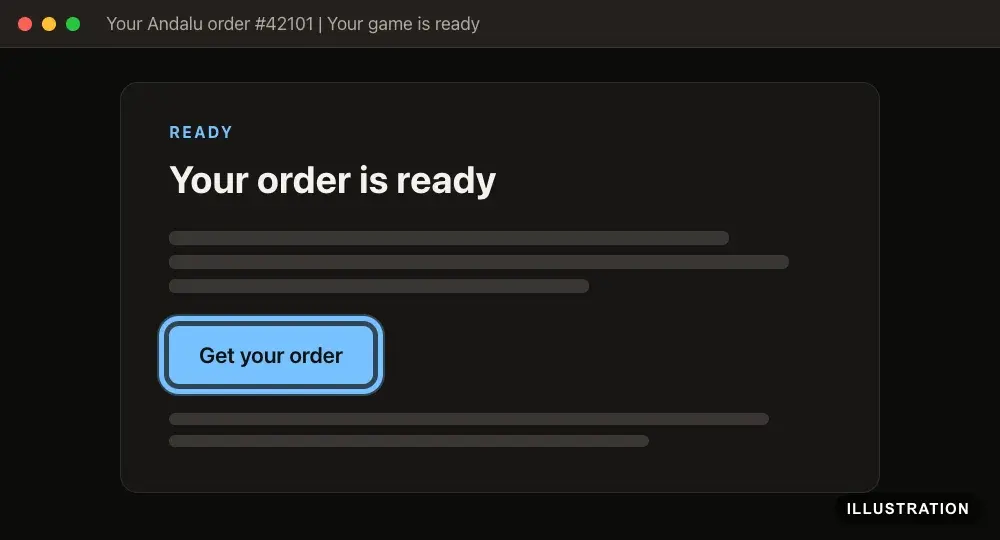
Illustration of your Andalu order page - 3
Copy the key exactly as shown, so no character is mistyped.
Set up Ubisoft Connect (first time only)
Skip this if you already play Ubisoft games on your Windows PC. Ubisoft's own guides: Creating a Ubisoft account and Installing Ubisoft Connect PC.
- 1
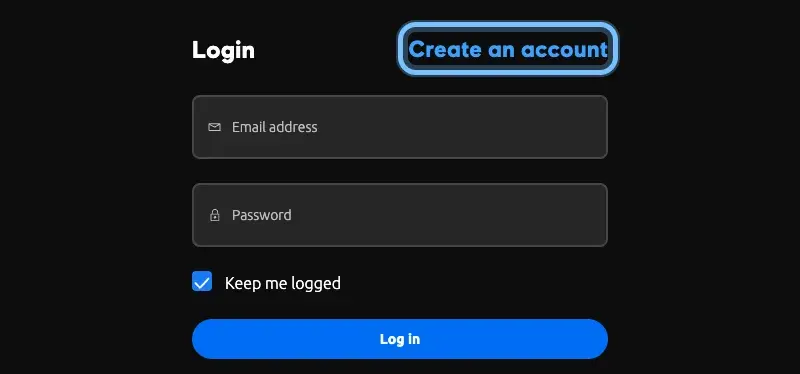
Go to account.ubisoft.com and select Create an account.
- 2
Fill in the form, then tick the box to accept Ubisoft's terms.
Use an email address you check. Ubisoft doesn't accept disposable email addresses.
Depending on your country, you may need to verify your age. If you're under the age of consent, Ubisoft creates a child account, which a parent or guardian approves by email.
- 3
Select Create a Ubisoft account.
- 4
Open the email from Ubisoft and follow its steps to validate your email address.
- 5
On your Windows PC, go to the Ubisoft Connect page and select Download Ubisoft Connect.
Prefer the Microsoft Store? Search it for Ubisoft Connect PC and select Install.

- 6
Run the installer you downloaded and follow the on-screen instructions.
The installer needs administrator rights, so Windows may ask you to allow it. Ubisoft recommends restarting your PC afterwards.
- 7
Open Ubisoft Connect on your PC.
- 8
Enter your Ubisoft email and password, then select Log in.
Asked for a code? That's 2-Step verification. Enter the code from your authenticator app, email or SMS.
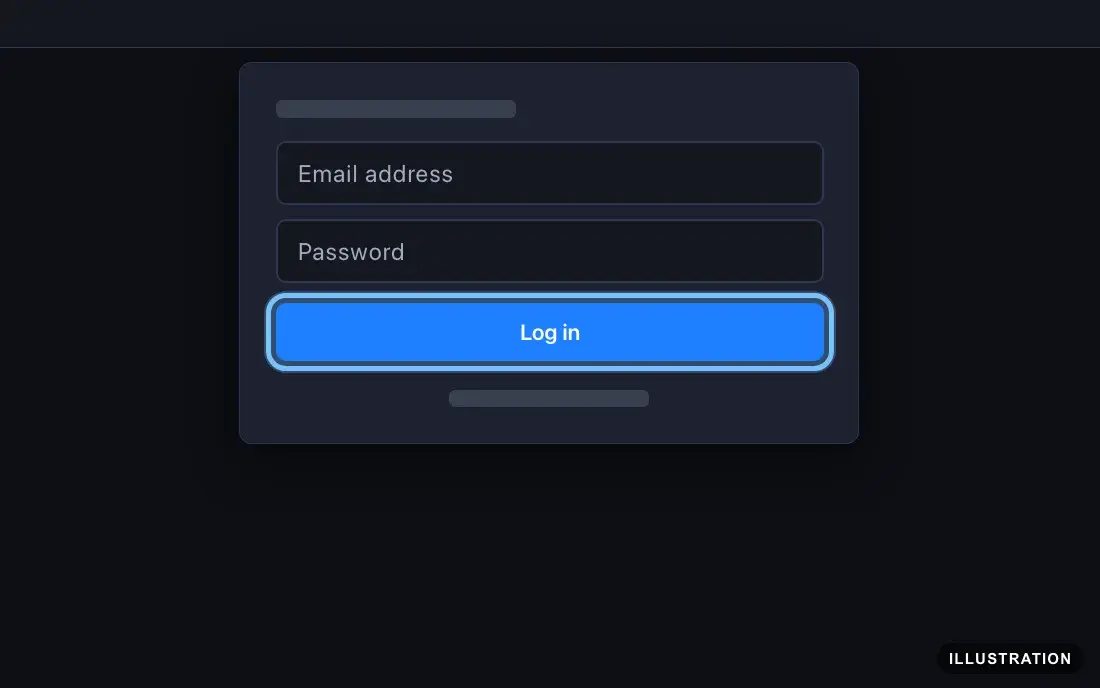
Illustration drawn from the platform's own guide · see the original - 9
Recommended: turn on 2-Step verification for your Ubisoft account, so nobody else can use it.
Redeem in the Ubisoft Connect app
The main route. Ubisoft's own guide: Activating a key in Ubisoft Connect.
- 1
Open Ubisoft Connect on your PC. Check you're logged in to the account you want the game on.
- 2
Select your profile at the top left of the app. A menu opens beside it.
- 3
Choose Key/Code Activation.
Older versions of the app, including the one in the video above, call it Key Activation.
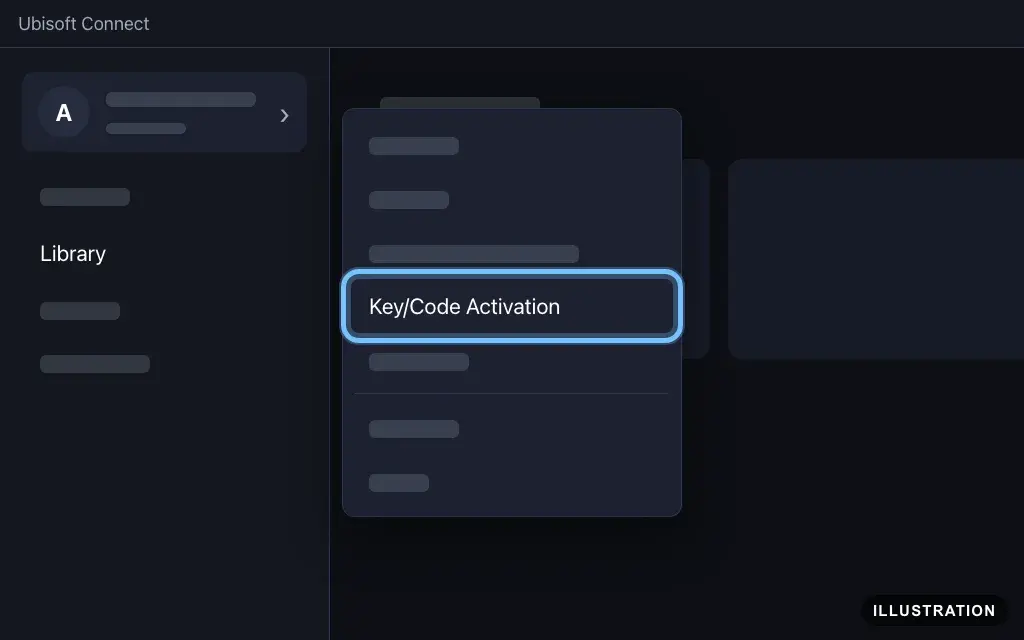
Illustration drawn from the platform's own guide · see the original - 4
Paste your key into the Activate Product field.
Typing it instead? Use capital letters and keep the dashes.
- 5
Select Activate.
Some keys then ask you to choose a product and platform. Pick the ones that match your Andalu order.
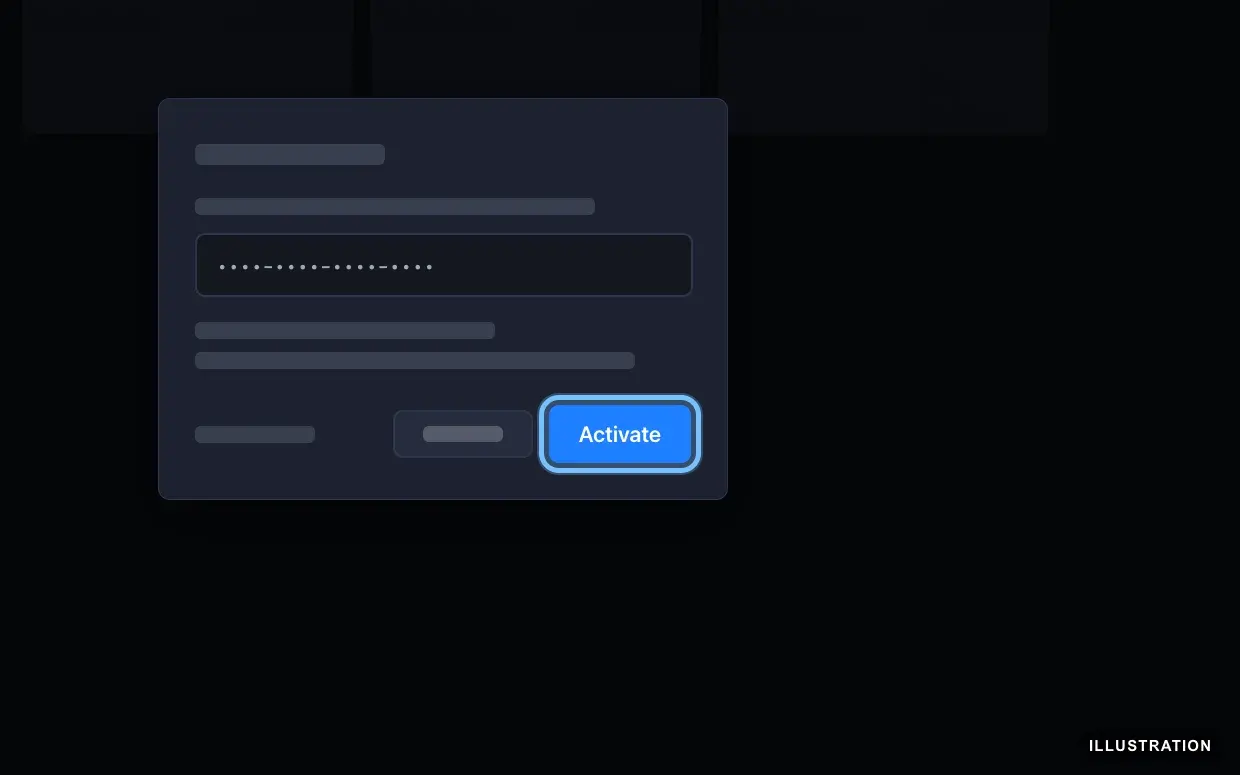
Illustration drawn from the platform's own guide · see the original - 6
The game is now on your account. Follow Download and install it below.
Redeem in the Ubisoft Connect overlay
Already playing a Ubisoft game on your PC? Activate a key without leaving it. Ubisoft's own guide: Opening the in-game overlay.
- 1
While the game is running, press Shift+F2 to open the Ubisoft Connect overlay.
Nothing opens? The overlay can be turned off in the Ubisoft Connect settings. Use the app route above instead.
- 2
Choose Key/Code Activation.
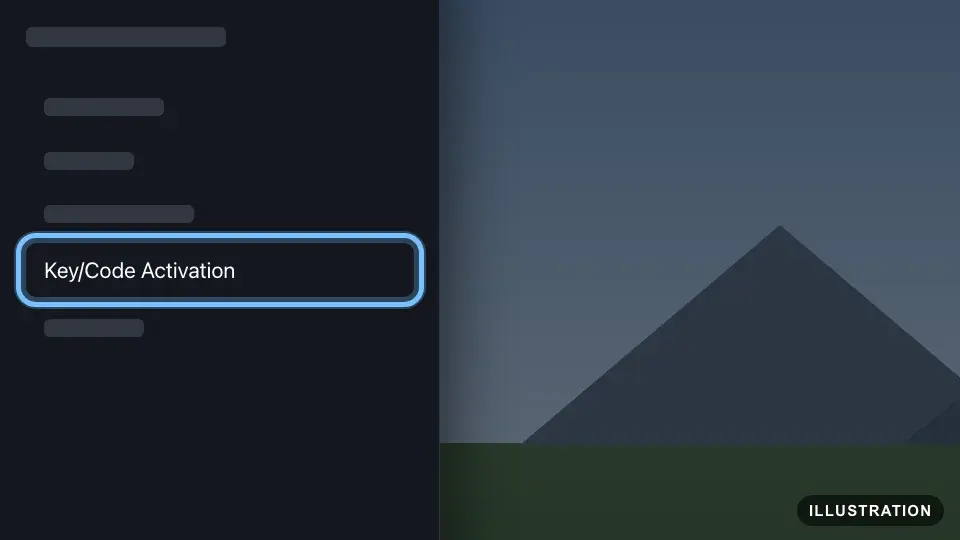
Illustration drawn from the platform's own guide · see the original - 3
Paste your key into the Activate Product field.
- 4
Select Activate.
- 5
DLC and add-ons are now available in the game. A new game is added to your Library: follow Download and install it below.
Download and install it
For a game you've just activated. Ubisoft's own guide: Accessing your games and content.
- 1
In Ubisoft Connect, select Library in the menu on the left.
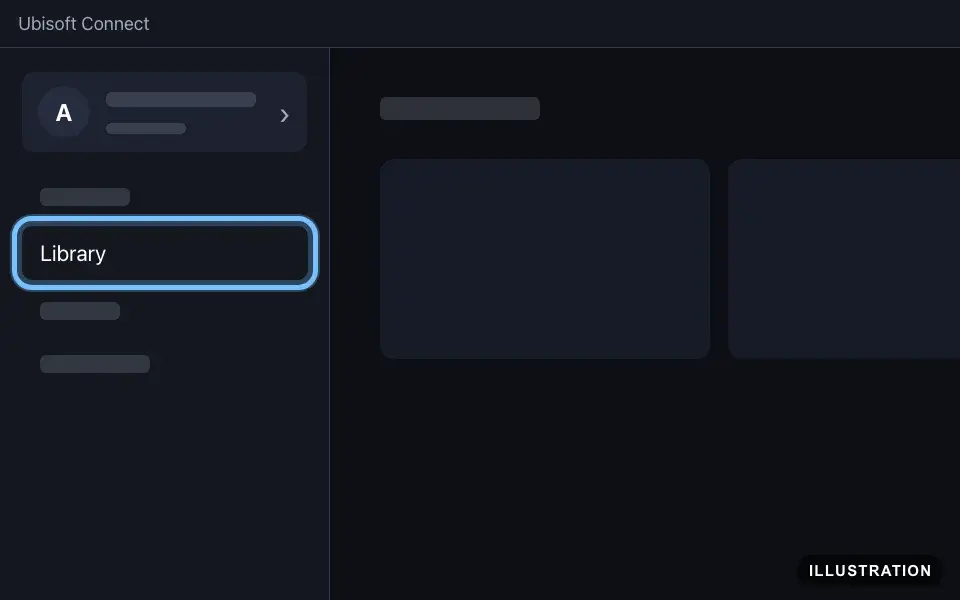
Illustration drawn from the platform's own guide · see the original - 2
On your game's tile, select Download.
Already installed? Select Update if the tile offers it.
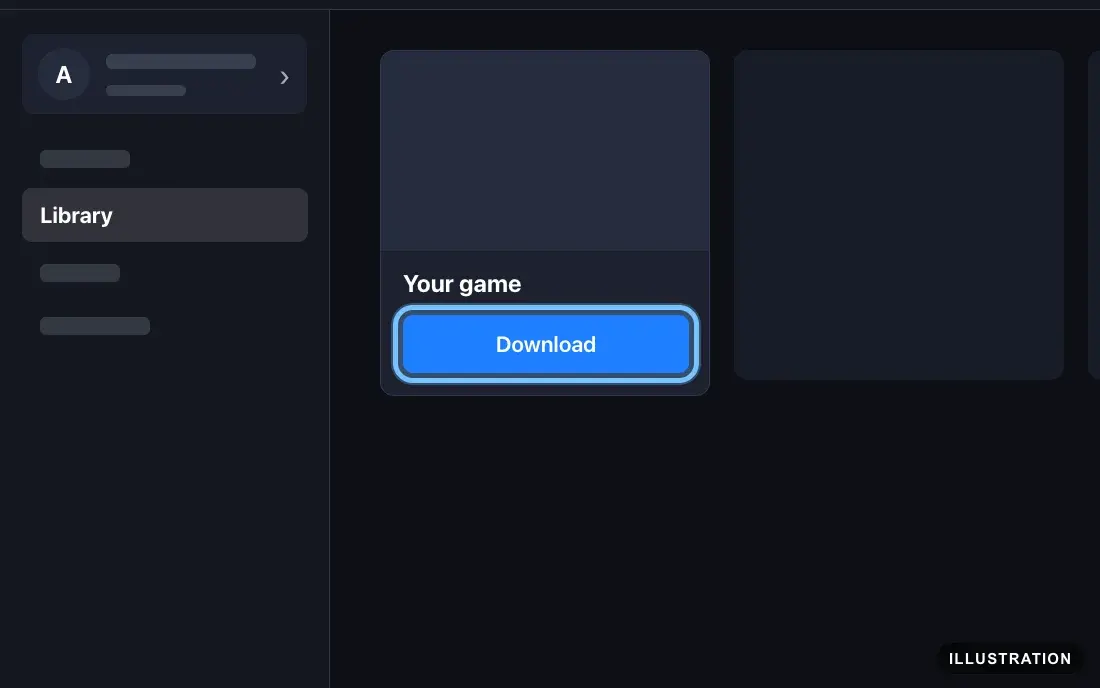
Illustration drawn from the platform's own guide · see the original - 3
When the download finishes, select Play.
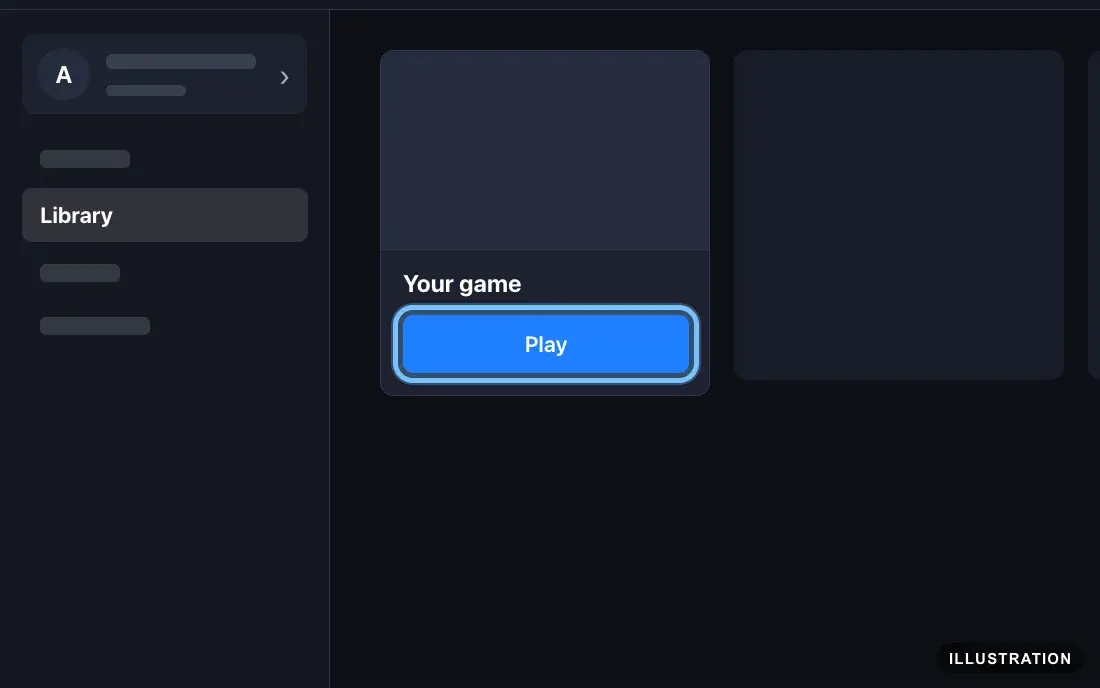
Illustration drawn from the platform's own guide · see the original
Confirm it works
The game appears in your Library once it's activated, even before you download it.
DLC, season passes and upgrades are available in the game itself. They're also listed in the game's Extensions section in Ubisoft Connect.
Can't find it? Check you're logged in to the account you activated on, then restart Ubisoft Connect.
By key type
Base game
The key adds the full game to your Ubisoft account. Find it in your Library, select Download, then Play.
Edition upgrades
An upgrade key adds a bigger edition's extra content to a game you already own. Activate it on the same Ubisoft account as the base game. Like any add-on, the extra content is then available in the game.
DLC and season passes
DLC, expansions and season passes only work with the base game, so activate them on the Ubisoft account that owns it. The content is then available in the game and listed in its Extensions section. A season pass covers content released over time, so some of it may not be out yet.
Ubisoft warns that an add-on and a base game bought from different stores might not work together, and recommends getting both from the same place. If your base game came from another store and the add-on doesn't appear, contact us.
Region-specific keys
Most Ubisoft keys we sell are made for one region, such as Europe or North America. The region is on your Andalu order and the product page. A key for another region shows "This key is not valid in your region" and can't be activated. If the regions don't match, don't keep trying: contact us.
Troubleshooting
| What you see | What it means | What to do |
|---|---|---|
"This CD Key or Activation Code is not valid" | A typing mistake, or the key isn't a Ubisoft Connect key | Copy the key from your order and paste it. A typed key needs capital letters and the dashes. Still failing? Contact us |
"CD Key or Activation Code already in use" | The key was already activated on a Ubisoft account. Each key works only once | Check the Library of any other Ubisoft account you use. If it isn't there, contact us with your order number |
"This key is not valid in your region" | The key is for a different region than yours | Don't retry. Contact us with your order number |
"This CD Key or Activation Code has been banned" | Ubisoft has blocked this key | Don't retry. Contact us with your order number and a screenshot |
Activation stops working after several tries | Ubisoft blocks activation for a while after multiple failed attempts | Stop and try again later. Ubisoft doesn't say how long the block lasts. Paste the key rather than typing it |
There's no Key/Code Activation in your profile menu | An older version of Ubisoft Connect | Choose Key Activation in the same menu instead |
The game isn't in your Library | You're logged in to a different Ubisoft account than the one you activated on | Log in to the right account. Still missing? Ubisoft suggests emptying the Ubisoft Connect cache folder, then restarting the app |
"We couldn’t verify your access to this game" | The game is on a different Ubisoft account than the one you're using | Log in to Ubisoft Connect with the account you activated the key on |
The game asks for a key when it starts | Some games ask for their key again | In Library, select the game's tile, then the three dots, Manage and Properties. On the General tab, select Display Keys, then Copy |
The DLC doesn't show in the game | It's on a different account from the base game, or the two came from different stores | Activate it on the account that owns the base game, and look in the game's Extensions section. Still missing? Contact us |
Ubisoft asks for a code when you log in | 2-Step verification is on for your account | Enter the code from your verification method: an authenticator app, email or SMS |
Sign-up asks for a parent's email | You're under the age of consent, so Ubisoft creates a child account | Your parent or guardian opens Ubisoft's email and selects Create your child's Ubisoft account |
Steam, Epic or a console store won't take the key | It's a Ubisoft Connect key, which only works in Ubisoft Connect | Activate it in Ubisoft Connect on a Windows PC |
Your order says Steam, not Ubisoft Connect | It's a Steam key for a Ubisoft game | Activate it on Steam: see our Steam guide. The first time you start the game, log in to your Ubisoft account and select Link accounts |
You can't find Ubisoft Connect for your Mac or phone | Ubisoft Connect is a Windows app, and its phone app closed in May 2025 | Use a Windows PC to activate the key |
Frequently asked questions
Still stuck?
Contact us with your order number and the exact message you see, word for word, including any error code. We reply by email, usually within a day. If the key can't be used, buyer protection covers you for 24 hours after delivery.
Ubisoft keys on Andalu
Global keys: they activate in any region.