How do I activate a Steam key?
You activate a Steam key in the Steam app on Windows, macOS or Linux, on a Steam Deck, or on Steam's website from any computer or phone. It takes about two minutes. The game lands in your Library at once, and you install it from there. A Global key works anywhere; a region key activates only in its region.
Shop Steam keysBefore you start
You need a Steam account. No account yet? Follow Set up Steam below first. It's free.
Check the region on your Andalu order. A Global key works anywhere. A key for a region, like Europe or North America, activates only in that region, and Steam Support can't remove a region lock.
Sign in with the account you want the game on. Steam ties an activated key to that account permanently, so it can't be moved later.
For DLC or an upgrade, you need the base game on the same Steam account first.
Have your key ready. A Steam key looks like XXXXX-XXXXX-XXXXX: three groups of five letters and numbers. Some have five groups.
You can activate from any browser, but to play you need the Steam app on a computer, or a Steam Deck.
Get your key from Andalu
Your key arrives by email, never on the order page.
- 1
Open the email for your order. Its subject names what you bought and includes your order number, like "Elden Ring, Steam: your key is ready (#42101)".
Can't find it? Your order confirmation page opens your inbox already searched for it: select the button named for your email service, such as Open Gmail. Check spam and promotions too.
- 2
Select Get your order. Your key is on the page it opens. If the email shows the key itself, under Your key, it's right there.
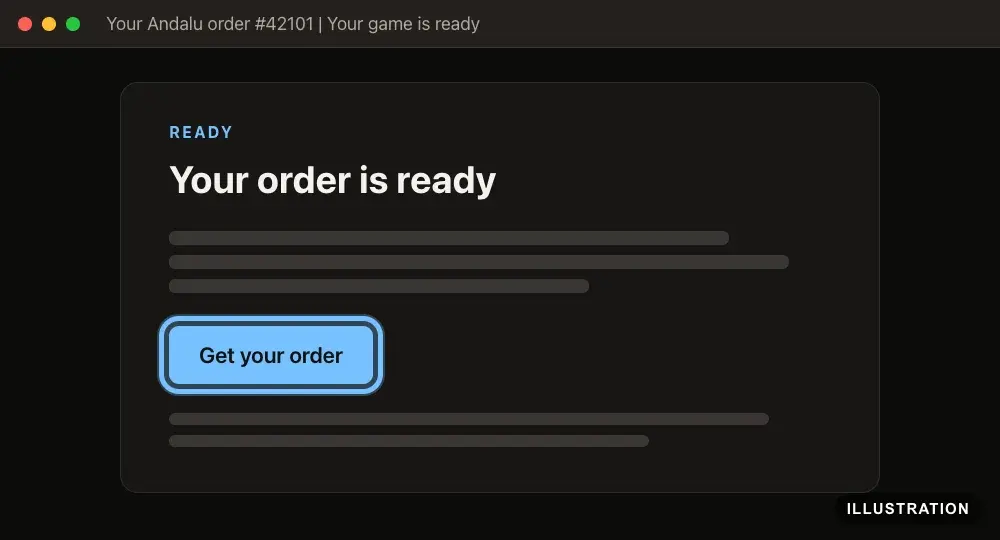
Illustration of your Andalu order page - 3
Copy the key exactly as shown, so no character is mistyped.
Set up Steam (first time only)
Skip this if you already use Steam. Steam's own guides: How do I create a Steam account? and Installing Steam.
- 1
Go to Steam's sign-up page.
- 2
Enter your email address in both email boxes.
- 3
Under Country of Residence, choose the country you live in.
Steam sets your store country from where you live and pay, and a key can't change it later.
- 4
Tick the box to confirm you're 13 or older and accept the Steam Subscriber Agreement.
- 5
Select Continue.
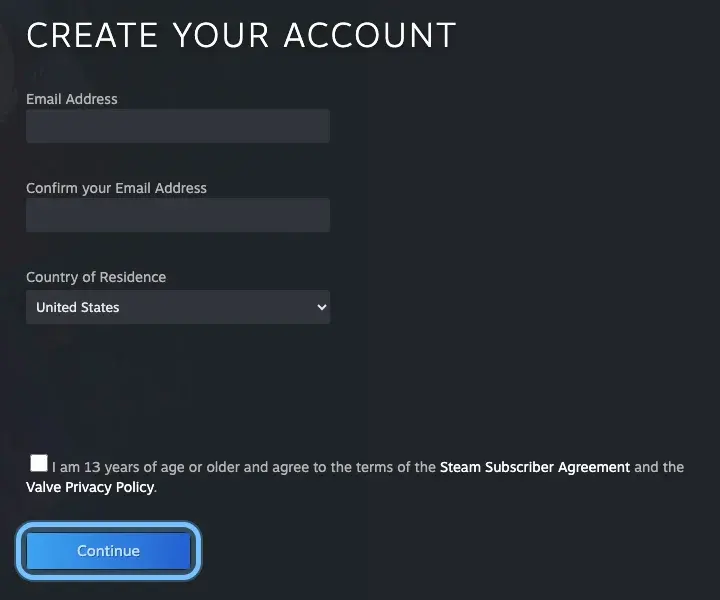
- 6
Follow Steam's prompts to finish creating your account.
Note your account name. Steam's sign-in asks for it, not your email address.
- 7
Go to Steam's download page.
- 8
Select Install Steam.
The button downloads Steam for the computer you're on. For another system, pick its icon next to Also available on:.
Steam runs on Windows 10 or later (64-bit), macOS 12 or later, and Linux.
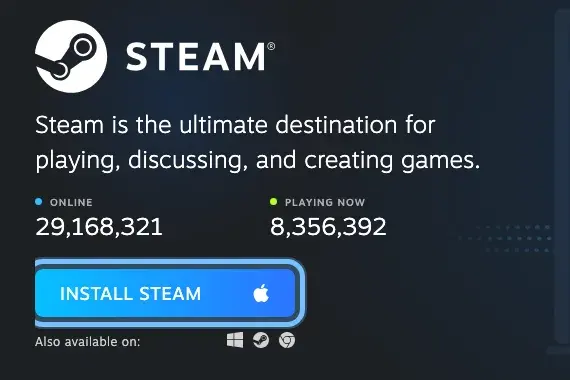
- 9
Open the file you downloaded and follow the installer's steps.
On Windows, install it from an administrator account.
- 10
Open Steam and sign in with your account name and password.
- 11
If Steam asks for a Steam Guard code, enter the code from your email or from the Steam Mobile app.
Steam Guard protects your account: Steam asks for a code when you sign in on a device it doesn't recognize.
Redeem in the Steam app
For Windows, macOS and Linux. Steam's own guide: Activating a Product on Steam.
- 1
Open the Steam app and sign in with the account you want the game on.
- 2
Select Games in the menu bar at the top.
- 3
Select Activate a Product on Steam....
Can't find the Games menu? Open your Library and select Add a Game at the bottom left. The same Activate a Product on Steam... option is there.
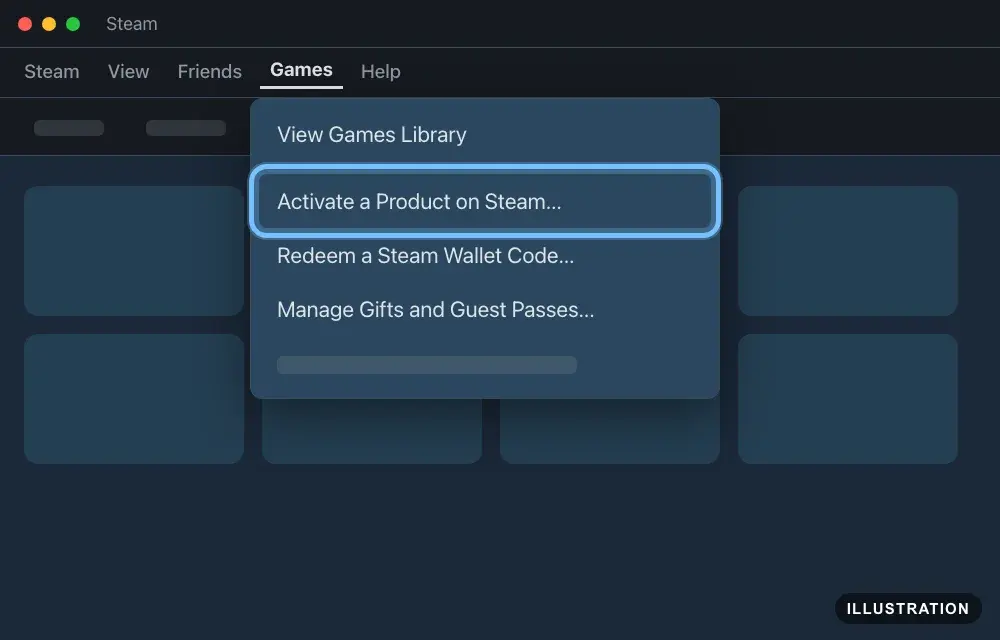
Illustration drawn from the platform's own guide · see the original 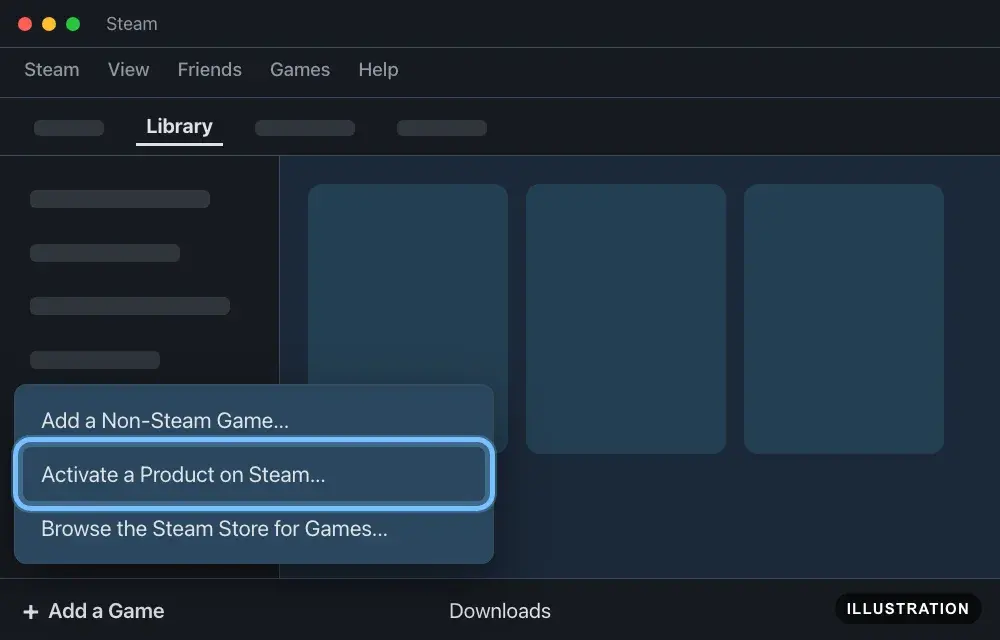
Illustration drawn from the platform's own guide · see the original - 4
If Steam shows the Steam Subscriber Agreement, read it and select Agree.
Steam only shows it when the agreement has changed since you last accepted it.
- 5
Paste your key into the box under Enter your product code.
The Steam product keys panel beside the box shows the key formats Steam accepts.
- 6
Select Confirm.
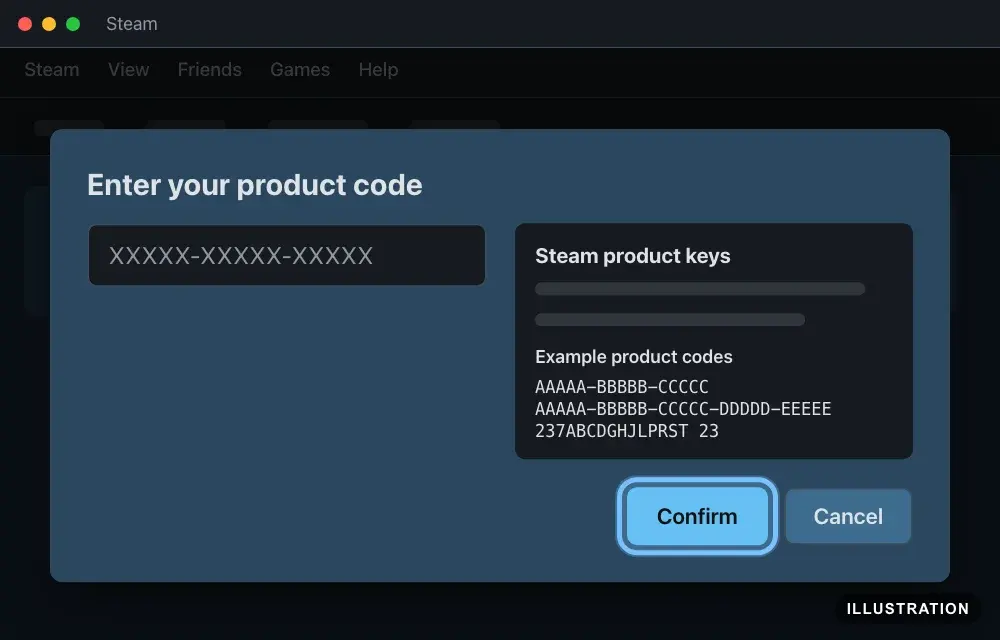
Illustration drawn from the platform's own guide · see the original - 7
When you see Activation Successful, select OK.
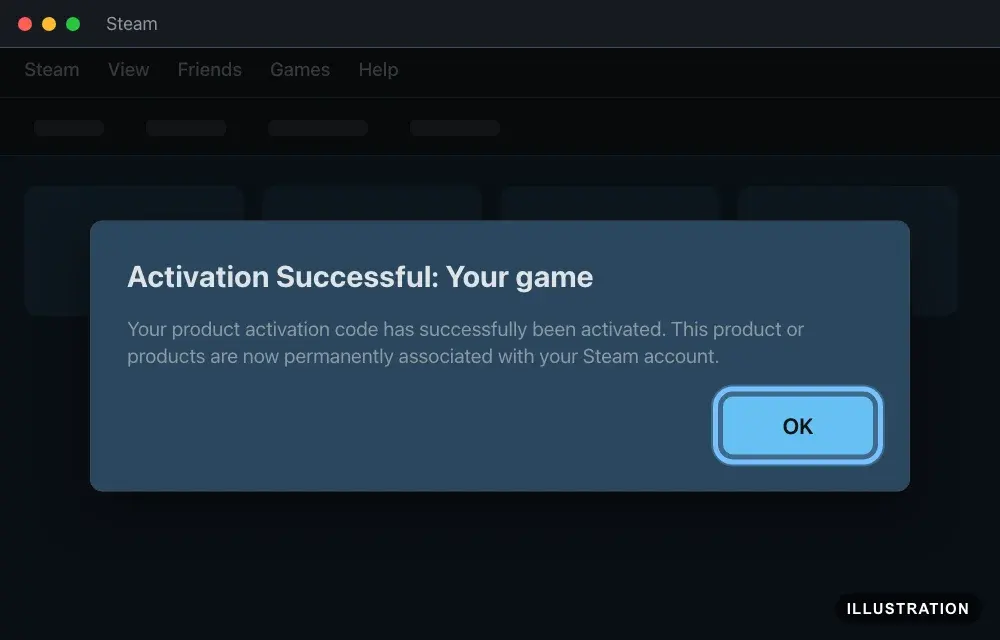
Illustration drawn from the platform's own guide · see the original - 8
The game is now in your Library. Follow Download and install it below.
Redeem on the website
Works in any browser on a computer. Steam's own guide: Activating a Product on Steam, under "Register through browser".
- 1
- 2
If Steam asks you to sign in, enter your account name and password, then select Sign in.
If Steam asks for a Steam Guard code, enter the code from your email or from the Steam Mobile app.
After you sign in, Steam brings you back to the key page.
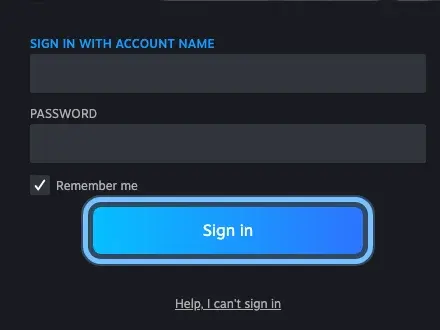
- 3
Paste your key into Product Code.
- 4
Tick the box to agree to the Steam Subscriber Agreement.
- 5
Select Continue.
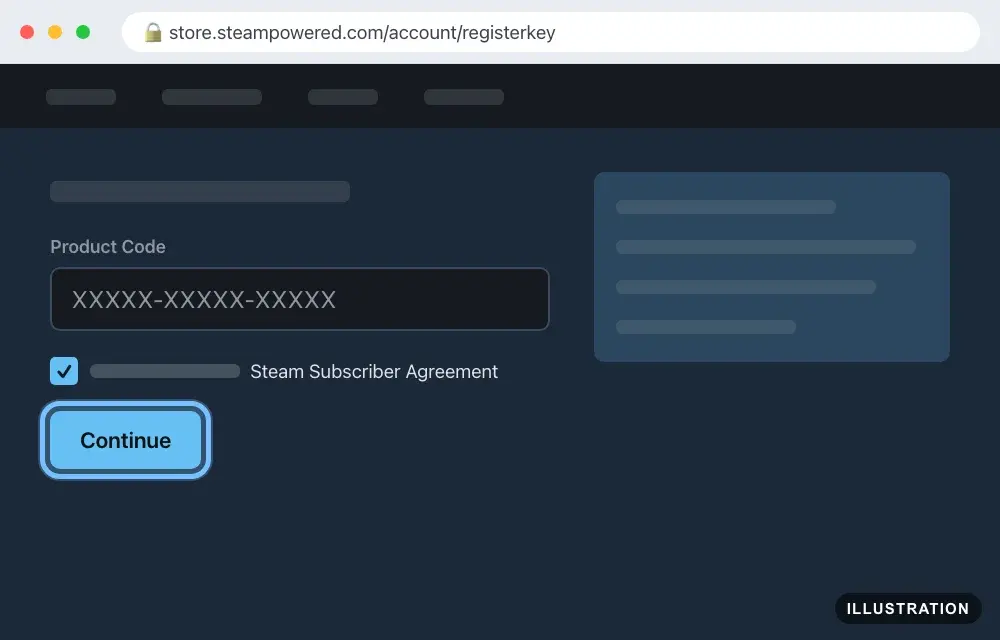
Illustration drawn from the platform's own guide · see the original - 6
Steam lists what the key added to your account. Follow Download and install it below.
Redeem on Steam Deck
In Gaming Mode, the Deck's usual screen. Typing a key with the on-screen keyboard is fiddly, so you can also use the website from a computer or phone: the game then appears in your Deck's Library too.
- 1
Press the Steam button on your Deck.
- 2
Select Settings.
- 3
Select Library in the list on the left.
- 4
Under Activate a product on Steam, next to Add to Library, select Add game.
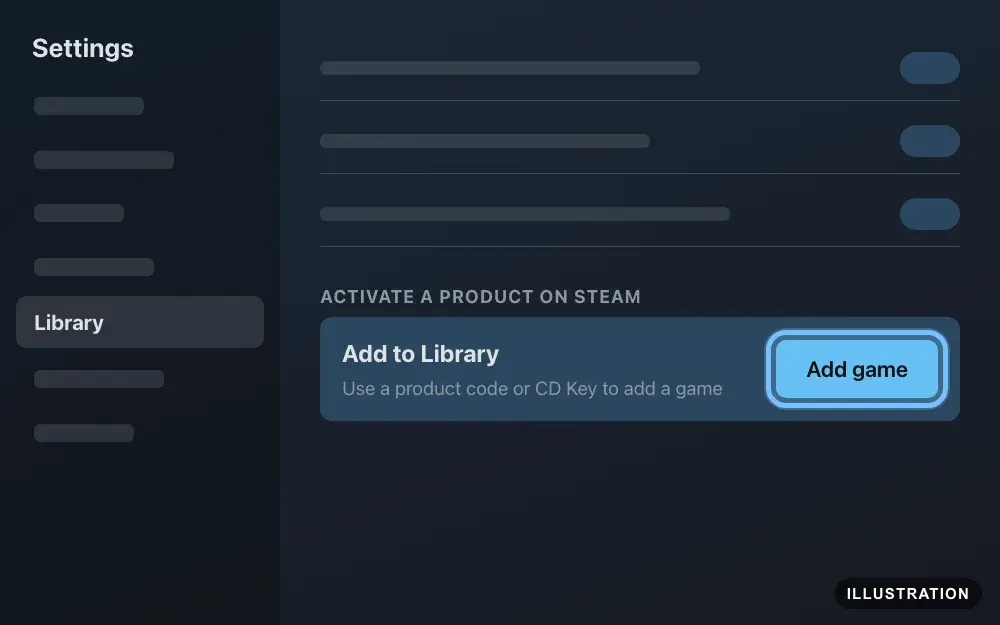
Illustration drawn from the platform's own guide · see the original - 5
Type your key with the on-screen keyboard.
- 6
Select Confirm.
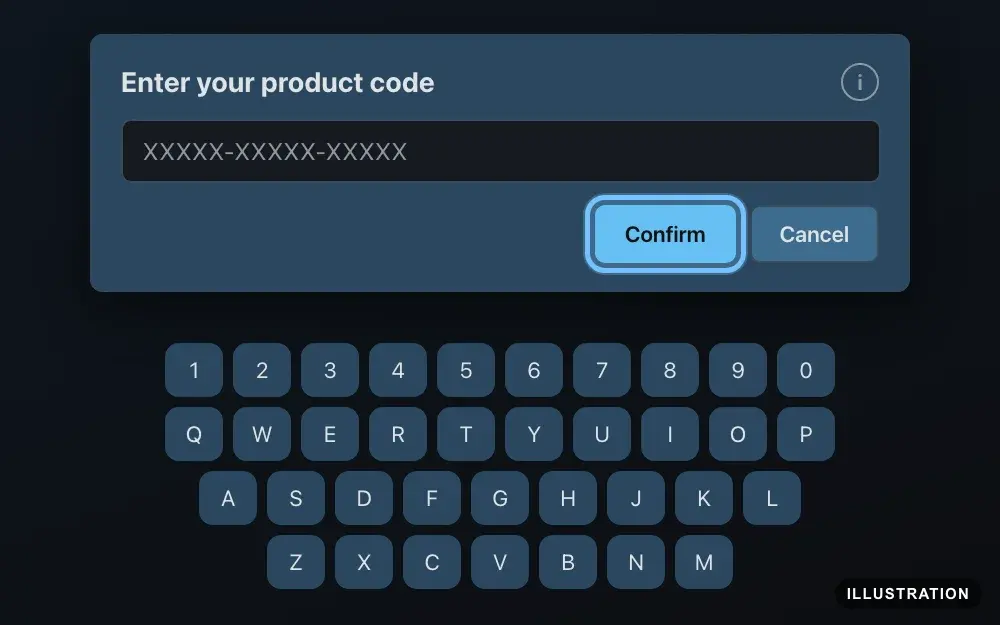
Illustration drawn from the platform's own guide · see the original - 7
When you see Activation Successful, select OK.
- 8
The game is now in your Library. Follow Download and install it below.
Redeem on your phone
Use your phone's browser. Steam doesn't document a way to activate keys in its mobile app, so the website is the way. Steam's own guide: Activating a Product on Steam.
- 1
Open your phone's browser and go to store.steampowered.com/account/registerkey.
- 2
If Steam asks you to sign in, enter your account name and password, then tap Sign in.
If Steam asks for a Steam Guard code, enter the code from your email or from the Steam Mobile app.
After you sign in, Steam brings you back to the key page.
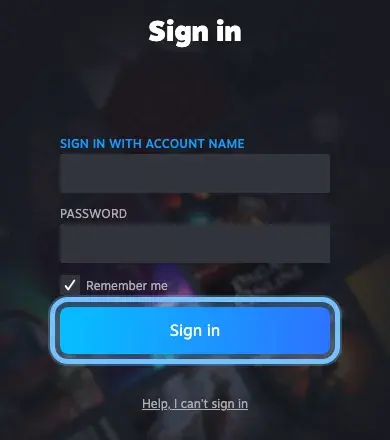
- 3
Paste your key into Product Code.
- 4
Tick the box to agree to the Steam Subscriber Agreement.
- 5
Tap Continue.
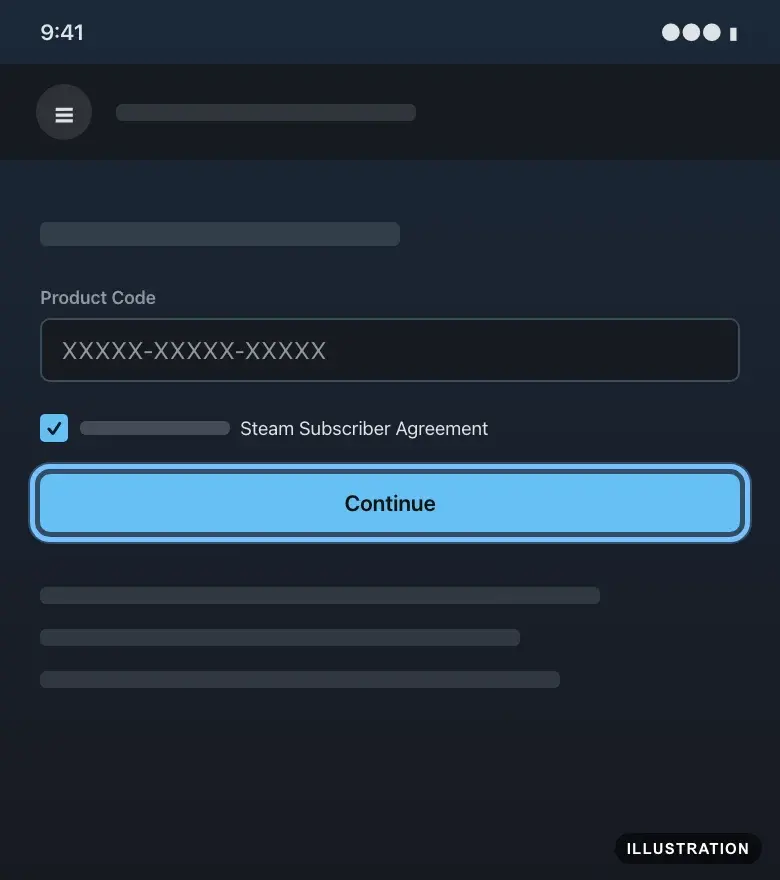
Illustration drawn from the platform's own guide · see the original - 6
The game is now on your account. To play, install it on your computer or Steam Deck: see Download and install it below.
Download and install it
For a key you activated on any route. The game waits in your Library on every computer or Steam Deck where you sign in.
- 1
In the Steam app, select Library.
On a Steam Deck, press the Steam button, then select Library.
- 2
Select the game in the list on the left.
- 3
Select Install.
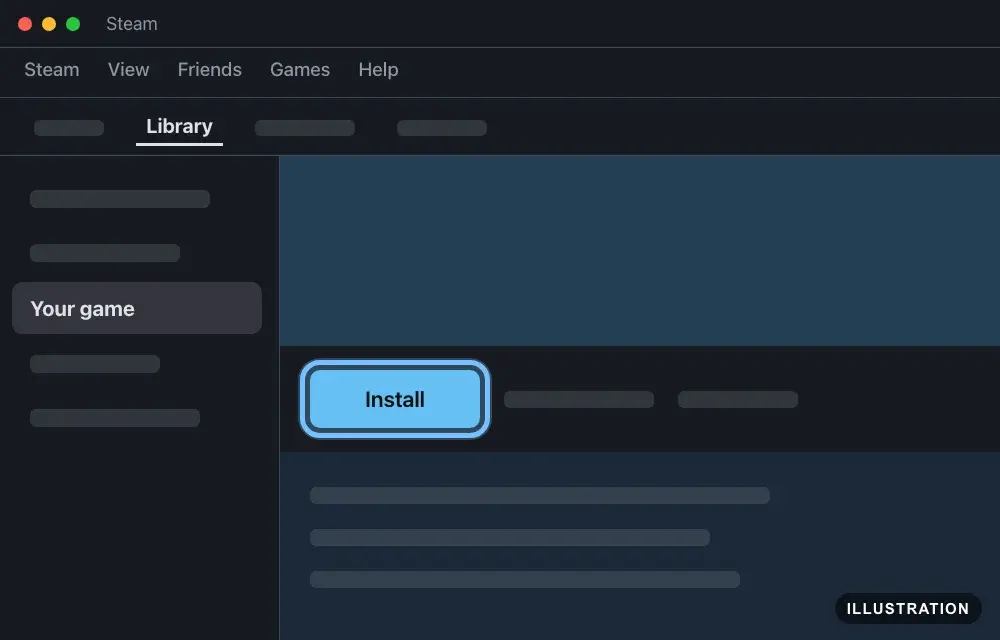
Illustration drawn from the platform's own guide · see the original - 4
If Steam asks where to install it, pick a drive with enough free space, then select Install.
- 5
Wait for the download to finish. You can watch its progress under Downloads at the bottom of the window.
- 6
Select Play.
Confirm it works
After Activation Successful, the game is in your Library at once, even before you install it.
DLC, season passes and upgrades don't show as separate games. Open the base game in your Library and scroll to its DLC section. Its Manage My ... DLC button shows what you own and what's installed.
A key for a game that isn't out yet still activates. Steam says the content becomes available once the game is released on Steam.
Can't find the game? Make sure you're signed in to the account you activated on. Then check View, then Hidden Games, in the menu bar, or sign out and back in.
By key type
Base game
The key adds the full game to your account. Install it from your Library and play. If the game isn't released yet, see Pre-orders below.
Edition upgrades
An upgrade key adds the extra content of a bigger edition, like a Deluxe or Premium upgrade, to a game you already own. Activate the base game first, on the same Steam account. The extra content shows up with the base game, usually in its DLC section, not as a new game. If Steam says Please First Activate the Original Game, the base game isn't on this account yet.
DLC and season passes
DLC, expansions and season passes only work with the base game, so the base game must be on the same Steam account first. If it isn't, Steam stops with Please First Activate the Original Game and the key is not used. After activating, open the base game in your Library: the content is listed in its DLC section. A season pass unlocks content as the publisher releases it, so some items arrive later.
A content pack, like a car pack or a skin pack, is DLC too, not a multi-pack.
Multi-packs
A multi-pack, like a 2-pack or a 4-pack, holds several copies of one game: one for you and the rest for friends. Your order shows how yours arrives:
Several keys: activate one on your account, and give each friend one key to activate on their own account.
One key: activate it on your account. Steam adds the game to your Library and puts the extra copies in your Steam Inventory as gifts. Find them under Games, then Manage Gifts and Guest Passes..., and send each one to a friend who doesn't own the game yet.
Already own the game? Contact us before you activate a multi-pack.
Pre-orders
You can activate a pre-order key before release day. Steam confirms it and says the content becomes available once the game is released on Steam. If the publisher allows an early download, the game shows Ready to Preload in your Library, so you can download it before release. Some pre-order editions let you play early: Steam calls this Advance Access.
Region-specific keys
Most Steam keys on Andalu are Global and activate in any country. The rest are sold for one region, shown on your order and the product page: for example Europe, North America, the United States, CIS (Commonwealth of Independent States), Latin America (LATAM) or Asia, or a single country.
Steam's rule: each game's publisher sets its keys' regions, and Steam activates a region key only in the region it was sold for. Anywhere else, Steam refuses it with Not Available and the key is not redeemed. Some region keys can also only be played in their region: the Library then shows Unavailable in current region.
Buy the key for the country you live in. The publisher decides exactly which countries a region covers, so if you're not sure yours is included, ask us before you buy. Steam Support can't change or remove a region lock, and a key can't change your Steam store country. If a region key won't activate, don't keep trying: contact us.
Troubleshooting
| What you see | What it means | What to do |
|---|---|---|
Invalid Product Code: "The product code you've entered is not valid." | A typing mistake, or a key that isn't a Steam product key | Copy the key from your order and paste it. Typing it? I, L and 1 look alike, as do V and Y, and 0 and O. Still failing? Contact us |
Duplicate Product Code: "The product code you've entered has already been activated by an existing Steam account, and is therefore invalid." | The key was already used, maybe on another Steam account of yours | Check any other Steam accounts you use. If it isn't on one of them, contact us with your order number |
Product Already In Library: "This Steam account already has the product(s) associated with this activation code." | This account already owns everything the key contains | Play it from your Library. If you meant the key for another account, contact us |
Please First Activate the Original Game | DLC or an upgrade whose base game isn't on this account | Activate the base game on the same account first, then activate this key again |
Not Available: "Sorry, but ... is not available for purchase in this country." | A region key used outside its region | Don't retry. Contact us with your order number |
"This game is not available in your territory." or Unavailable in current region in your Library | The key activated, but the game can only be played in its region | Don't retry. Contact us with your order number |
Too Many Activation Attempts: "There have been too many recent unsuccessful activation attempts from this account." | Too many failed tries in a row | Stop and wait. Steam doesn't say how long, so leave it at least an hour, then paste the key once |
"An unexpected error has occurred. Your product code has not been redeemed." or Purchase Error | A problem on Steam's side. Your key is not used up | Wait 30 minutes, as Steam advises, then try again. If it keeps happening, contact us |
Steam Server Is Unavailable | Your computer can't reach Steam, or activation is paused for a while | Check your connection and try again later, or use the website |
"You must agree to the terms of the Steam Subscriber Agreement to complete this transaction." | The agreement box on the website isn't ticked | Tick the box, then select Continue again |
Steam asks for a Steam Guard code | Steam's sign-in check on a device it doesn't recognize | Enter the code from your email, or from the Steam Mobile app if you use it |
The key activated, but the game isn't in your Library | You're signed in to a different account, or the game is hidden | Sign in to the account you activated on. Check View, then Hidden Games |
You're on a child account in a Steam family and can't finish | Steam Families parental controls can limit what a child account can do | Ask the adult who manages your Steam family to check your settings |
Frequently asked questions
Still stuck?
Contact us with your order number and the exact message you see, word for word, including any error code. We reply by email, usually within a day. If the key can't be used, buyer protection covers you for 24 hours after delivery.
Steam keys on Andalu
Global keys: they activate in any region.