How do I check my remaining eSIM data?
Your phone counts the data it uses on your eSIM. Take your plan's size, shown on your order confirmation page, and subtract what your phone has counted since you arrived. That's roughly what you have left. Reset the count when you land, and set a warning so your phone tells you before the data runs out.
The phone's count is an estimate: the network's own count can differ a little, so leave yourself some room near the end. For the network's own figure, enter your order number and the eSIM's ICCID on the top-up page. It shows the data left and the days left, and the top-ups the eSIM can take.
Before you start
Find your plan's size first: it's in the plan's name on your order confirmation page and in your eSIM email's subject, for example 3 GB for 30 days.
A daily plan (its name shows GB a day) gets a fresh allowance every day. Compare the day's use with that daily amount.
Make sure your eSIM is the line your phone uses for mobile data. If it isn't, the count shows another line's use. See how to choose it on iPhone, Pixel or Samsung.
In the pictures, your Andalu eSIM is called Your eSIM. On your phone it has the name you gave it.
Find your plan's size
- 1
Open your order confirmation page. The plan's name shows its data and days, such as Spain eSIM - 3 GB · 30 days.
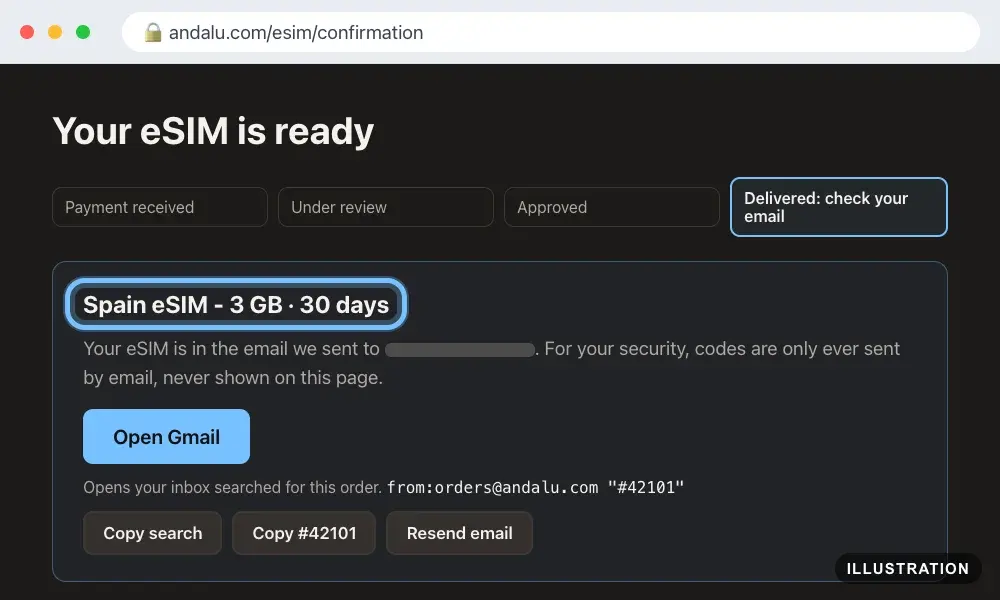
Illustration of your Andalu order page
On an iPhone
Apple's own guide: Use cellular data on your iPhone.
- 1
Open the Settings app and tap Cellular. Some iPhones say Mobile Data instead.
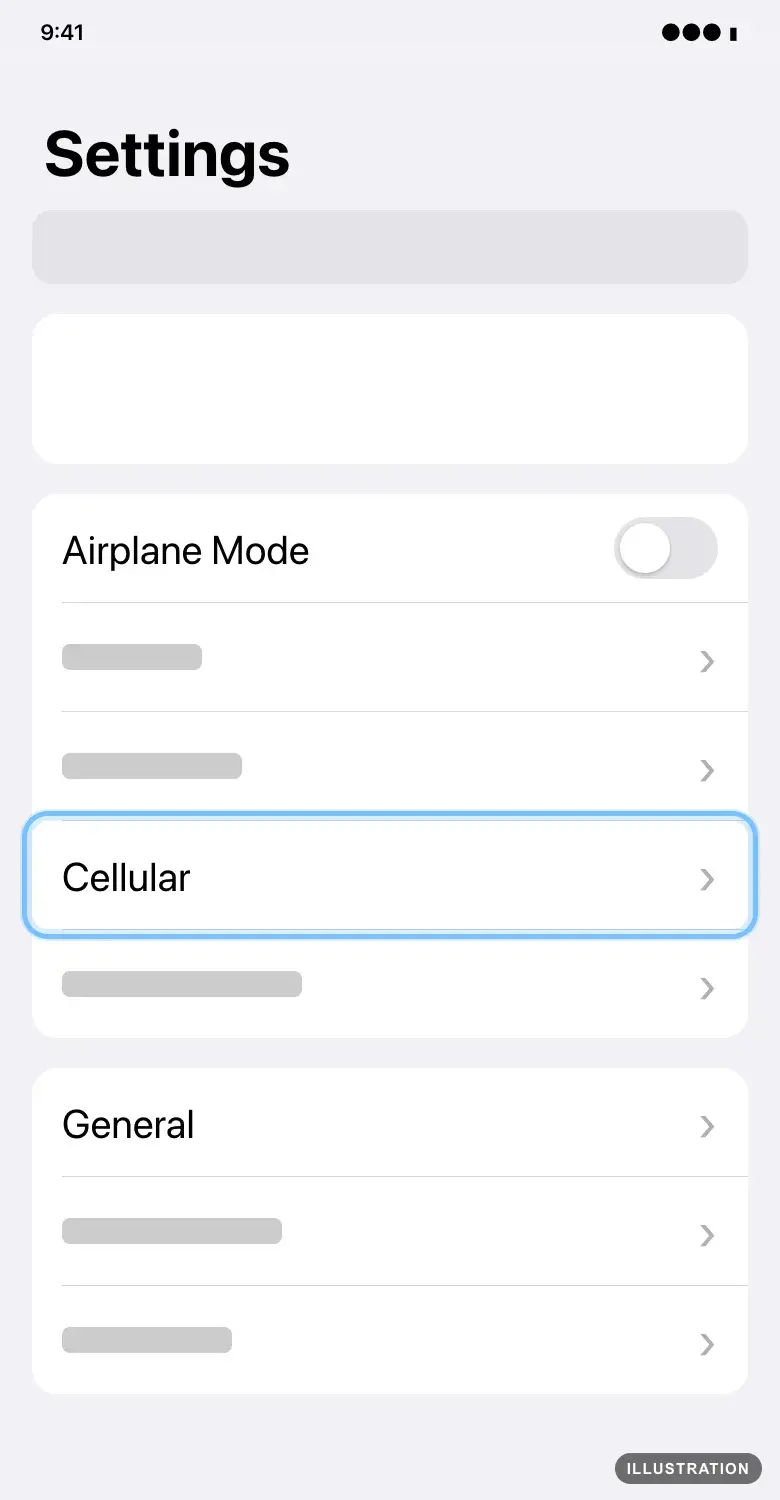
Illustration drawn from the platform's own guide · see the original - 2
When you arrive, scroll to the bottom and tap Reset Statistics. The count starts again from zero, so it only shows your trip.
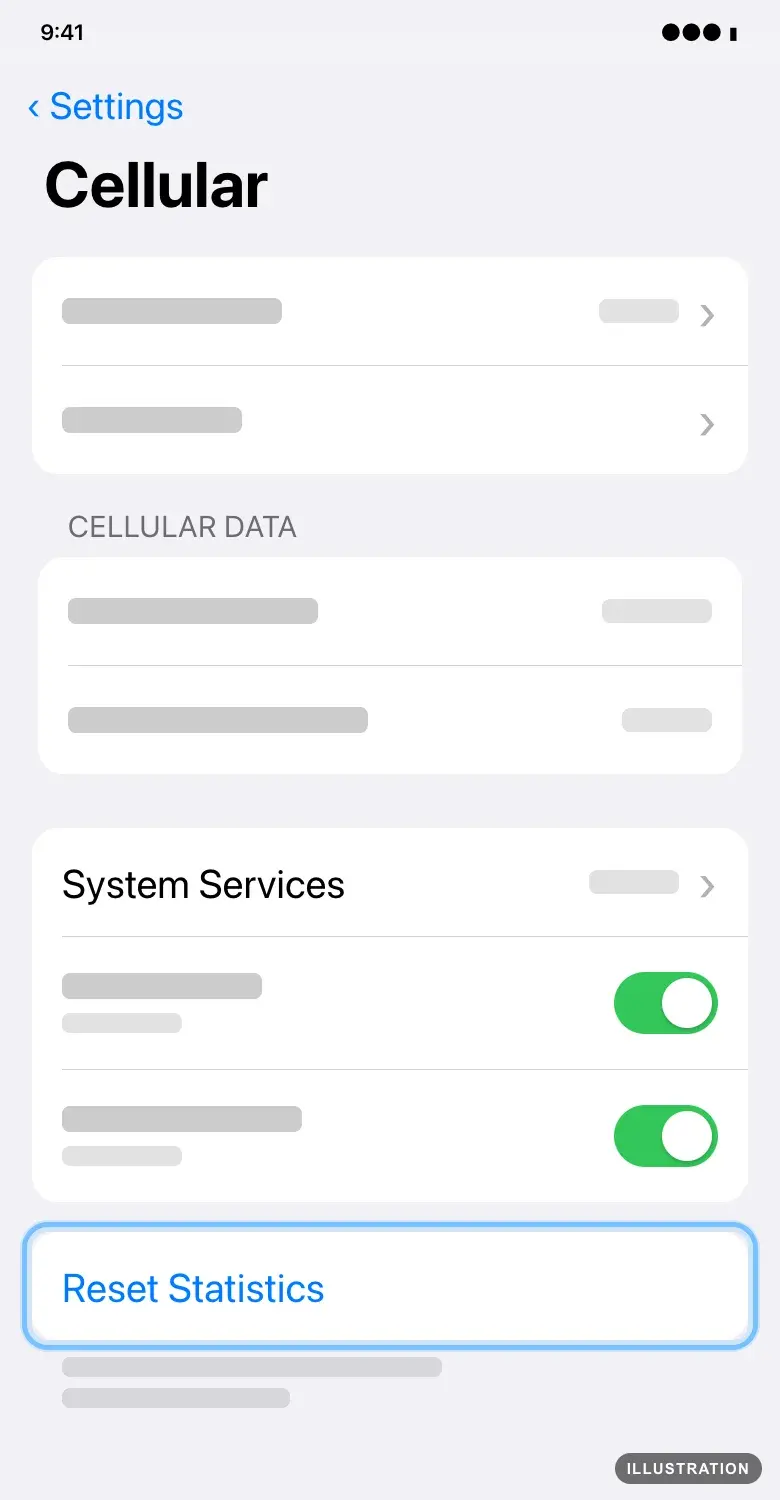
Illustration drawn from the platform's own guide · see the original - 3
To check later, open the same screen and look under Cellular Data. That's how much your iPhone has used since you reset it, on the line it uses for mobile data.
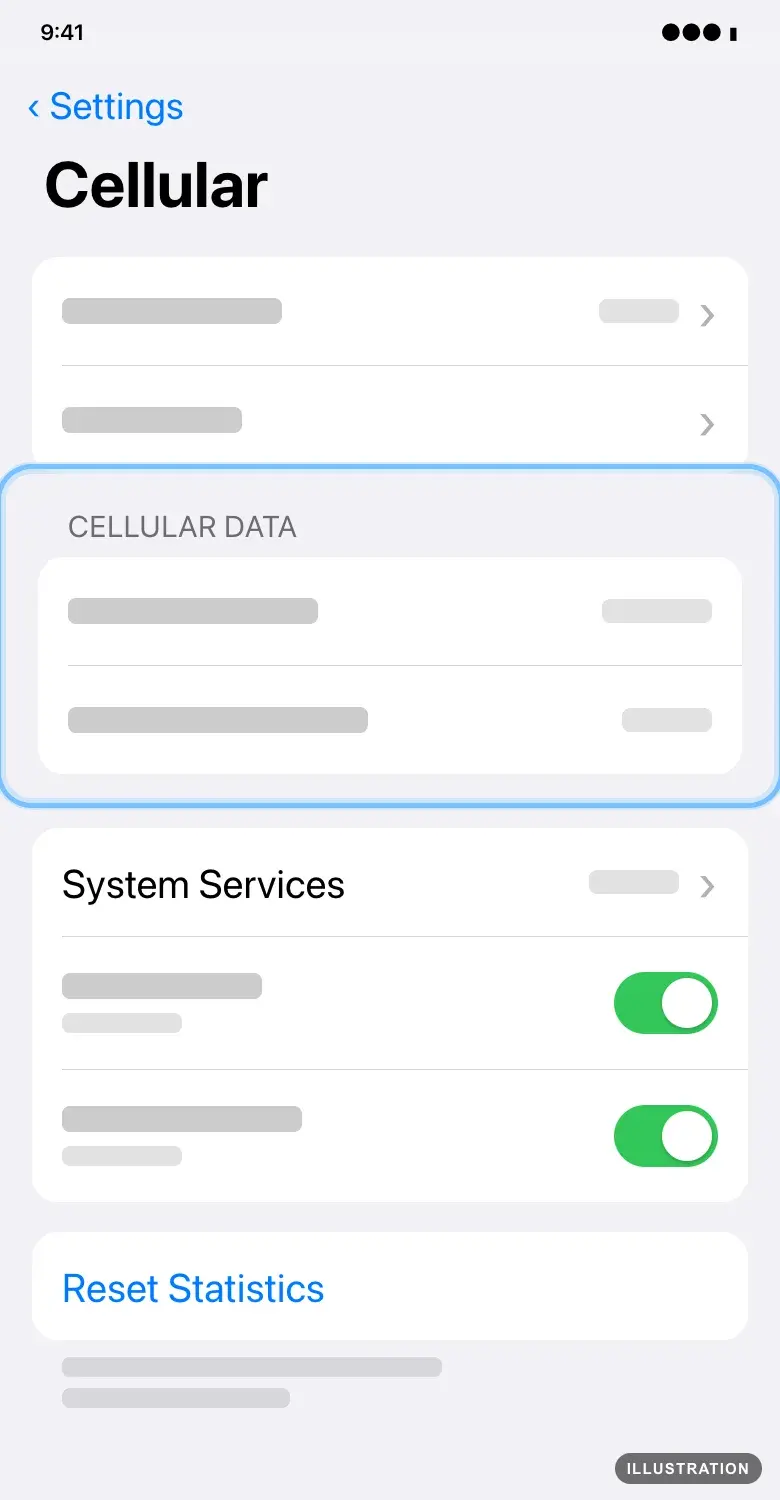
Illustration drawn from the platform's own guide · see the original
On a Google Pixel
Google's own guide: Reduce and manage mobile data usage.
- 1
Open the Settings app and tap Network & internet.
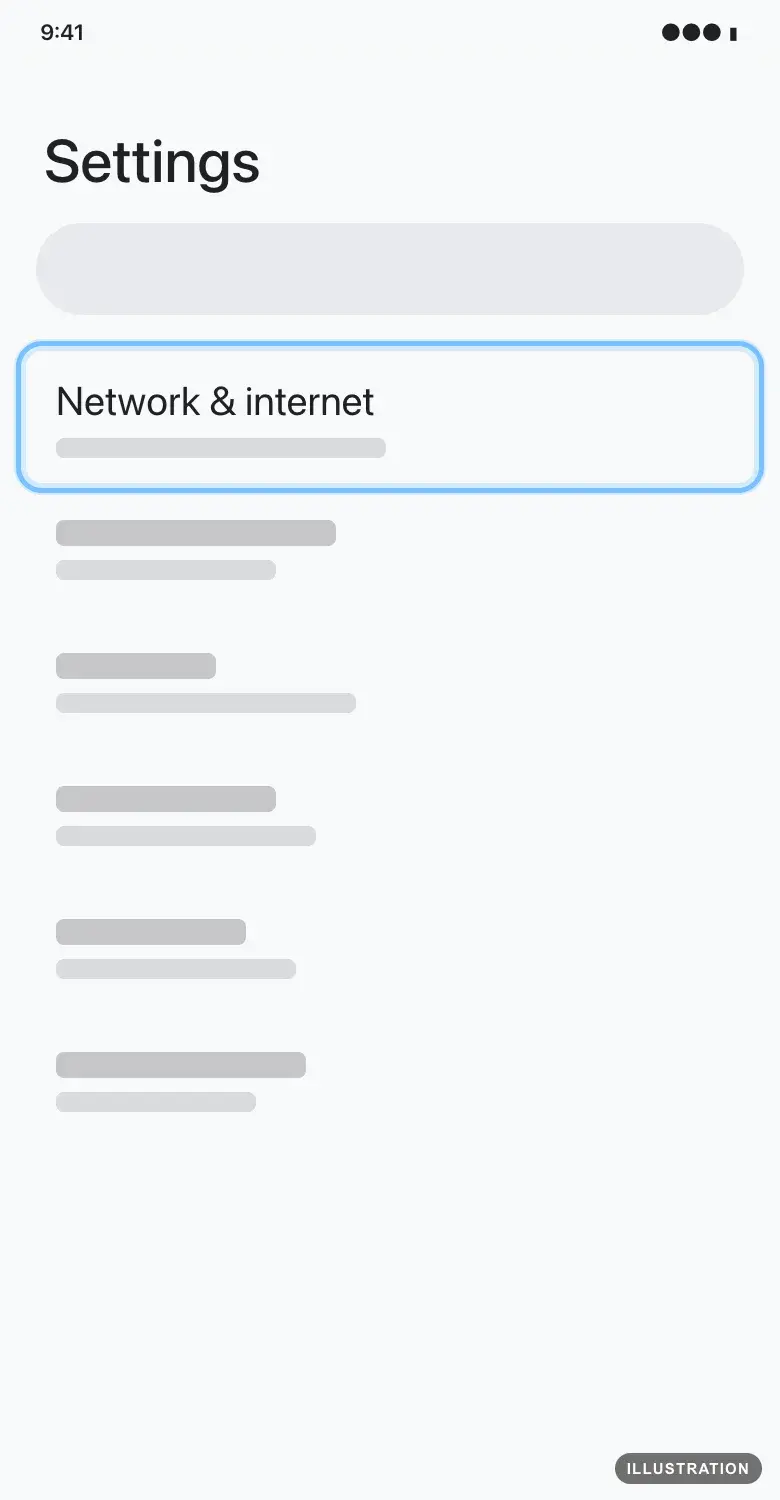
Illustration drawn from the platform's own guide · see the original - 2
Tap SIMs.
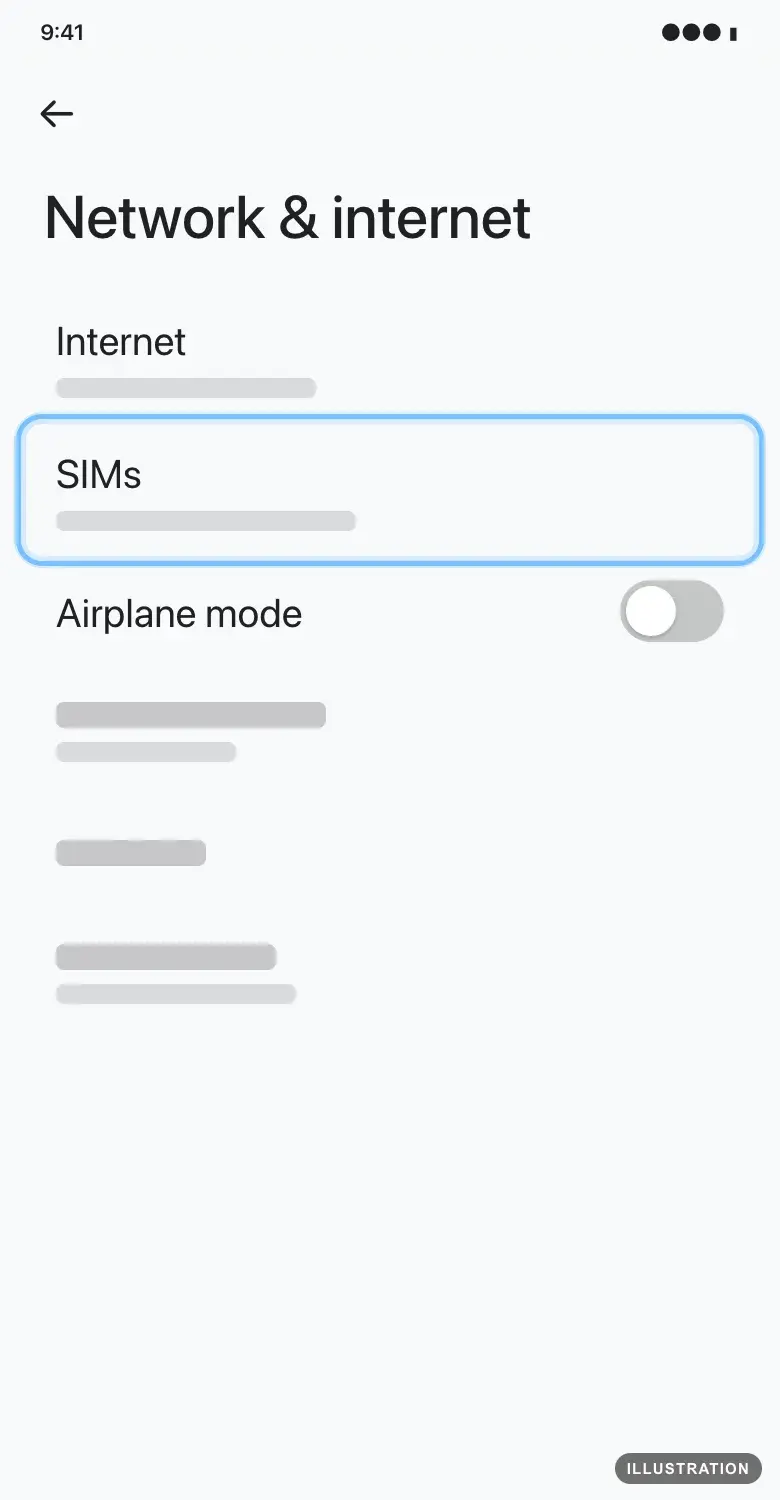
Illustration drawn from the platform's own guide · see the original - 3
Tap Your eSIM.
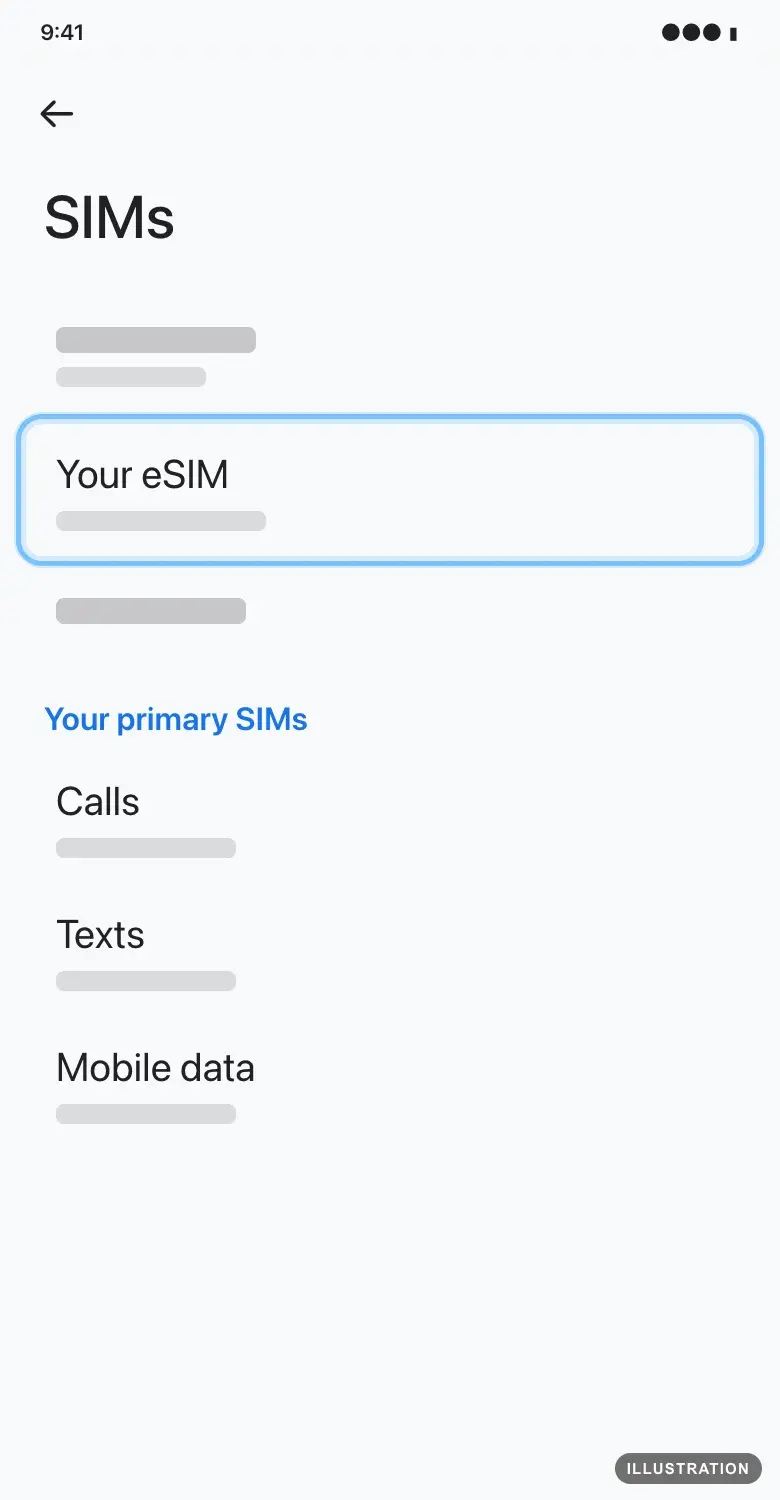
Illustration drawn from the platform's own guide · see the original - 4
Tap App data usage to see how much you've used. Tap the down arrow to pick the time period.
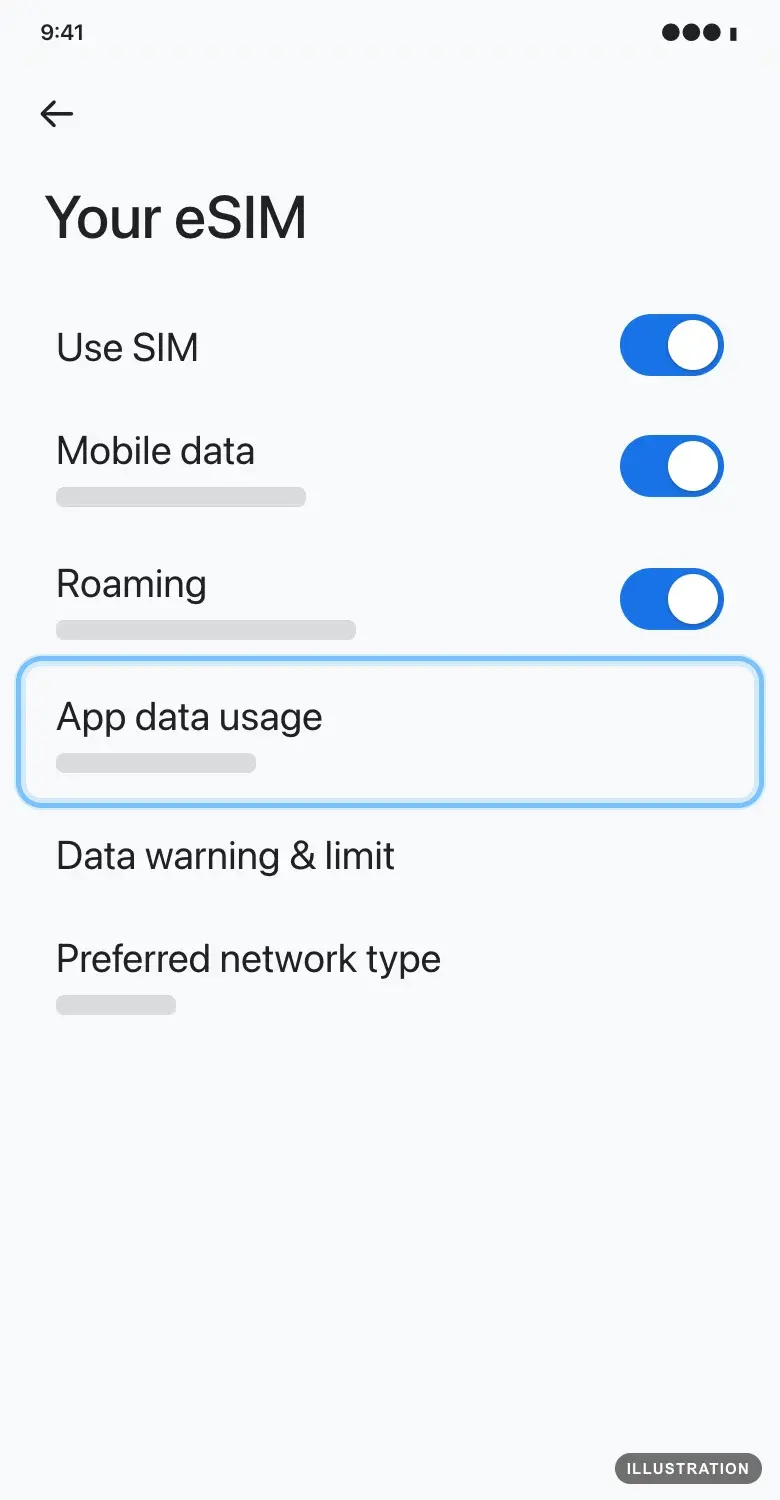
Illustration drawn from the platform's own guide · see the original - 5
To get a warning, go back and tap Data warning & limit.
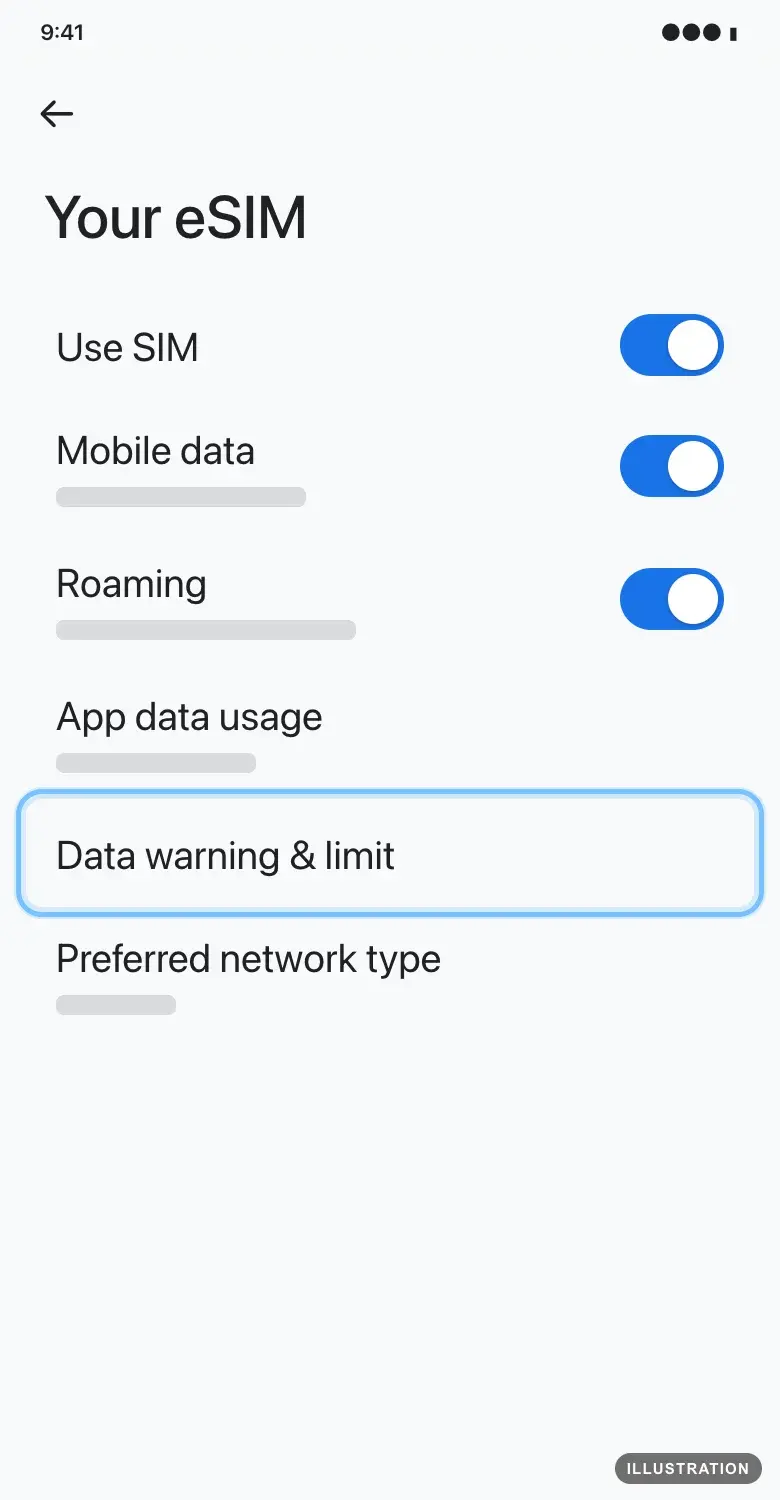
Illustration drawn from the platform's own guide · see the original - 6
Turn on Set data warning, tap Data warning, enter a little less than your plan's size, and tap Set. Your phone tells you when you reach it.
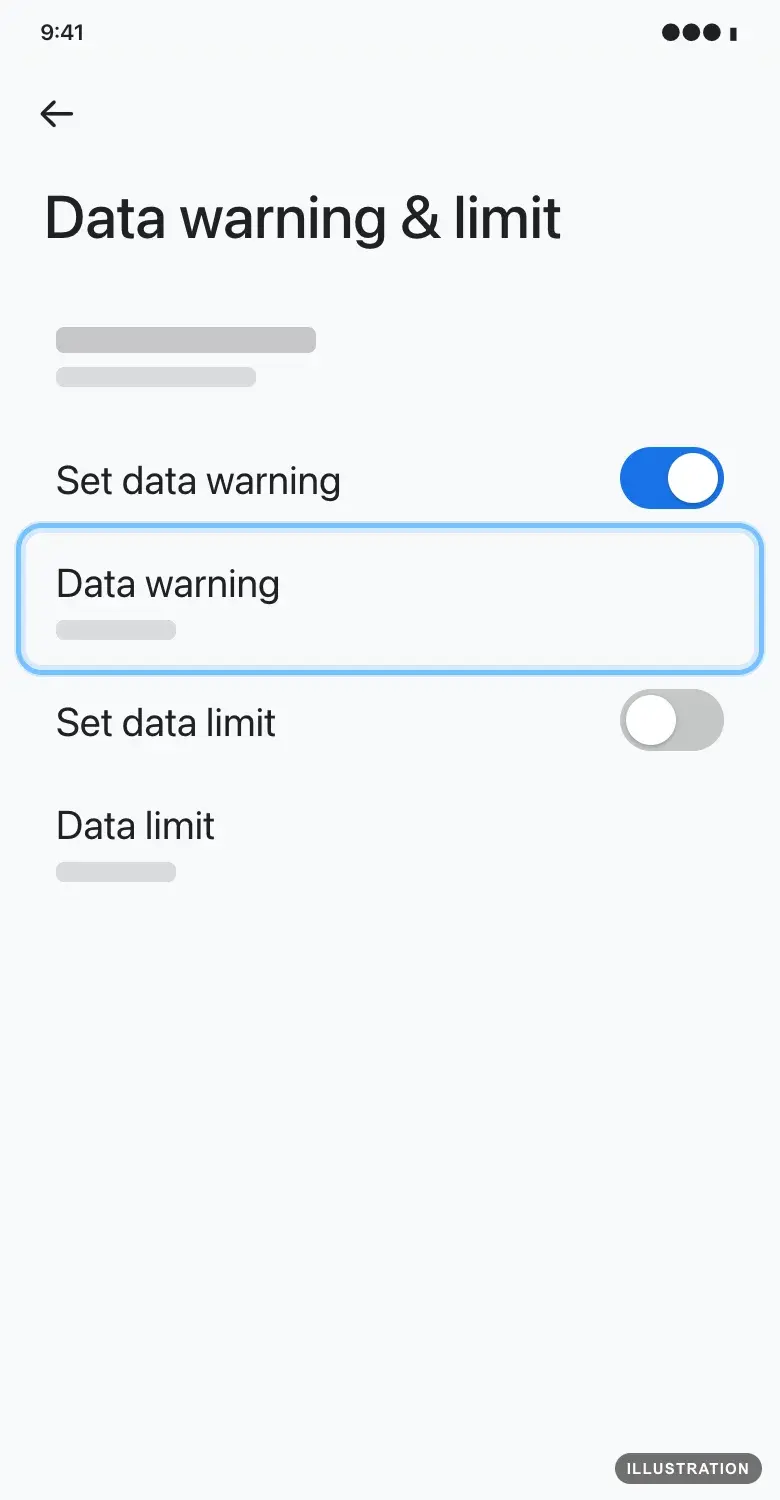
Illustration drawn from the platform's own guide · see the original
On a Samsung Galaxy
Samsung's own guide: Connection options for your Galaxy phone.
- 1
Open Settings and tap Connections.
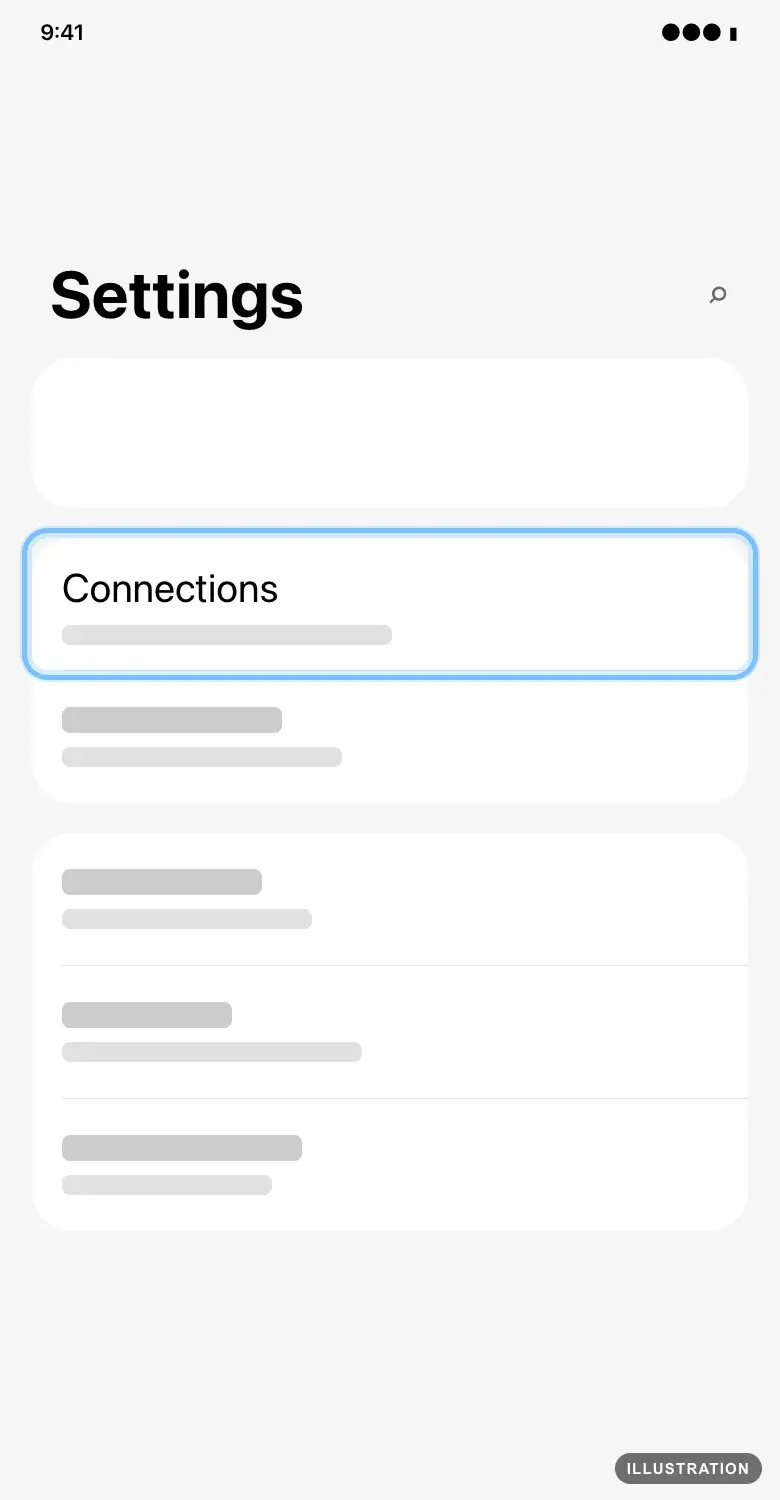
Illustration drawn from the platform's own guide · see the original - 2
Tap Data usage.
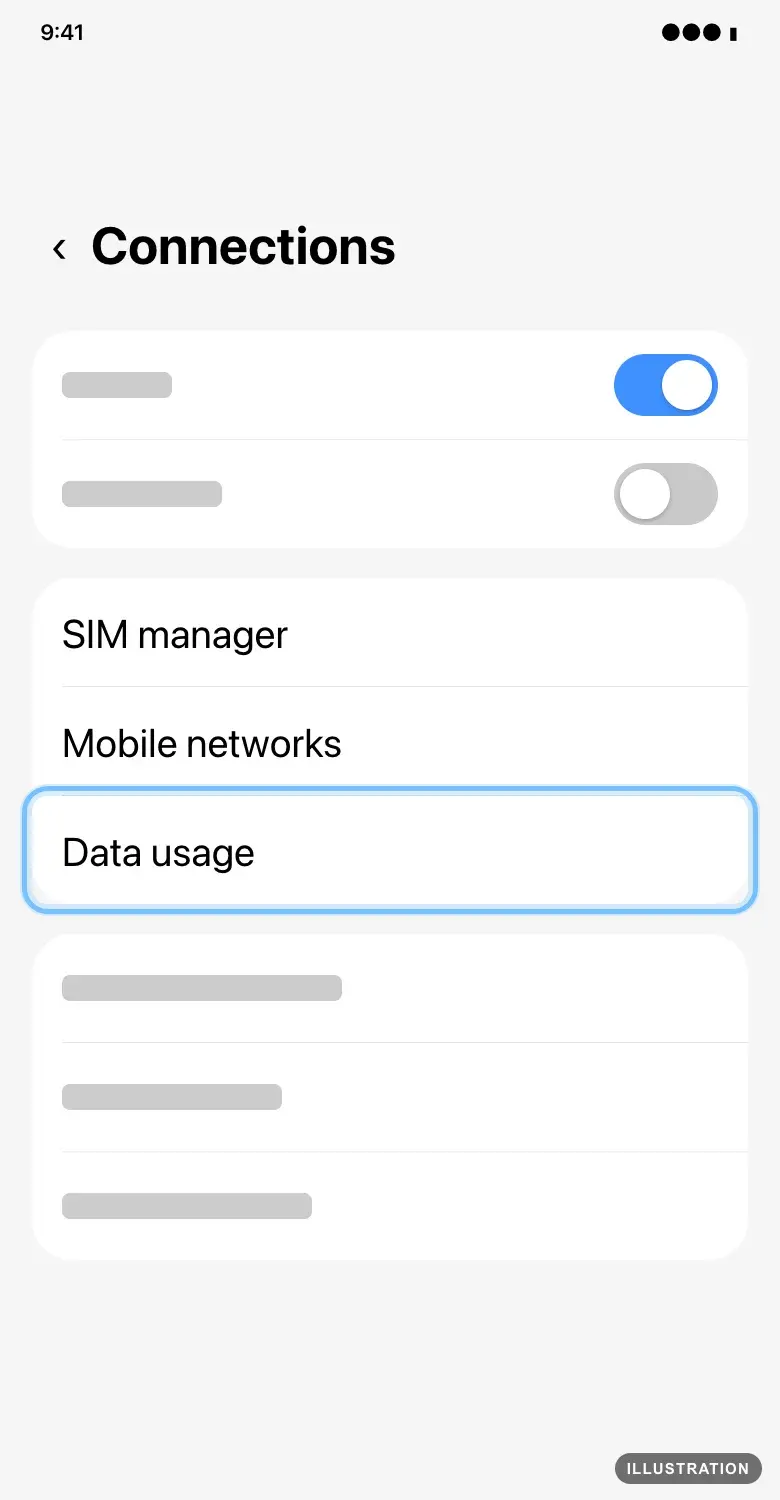
Illustration drawn from the platform's own guide · see the original - 3
Tap Mobile data usage to see how much you've used, and by which apps. If there's a choice of SIM, choose your eSIM.
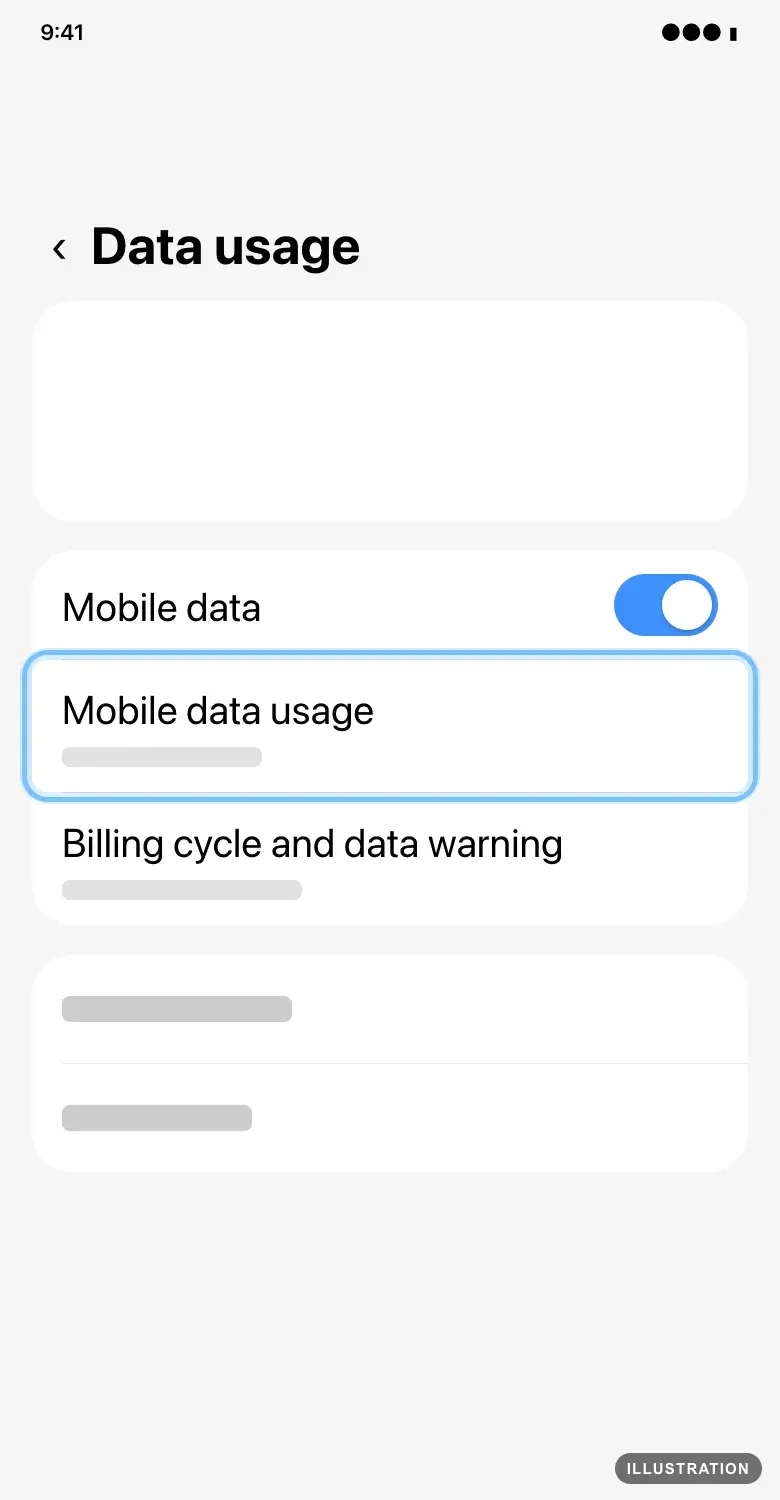
Illustration drawn from the platform's own guide · see the original - 4
To get a warning, go back and tap Billing cycle and data warning. Set the cycle to start on the day you arrived, and set the warning a little below your plan's size.
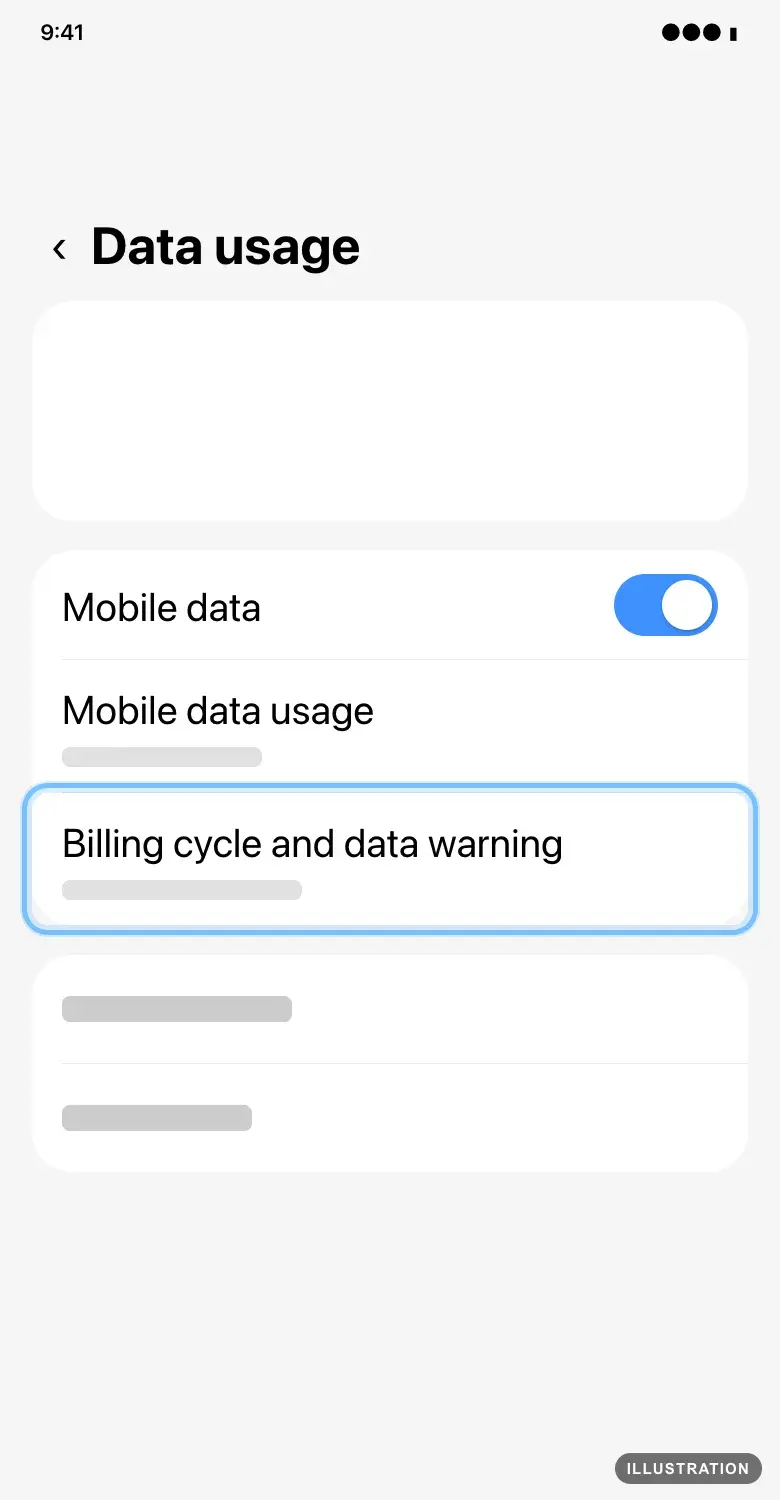
Illustration drawn from the platform's own guide · see the original
Troubleshooting
| What you see | What it means | What to do |
|---|---|---|
The count is much higher than you expected | It includes data used before your trip, or on another line | Reset the count when you arrive (iPhone) or set the cycle to your arrival day (Pixel, Samsung) |
The count shows almost nothing, but you've been online | Your phone was on Wi-Fi, or another line carries mobile data | Check that your eSIM is the line for mobile data |
Data stopped before the count reached your plan's size | The network's count differs a little from your phone's, or the plan's days ended | |
A daily plan is very slow for the rest of the day | That day's allowance is used, so the speed is reduced until it renews | Wait for the next day's allowance, or use Wi-Fi |
You can't find your plan's size | You don't have the order confirmation page any more | The plan's name is in your eSIM email's subject too. Lost that as well? See I lost my eSIM email |
Frequently asked questions
Related articles
Still stuck?
Contact us with your order number and the exact message you see, word for word, including any error code. We reply by email, usually within a day.
No order number? Include the email address you paid with and your eSIM's ICCID. It's in your eSIM email, and in your phone's settings: Settings > General > About on an iPhone, or Settings > About phone > SIM status on Android. Contact us about an eSIM.