I lost my eSIM email. Can I get my QR code again?
Your eSIM's QR code arrives by email, never on the order page. If the eSIM is already installed, you don't need the code again. If it isn't, search your inbox for your order number, including spam, or ask for the email again from the contact page. Can't get it back? Contact us and we'll look up your order.
Before you start
Use the phone or computer you paid on. Your browser's history is on that device.
Have these to hand: the email address you paid with, the mobile number you confirmed with a text code when you paid, and the date and amount from your card or bank statement. They're how we find your order.
Next time, keep the email for your order. It's your copy of the QR code, so keep it private.
- 1
Check whether the eSIM is already on your phone. On an iPhone, open Settings, tap Cellular and look under SIMs. On a Pixel, open Settings, then Network & internet, then SIMs. On a Samsung, open Settings, then Connections, then SIM manager. If it's listed (shown as Your eSIM in the picture, with the name you gave it on your phone), you're set: you don't need the code again.
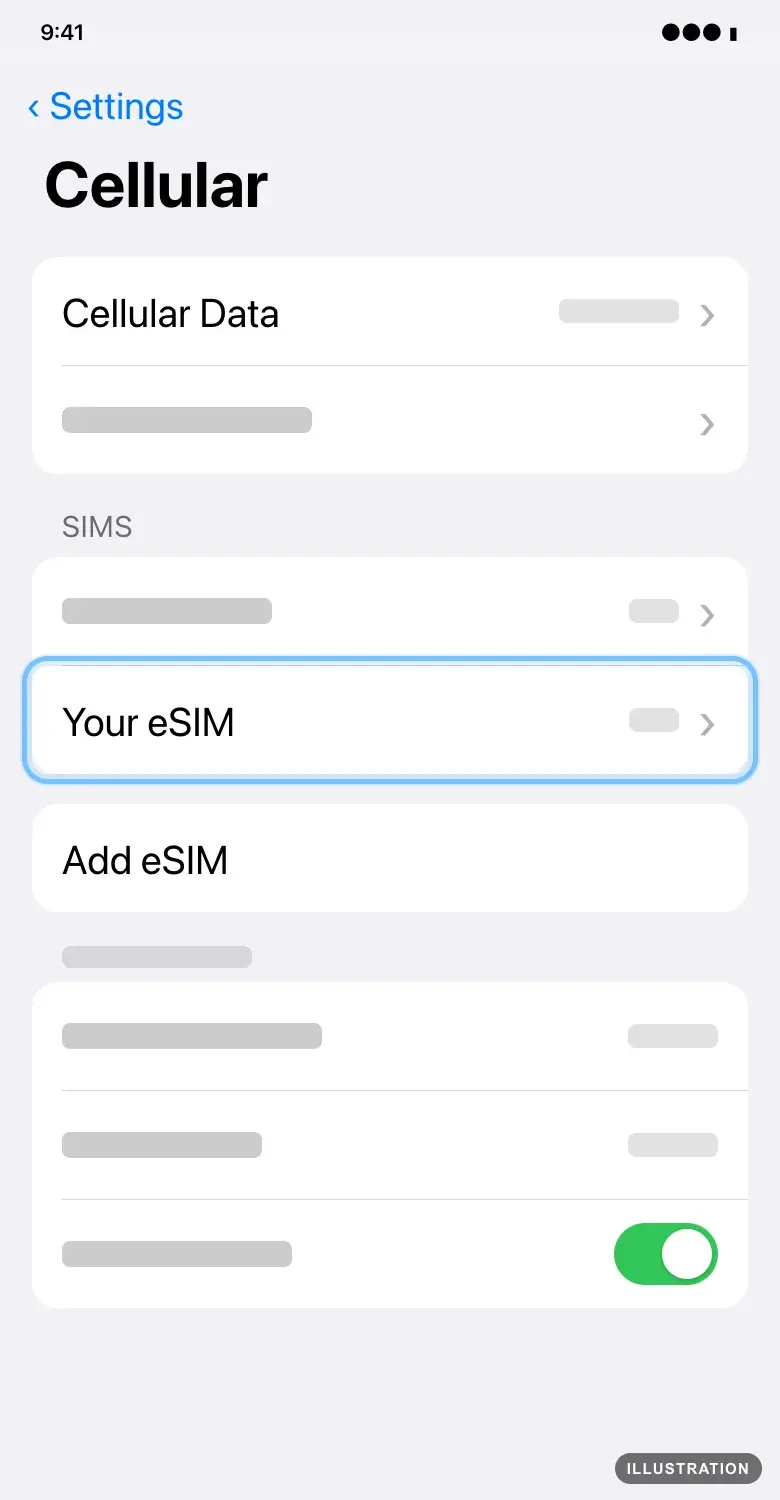
Illustration drawn from the platform's own guide · see the original - 2
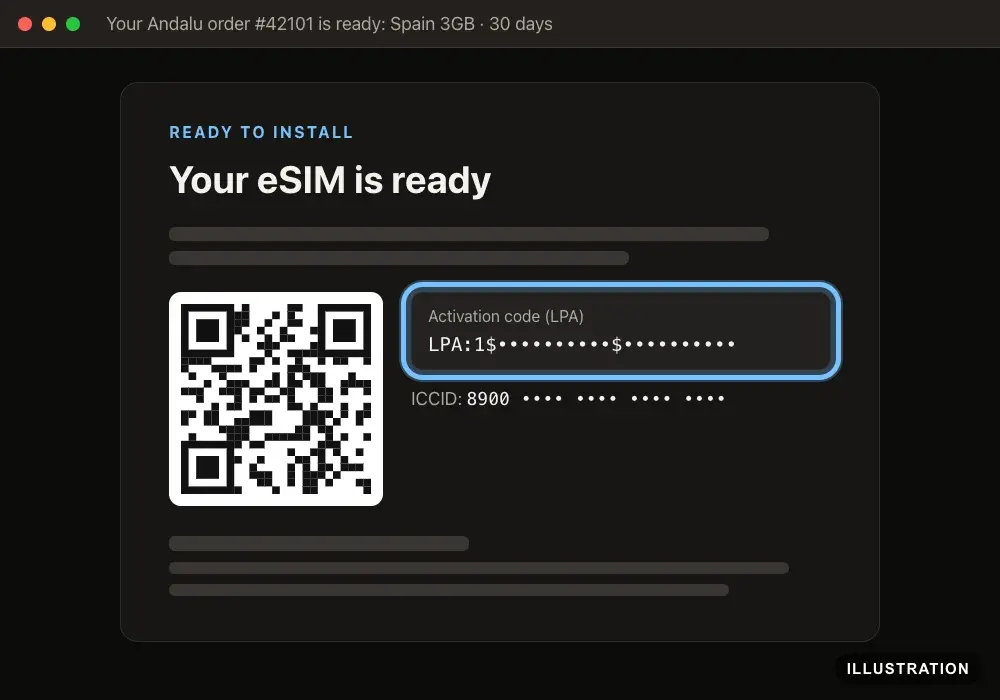
Not installed yet? Search your inbox for your order number, like #42101, in every folder, including spam and promotions. Your QR code, manual activation code and ICCID are in that email, or one tap away behind its Get your order button.
- 3
- 4
No email? Open the contact page and select Lost your order email? Get it again. Enter your order number and the email you paid with, then select Email me my order. No order number? Step 5 finds it.
- 5
Still nothing, or no order number? Open your browser's history on the device you paid on, and open the Andalu page from the time you paid. Its web address starts with andalu.com/esim/confirmation or andalu.com/checkout/confirmation. It shows your order number at the top and where your order is. Its button named for your email service, such as Open Gmail, opens your inbox already searched for the email. It never shows the QR code itself.
- 6
If the page only says Your eSIM is on its way, select Check again now once. Still the same after a few minutes? Don't keep waiting on it: contact us.
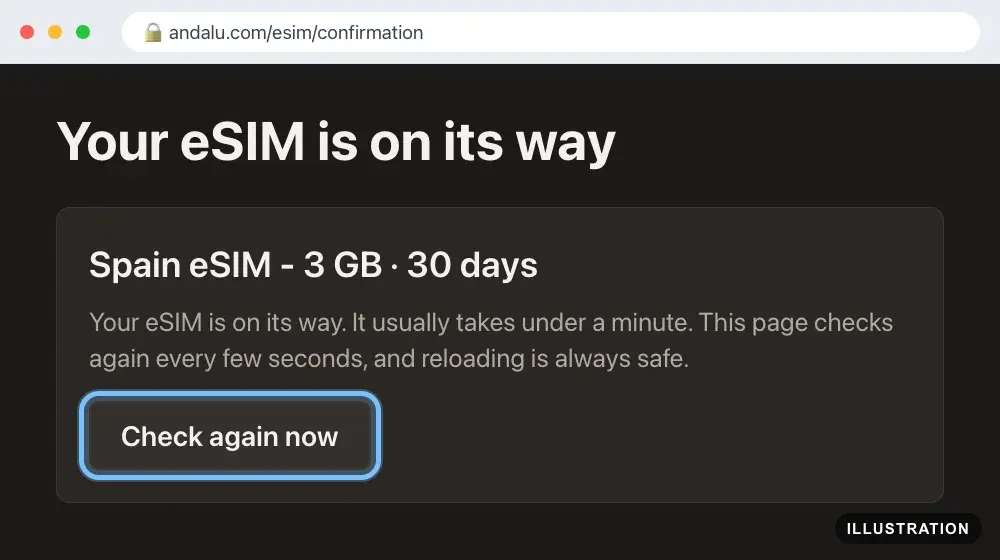
Illustration of your Andalu order page - 7
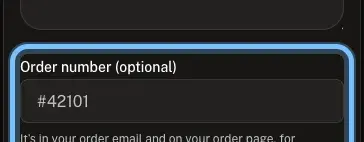
Contact us and choose eSIM issues. In Order number, enter the number from your order email (it looks like #42101). If you don't have it, leave it empty and write the email and mobile number you paid with, and the date of your payment, in Description.
Troubleshooting
| What you see | What it means | What to do |
|---|---|---|
No email with your QR code | It's in spam or another folder, or went to a different address | Search every folder, and any other email address you use. Then use Lost your order email? Get it again on the contact page |
The reopened page says Your eSIM is on its way and doesn't change | Your eSIM hasn't been issued yet, so no email has gone out | Contact us with your order number |
The page says No order to show | The web address is missing the part that identifies your order | Open the full address from your history, or contact us |
The page isn't in your history | You paid on another device, or your history was cleared | Check the other device. If it's gone, contact us with the email you paid with |
You only have a screenshot of the QR code | That's all you need to install it | Show the screenshot on another screen and scan it from the phone that will use the eSIM |
You bought more than one eSIM in one order | Each eSIM has its own QR code | Find each one in your email, and install each on its own phone |
Frequently asked questions
Related articles
Still stuck?
Contact us with your order number and the exact message you see, word for word, including any error code. We reply by email, usually within a day.
No order number? Include the email address you paid with, the mobile number you confirmed when you paid, the date and amount of your payment, and the destination of your plan. Contact us about an eSIM.