How do I install my Andalu eSIM on an Android phone?
You install your Andalu eSIM on an Android phone from the QR code that arrives by email: in the email itself, or one tap away behind its **Get your order** button. The menus differ by brand, so this guide covers Google Pixel and Samsung Galaxy step by step. Install it before you travel, on Wi-Fi. When you land, switch mobile data to the eSIM and turn on roaming.
Before you start
A phone that supports eSIM and isn't locked to your home carrier: a Google Pixel 4 or later, or a Samsung Galaxy S20 or later, for example. Not sure? See Is my phone compatible with an eSIM?.
A Wi-Fi connection. Your phone downloads the eSIM while you install it. More in Do I need Wi-Fi to install or activate my eSIM?.
Your QR code, from your eSIM email: in the email, or behind its Get your order button. It's easiest to show it on a second screen, like a computer or a tablet, and scan it with your phone.
Install it on the phone you're taking with you. An eSIM can't be moved to another phone once it's installed.
Keep your home SIM where it is. Your number keeps working, and the eSIM runs beside it.
Most plans start counting days the first time the eSIM connects to a network at your destination, not when you install it.
Another Android brand? The steps are close to these. Look for SIMs or eSIM in your phone's network or connection settings, and use the same QR code or manual activation code.
Get your eSIM from Andalu
Already paid? Start at step 11.
- 1
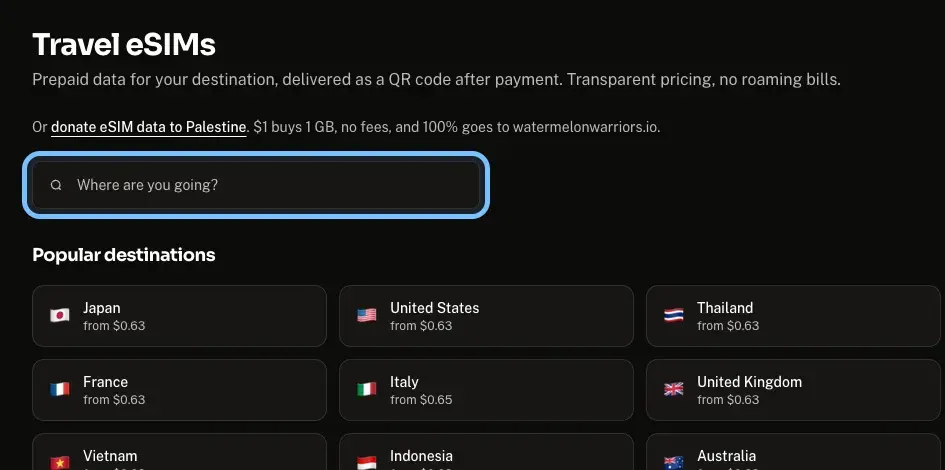
Go to Travel eSIMs.
- 2
Type your destination in Where are you going?
- 3
Select your destination.
- 4
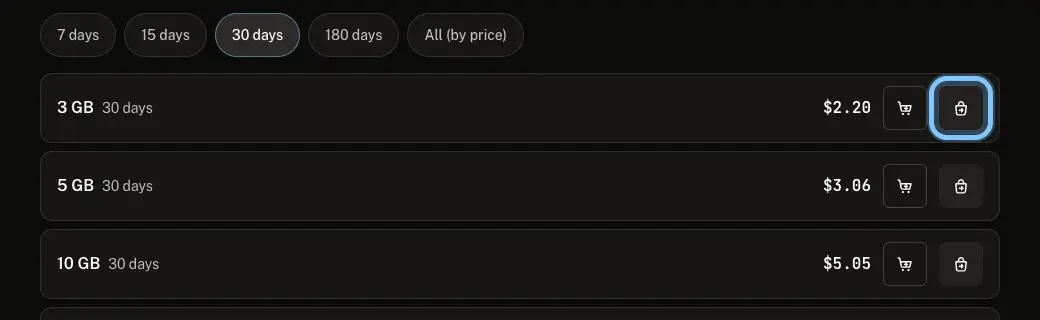
Select Buy next to the plan you want: the bag button at the end of its row. The cart button beside it adds the plan to your cart instead.
Buying several plans, or a game too? Add them to your cart and pay once.
- 5
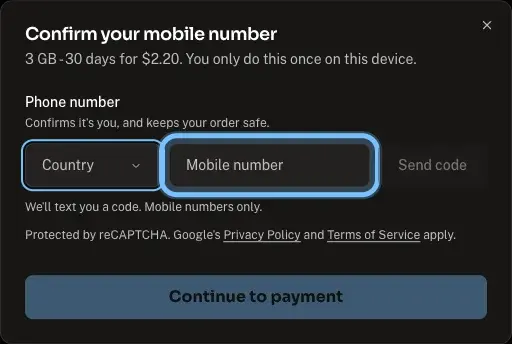
Check the country beside Phone number: it's usually filled in for you, and you can tap it to change it. Then enter your mobile number without the country code, like 555 123 4567.
Every buyer confirms a mobile number with a text code before paying. Mobile numbers only: an internet or virtual number can't get a code.
Verified on this device in the last 7 days? Your number is already there. Skip to step 9.
- 6
Select Send code.
- 7
Enter the code we text you in Code we texted you.
- 8
Select Verify.
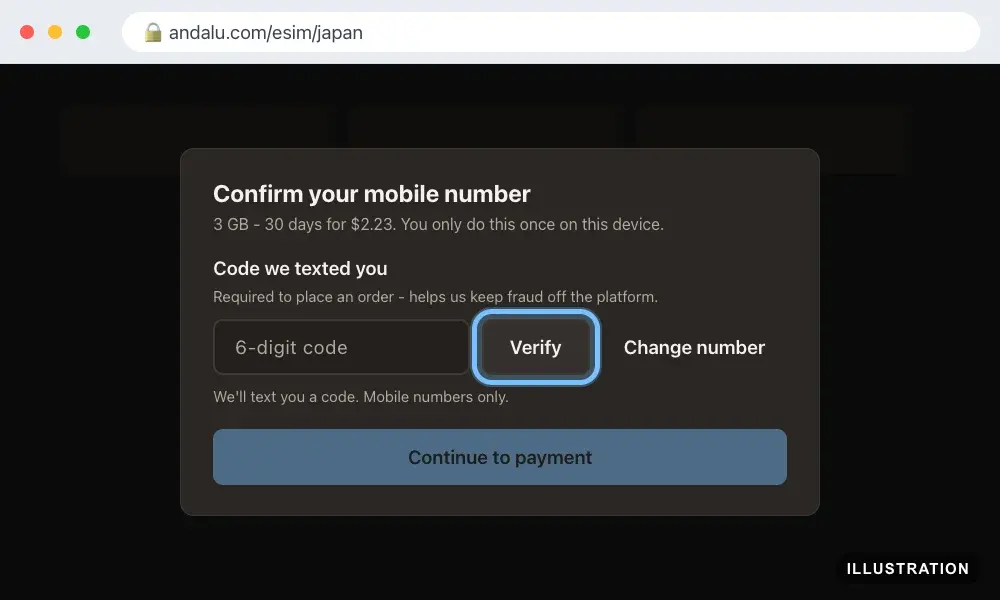
Illustration of your Andalu order page - 9
Select Continue to payment.
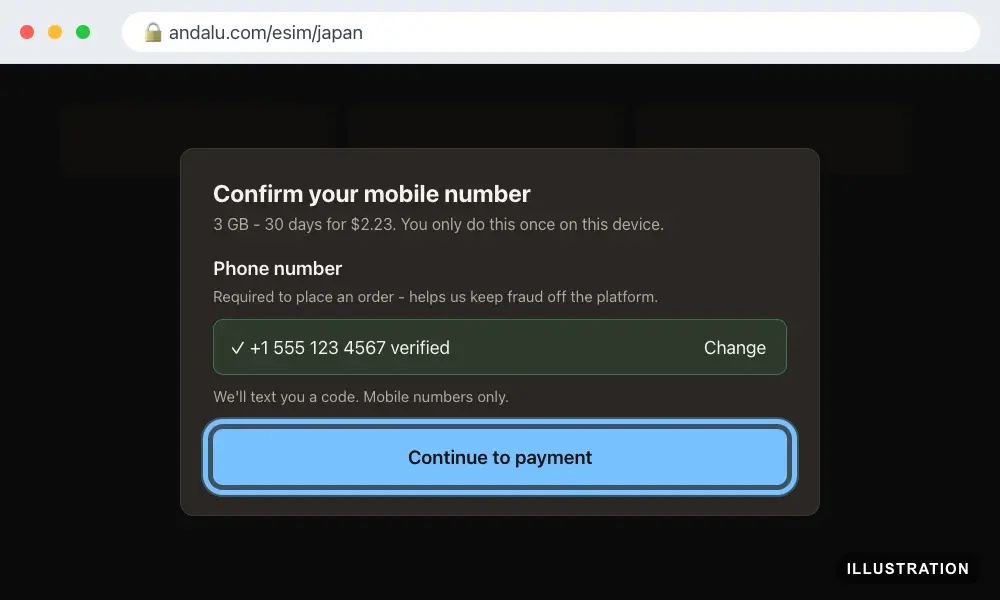
Illustration of your Andalu order page - 10
Pay on the checkout page.
- 11
Open the email for your order. Its subject names your eSIM and includes your order number, like "France eSIM, 3 GB, 15 days: ready to install (#42101)". Your QR code, manual activation code and ICCID are in it, or on the page its Get your order button opens.
Can't find the email? Your order confirmation page opens your inbox already searched for it: select the button named for your email service, such as Open Gmail. The page never shows the QR code itself.
Paid for several eSIMs? Each one has its own QR code.
The ICCID is your eSIM's own number. Include it if you contact us.
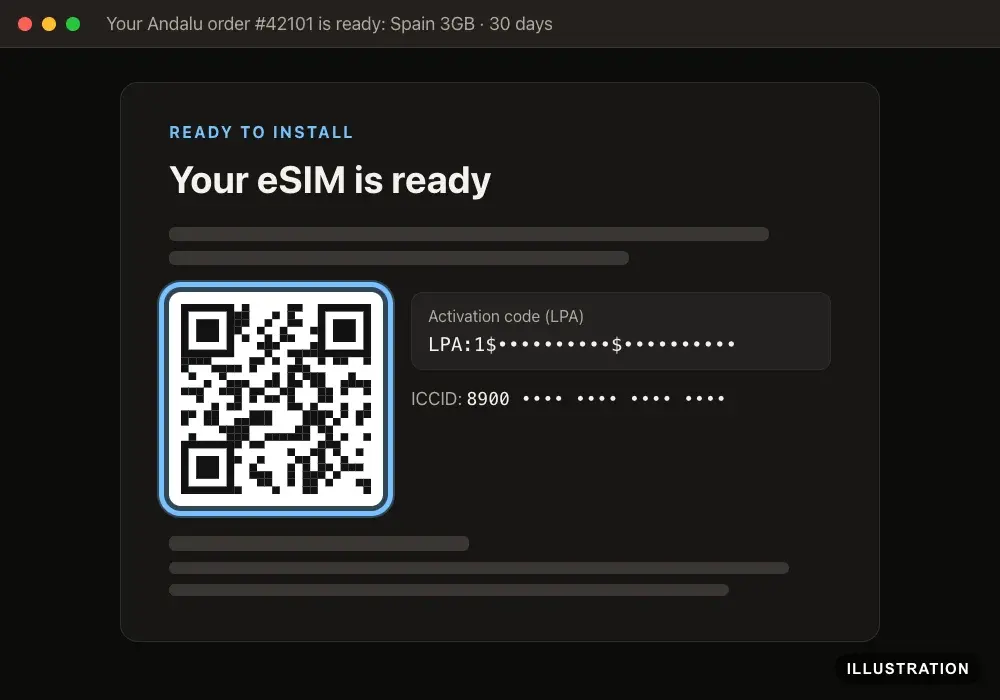
Illustration of your Andalu order page - 12
Find the Activation code (LPA) next to the QR code. You paste it whole, starting with
LPA:1$, if your phone can't scan the code.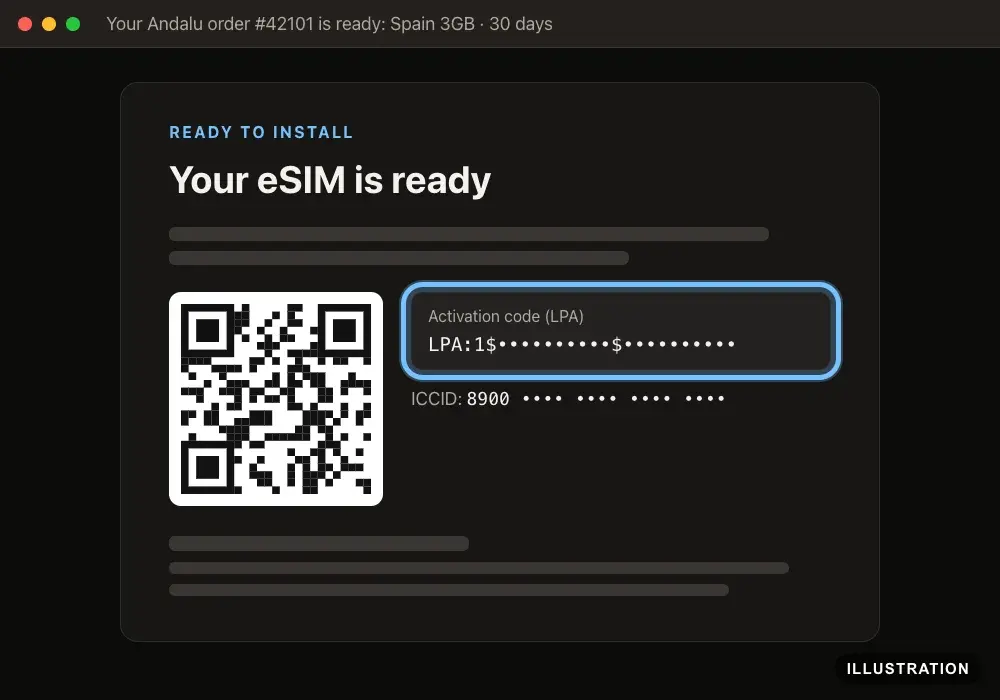
Illustration of your Andalu order page - 13
Keep the email, so you can find your QR code again. You'll need it again only if you delete the eSIM by mistake.
Install on a Google Pixel
Google's own guide: Set up a new eSIM. Screens can differ a little between Android versions.
- 1
Open Settings.
- 2
Tap Network & internet.
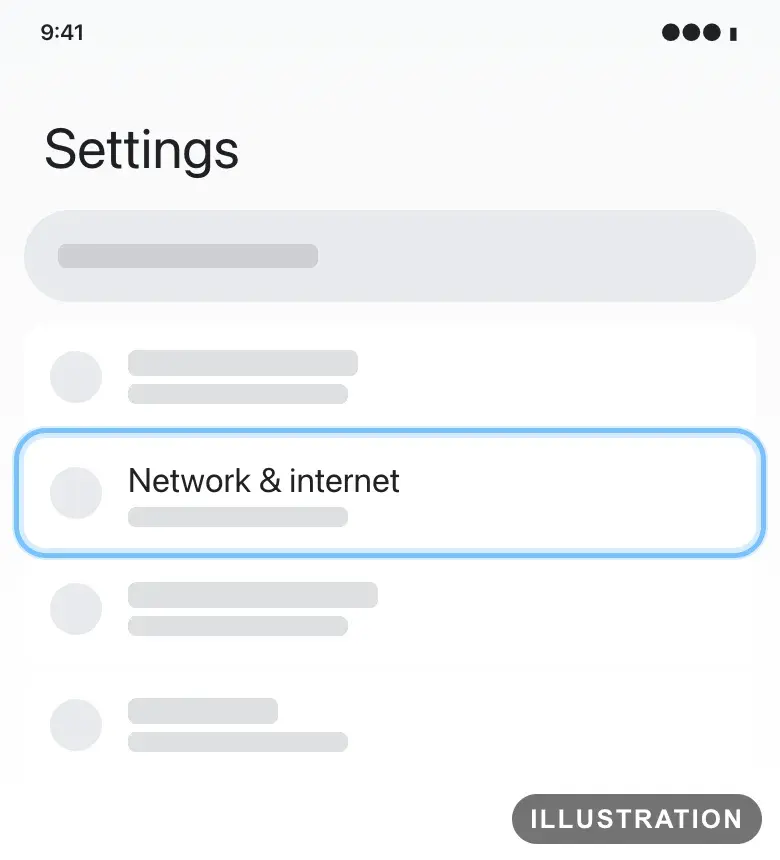
Illustration drawn from the platform's own guide · see the original - 3
Tap SIMs.
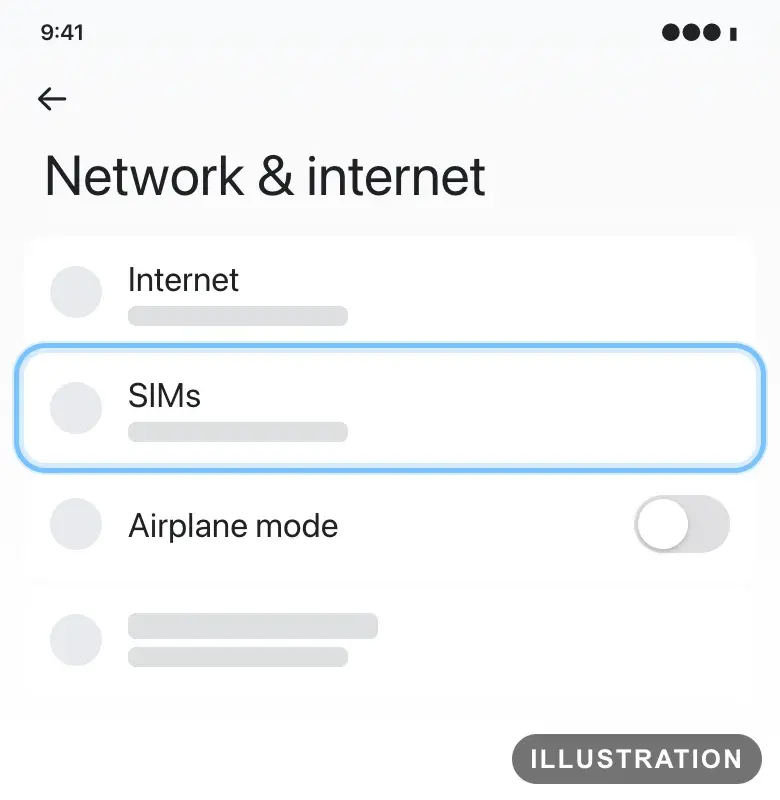
Illustration drawn from the platform's own guide · see the original - 4
Tap Add SIM.
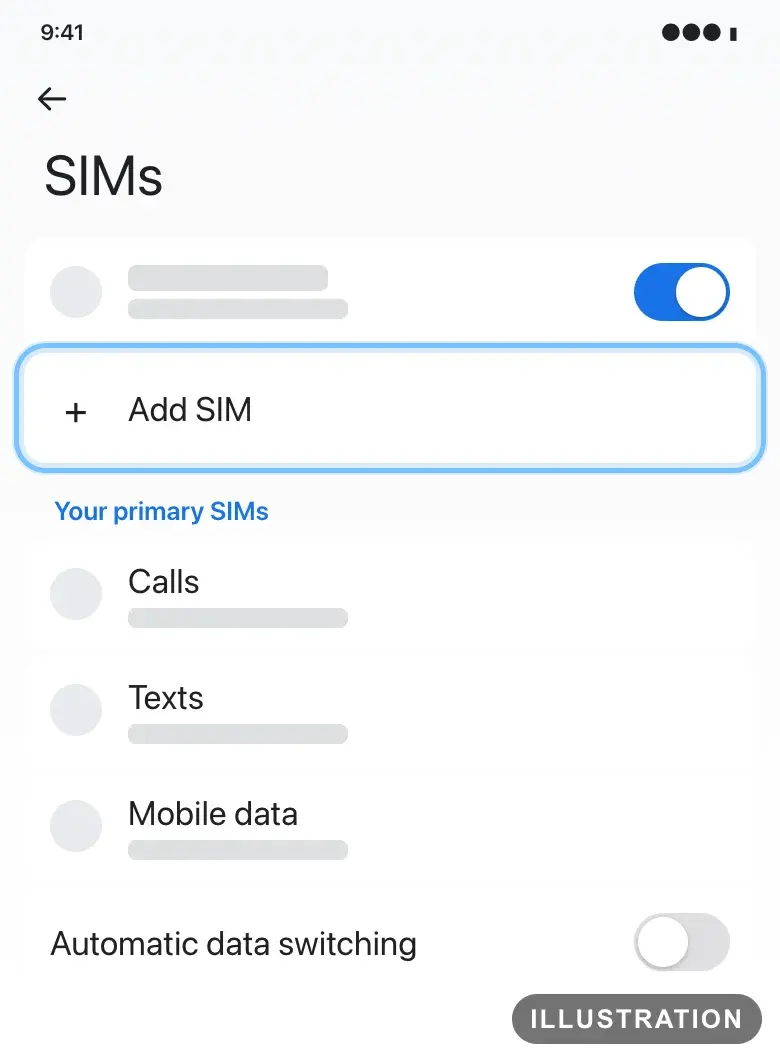
Illustration drawn from the platform's own guide · see the original - 5
Tap Set up an eSIM.
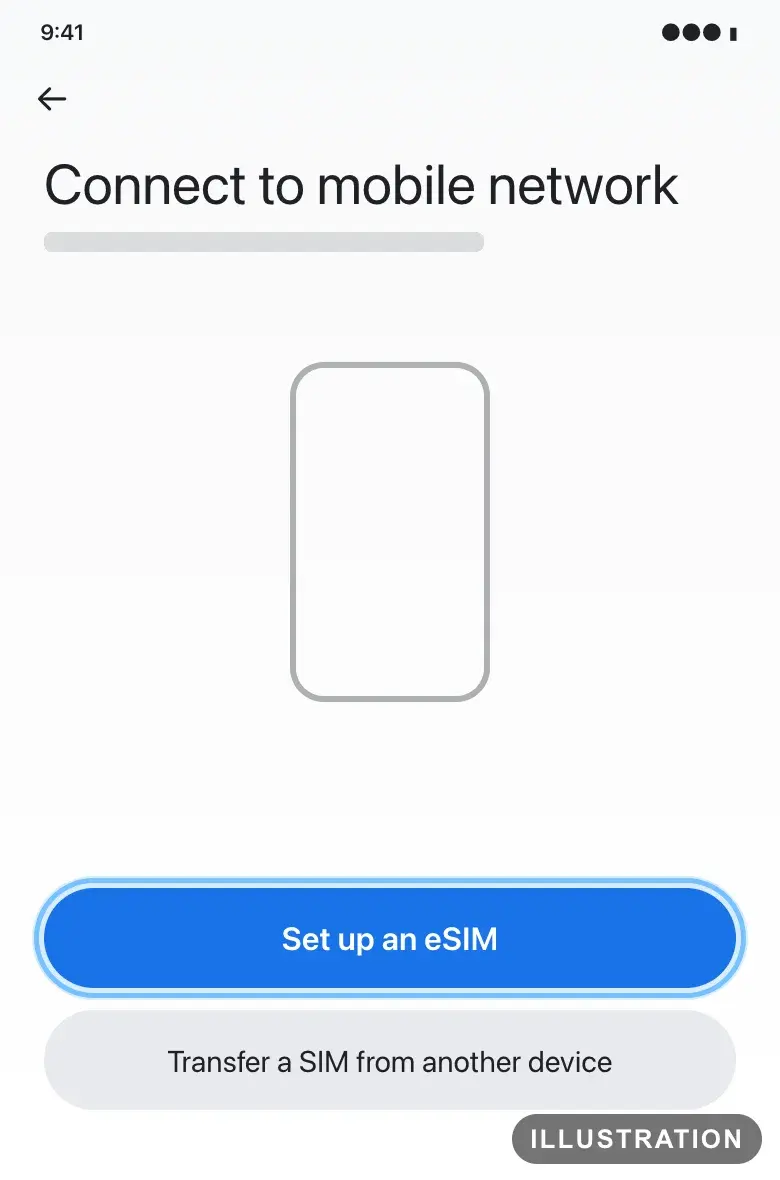
Illustration drawn from the platform's own guide · see the original - 6
If you see Confirm your network with a list of networks, tap Use a different SIM.
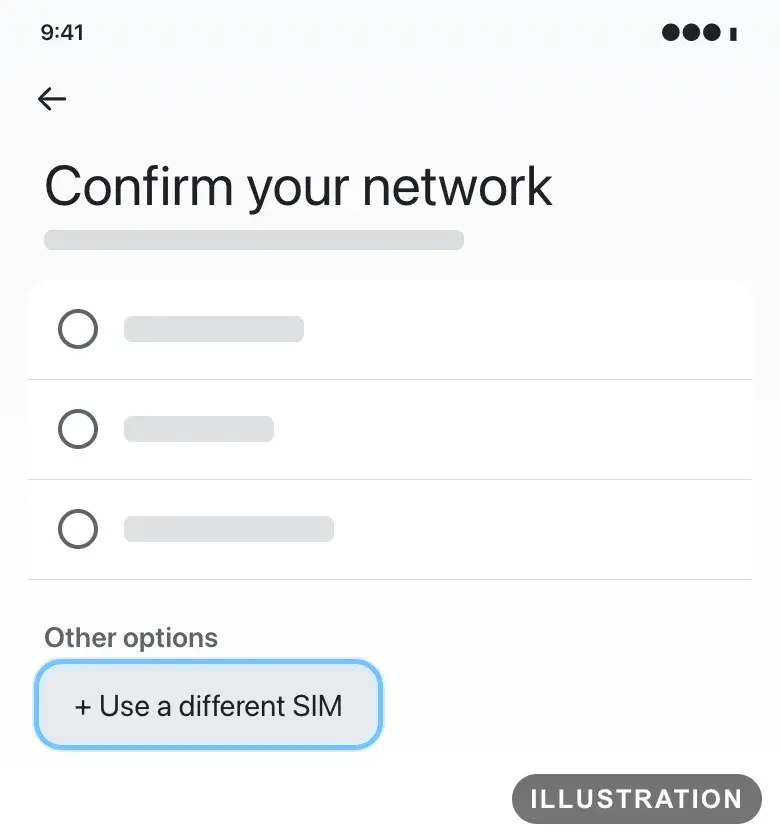
Illustration drawn from the platform's own guide · see the original - 7
Point the camera at the QR code. It's in your eSIM email, or behind its Get your order button.
QR code on this phone? Take a screenshot of it, tap Scan from photo, and choose the screenshot.
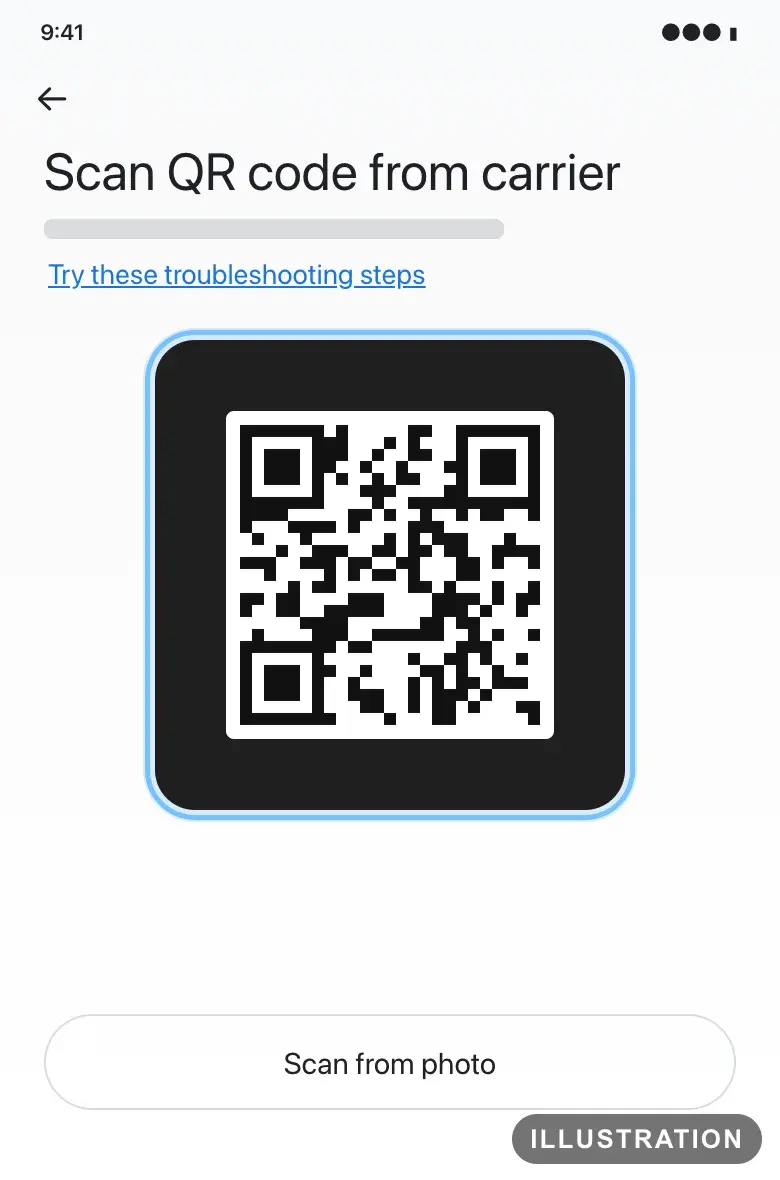
Illustration drawn from the platform's own guide · see the original - 8
If the camera can't read the code, tap Try these troubleshooting steps, then Enter activation code, and paste your whole manual activation code.
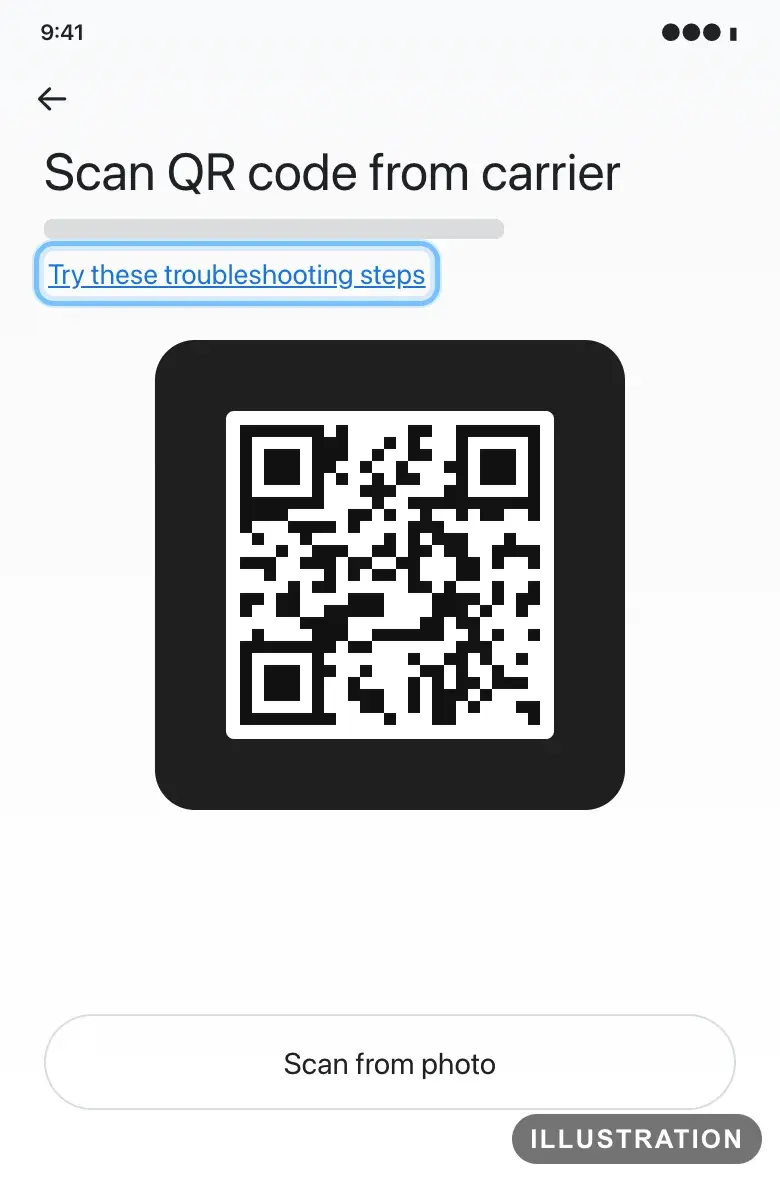
Illustration drawn from the platform's own guide · see the original - 9
Tap Set up.
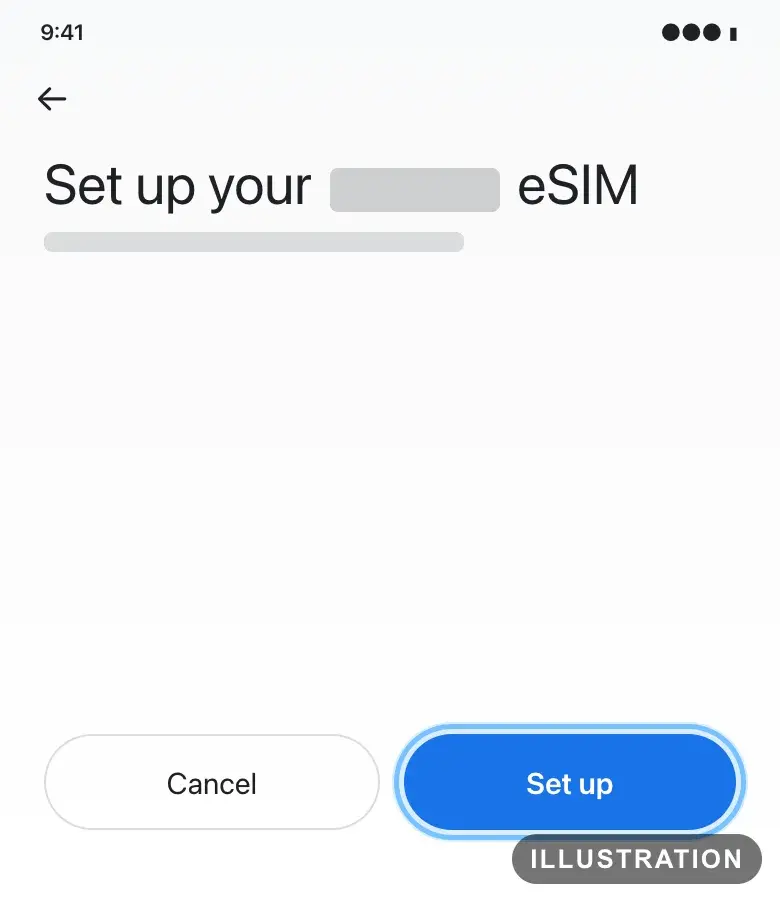
Illustration drawn from the platform's own guide · see the original - 10
When it's done, tap Settings.
- 11
If you're asked to set your SIM preferences, tap Get started, then Next and Done. Keep your home SIM for calls, texts and mobile data for now.
Install on a Samsung Galaxy
Samsung's own guide: Galaxy eSIM and supported network carriers. Screens can differ a little between software versions.
- 1
Open Settings.
- 2
Tap Connections.
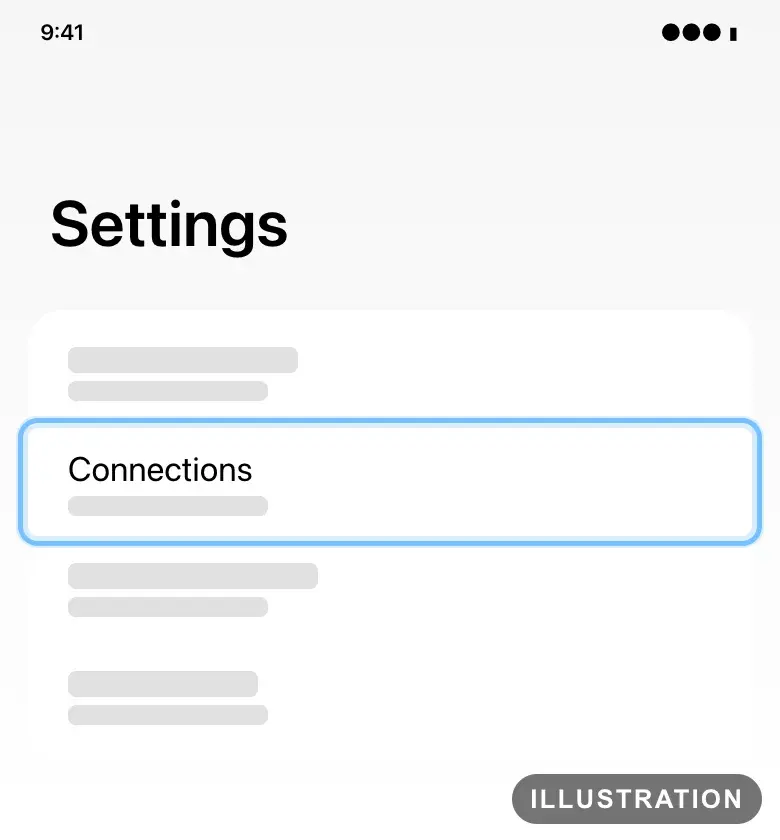
Illustration drawn from the platform's own guide · see the original - 3
Tap SIM manager.
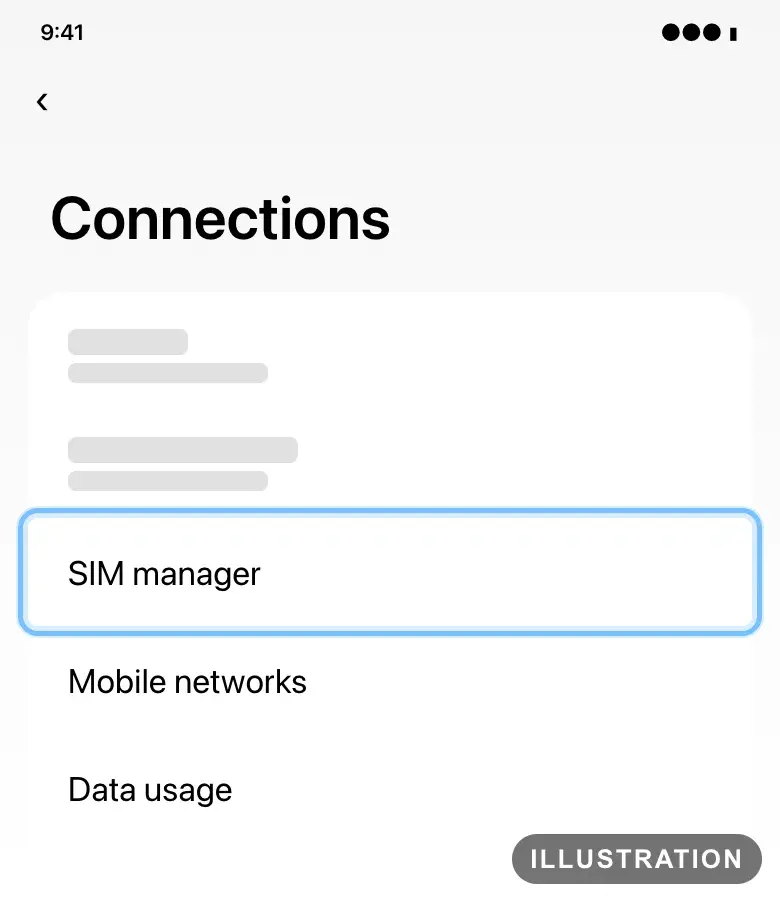
Illustration drawn from the platform's own guide · see the original - 4
Tap Add eSIM.
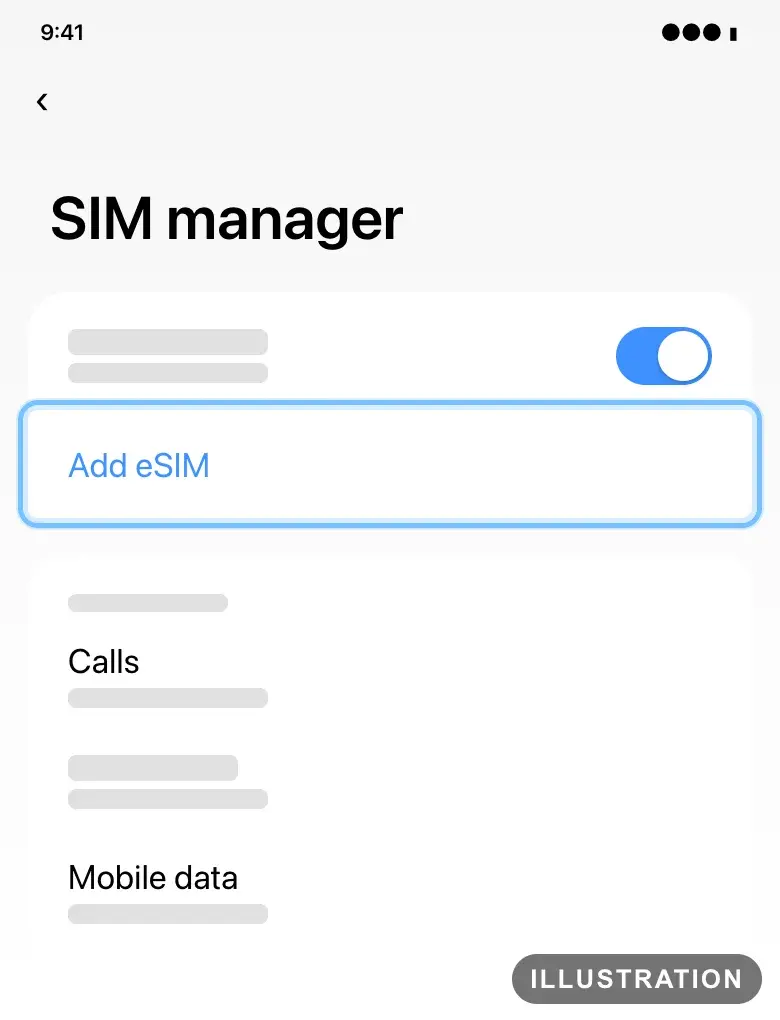
Illustration drawn from the platform's own guide · see the original - 5
Tap Scan QR code.
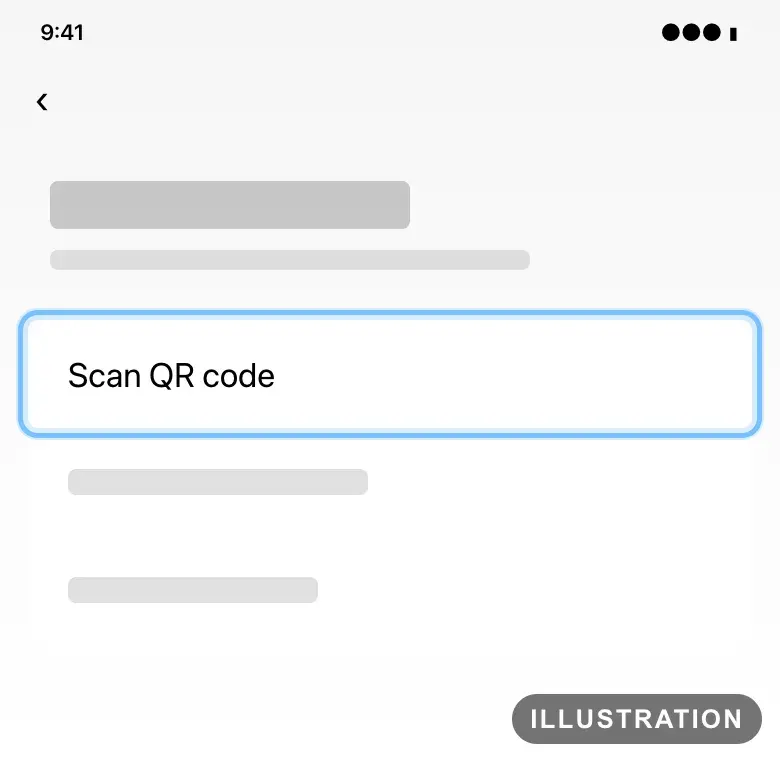
Illustration drawn from the platform's own guide · see the original - 6
Point the camera at the QR code. It's in your eSIM email, or behind its Get your order button.
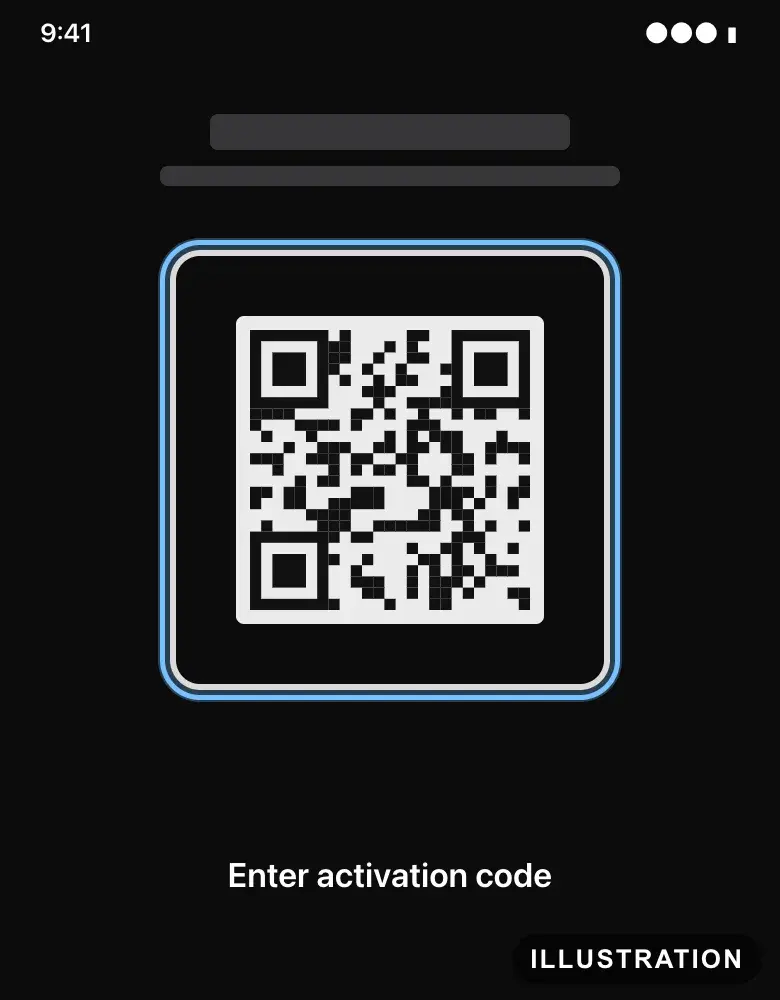
Illustration drawn from the platform's own guide · see the original - 7
If the camera can't read the code, tap Enter activation code and paste your whole manual activation code.
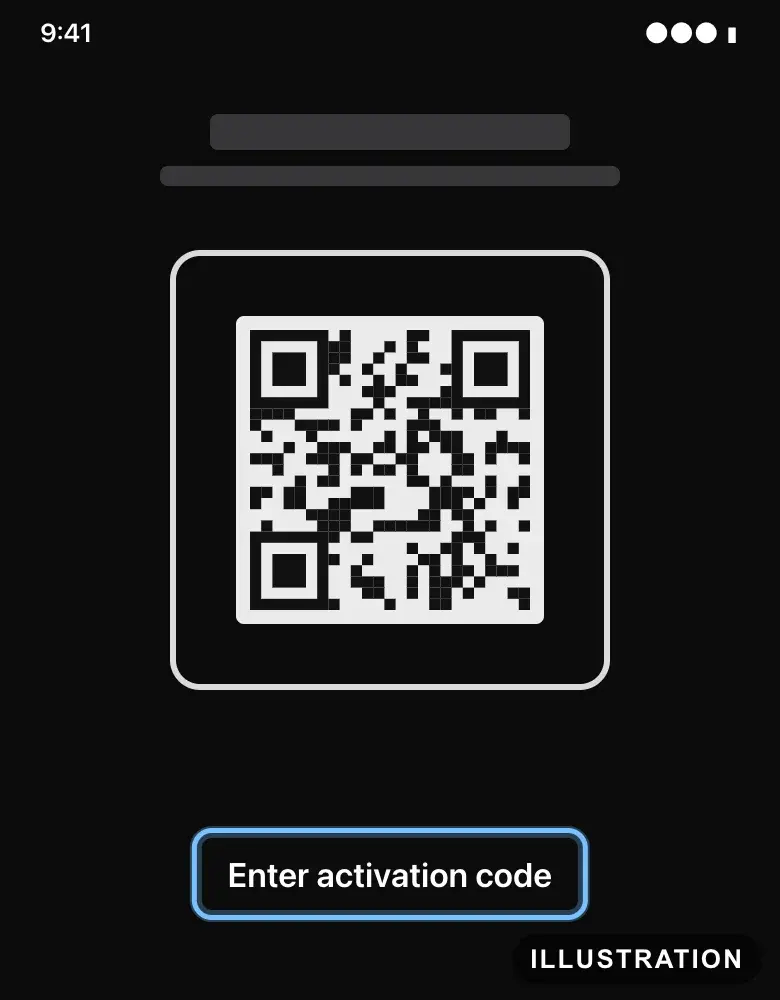
Illustration drawn from the platform's own guide · see the original - 8
When your eSIM is found, tap Add.
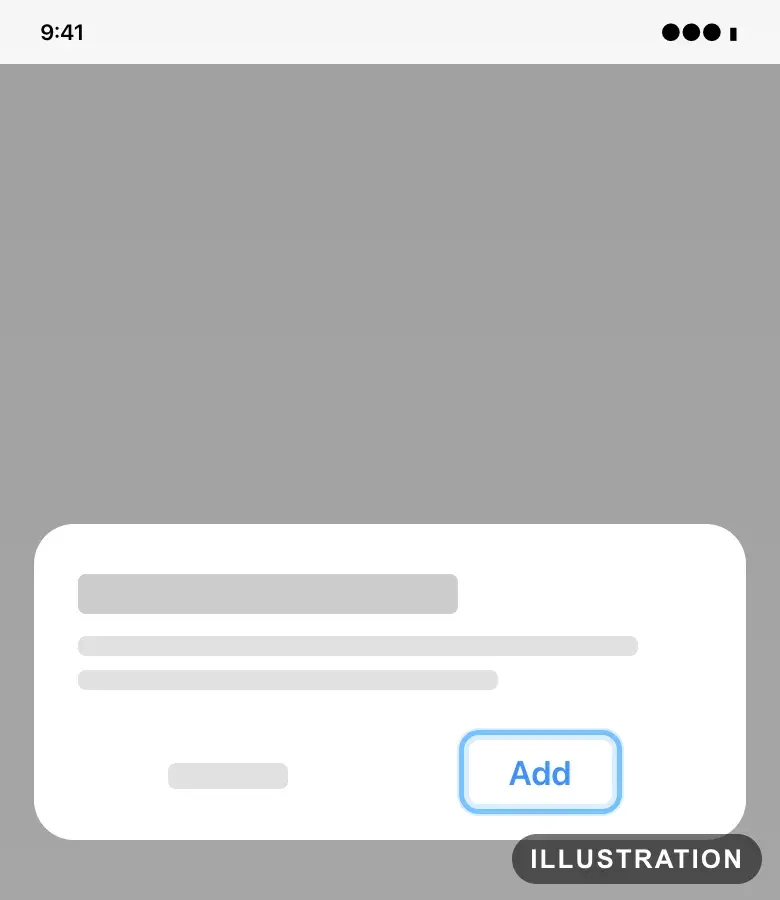
Illustration drawn from the platform's own guide · see the original - 9
Restart your phone when the eSIM is added. Samsung says this applies the new eSIM.
Turn it on when you arrive: Google Pixel
Do this once you land. Google's guide: Change mobile network settings.
- 1
Open Settings.
- 2
Tap Network & internet, then SIMs.
- 3
Tap your eSIM. It may show a network's name rather than Andalu.
- 4
Turn on Use this SIM.
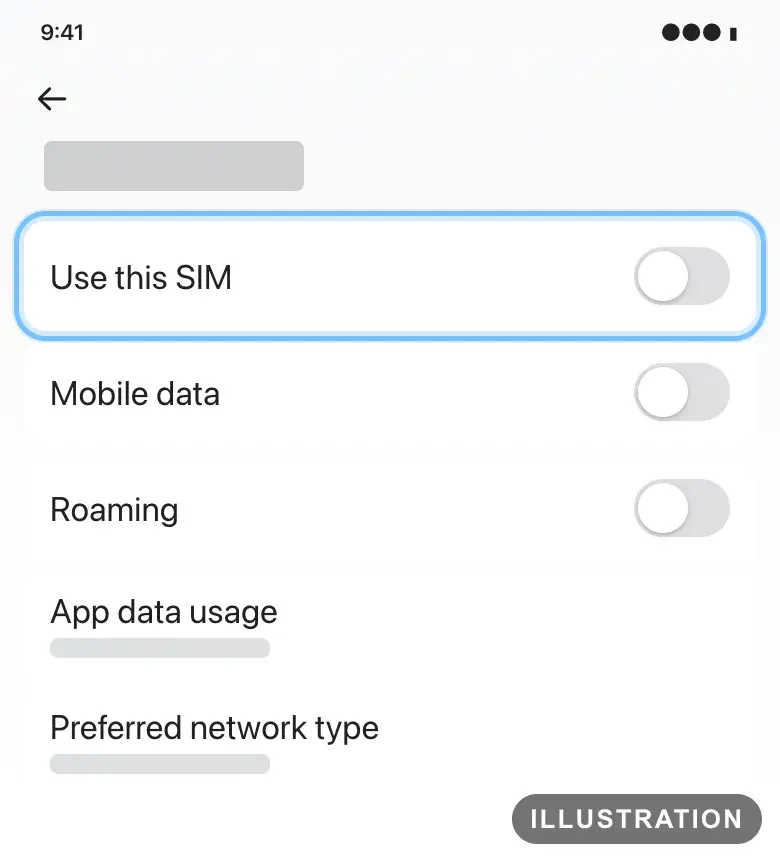
Illustration drawn from the platform's own guide · see the original - 5
Turn on Roaming.
Your eSIM needs roaming on to use the local network. It costs nothing extra: your plan already pays for it.
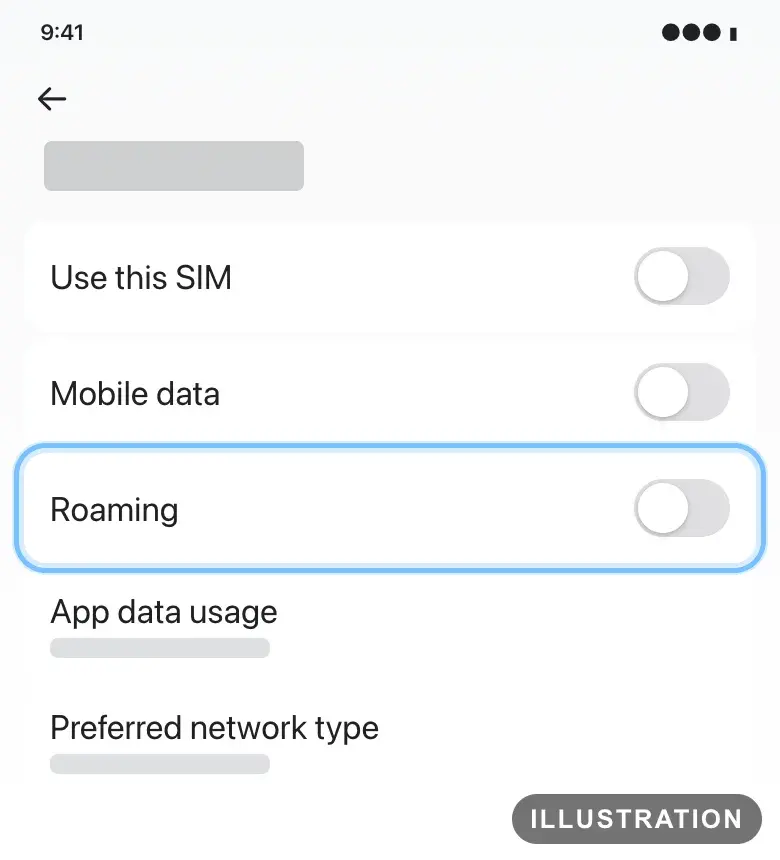
Illustration drawn from the platform's own guide · see the original - 6
Go back, then tap Mobile data under Your primary SIMs.
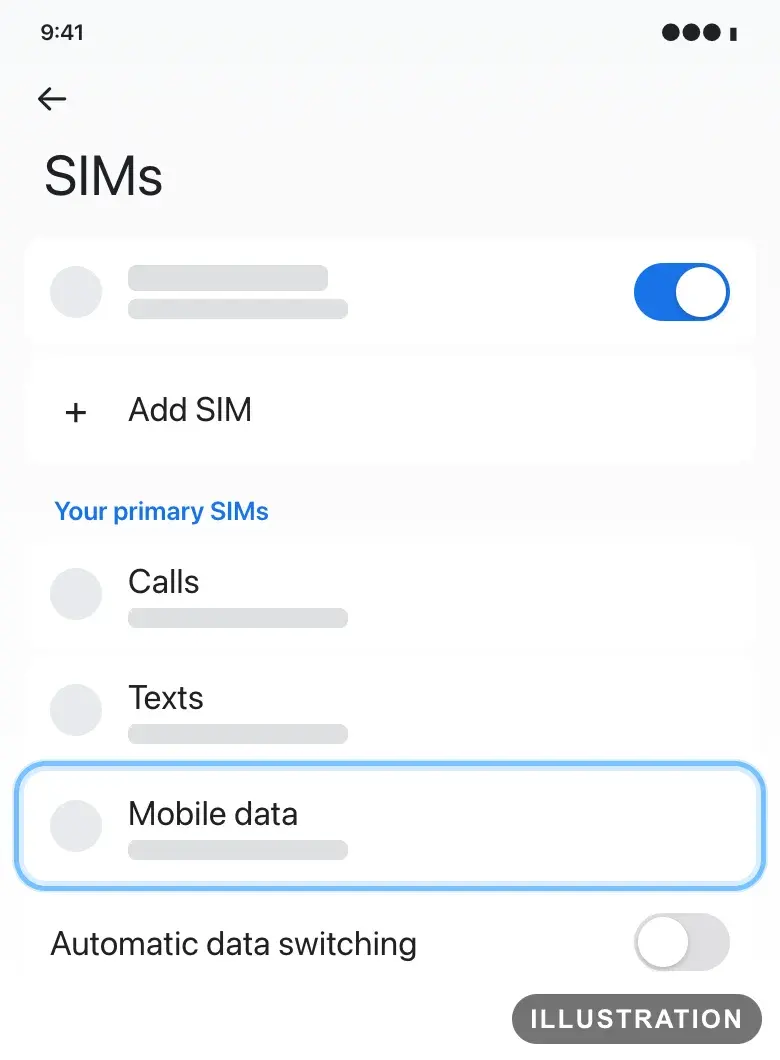
Illustration drawn from the platform's own guide · see the original - 7
Choose your eSIM.
Leave Automatic data switching off. Then your home SIM can't use data abroad.
- 8
Turn Wi-Fi off and open a web page. If it loads, your eSIM is working.
Turn it on when you arrive: Samsung Galaxy
Do this once you land. Samsung's guide: How to turn international data roaming on or off.
- 1
Open Settings.
- 2
Tap Connections, then SIM manager.
- 3
Turn on the switch next to your eSIM. It may show a network's name rather than Andalu.
- 4
Tap Mobile data.
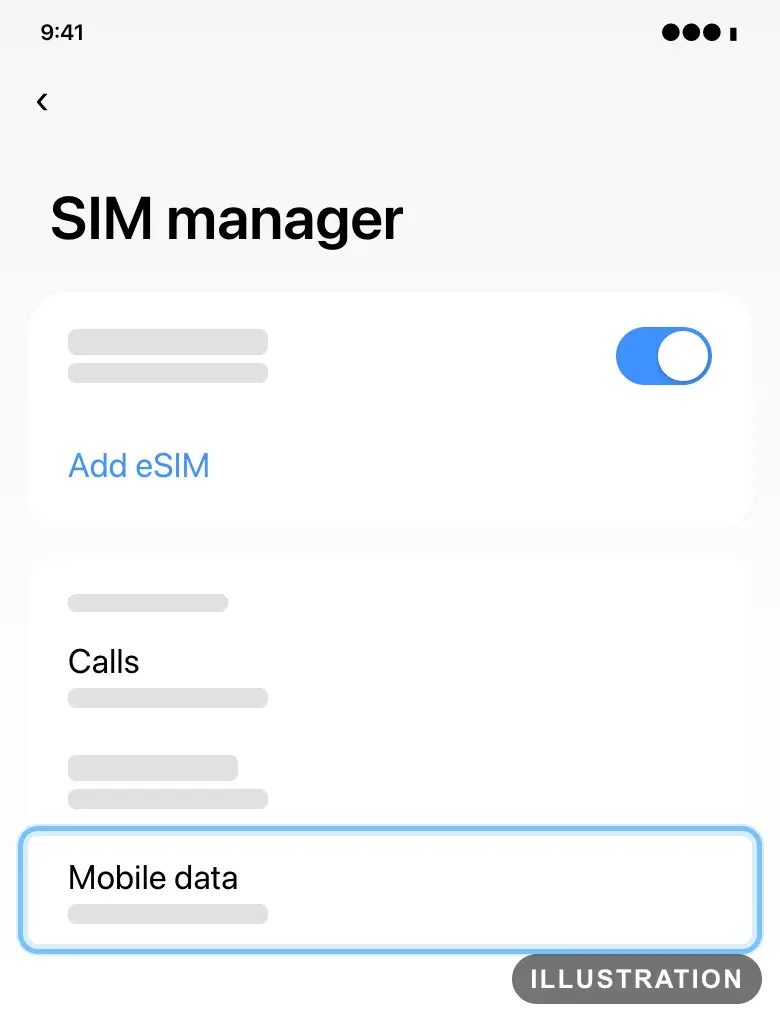
Illustration drawn from the platform's own guide · see the original - 5
Choose your eSIM.
- 6
Go back to Connections, then tap Mobile networks.
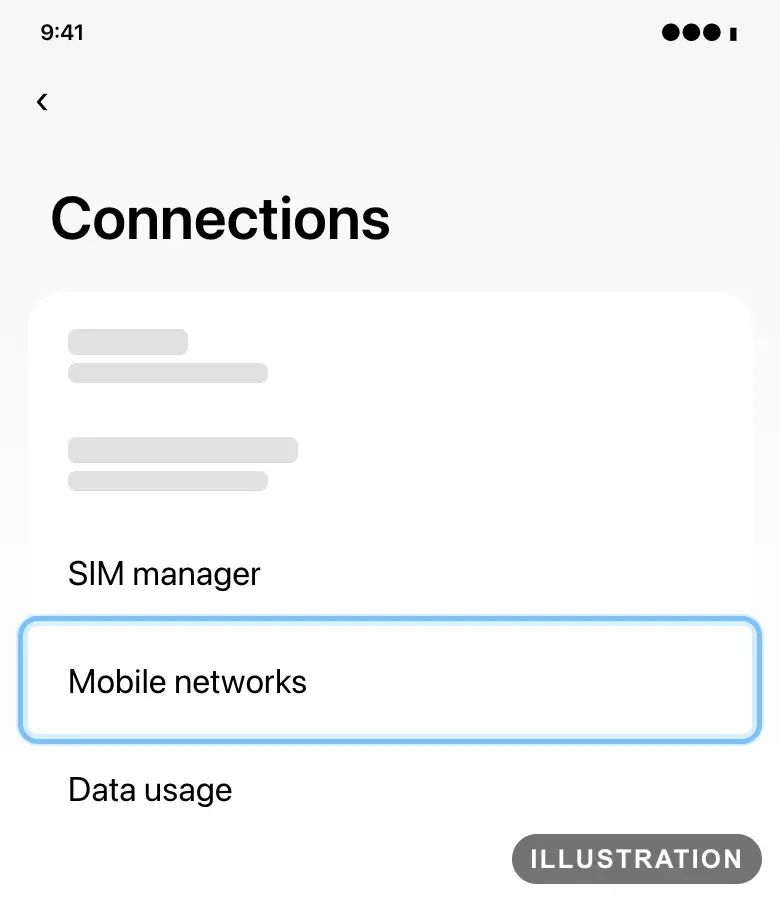
Illustration drawn from the platform's own guide · see the original - 7
Turn on Data roaming.
Switch grayed out? Turn on mobile data first, in Connections > Data usage > Mobile data.
Your eSIM needs roaming on to use the local network. It costs nothing extra: your plan already pays for it.
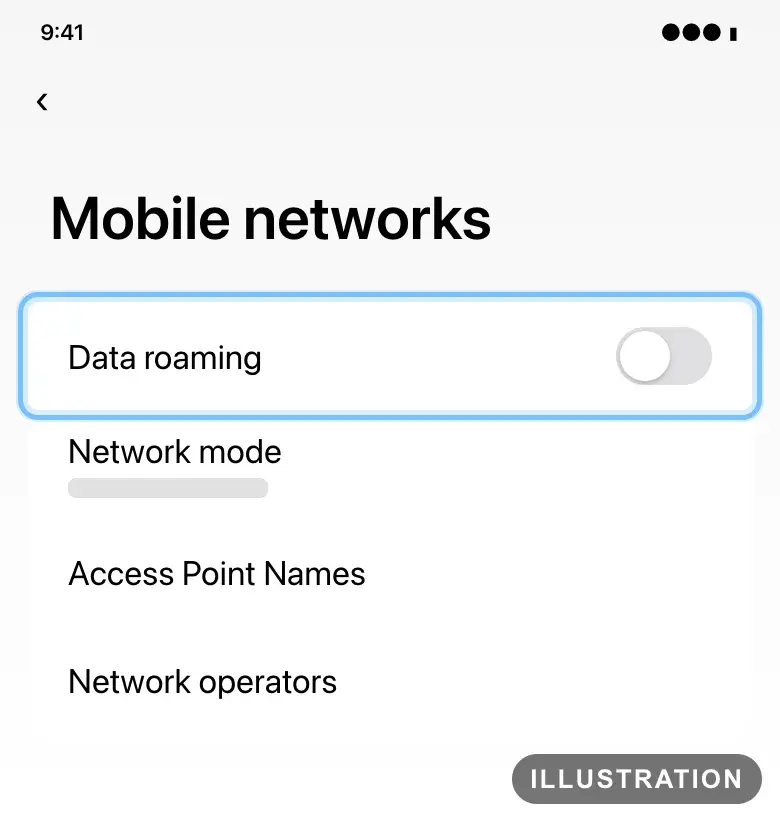
Illustration drawn from the platform's own guide · see the original - 8
Turn Wi-Fi off and open a web page. If it loads, your eSIM is working.
Confirm it works
Your eSIM is listed in SIMs on a Pixel, or in SIM manager on a Samsung Galaxy.
Before you travel, the eSIM may show no signal. That's normal: it connects only at your destination.
After you land, the status bar shows signal for the eSIM.
With Wi-Fi off, web pages and apps load over the eSIM.
Troubleshooting
| What you see | What it means | What to do |
|---|---|---|
Your order confirmation says Your eSIM is on its way | Your eSIM is still on its way | Keep the page open. It checks again by itself, and reloading it is safe |
Your order confirmation says Your order is taking a little longer than usual. | Your order is safe and on its way. There's no QR code yet | Nothing to do and don't pay again: it arrives by email within a few hours. Nothing by the next day? Contact us with the order number shown on the page |
No Add SIM, Set up an eSIM or Add eSIM in your settings | Your phone doesn't support eSIM, or doesn't support it in the country it was sold in | Check Is my phone compatible with an eSIM? before you travel |
The camera doesn't react to the QR code | The code is too small or too dim, or it's on the same phone | Make the code bigger and turn up the brightness. On the same phone, use Scan from photo on a Pixel, or enter the activation code |
Your Pixel lists networks and none is yours | That list is for networks you already have a plan with | Tap Use a different SIM to scan your Andalu QR code |
A message says the eSIM can't be added, or the code isn't valid | The eSIM is already on a phone, or the pasted code is incomplete | Check your SIM list in case it's already there. For manual entry, copy the whole code again, starting with |
A message says the SIM isn't supported | Your phone may be locked to your home carrier | Ask your carrier or the shop you bought the phone from to unlock it |
The eSIM shows no signal before you travel | Normal: it connects only at your destination | Nothing to do until you land |
No data after you land | The eSIM is off, roaming is off, or mobile data is still on your home SIM | Follow the arrival steps for your Google Pixel or Samsung Galaxy |
Data roaming is grayed out on a Samsung Galaxy | Mobile data is off | Turn on Mobile data in Connections > Data usage, then try again |
Still no signal after checking every setting | Your phone hasn't joined the local network yet | Turn airplane mode on and off. Then turn the eSIM off and on. Then restart your phone |
Connected, but pages still don't load | Some networks need a setting that isn't added by itself on some Android phones | Contact us with your ICCID and the country you're in |
You deleted the eSIM by mistake | The same QR code can install it again on the same phone | Scan the same QR code on that phone. If it won't install, contact us |
You changed phones before your trip | An eSIM can't be moved to another phone | Contact us before you install or delete anything |
Frequently asked questions
Related articles
Still stuck?
Contact us with your order number and the exact message you see, word for word, including any error code. We reply by email, usually within a day. If the eSIM can't be used, buyer protection covers you for 24 hours after delivery.
Include your eSIM's ICCID too. It's in your eSIM email, and on your phone in Settings > About phone > SIM status. It tells us which eSIM is yours.