My eSIM shows no signal or won't connect. What do I do?
Most eSIM signal problems are a setting, not a fault. Check four things for your eSIM line: the line is turned on, Data Roaming is on for it, it's the line your phone uses for mobile data, and the phone has picked a network. Below are the exact steps for iPhone, Google Pixel and Samsung Galaxy.
In the pictures, your Andalu eSIM is called Your eSIM. On your phone it has the name you gave it when you installed it.
Before you start
Check that you're in a country your plan covers. The plan's name is on your order confirmation page and in your eSIM email's subject, and the plan's page on Andalu lists its countries. The eSIM only connects there.
Your eSIM must already be installed. Not yet? Follow the guide for iPhone or Android first.
Just landed? The first connection can take a few minutes, sometimes up to an hour. Try the steps below while you wait.
Turn off any VPN while you fix this.
Don't delete the eSIM to "start again". A deleted eSIM can't always be added back.
Another Android phone? The settings are similar to the Pixel or Samsung steps below, but the names can differ. Search your Settings for "roaming".
On an iPhone
Apple's own guides: If you see No Service or Searching and data roaming.
- 1
Open the Settings app and tap Cellular. Some iPhones say Mobile Data instead.
Just arrived and your iPhone shows Turn On Travel eSIM? Tap it and follow it. Choosing Travel eSIM and Current eSIM keeps your number and uses the eSIM for data.
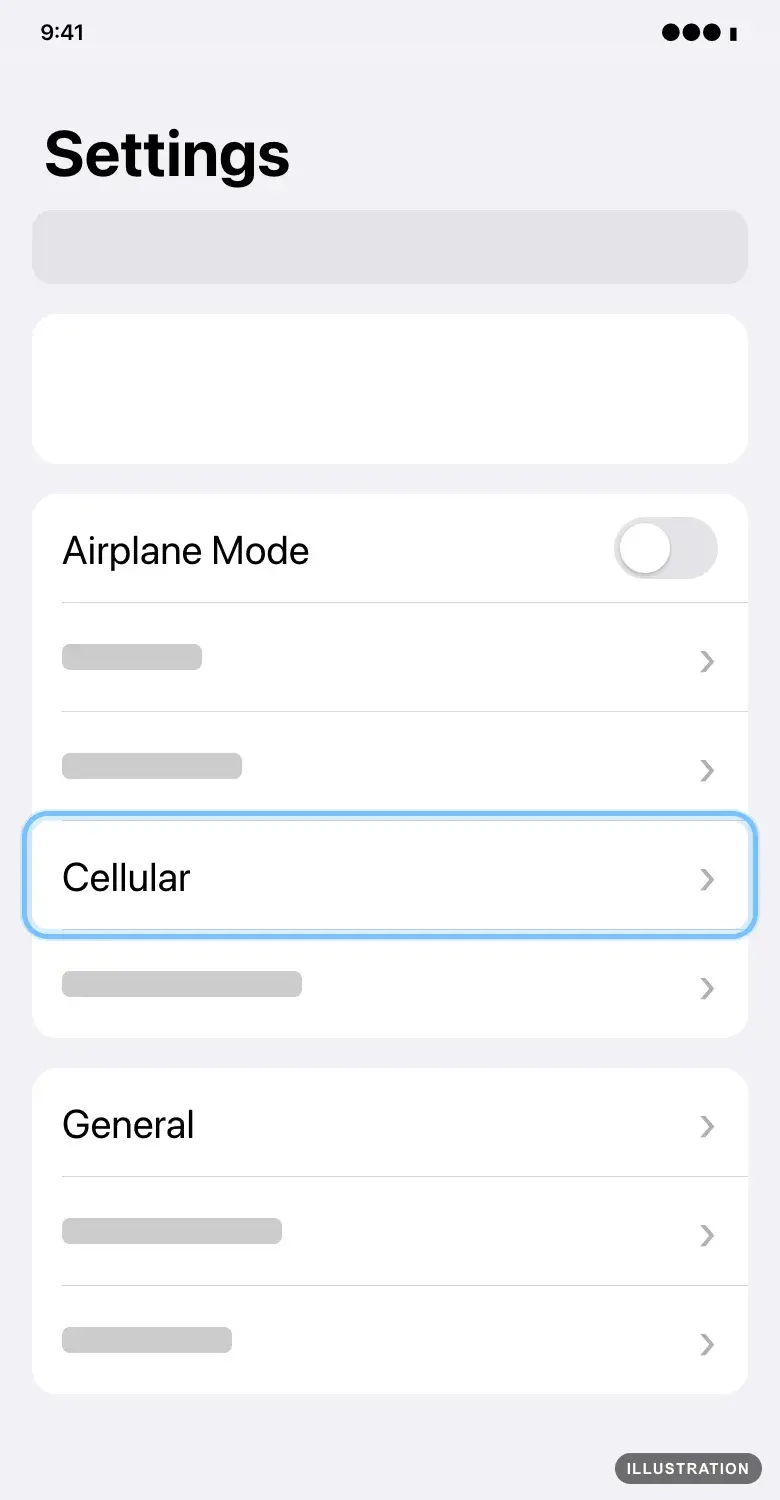
Illustration drawn from the platform's own guide · see the original - 2
Under SIMs, tap Your eSIM.
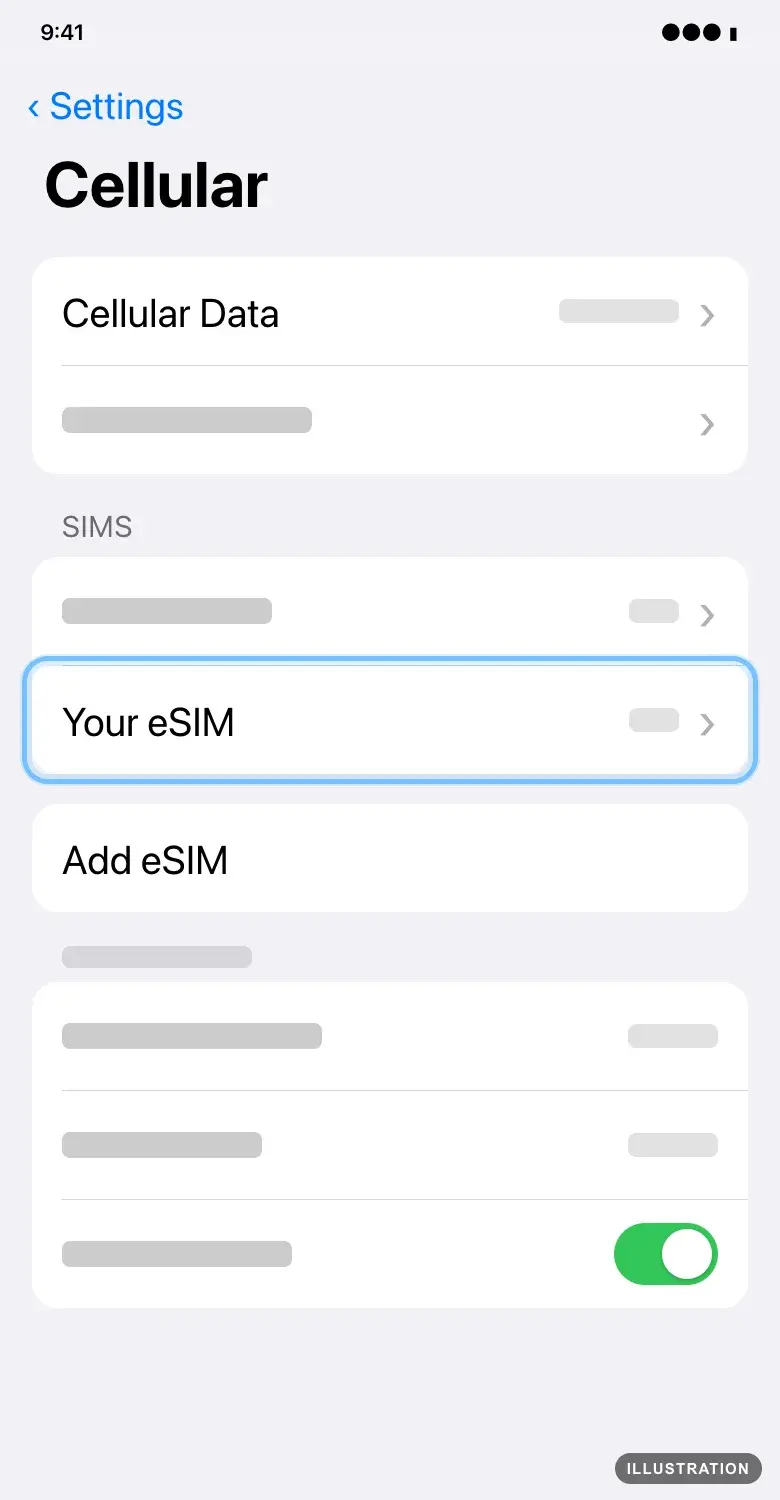
Illustration drawn from the platform's own guide · see the original - 3
Turn on Turn On This Line if it's off.
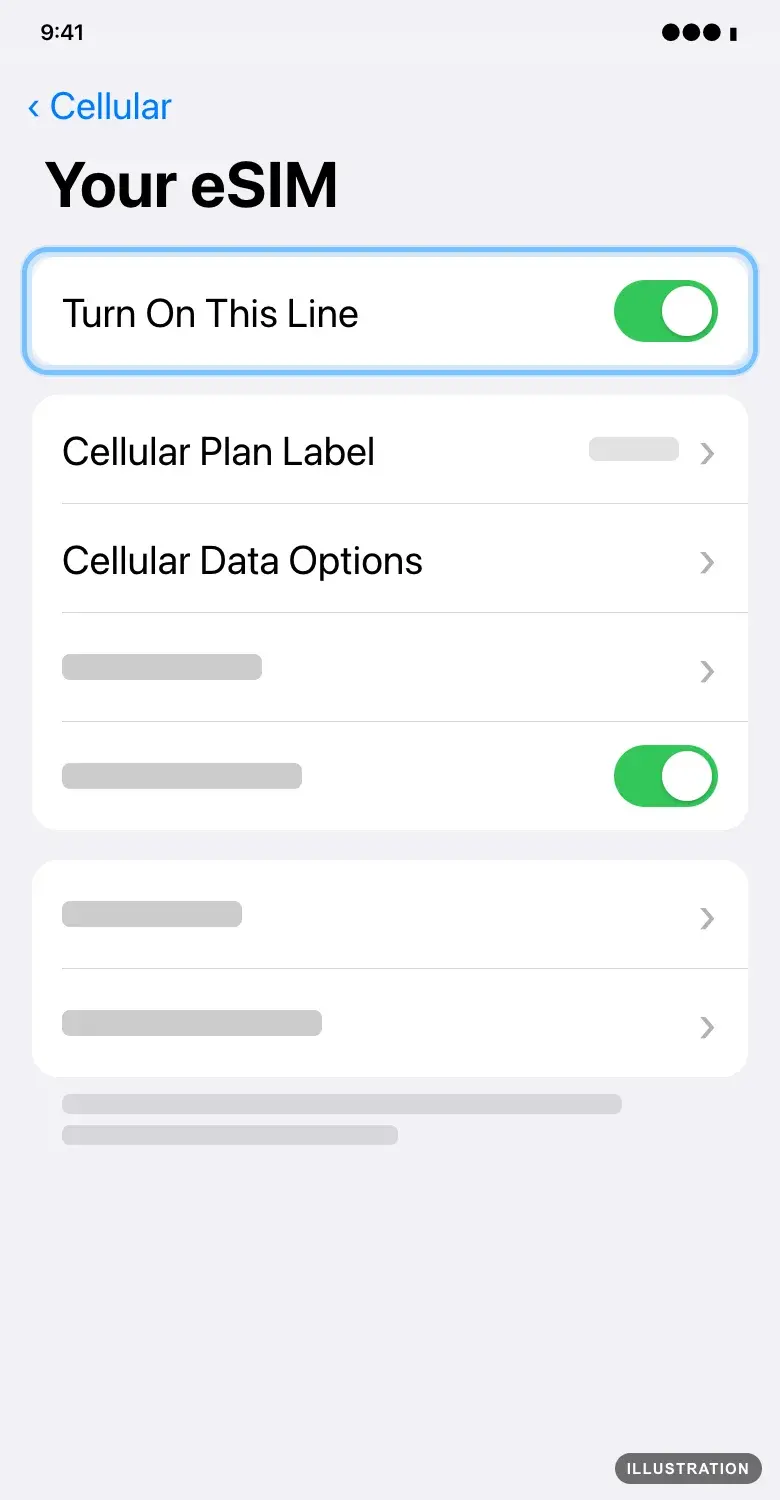
Illustration drawn from the platform's own guide · see the original - 4
Tap Cellular Data Options.
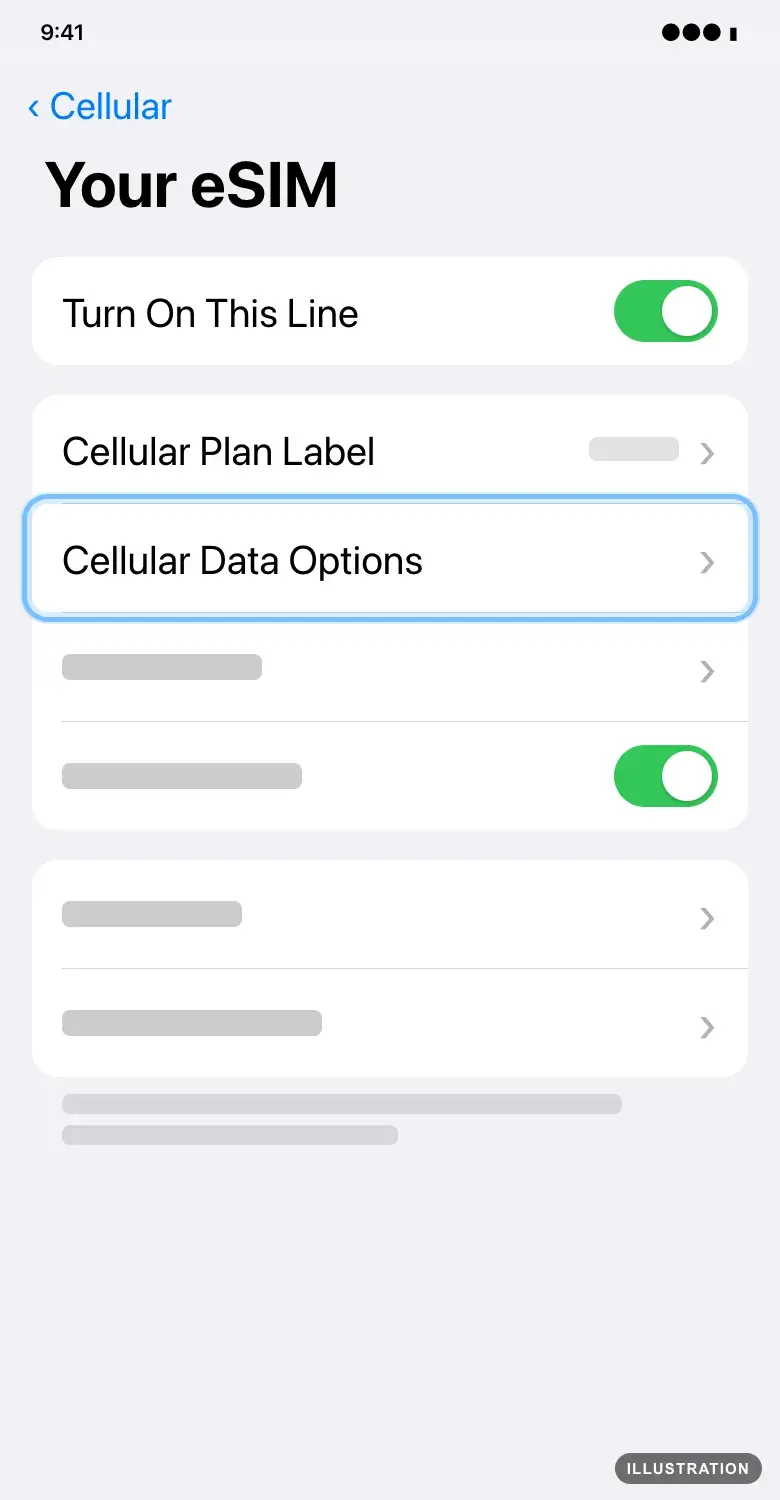
Illustration drawn from the platform's own guide · see the original - 5
Turn on Data Roaming. Your eSIM needs it to connect abroad.
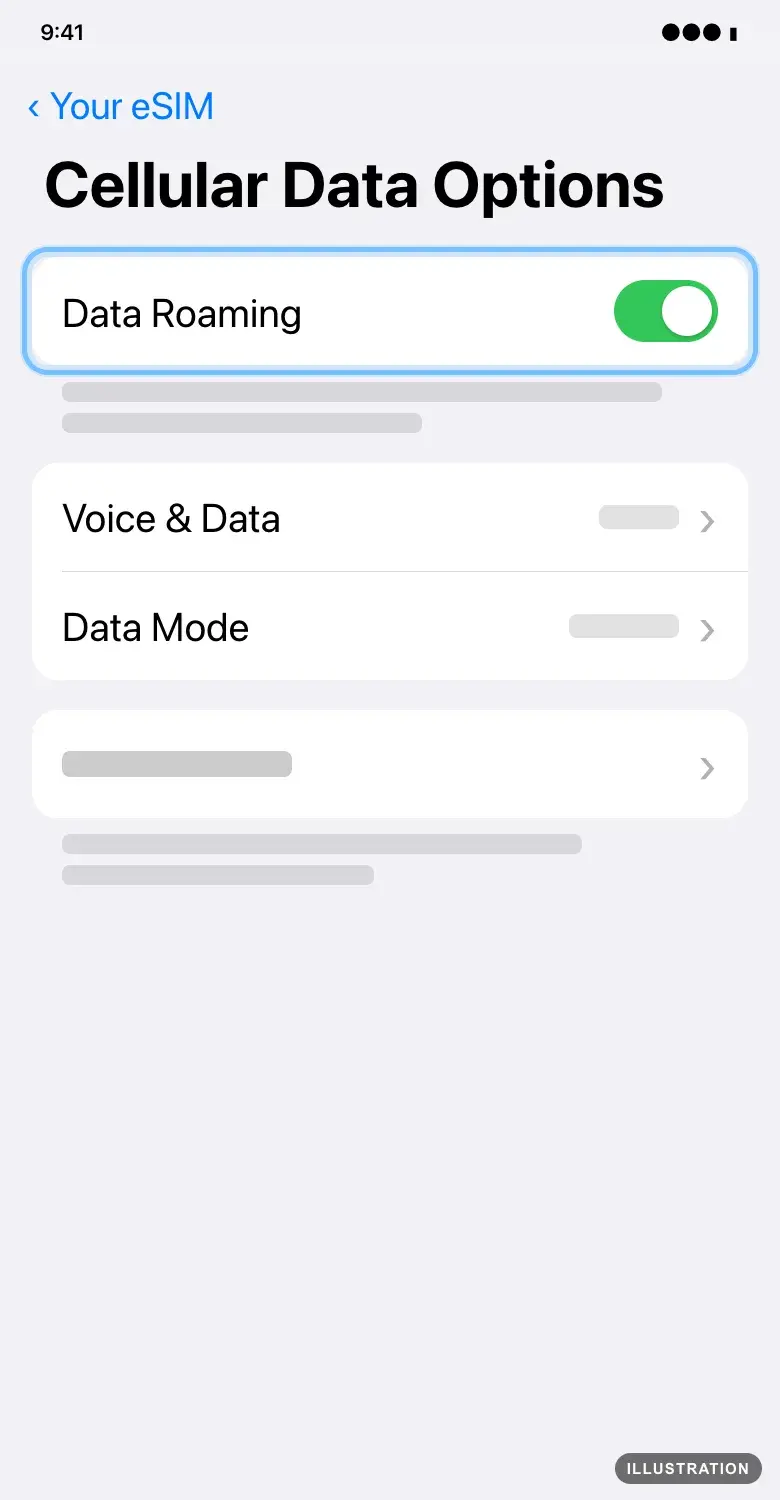
Illustration drawn from the platform's own guide · see the original - 6
Go back to the Cellular screen and tap Cellular Data.
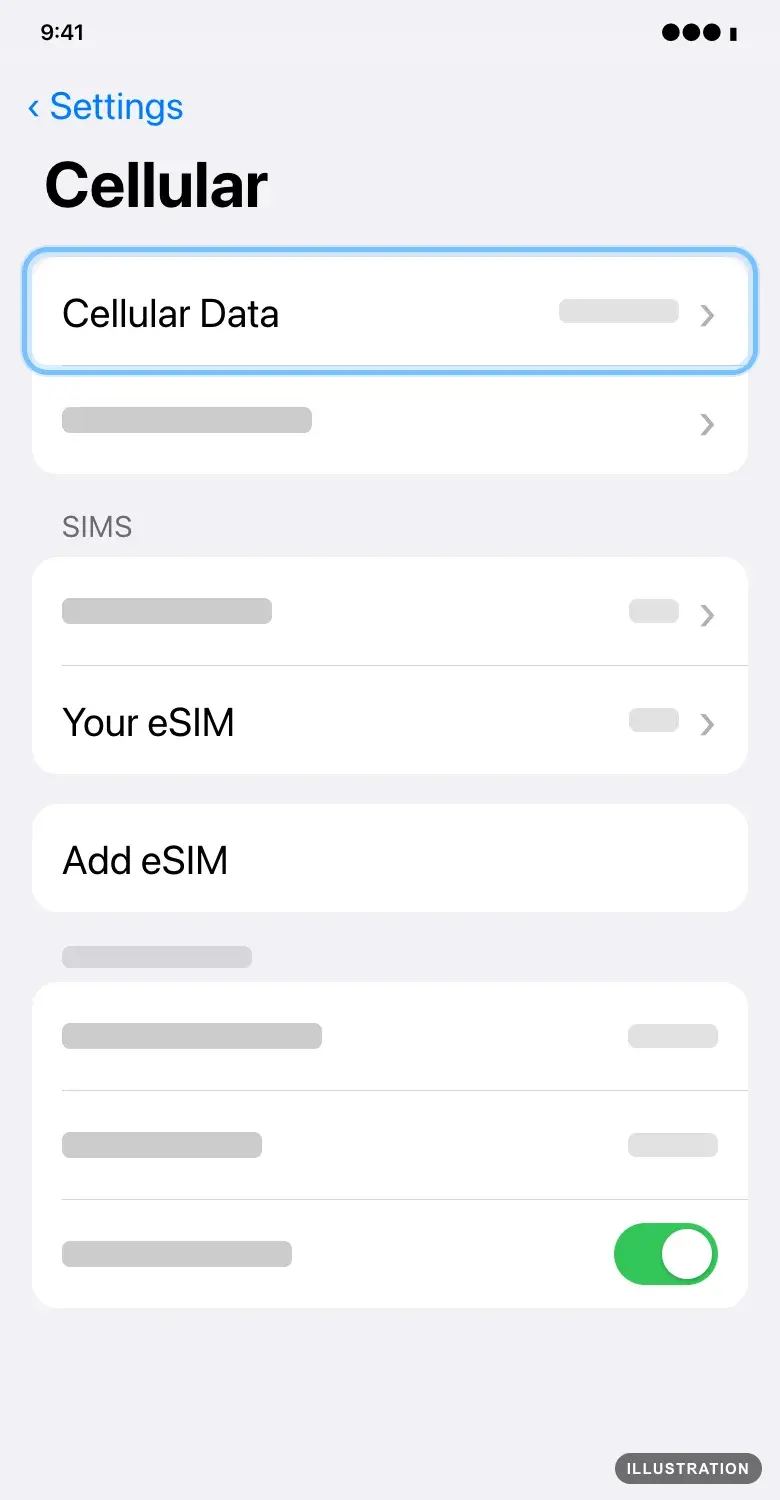
Illustration drawn from the platform's own guide · see the original - 7
Tap Your eSIM so it's ticked. Your iPhone uses one line for mobile data at a time.
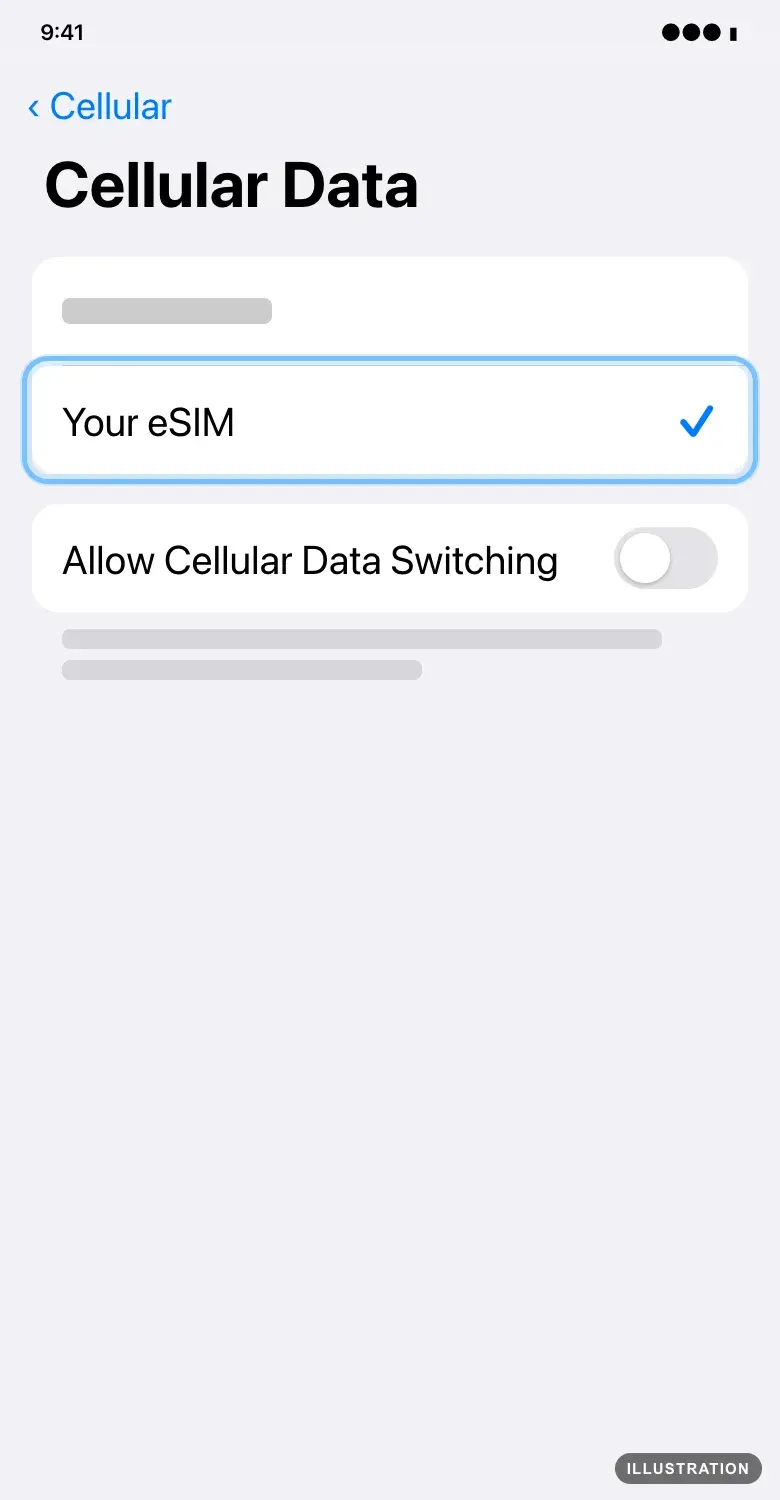
Illustration drawn from the platform's own guide · see the original - 8
Still no signal? Go back to Settings, turn on Airplane Mode, wait at least 15 seconds, then turn it off. Your iPhone then looks for the best network by itself.
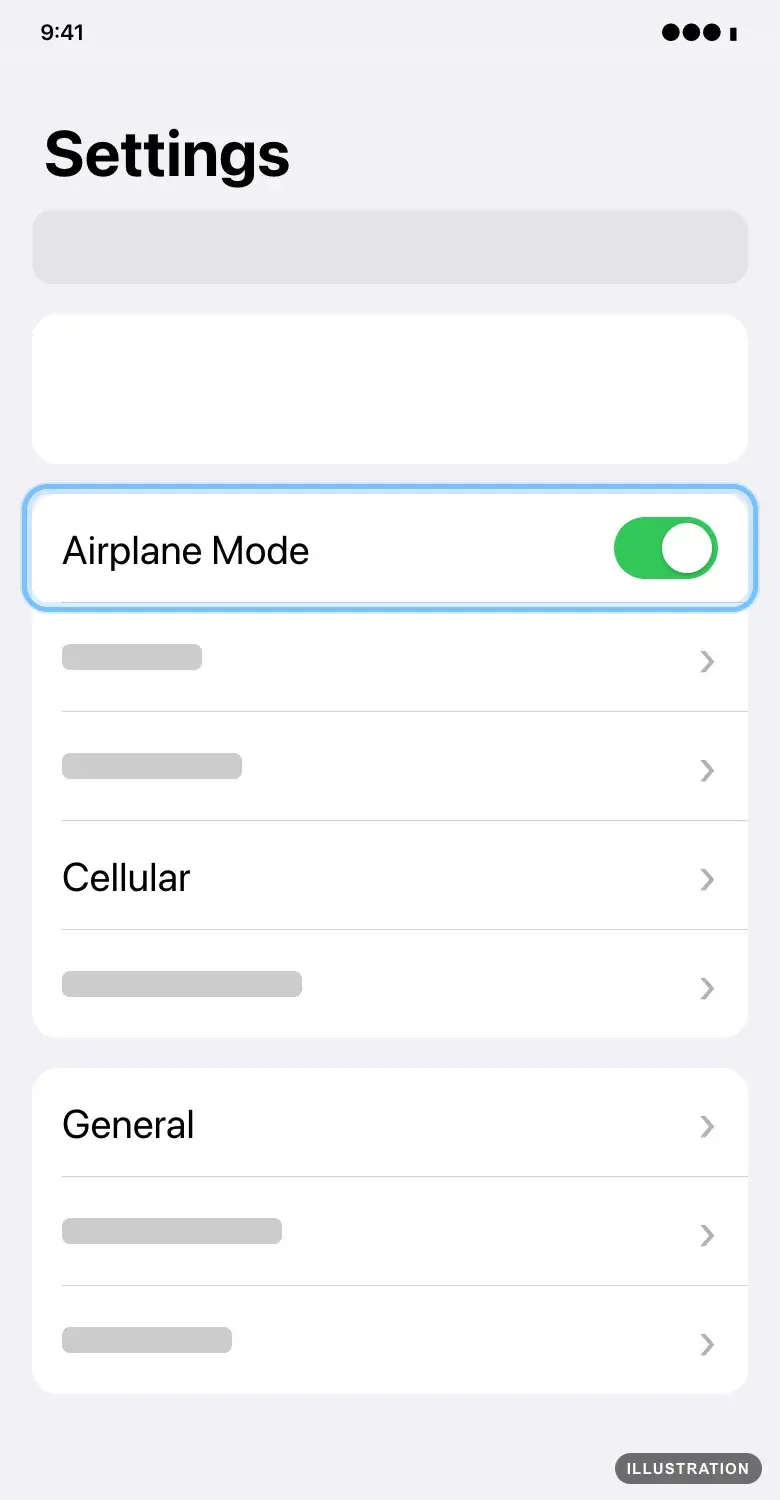
Illustration drawn from the platform's own guide · see the original - 9
Still nothing? Restart your iPhone. Press and hold either volume button and the side button until the power-off slider appears, drag the slider, and wait 30 seconds. Then press and hold the side button until you see the Apple logo.
On a Google Pixel
Google's own guides: Fix mobile connectivity issues and use dual SIMs.
- 1
Open the Settings app and tap Network & internet.
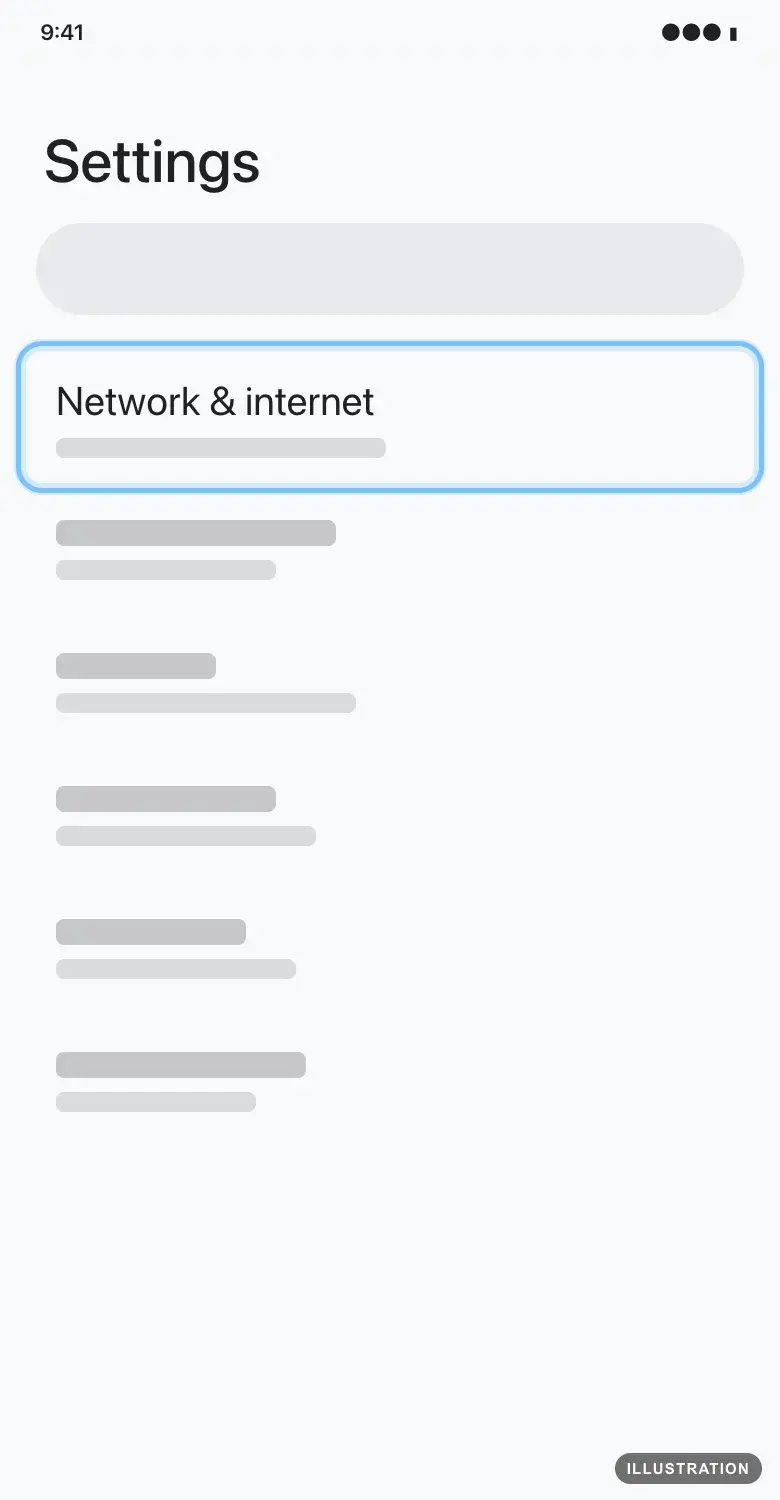
Illustration drawn from the platform's own guide · see the original - 2
Tap SIMs.
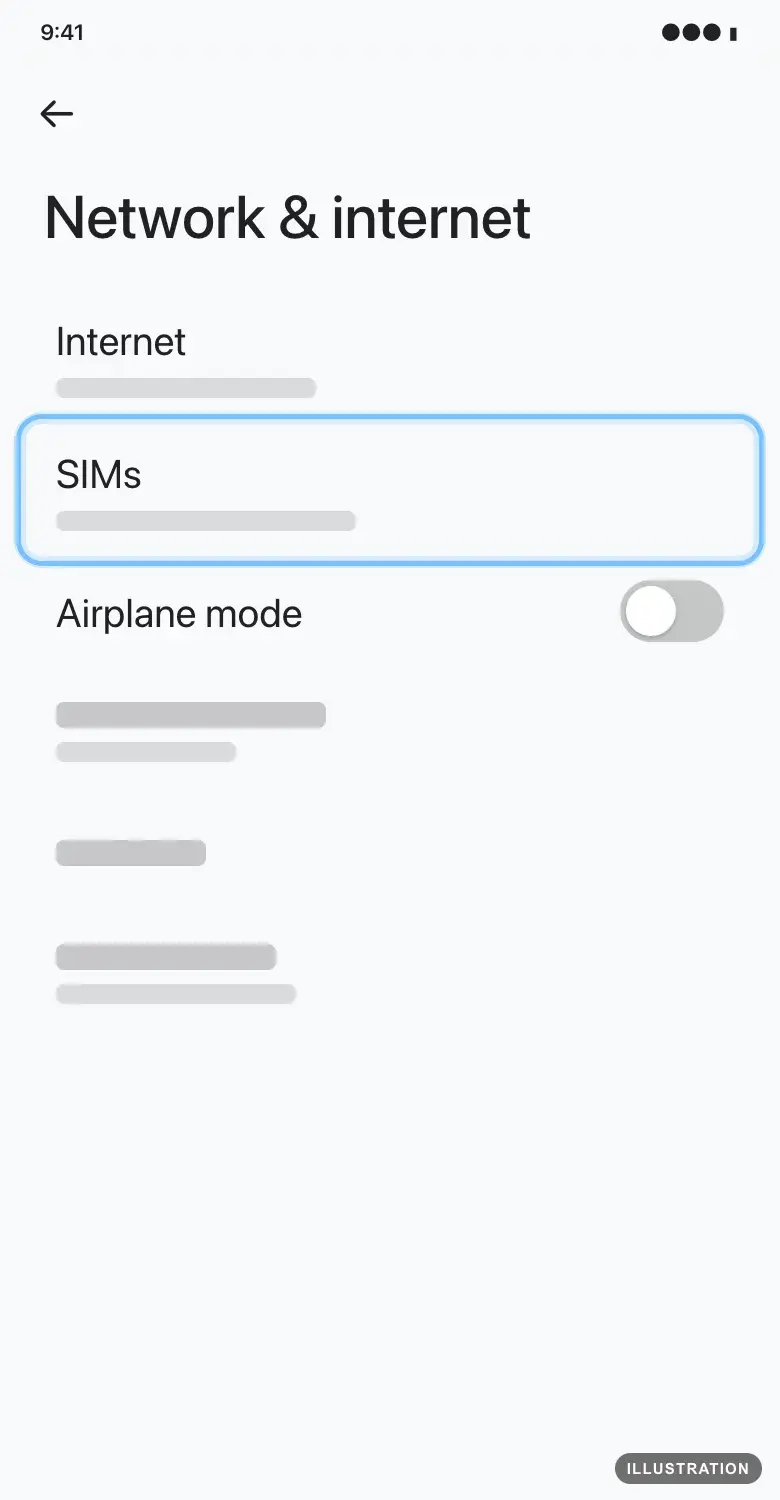
Illustration drawn from the platform's own guide · see the original - 3
Tap Your eSIM.
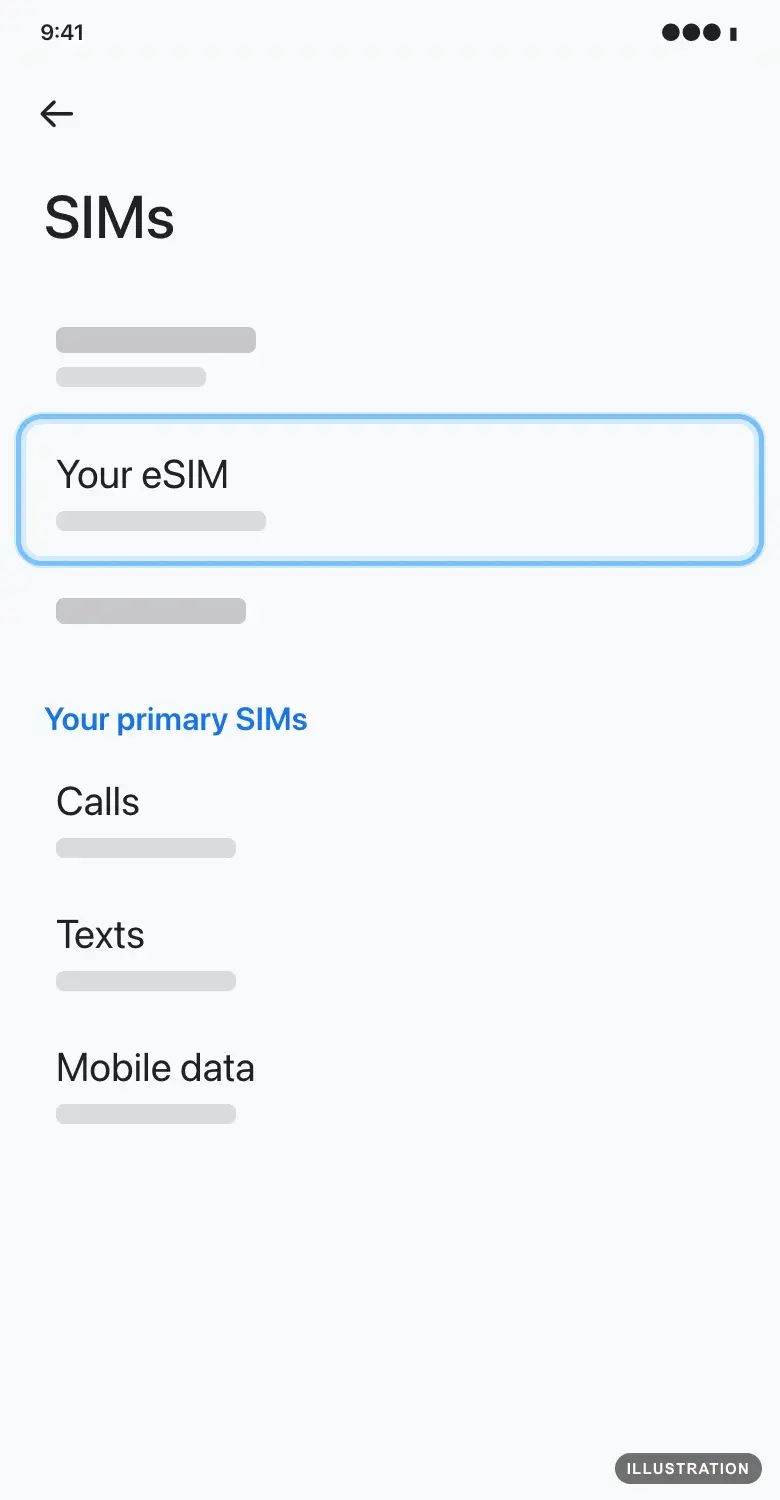
Illustration drawn from the platform's own guide · see the original - 4
Turn on Use SIM if it's off. Some Pixels call it Use this SIM. Check that Mobile data is on too.
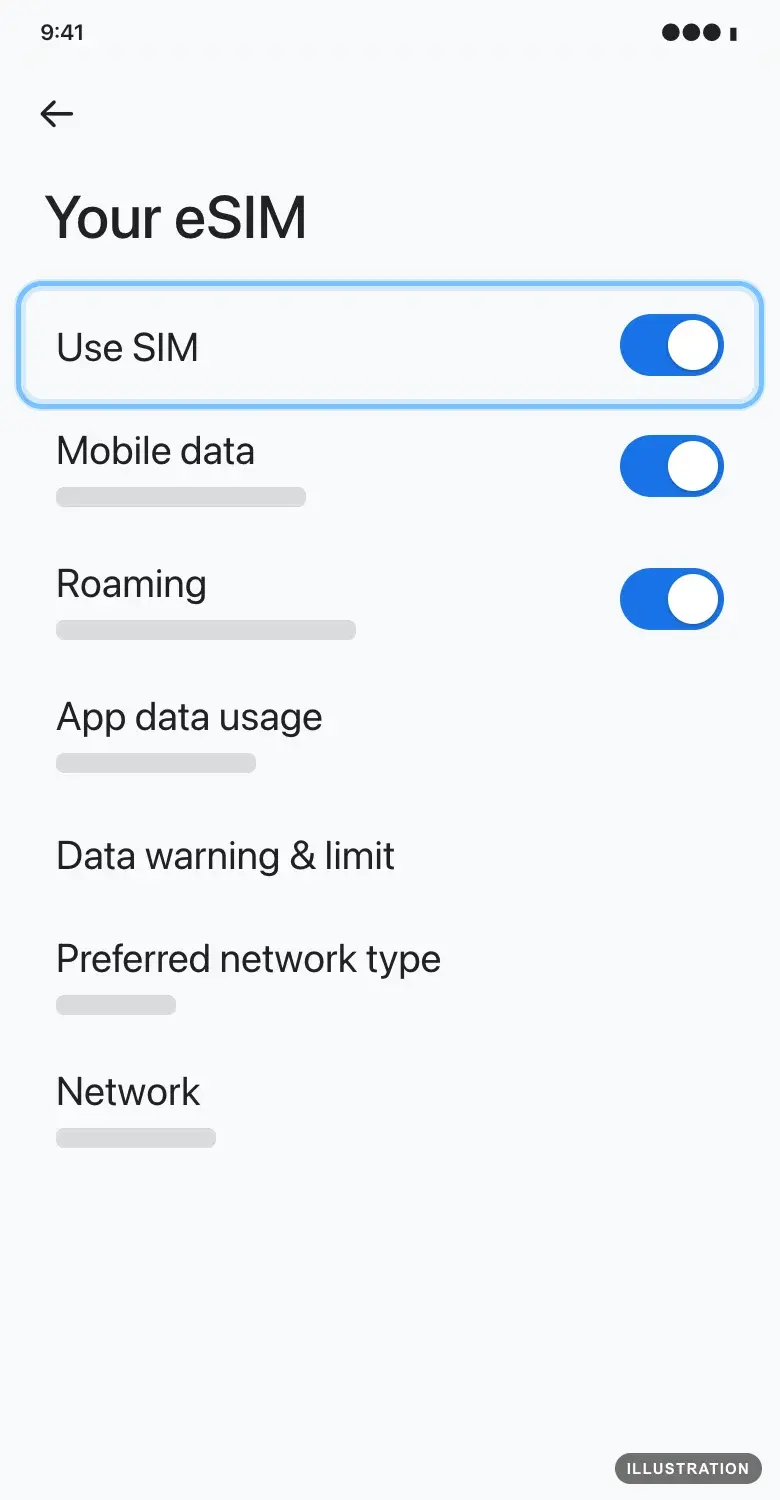
Illustration drawn from the platform's own guide · see the original - 5
Turn on Roaming. Your eSIM needs it to connect abroad.
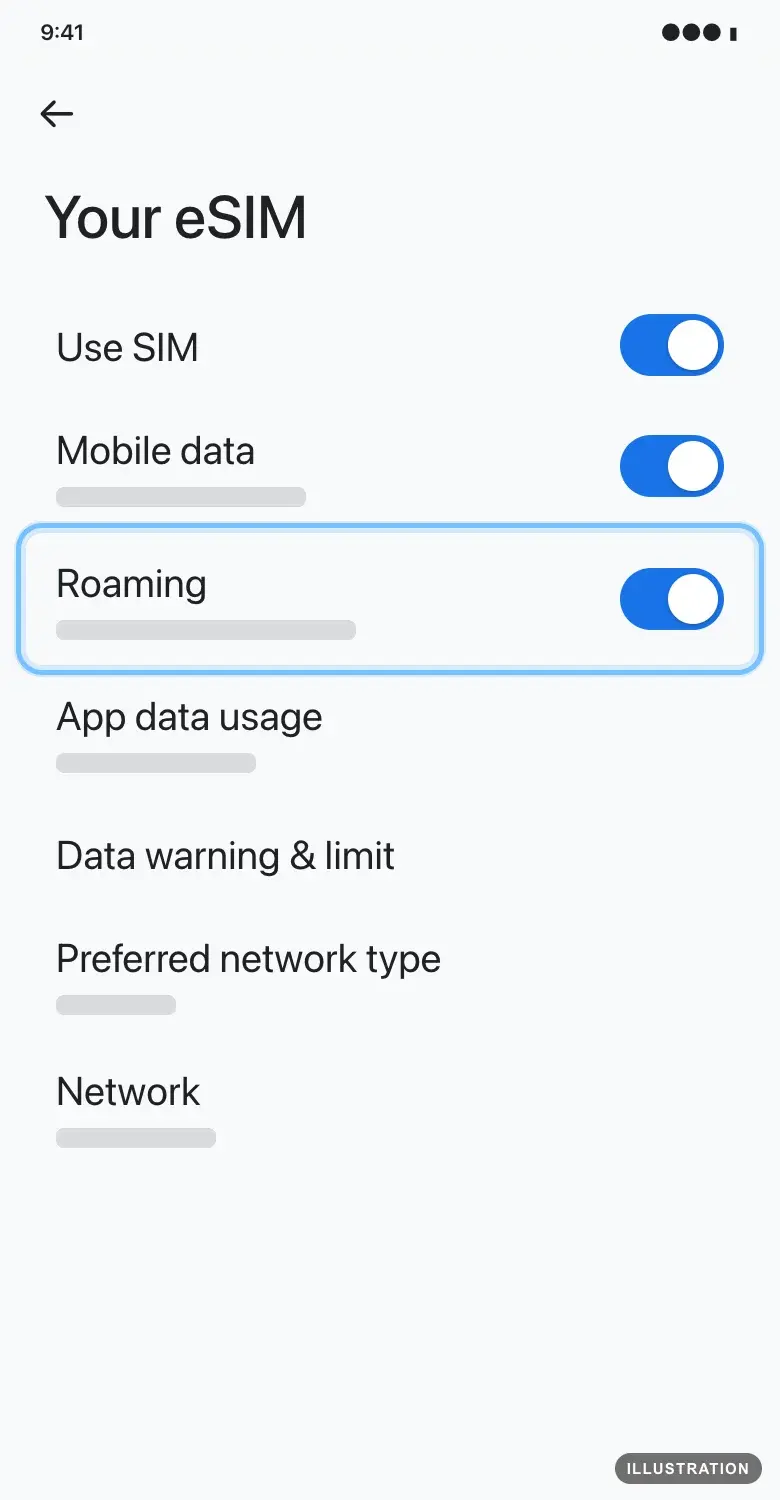
Illustration drawn from the platform's own guide · see the original - 6
Go back to the SIMs screen. Under Your primary SIMs, tap Mobile data and choose your eSIM. Only one SIM can be the one for data.
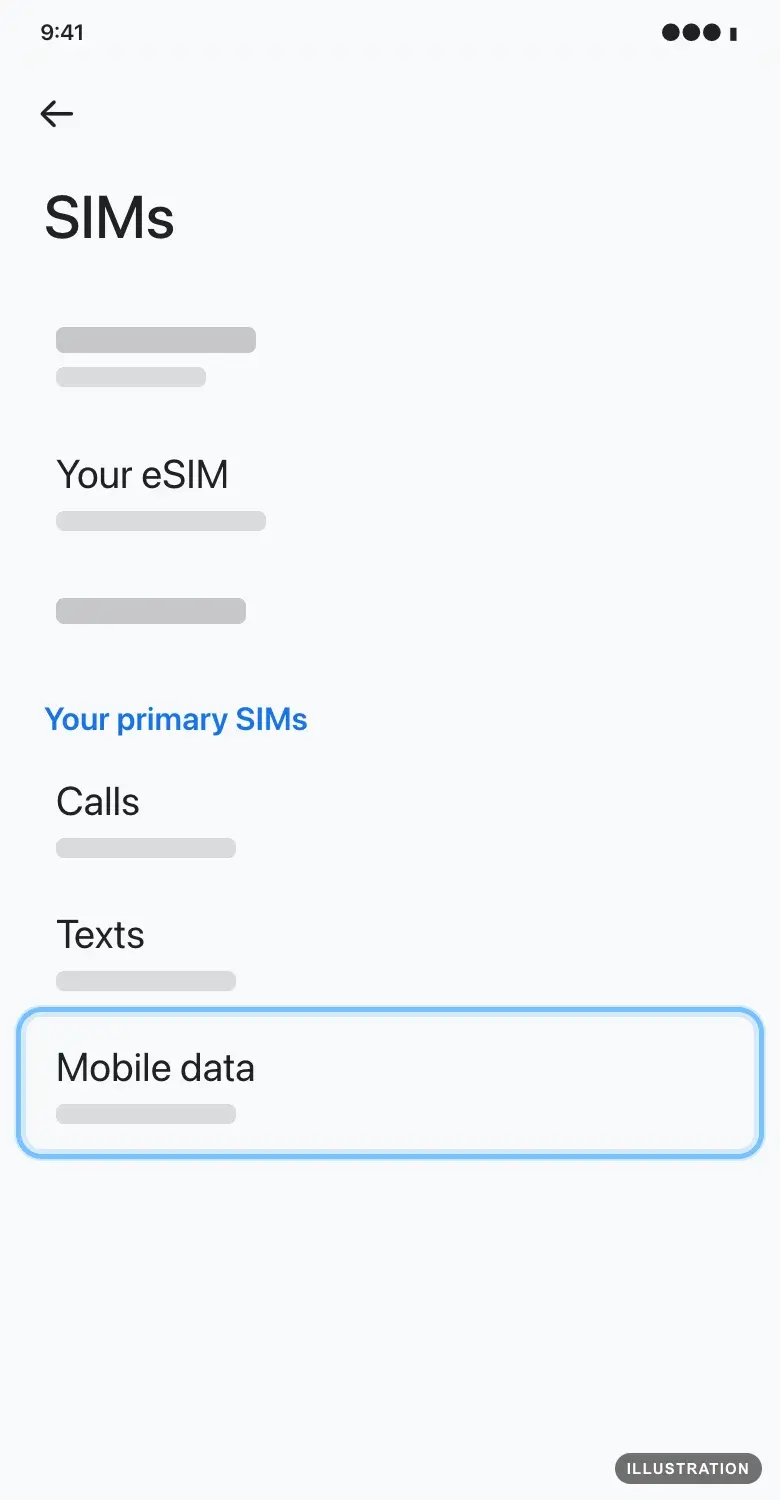
Illustration drawn from the platform's own guide · see the original - 7
Still no signal? Go back to Network & internet, turn on Airplane mode, wait a few seconds, then turn it off. This makes your phone reconnect.
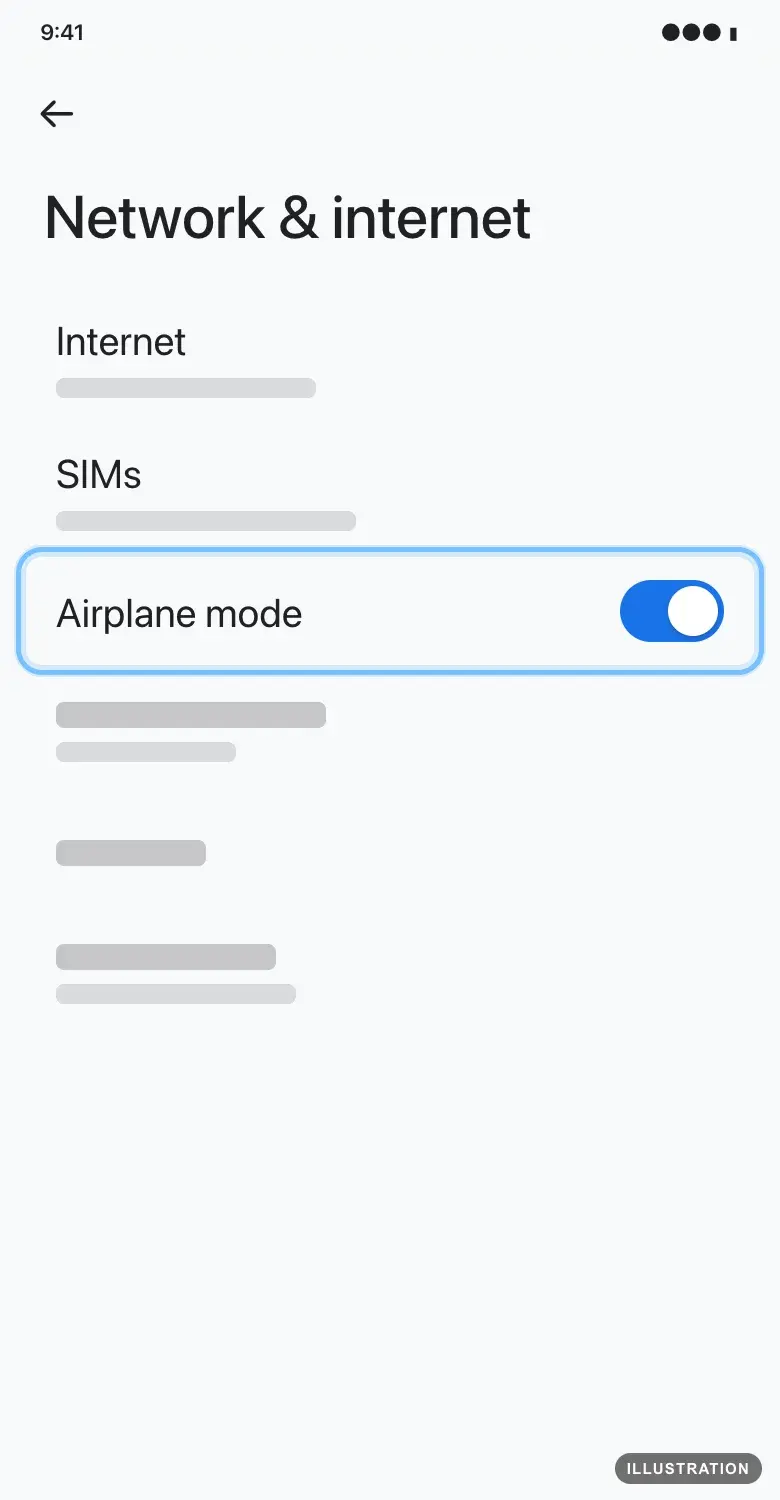
Illustration drawn from the platform's own guide · see the original - 8
Still nothing? Restart your phone. On a Pixel 6 or later, press and hold the power button and the volume up button for a few seconds, then tap Restart. On a Pixel 5a or earlier, press and hold the power button for about 30 seconds.
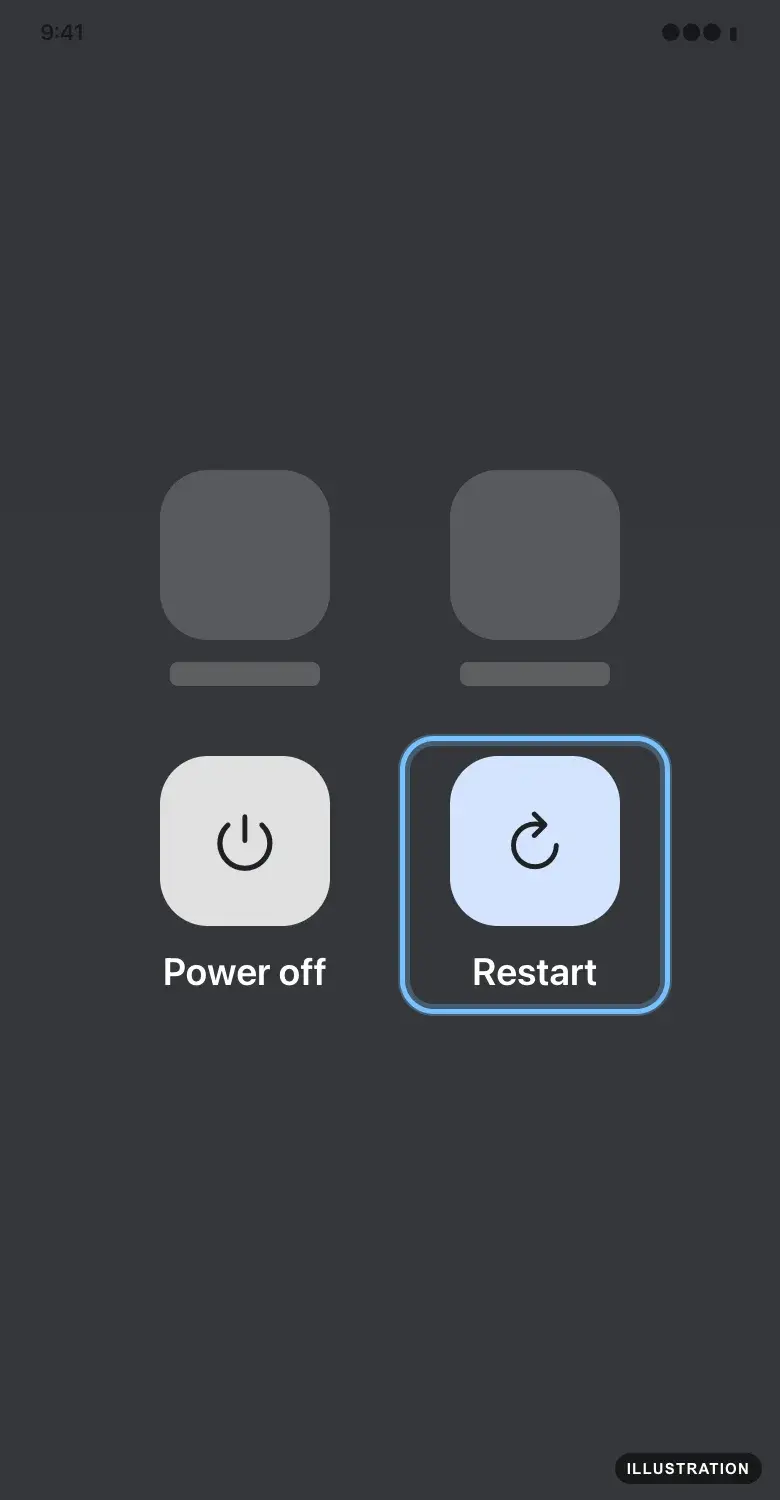
Illustration drawn from the platform's own guide · see the original
On a Samsung Galaxy
Samsung's own guides: SIM cards for your Galaxy phone and connection options.
- 1
Open Settings and tap Connections.
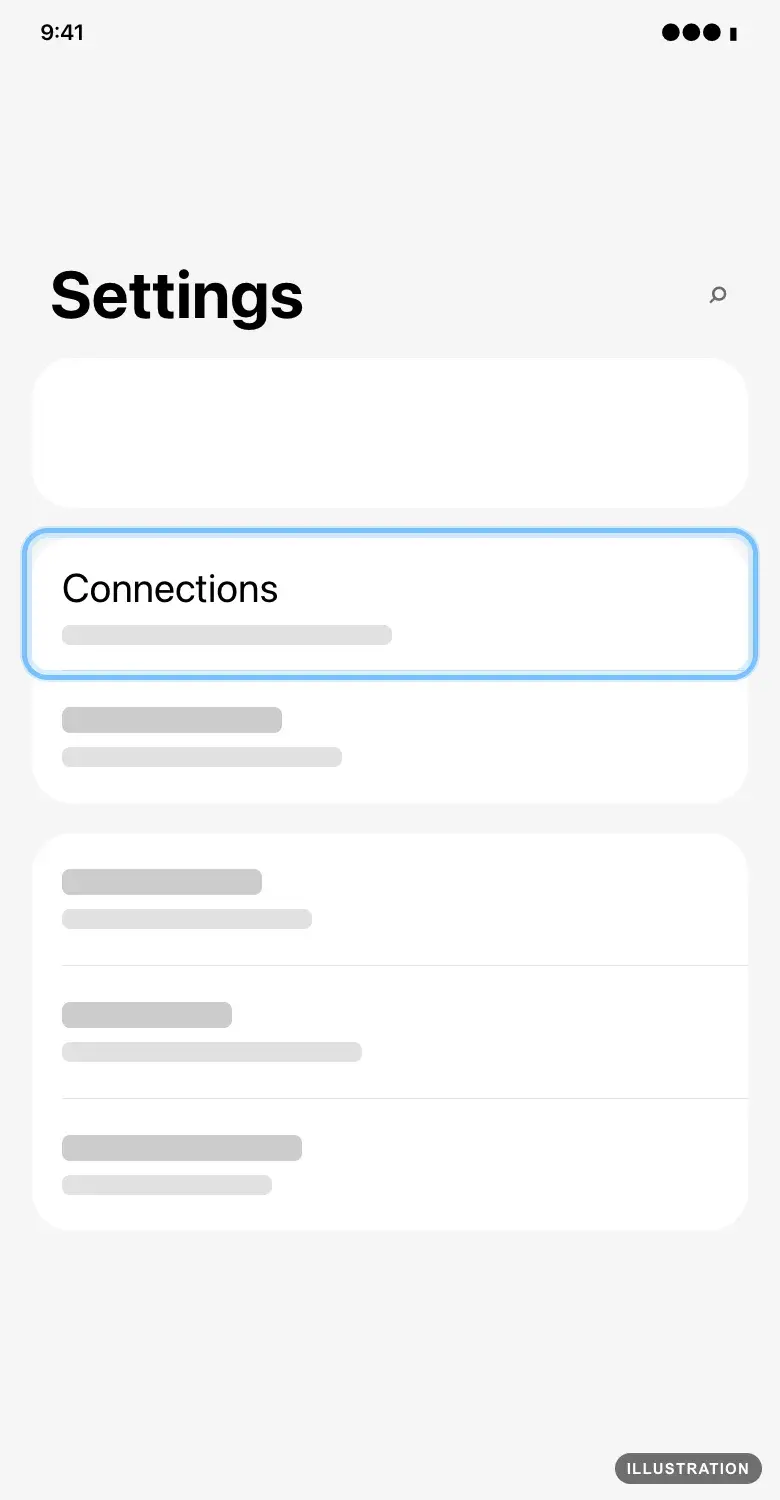
Illustration drawn from the platform's own guide · see the original - 2
Tap SIM manager.
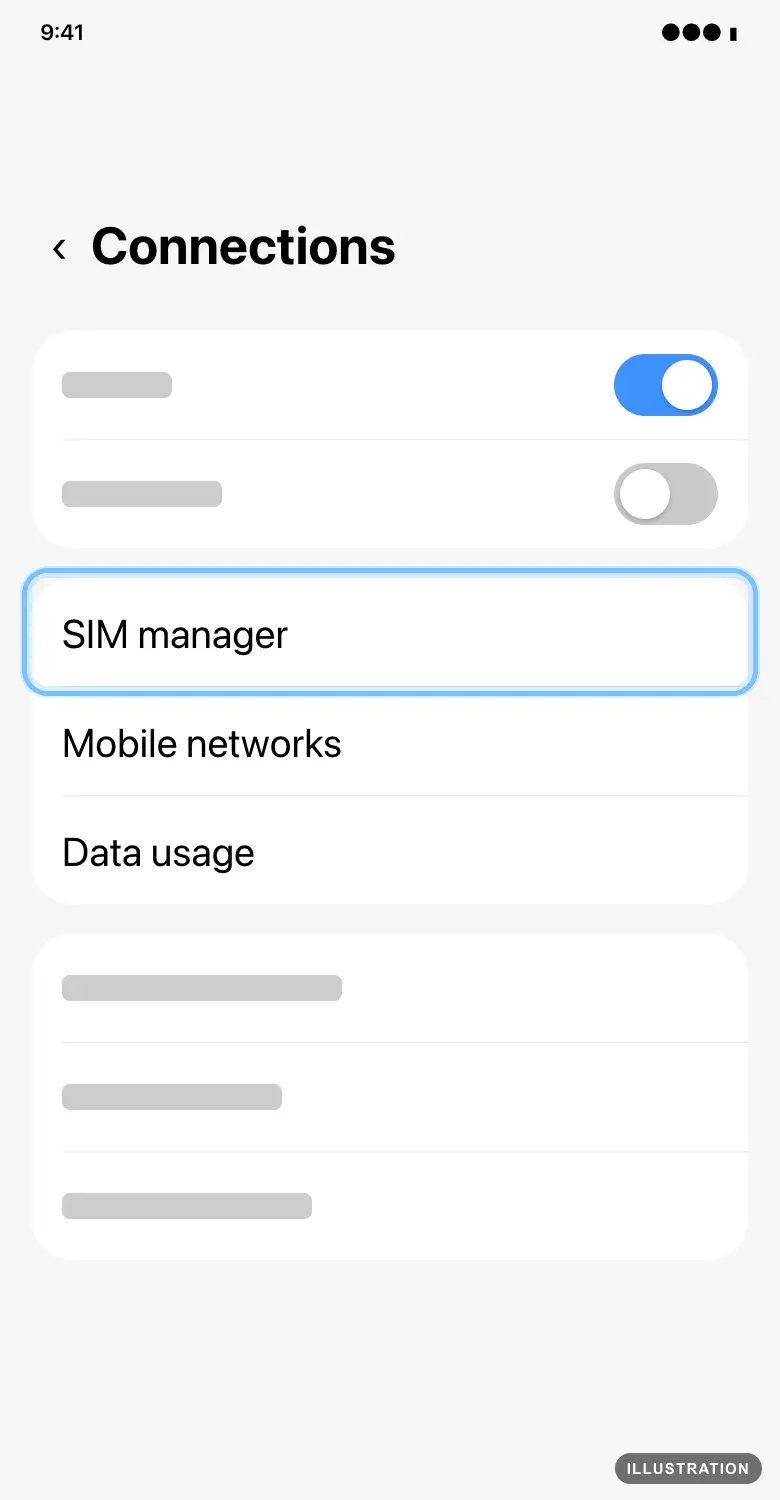
Illustration drawn from the platform's own guide · see the original - 3
Turn on the switch next to Your eSIM if it's off.
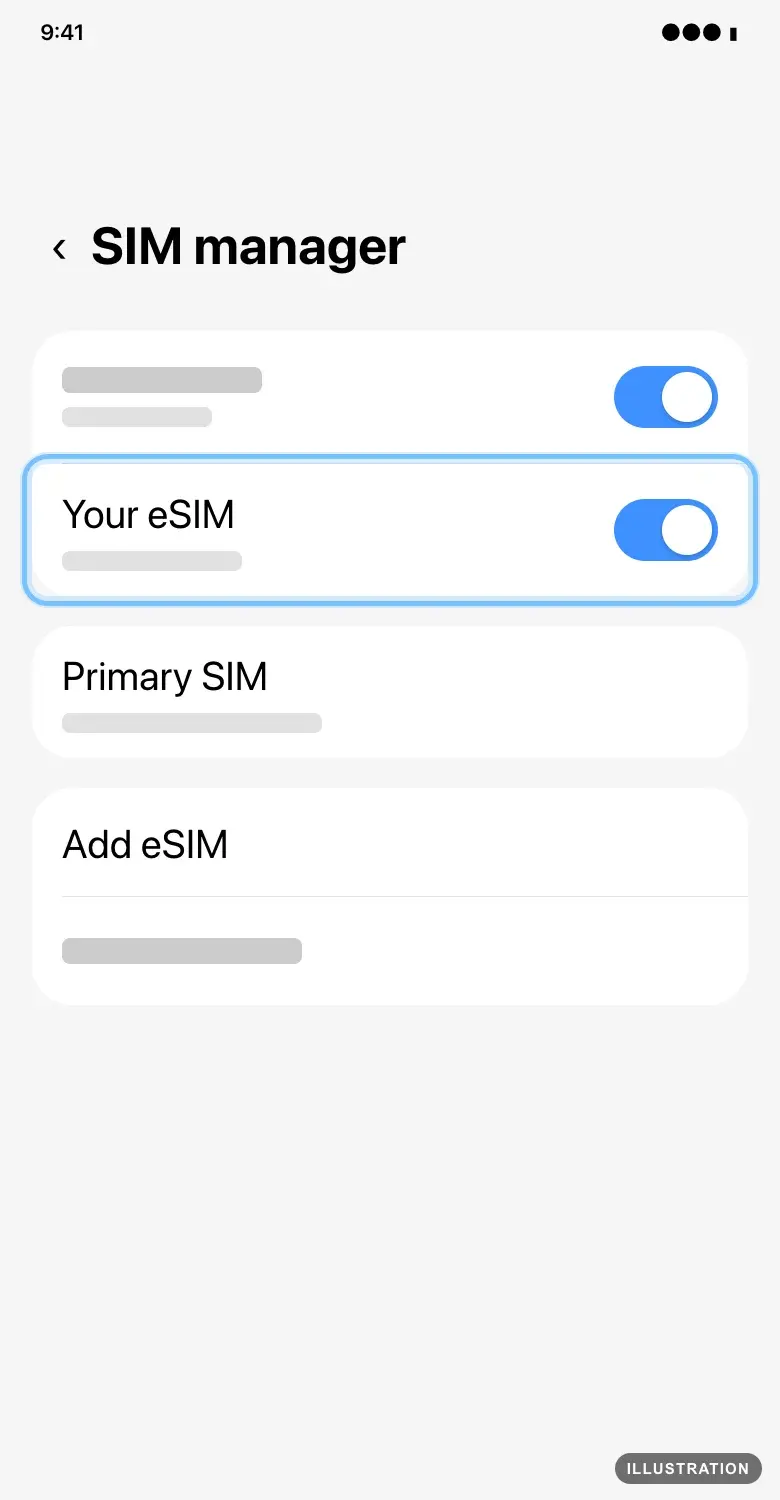
Illustration drawn from the platform's own guide · see the original - 4
Tap Primary SIM and choose your eSIM for mobile data. On some Galaxy phones this setting is called Mobile data. Keep your home SIM for calls and texts.
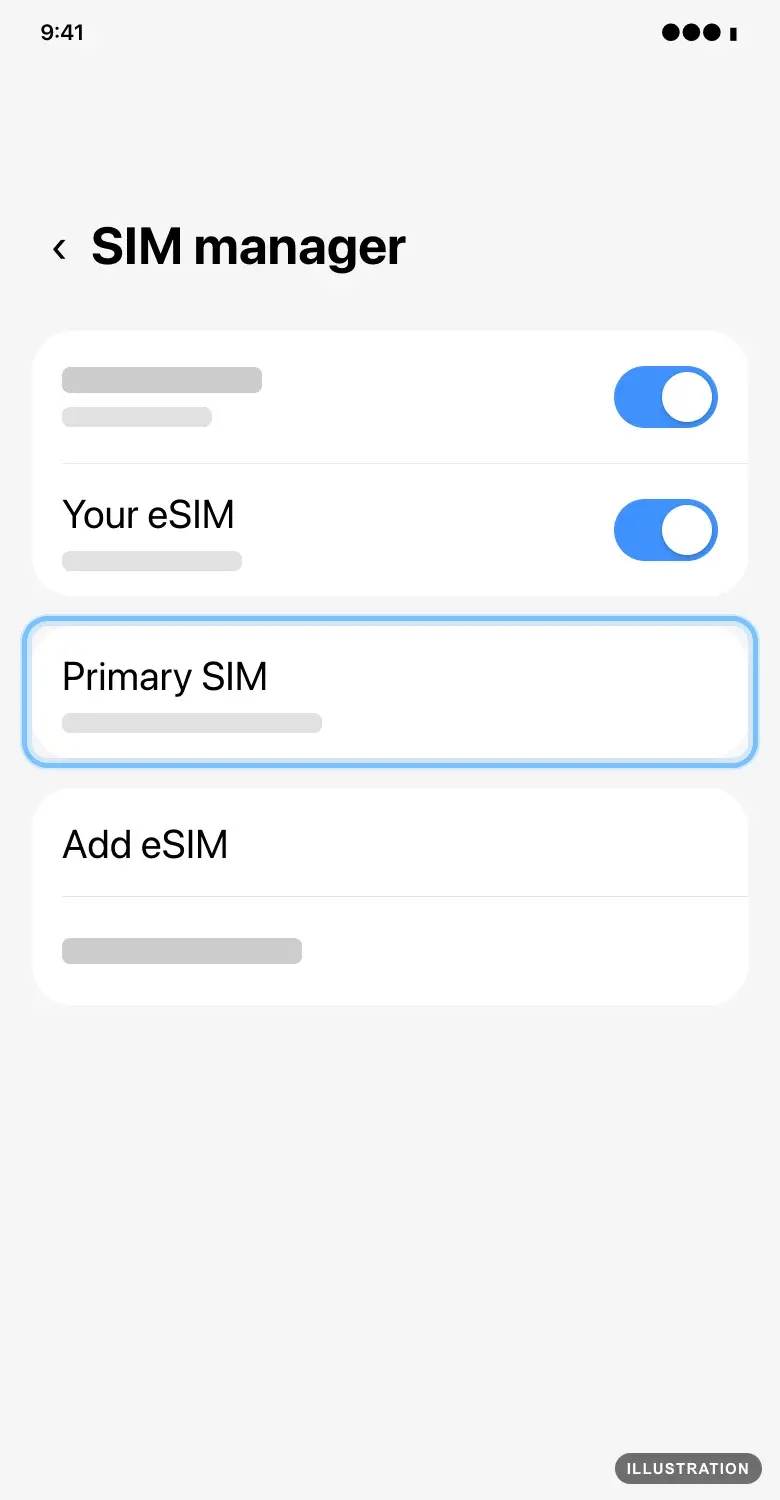
Illustration drawn from the platform's own guide · see the original - 5
Go back to Connections and tap Mobile networks.
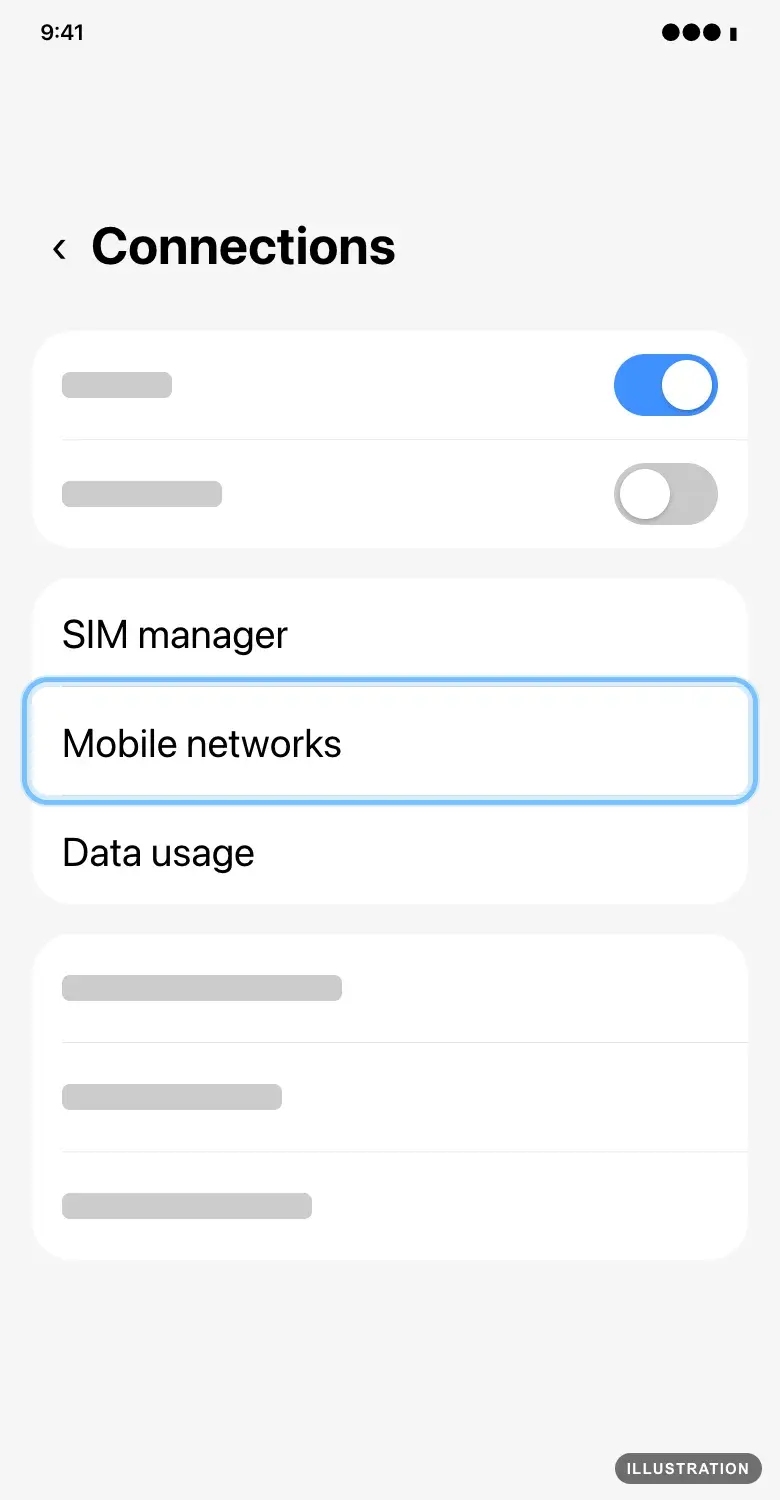
Illustration drawn from the platform's own guide · see the original - 6
Turn on Data roaming. Your eSIM needs it to connect abroad.
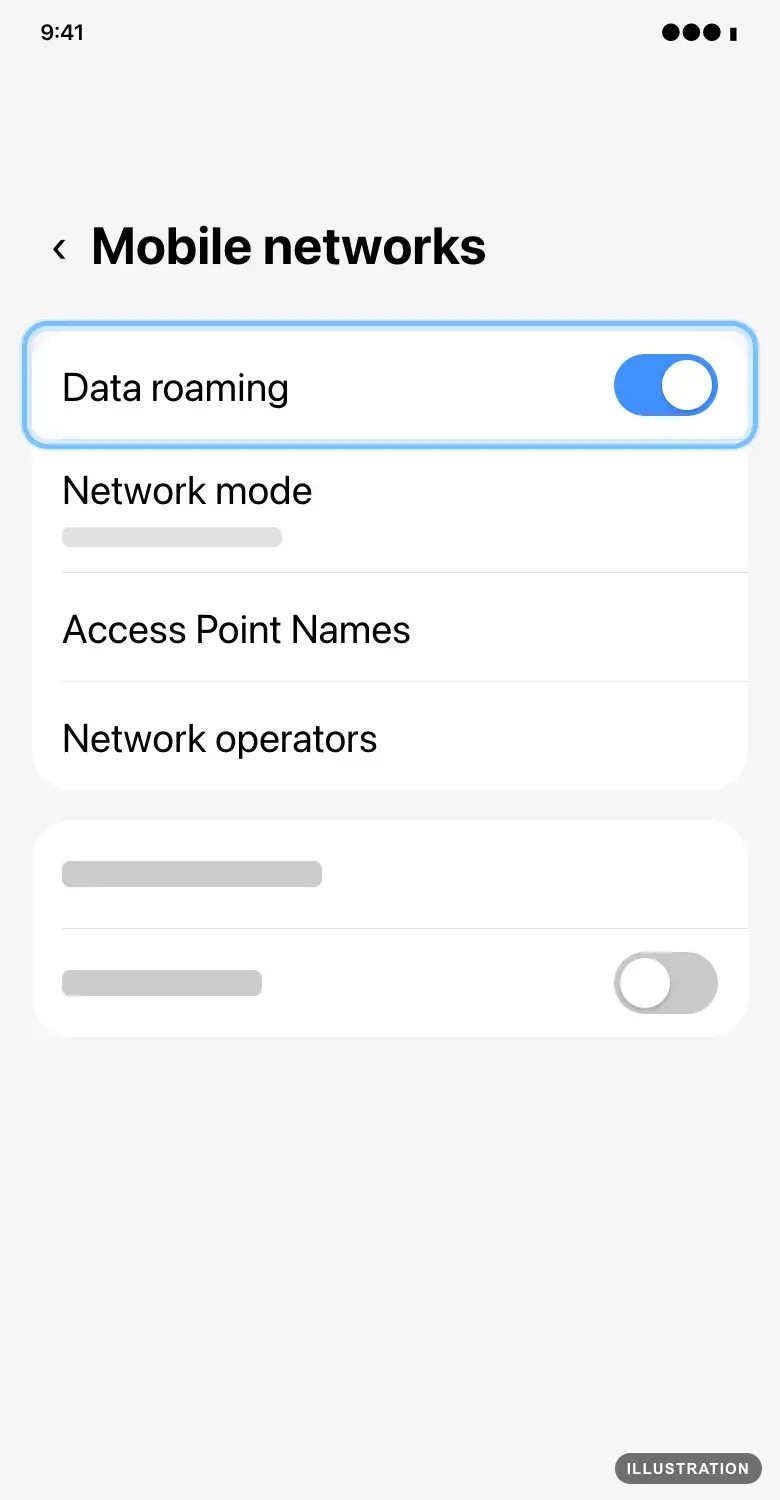
Illustration drawn from the platform's own guide · see the original - 7
Still no signal? Tap Network operators.
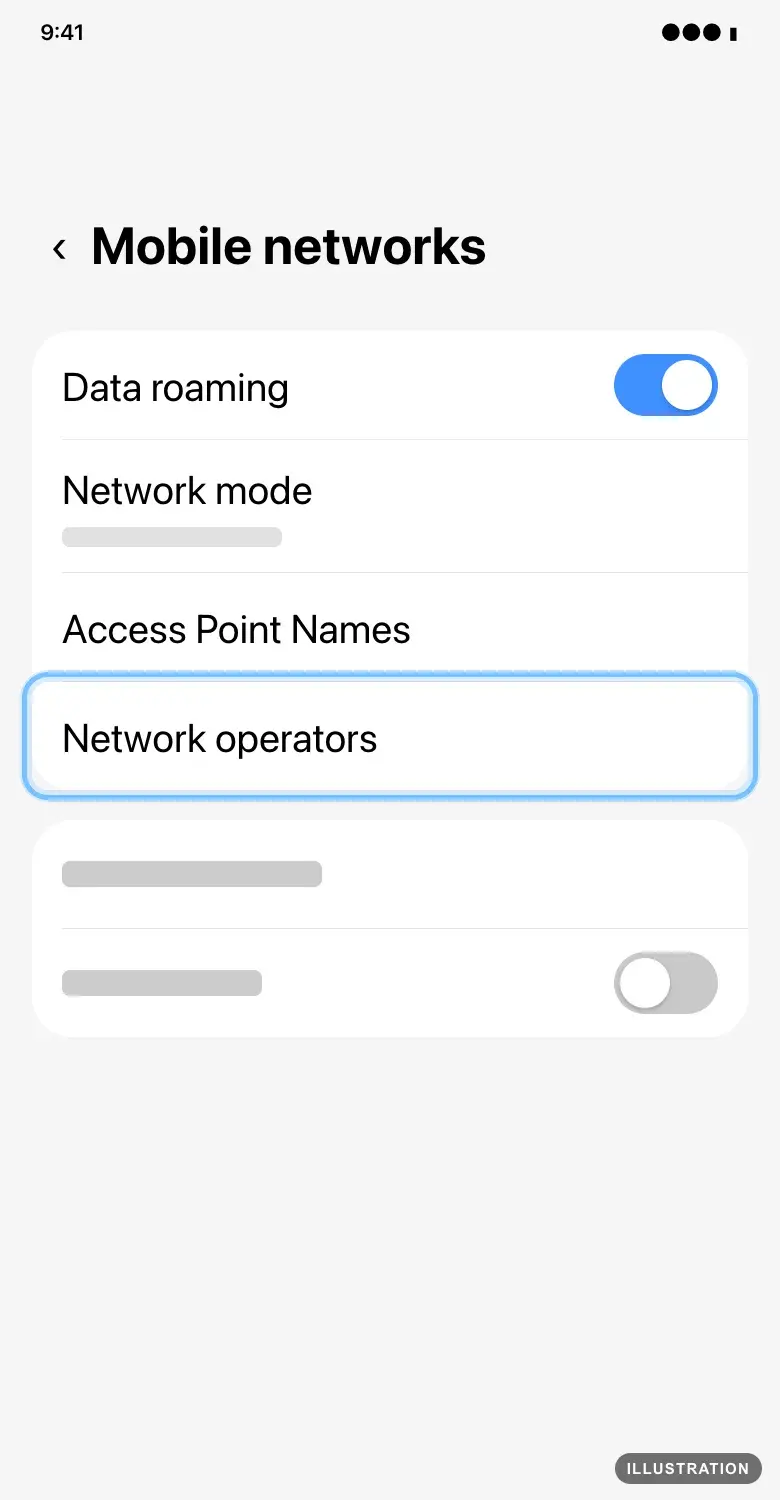
Illustration drawn from the platform's own guide · see the original - 8
Turn on Select automatically, so your phone picks the best network by itself.
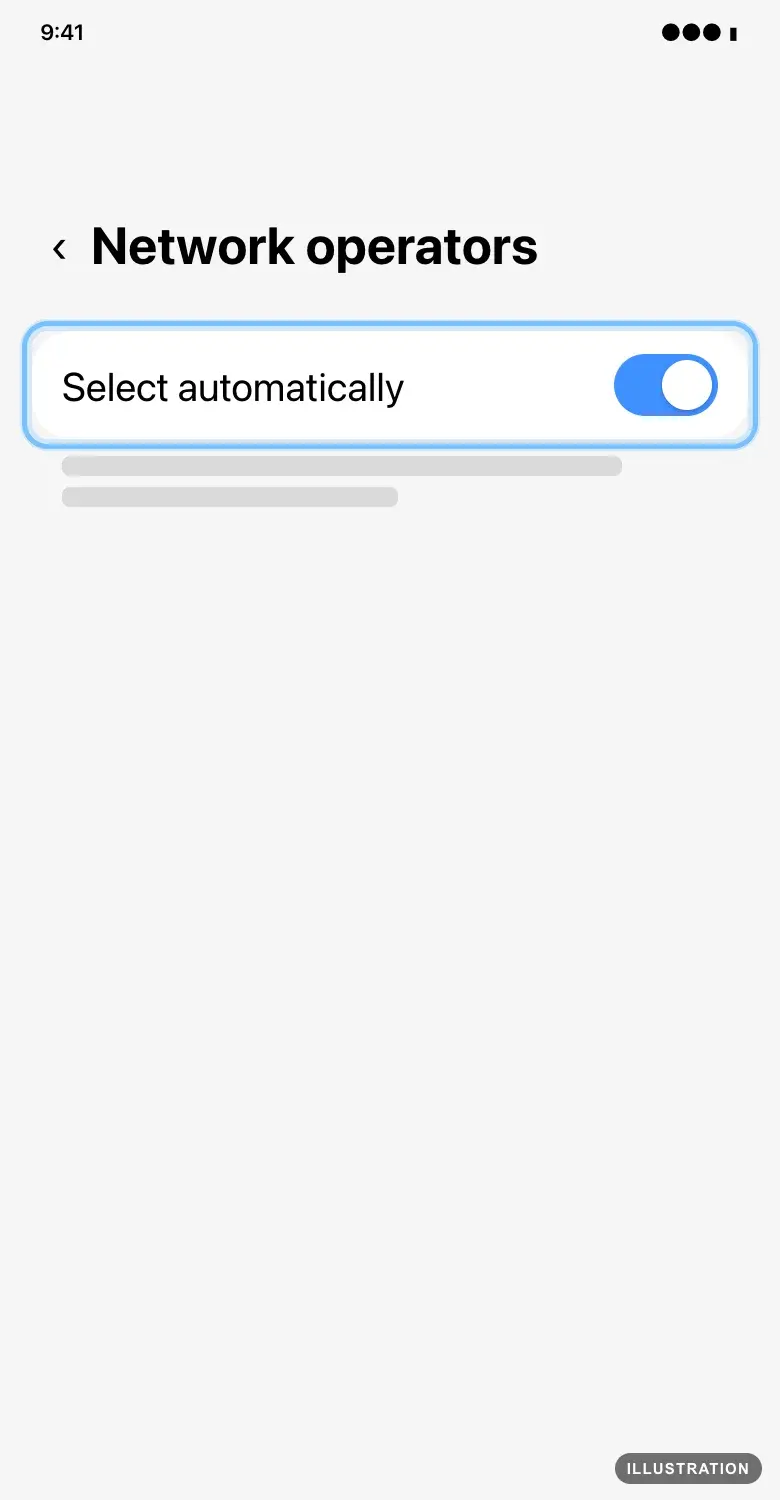
Illustration drawn from the platform's own guide · see the original - 9
Still nothing? Restart your phone. Press and hold the volume down button and the side button together, tap Restart, then tap Restart again.
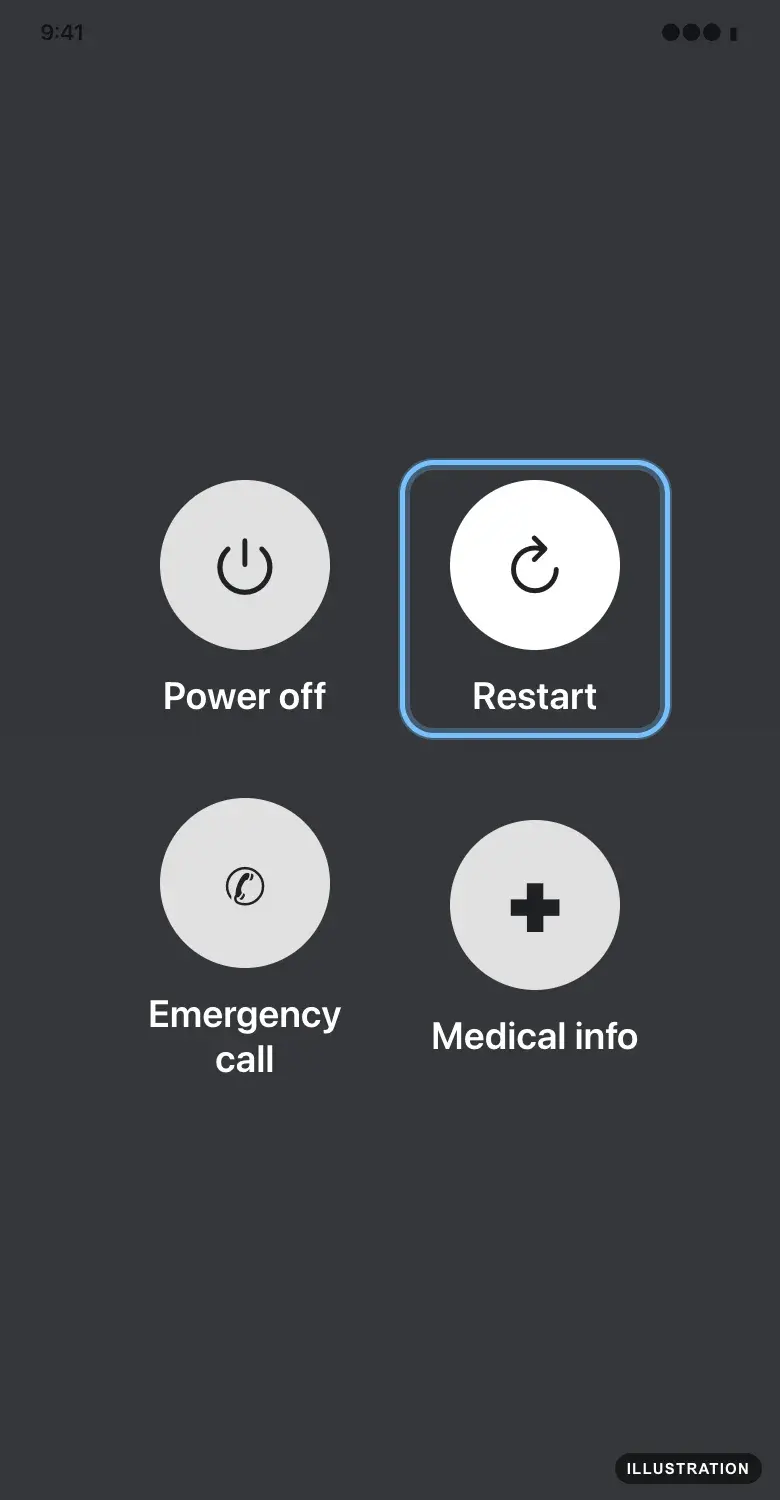
Illustration drawn from the platform's own guide · see the original
Confirm it works
Signal bars show next to your eSIM line, with the name of a local network. That network isn't called Andalu: your eSIM uses local networks.
Turn off Wi-Fi and open a web page. If it loads, your eSIM is working.
Turn Wi-Fi back on whenever you like. Your phone uses Wi-Fi first and the eSIM when there's no Wi-Fi.
Troubleshooting
| What you see | What it means | What to do |
|---|---|---|
No Service, Searching or SOS next to your eSIM line | Your phone hasn't joined a network for the eSIM yet | Turn the line on, turn on data roaming for it, then turn Airplane mode on and off. See the steps for iPhone, Pixel or Samsung |
Nothing yet, just after landing | The first connection can take a while | Wait a few minutes, up to an hour, then turn Airplane mode on and off |
Signal bars show, but nothing loads | Mobile data is going over your home line, or data roaming is off for the eSIM | Choose the eSIM for mobile data and turn on data roaming for it |
Bars show, roaming is on, still nothing loads | A VPN is blocking it, or the phone is stuck on one network | Turn off your VPN. On a Samsung, turn on Select automatically. Then restart your phone |
Everything works on Wi-Fi only | Wi-Fi is doing the work, not the eSIM | Turn off Wi-Fi to test the eSIM on its own |
Your eSIM isn't in your list of SIMs | It isn't installed, or it was deleted | Install it with the guide for iPhone or Android. If your phone says the code is used, see QR code invalid or already used |
The date and time are wrong on your iPhone after you arrive | Your iPhone hasn't updated to local time | In Settings, tap General, then Date & Time, and turn on Set Automatically |
No signal in one country on a trip through several | Your plan may not cover that country | Check the countries on your plan's page. A plan for one country works only there |
It worked, then stopped | The plan's data is used up or its days have ended | See what happens when data runs out and how to check what's left |
A daily plan is very slow for the rest of the day | You've used that day's allowance, so the speed is reduced until it renews | Wait for the next day's allowance, or use Wi-Fi |
Your home carrier sends a roaming charge warning | Data roaming is on for your home SIM too | Turn off data roaming on your home SIM and keep your eSIM as the line for mobile data |
Signal drops for a moment on a train or in a car | Your phone is moving between network masts | Wait a minute. It reconnects by itself |
Frequently asked questions
Related articles
Still stuck?
Contact us with your order number and the exact message you see, word for word, including any error code. We reply by email, usually within a day. If the eSIM can't be used, buyer protection covers you for 24 hours after delivery.
No order number? Include the email address you paid with, your phone model, the country you're in and your eSIM's ICCID. It's in your eSIM email, and in your phone's settings: Settings > General > About on an iPhone, or Settings > About phone > SIM status on Android. Contact us about an eSIM.