My eSIM QR code says it's invalid or already used. What do I do?
An eSIM QR code installs your plan on one phone, once. If your phone says the code is invalid or already used, first check whether the eSIM is already installed: often it is. If it isn't, don't keep scanning it or try it on another phone. Contact us and we'll check what happened to the code.
Before you start
Have your QR code ready. It arrives by email, in the email itself or behind its Get your order button, with a manual activation code beside it.
Connect the phone you're installing on to Wi-Fi. The eSIM downloads over the internet, so a weak connection can stop it halfway.
The QR code is for the phone that will use the eSIM. Show it on another screen, such as a computer or a second phone, and scan it from there.
Keep your QR code private. Anyone who scans it first could install your eSIM.
- 1
Check whether the eSIM is already on your phone. On an iPhone, open Settings, tap Cellular and look under SIMs. On a Pixel, open Settings, then Network & internet, then SIMs. On a Samsung, open Settings, then Connections, then SIM manager. If it's listed (shown as Your eSIM in the picture, with the name you gave it on your phone), it's installed and you don't need the code again.
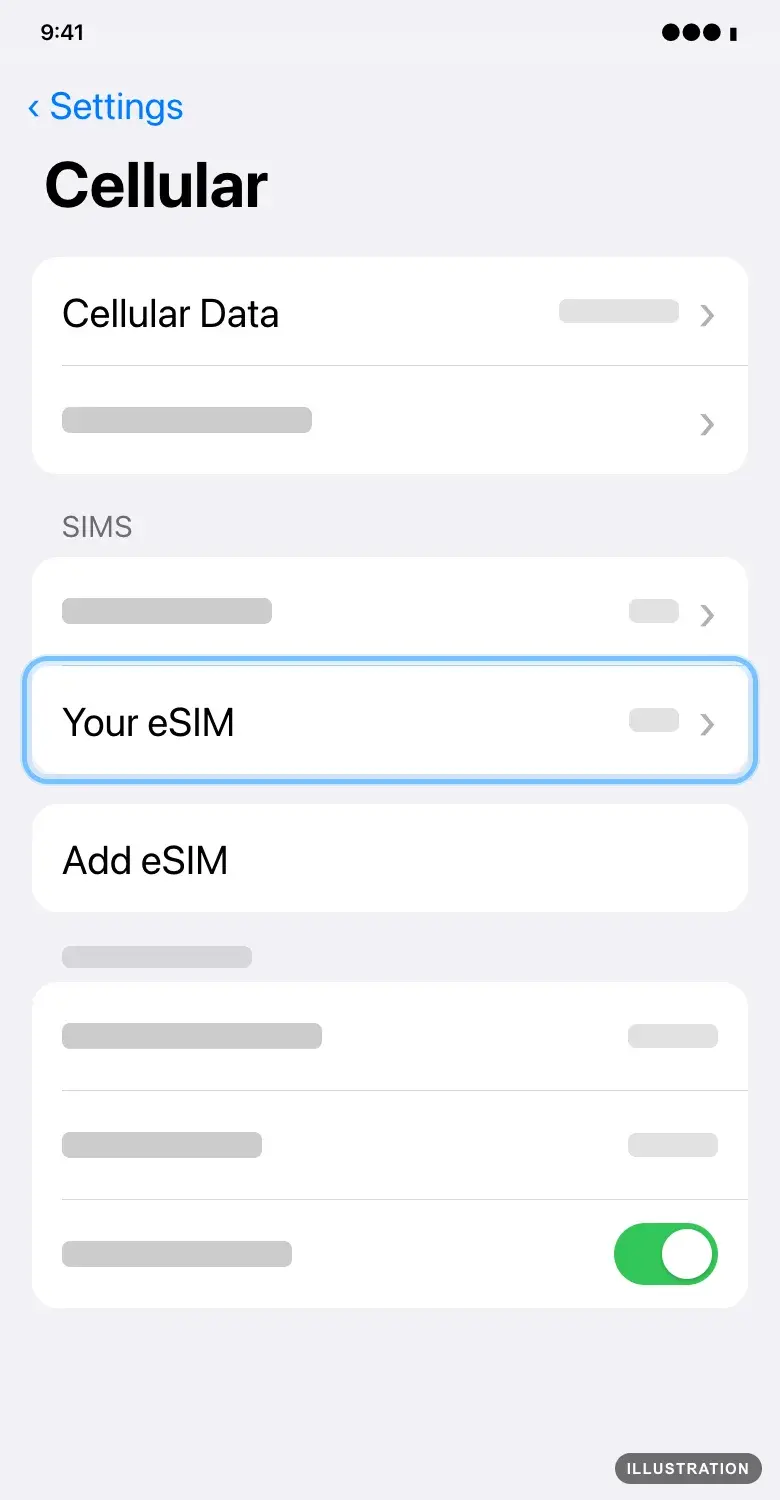
Illustration drawn from the platform's own guide · see the original - 2
Not listed, and the camera won't read the code? Use the Activation code (LPA) from your eSIM email instead of scanning. If the email has a Get your order button instead, the page it opens shows the activation code. The install guides show where to enter it: iPhone, Google Pixel or Samsung Galaxy.
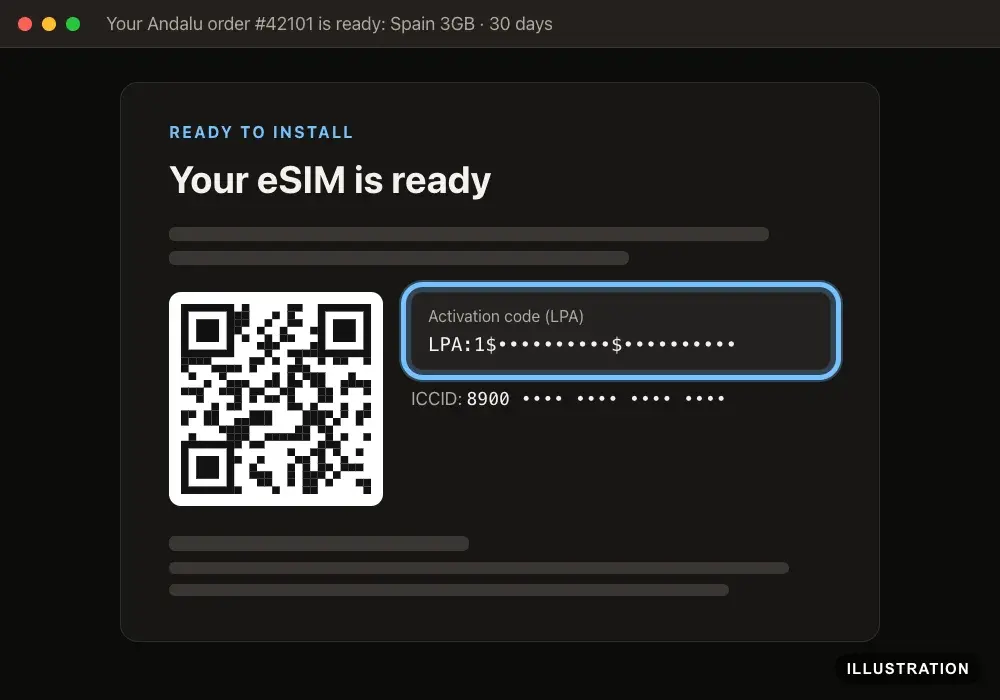
Illustration of your Andalu order page - 3
Deleted the eSIM by mistake? Scan the same QR code on the same phone. An eSIM can often be added back to the phone it was first installed on, but not to a different phone.
- 4
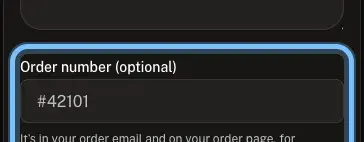
Your phone still says the code is invalid or already used? Stop scanning. Take a screenshot of the message. Contact us, choose eSIM issues, enter your order number (like #42101, from your order email) in Order number, and add your screenshot under Screenshots.
Troubleshooting
| What you see | What it means | What to do |
|---|---|---|
Invalid or already used, and the eSIM is in your list of SIMs | It's installed. A code works once, so a second scan fails | Nothing to scan. If it isn't connecting, turn the line on with the no-signal steps |
Already used, and you've never installed it anywhere | The code may have been scanned on another device, or an earlier try got partway | Don't retry. Contact us with your order details |
The install stopped halfway | The download was cut off, often by a weak connection | Check your list of SIMs. If it isn't there, connect to Wi-Fi and try once more. If the phone then says the code is used, contact us |
The camera won't read the code | Glare, a dim screen, or you're showing the code on the same phone | Show the code on another screen at full brightness, or enter the manual activation code |
The code worked on one phone, and now you want it on another | A code works on one phone only | Contact us before you delete anything from the first phone |
Your phone won't add any eSIM | Your phone doesn't support eSIM, or it's locked to one carrier | |
The code is months old and has never been used | An eSIM that's never used expires 90 days after you buy it, and can't be refunded after that | Contact us with your order details |
Frequently asked questions
Related articles
Still stuck?
Contact us with your order number and a screenshot of the message you see, including any error code. We reply by email, usually within a day. If the eSIM can't be used, buyer protection covers you for 24 hours after delivery.
No order number? Include the email address you paid with, the mobile number you confirmed with a text code when you paid, and your eSIM's ICCID if you have it. It's in your eSIM email, and in your phone's settings: Settings > General > About on an iPhone, or Settings > About phone > SIM status on Android. Tell us your phone model too. Contact us about an eSIM.