How do I contact support?
You contact us on the Contact us form: choose the category that fits, enter your email, say what happened, add your order number and select **Submit ticket**. We reply by email within 48 hours. For a key that doesn't work, never arrived or is for the wrong region, choose **Buyer protection claim**: that files your claim.
Before you start
Try a quick answer first. Paste the exact message you see into help search: it can open the fix for that message straight away.
Have these ready: your order number, the exact message you see (including any error code), and your platform and region, or your phone model for an eSIM.
Never send your whole key, a password or a full card number. For a key, the first and last four characters are enough.
You don't need an account.
- 1
Select Contact support at the end of any help article, or Contact at the bottom of any page. From a help article, the category and your question are filled in for you. From your order page, select Need help with this order? and your order number is filled in too.
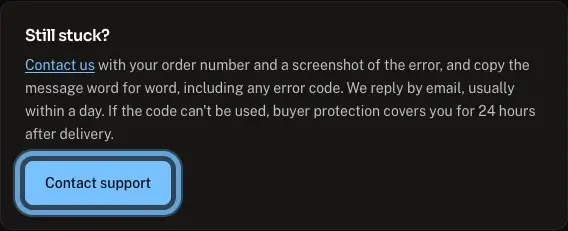
- 2
Open Support category and choose the one that fits your problem, such as Key activation.
My order hasn't arrived: you paid, and your key or eSIM isn't in your email, in any folder.
Key activation: a key that won't redeem and you want help with it.
Buyer protection claim: a key that doesn't work, never arrived or is for the wrong region, and you want it put right. See How do I file a buyer protection claim?
Payment and billing: a payment that was declined, charged, or completed without a confirmation page.
eSIM issues: installing, activating or getting signal on an eSIM.
Refund request: you want your money back for another reason. Support reviews each request.
Technical support: a page or button on the site that doesn't work.
Other: anything else.
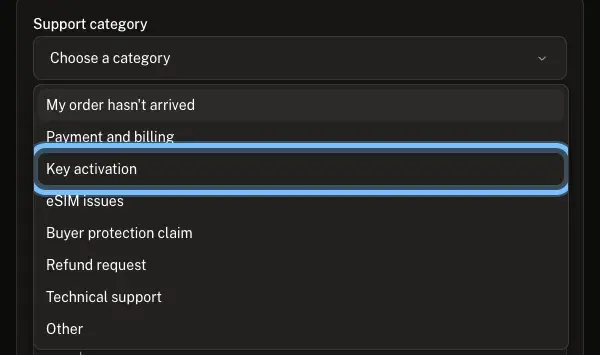
- 3
When you choose a category yourself, a few quick answers appear under it. One of them may fix it right away.
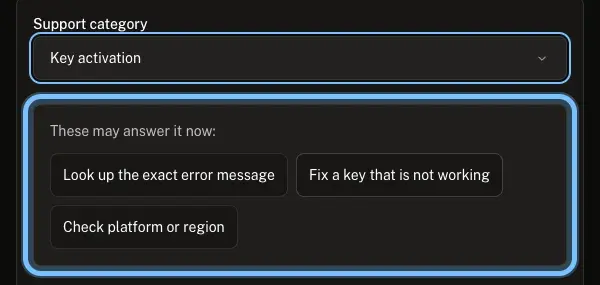
- 4
Enter your email address in Your email. Our reply goes to this address, so check it for typos.
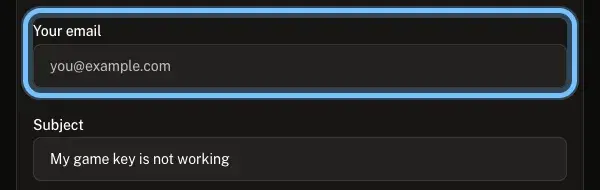
- 5
Check Subject. It's filled in from the category you chose. Add the game or plan name if you like.
- 6
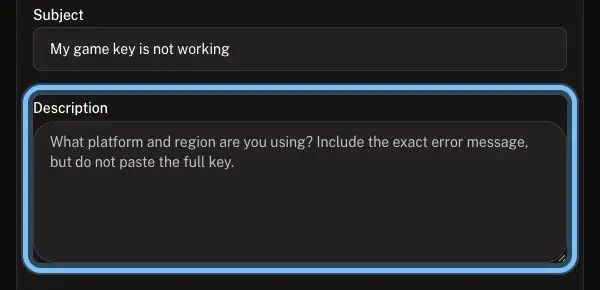
In Description, write what happened. The grey example text in the box lists what we need for that category.
Copy any message you see word for word, including its error code.
Say what you already tried.
- 7
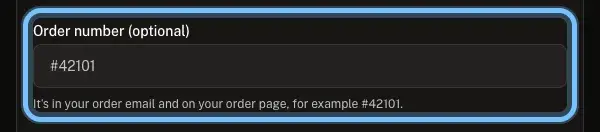
Enter your order number in Order number. It looks like #42101, and it's in your order email and at the top of your order page.
No order number? Leave the box empty, and add the email you used at checkout, the date you paid and the amount to Description. Only a Buyer protection claim or a Refund request needs the number.
- 8
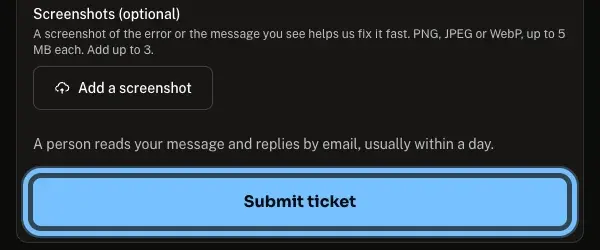
Under Screenshots, select Add a screenshot to add a screenshot of the error or the message you see. A Buyer protection claim or a Refund request needs at least one. For anything else it's optional, and it helps us fix it fast.
- 9
Select Submit ticket.
- 10
Write down your ticket reference. It appears in place of the form, straight after the word Ticket.
Confirm it works
The form is replaced by a message that reads Ticket, then your ticket reference, then received, with our reply time under it.
We reply to the email you entered within 48 hours. The contact page shows our support hours, and a request sent outside them is counted from when they start.
Need to add something? Send a new request and put your ticket reference in Description.
Troubleshooting
| What you see | What it means | What to do |
|---|---|---|
"Fix 1 field to send this." (or a higher number) | A required box is empty or not valid | Fix each box that has red text under it, then select Submit ticket again. What you typed is kept |
"Choose the category that fits your issue." | No category is chosen | Pick one in Support category. Not sure which? Choose Other |
"Add your email so we can reply." | Your email is empty | Enter the address you want our reply sent to |
"That doesn't look like a valid email address." | A typing mistake in your email | Check for a missing @, a missing dot or a space |
"Add a short subject." | Subject is empty | Type a few words about the problem |
"Tell us what happened." | Description is empty | Write what happened, as in step 6 |
"We couldn't send this right now." | Your request didn't reach us | Wait a minute, then select Submit ticket again. Still failing? Email the address the message shows |
"We can't take messages here right now." | The form can't send requests at the moment | Email the address the message shows |
No reply after 48 hours | Our reply may be in your spam or junk folder | Check those folders, then send a new request with your ticket reference |
Frequently asked questions
Related articles
Still stuck?
Contact us with your order number and the exact message you see, word for word, including any error code. We reply by email, usually within a day.